Como criar modelos low-poly para jogos mobile: Limites de polígonos, fluxo de trabalho e otimização
Os jogos móveis têm limites rígidos de polígonos. Aprenda a criar modelos 3D de baixa complexidade poligonal otimizados para dispositivos móveis, incluindo limites de triângulos por dispositivo, workflow de retopologia no Blender, configuração de LOD e otimização de chamadas de renderização para o iOS e Android.
28 de julho de 2026
Você modelou um personagem, exportou-o para o Unity, buildou para Android e ficou em apenas 22 fps em um Pixel 6. O modelo tinha apenas 8 mil triângulos.
Essa é a parte que ninguém te conta. Um personagem de 8k tris parece pouco. Em um jogo para desktop, de fato o é. Mas no mobile, a contagem de polígonos é o número errado para se observar. Draw calls e fillrate vão comprometer o desempenho da cena muito antes da contagem de triângulos se tornar relevante. O modelo precisa de mais do que menos triângulos. Ele precisa de um orçamento de desempenho e de um pipeline de exportação construído para mobile desde o primeiro vértice.
Ao final deste artigo, você terá uma tabela de limite de polígonos que pode usar imediatamente, um fluxo de trabalho passo a passo do Blender para o engine e as regras específicas de LOD e agrupamento de materiais que distinguem uma build para dispositivos móveis de uma para desktop.
Por que os dispositivos móveis alteram a matemática do low-poly
Três Números Que Realmente Importam em Dispositivos Móveis
A contagem de triângulos é o número que os iniciantes monitoram. Não é o número que degrada o desempenho em dispositivos móveis.
Fillrate é o orçamento de píxeis. Uma GPU para Android de médio porte processa aproximadamente um quarto de uma GPU de desktop por frame. O mesmo modelo que renderiza bem em uma placa RTX irá exceder a capacidade de uma GPU móvel, o que significa que a GPU consome mais ciclos por pixel do que o orçamento disponível. O modelo não é muito complexo. O modelo está renderizando píxeis em excesso.
Draw calls são comandos da CPU para a GPU. As CPUs móveis são limitadas por energia, não por velocidade de clock. Não é possível enviar o mesmo número de draw calls para uma GPU móvel que você envia para um desktop. Cada material único numa malha aciona um draw call. Um personagem herói com cinco slots de material consome cinco draw calls antes mesmo de contar o ambiente.
Chamadas Setpass são piores do que draw calls em dispositivos móveis. Quando a Unity alterna entre shaders, ela aciona um setpass, que custa três a quatro vezes mais do que uma draw call padrão. Uma cena que realiza 80 draw calls distribuídas em 12 setpasses é 10 frames mais lenta em um dispositivo Android do que as mesmas chamadas distribuídas em 2 setpasses. Reduzir materiais e aplicar batching resolve esse problema antes mesmo que a contagem de triângulos seja considerada.
Orçamento de Performance para Dispositivos Móveis
O maior erro que os desenvolvedores de jogos mobile iniciantes cometem é tratar o hardware do telefone como um alvo único. Um Pixel 7 e um Samsung da série A de baixo custo não são a mesma máquina. Você precisa de orçamentos por níveis.
Tipo de Ativo | Smartphone Econômico (Abaixo de US$ 200) | Faixa Média ($200–$500) | Carro-chefe (US$ 600+) |
NPC de Grupo | 300–500 tripés | 500–1 000 triângulos | 1 000–2 000 tris |
Personagem secundário | 1.000–3.000 tris | 3.000–5.000 tris | 5.000–10.000 triângulos |
Herói | 5.000–10.000 tris | 10.000–20.000 tris | 20.000–30.000 triângulos |
Pequeno adereço | 50–150 repetições | 100–300 tentativas | 200–500 trios |
Artigo sobre meio ambiente | 200–1.000 trilhas | 500–2.000 tris | 1.000 a 4.000 tris |
A equipe do Android Developers forneceu uma referência útil do mundo real em sua demo de Armories, apresentada na GAMESCon. Os personagens da multidão nessa demo são renderizados com aproximadamente 360 triângulos por personagem, e toda a cena roda a 60 fps em hardware de gama média. Isso não é um padrão extremo de low-poly. É assim que uma cena típica de jogo para dispositivos móveis se parece quando o orçamento é definido primeiro e a arte é criada respeitando esse limite.
O orçamento de frame é simples. A 60 fps, você tem 16,6 milissegundos por frame. A GPU utiliza aproximadamente metade disso para renderizar a cena. Cada chamada de vertex shader, cada invocação de pixel shader e cada busca de textura impacta nessa janela de tempo. Se o modelo tiver muitos materiais, o lado da CPU terá problemas antes mesmo do lado da GPU iniciar.
Fluxo de Trabalho de Modelagem com Baixa Poligonagem para Desenvolvimento de Jogos Móveis
Configurar o Blender para Exportação para Dispositivos Móveis
Inicie o Blender e verifique a escala da unidade. Abra as Propriedades da Cena e confirme que a Escala da Unidade está definida como 1,0 e o Sistema de Unidades é Métrico. As engines móveis funcionam em metros por padrão, e uma incompatibilidade de escala entre o Blender e a engine resulta em uma perda oculta de desempenho devido à filtragem agressiva de texturas em um modelo escalado em 100 vezes.
Defina a predefinição de exportação FBX para corresponder à sua engine de destino. Em Geometria, defina Smoothing como Face para evitar a divisão de vértices na importação. Selecione Aplicar Escalas e defina-a como Escala de Unidades FBX. Para Unity, mantenha Forward como -Z e Up como Y.
As normais precisam de uma revisão rigorosa antes da exportação. Ative o auto smooth e defina o ângulo para 30 graus. Isso mantém as arestas visíveis limpas sem criar divisões de arestas em excesso. Evite modificadores de bisel em modelos para dispositivos móveis. Cada aresta biselada adiciona triângulos e cria mais divisões de arestas na importação. Em vez disso, use o marcador de aresta afiada e deixe que o motor reduza esses vértices no tempo de build.
Crie a Malha Respeitando o Limite de Triângulos
A topologia de personagens em mobile segue as mesmas regras do desktop, mas com margem mais estreita. Modele em quadriláteros para deformação e exporte como triângulos para o motor. Cada quadrilátero é dividido em dois triângulos durante a importação, portanto construa considerando que a contagem final ocorre após a triangulação.
Para um NPC secundário com 3.000 tris, considere as proporções entre cabeça, tronco e membros. A cabeça recebe aproximadamente 500 tris, o tronco 1.200, cada braço 300 e cada perna 350. Essa divisão não é rígida, mas obriga a definir onde concentrar os detalhes. Um rosto com 300 tris e um corpo com apenas 100 parece errado. Distribua os detalhes proporcionalmente à área na tela.
Props são onde os iniciantes desperdiçam mais orçamento de tris. Uma caixa simples, uma lanterna, um barril, e nenhum deles precisa de mais de 150 tris. Faça o box model de cada um. Se parecer um cilindro à distância do jogador, adicione seis vértices extras por borda horizontal, não 32.
Peças de ambiente devem funcionar de forma modular. Construa seções de parede, pisos e bases de pilares que compartilhem o mesmo material. Um templo com 200 peças de parede usando um material adiciona 1 draw call. Esse mesmo templo com 200 peças de parede usando 10 materiais diferentes adiciona 10 draw calls. O jogo percebe a diferença no tempo de carregamento e na taxa de quadros.
Mapeamento UV para Mobile
As UVs móveis seguem uma regra: uma ilha de UV por material por malha. Para um guia sobre melhores práticas para topologia limpa, incluindo a estratégia de ilhas UV, consulte nosso tutorial dedicado. Não espalhe as ilhas UV pela textura. Uma única ilha para o rosto e uma única ilha para o corpo permitem que você organize o atlas de texturas com máxima eficiência.
UVs sobrepostas são aceitáveis em dispositivos móveis quando duas cópias do mesmo objeto compartilham espaço de textura. Isso economiza memória, mas só funciona quando os dois objetos têm geometria de vértices idêntica. Uma pedra duplicada 20 vezes e rotacionada no lugar pode compartilhar espaço UV. Uma pedra redimensionada e achatada não pode.
Tamanhos de textura power-of-two importam mais em mobile do que em desktop. Mantenha 512x512 para props, 1024x1024 para personagens de apoio, e use apenas 2048x2048 para personagens principais. Os samplers de textura da GPU funcionam em blocos power-of-two, e uma textura não power-of-two desperdiça largura de banda da memória com padding.
Como Otimizar Modelos 3D para Celulares Sem Perder Qualidade
Diminua as Chamadas de Renderização com Loteamento de Materiais
Draw calls são o gargalo de desempenho em mobile que os artigos sobre contagem de polígonos quase nunca mencionam. Uma única malha com cinco materiais gera cinco draw calls. Cinco malhas compartilhando um único material geram uma draw call. A conta é simples assim.
Comece por auditar a contagem de materiais. Cada material PBR que permanece na cena é um draw call que se mantém em cada frame. Combine materiais quando a diferença de textura for pequena. Duas rochas que usam texturas de ruído browniano diferentes podem partilhar um material com uma única textura de ruído. O olho não notará a diferença à distância de jogo.
O recurso Static Batching da Unity captura malhas marcadas como Estáticas e as combina em malhas maiores no momento da compilação. Objetos estáticos que nunca se movem, incluindo paredes, pisos e peças grandes do ambiente, devem ser incluídos no Static Batching. A compilação leva alguns segundos a mais, mas o tempo de quadro cai imediatamente.
GPU Instancing trata malhas idênticas de maneira diferente. Em vez de combinar dados de vértices, a Instanciação de GPU instrui a GPU a "desenhar esta malha aqui, aqui e acolá" em um único comando. Árvores, rochas e caixotes que são a mesma malha rotacionadas e escaladas usam GPU Instancing. A Unity ativa esse recurso por padrão em shaders que suportam o recurso. Verifique o Inspetor de Materiais para confirmar que a opção Enable GPU Instancing está marcada.
O objetivo prático para um jogo móvel de médio porte é atingir menos de 100 draw calls por fotograma. Jogos que parecem modernos com 300 chamadas no desktop precisam da mesma cena comprimida para 80 chamadas no móvel. Se a contagem de draw calls estiver acima de 150 no Unity Profiler, a combinação de materiais é sua primeira solução, não a redução de polígonos.
Otimização de Texturas para Mobile
A compressão de texturas é onde os pipelines móveis e de computador divergem completamente. Para uma análise detalhada da comparação de formatos de arquivo 3D, incluindo estratégia de atlas de texturas e exportação nativa da plataforma, consulte o nosso guia. O computador utiliza BC7 e BC5. Os dispositivos móveis suportam ASTC (Android 8+ e iOS) ou ETC2 (dispositivos Android mais antigos). Consulte o guia de compressão de texturas do Android para a análise completa dos formatos. Exporte texturas no formato nativo da plataforma, não em BC7.
Defina a resolução da textura para a menor qualidade aceitável. Um prop que ocupa 200 pixels na tela na menor distância da câmera não precisa de uma textura 2048x2048; ele precisa de uma textura 256x256. Isso representa 99% menos memória do que uma textura 2048 com toda a cadeia de mipmaps.
Os mapas normais devem ter metade da resolução do mapa de cores base. Um mapa de cores base de 1024x1024 deve ter um mapa normal de 512x512. Isso economiza memória, e a GPU não sente a perda porque o mapa normal já é interpolado pelo pixel shader.
Configurando LOD para jogos mobile
Quando Usar LOD em Dispositivos Móveis
LOD não é de graça. A CPU calcula as transições de LOD em cada quadro. Em uma cena com 5 personagens, o custo supera o benefício. Em uma cena com 50 árvores ou 30 NPCs visíveis, o LOD traz benefícios consistentes.
Use LOD quando: a cena tem 20 ou mais personagens ou props visíveis simultaneamente, a distância da câmera varia significativamente durante o jogo ou o hardware alvo é um smartphone de entrada.
Não utilize LOD quando: a câmera estiver fixa, os personagens raramente entrarem na cena ou a construção já estiver dentro do orçamento mesmo em detalhe máximo.
O LOD de ambiente traz retorno mais rápido do que o LOD de personagens na maioria dos jogos móveis. Uma floresta com 50 árvores usa LOD de dois níveis: árvores próximas com detalhes completos e árvores distantes como billboards de 4 triângulos. Isso reduz 50 draw calls para apenas 2, sem perda visível de qualidade nos ângulos típicos da câmera.
Advertência específica para mobile: A alternância de LOD força uma reassociação da malha na GPU, o que custa aproximadamente uma chamada de draw por alternância. Uma série de 20 alternâncias simultâneas pode causar um pico no tempo de frame. Execute o profiling no seu dispositivo de destino mais baixo. O editor do Unity não é confiável.
Como os Grupos de Níveis de Detalhe (LOD) Funcionam no Unity e no Unreal
Um sistema de Nível de Detalhe substitui automaticamente uma malha distante por uma versão mais simples. O Unity chama isso de LOD Group (Grupo de LOD). O Unreal usa o mesmo nome. O sistema funciona da mesma maneira para personagens, props e elementos de ambiente.
O grupo LOD da Unity define quatro níveis por padrão:
Nível | Contagem de triângulos | Quando se ativa |
LOD 0 | 100% (topologia em malha completa) | O mais próximo da câmera |
LOD 1 | 50% | Distância média |
LOD 2 | 25% | Alcance longo |
LOD 3 (Nível de Detalhe 3) | 10–12% | O mais distante visível |
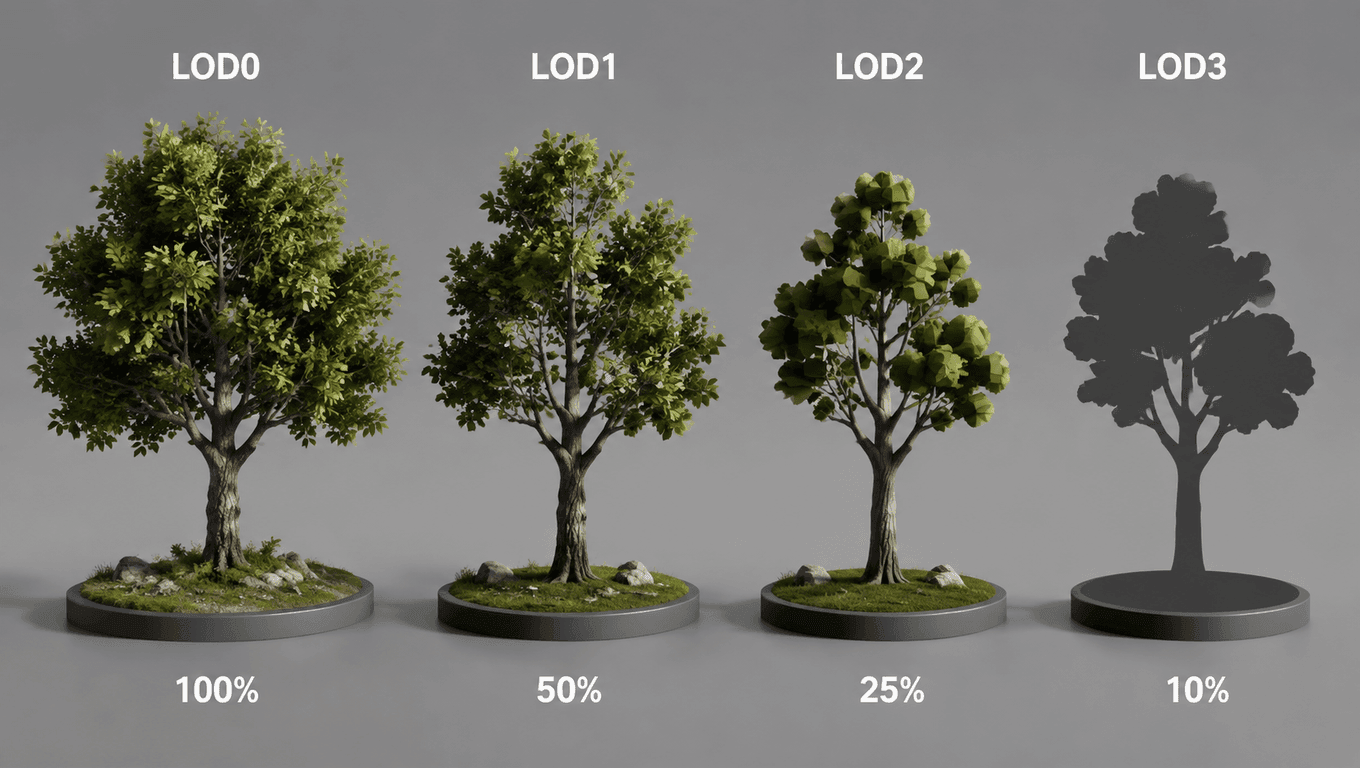
Defina a porcentagem da altura da tela na câmera no componente LOD Group para controlar quando cada nível é ativado. A Unreal Engine adiciona LOD Hierárquico (HLOD), que substitui várias malhas por uma única malha unificada à distância. Consulte a documentação do HLOD do Unreal para as etapas de configuração. Isso é útil em dispositivos móveis, onde uma vila inteira com 30 edifícios pode colapsar em uma única malha no horizonte. A Unity lida com esse caso de uso usando GPU Instancing, que é menos complexo de configurar.
Configurações de Exportação e Importação do Mecanismo
Exportar um FBX Otimizado para Mobile do Blender em 6 Passos
Exportar com as configurações incorretas do FBX aumenta o tamanho do mesh e corrompe as referências de materiais. Aqui está a sequência exata:
- Abra Arquivo > Exportar > FBX (.fbx). Consulte a documentação.documentação oficial de exportação do Blender para FBX para a referência completa de opções. Na seção Incluir, marque apenas Objetos Selecionados. Desmarque quaisquer Tipos de Objeto que não sejam malhas.
- Na seção Transform, defina Scale como 1.0 e ative a opção Apply Scalings. Defina Forward como -Z e Up como Y para Unity.
- Em Geometria, selecione Aplicar Modificadores. Isso incorpora os modificadores de espelhamento, subdivisão e array na exportação. Defina Suavização como Face.
- Deixe a opção Animação desmarcada para malhas estáticas. Uma malha estática não precisa de uma trilha de animação padrão que duplica o tamanho do arquivo de importação.
- Definir Espaço Tangente como 'Gerar'. Gerar tangentes no FBX elimina uma etapa de processamento na importação. A diferença é pequena por malha e torna-se significativa em grandes volumes de ativos.
- Importe para o Unity. Defina o Model Scale Factor como 1 se o modelo aparecer no tamanho correto. Se ele estiver 100x maior ou menor, volte ao Blender e exporte com a escala de unidade correta.
Confirme a escala com um teste de cubo de unidade antes de importar um lote de personagens. Coloque um cubo de 1m na cena do Blender, exporte-o como FBX e importe para o Unity. Ele deve aparecer como 1m de largura na cena. Se aparecer como 100m, a escala da unidade está errada e cada malha do lote precisará de correção.
Importar no Unity para dispositivos móveis
Clique com o botão direito no FBX no painel Projeto e abra a guia Model. Defina o Fator de escala para 1 se o modelo parecer correto. Se o modelo estiver 100 vezes maior, retorne ao Blender e exporte com a escala de unidade adequada.
Na configuração Compressão de Malha, defina como Alto. Isso usa um índice de 64 bits para malhas grandes e um índice de 16 bits para as pequenas. As chamadas de desenho mobile se beneficiam de índices de 16 bits porque o buffer de índice da GPU requer menos largura de banda de memória.
Desmarque a opção Leitura/Gravação (Read/Write). A Unity carrega os dados da malha para a memória da GPU ao carregar. Quando Leitura/Gravação (Read/Write) estiver ativada, a Unity mantém também uma cópia na CPU. Para malhas estáticas que nunca mudam em tempo de execução, a cópia na CPU é um peso morto.
Na seção Otimização, selecione Otimizar Malha. A Unity reordena os vértices para melhorar o desempenho do cache da GPU. Em uma GPU móvel com um cache de vértices pequeno, essa reordenação pode reduzir o tempo de shading de pixels em 10–15 por cento.
Erros comuns de baixa poligonagem em dispositivos móveis
Excesso de Detalhes no Protagonista
O personagem herói sempre recebe muitos triângulos na primeira iteração. Para uma análise de como os orçamentos de modelos low-poly e high-poly diferem entre plataformas, consulte nosso guia de modelos 3D low-poly vs high-poly.
Um rosto com maçãs do rosto esculpidas, cílios individuais e um anel de cota de malha de um tutorial atinge 15.000 tris antes que o corpo seja iniciado. Com 15.000 tris em mobile, a cena não tem espaço para mais nada.
Estabeleça o orçamento do herói antes da modelagem e cumpra-o. Se o orçamento for de 10.000 tris, gaste 3.000 na cabeça, 4.000 no corpo e 500 por membro. Anote os números e comece a partir do limite do orçamento, não da escultura em alta poligonagem.
Ignorar a Contagem de Material
Um herói de baixa contagem de polígonos e triângulos com 10 materiais é pior que um herói de alta contagem de polígonos e triângulos com 2 materiais. As GPUs móveis lidam melhor com triângulos do que com draw calls. O herói com 2 materiais executa mais rápido porque a engine emite 2 draw calls em vez de 10, mesmo com tripla contagem de triângulos.
A solução é um atlas de texturas. Agrupe os mapas diffuse, normal e packed de todo o personagem em um único atlas. Um atlas de 2048x2048 com um único material renderiza o personagem em 1 draw call. Cinco texturas separadas de 1024x1024 em cinco materiais custam 5 draw calls mais 5 sobrecargas de setpass. Consulte nosso guia de modelos 3D prontos para jogos para obter uma lista completa do que significa qualidade game-ready na prática.
Sem Testes no Hardware-Alvo
O Unity Editor roda em hardware de desktop. As GPUs de desktop não são GPUs móveis. Uma cena que roda a 120 fps no editor pode rodar a 22 fps em um dispositivo físico.
O Profiler do Unity mostra a desagregação do frame por tempo de CPU, tempo de GPU e memória. Conecte um dispositivo Android via ADB, selecione-o no dropdown de destino do Profiler e execute a cena. Veja a seção de Renderização para draw calls, setpass calls e batches.
O GPU Profiler do Android fornece cronometragens de vertex e pixel shader por quadro. Se o tempo do pixel shader der um pico quando o personagem estiver de frente para a câmera, o overdraw nesse quadro está muito alto. A correção é usar menos materiais ou um shader mais simples, não menos triângulos.
Gere ativos low-poly para jogos mobile com Triverse AI
A iteração de conceito é onde os projetos de jogos móveis perdem tempo. Um briefing do personagem diz "mineiro steampunk com braço luminoso" e o artista passa dois dias modelando algo que o designer não gosta. O modelo está finalizado para o jogo, mas é jogado fora porque o visual estava errado.
O fluxo de trabalho Artist Mesh da Triverse AI define corretamente a silhueta conceitual antes do início do pipeline completo.
Passo 1: Faça o Upload de uma Imagem de Referência ou Esboço Preliminar
Abra o Triverse Studio e selecione Artist Mesh. Arraste e largue ou cole uma imagem PNG, JPG, JPEG ou WebP. Um esboço conceitual aproximado ou uma fotografia de silhueta limpa são igualmente adequados.
Etapa 2: Escolha o Número de Vértices e Gere
Selecione a topologia Triângulo ou Quadrilátero. Escolha a predefinição de contagem de vértices que se adequa ao seu dispositivo móvel: 1K para props de fundo, 2K para props padrão, 4K para props principais ou personagens detalhados. Clique em 'Gerar'. Uma geração de 25 créditos normalmente é concluída em menos de um minuto.
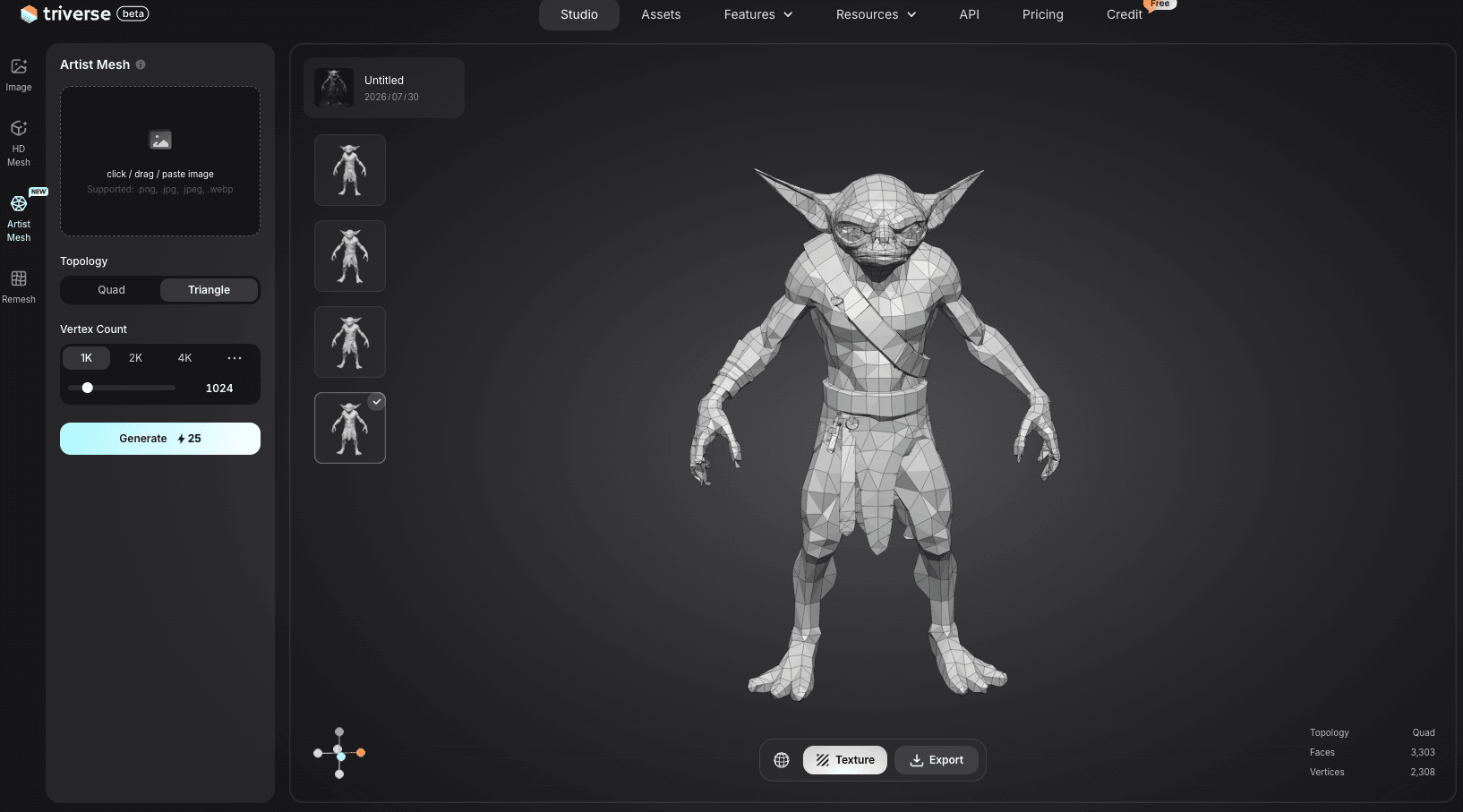
Passo 3: Revise e aplique textura, caso seja necessário
A Artist Mesh retorna uma malha que você pode julgar imediatamente quanto às proporções, pose e forma geral. Se a silhueta estiver errada, exclua e regenere. O custo é de 25 créditos e poucos segundos, em vez de dois dias de modelagem manual.
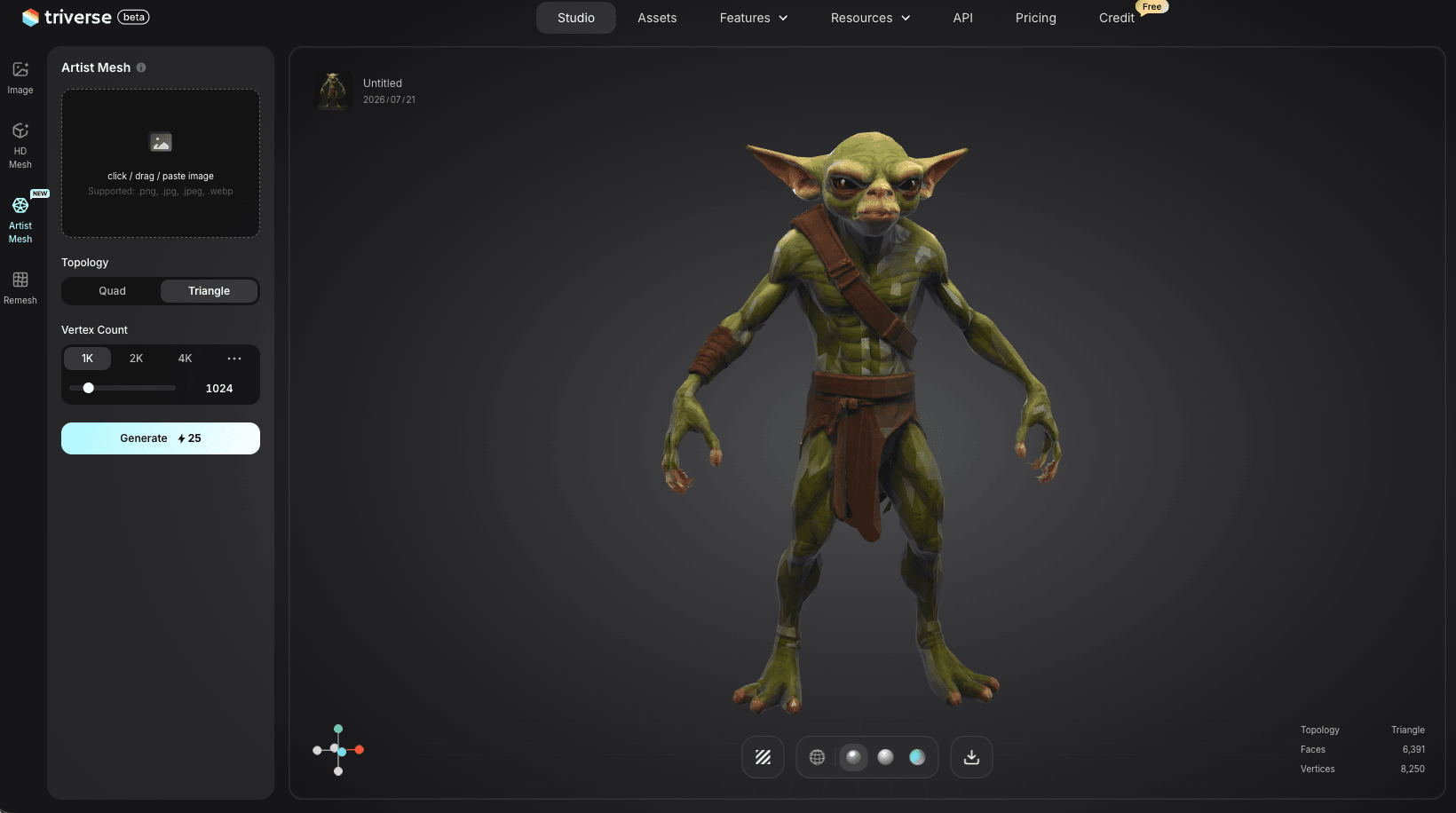
Passo 4: Exportar e Verificar se é Necessário Refinar no Blender
Exporte o conceito em formato GLB ou OBJ e importe para o Blender para fluxo de arestas e deformação correta, e ative as regras de otimização das seções anteriores. O Resultado Artístico é um ponto de partida, não um ativo final de jogo, mas isso reduz a fase de conceito de dias para horas.
Perguntas Frequentes sobre Modelos Low-Poly para Jogos Mobile
Qual é a contagem de polígonos recomendada para personagens de jogos mobile?
Um NPC de multidão num celular Android de gama média funciona com 500–1.000 triângulos. Um personagem secundário cabe em 3.000–5.000. Um personagem principal pode ir até 10.000–20.000 em hardware de gama média, mas apenas se o resto da cena deixar margem no orçamento de draw calls.
Quantas draw calls um jogo mobile deve ter como alvo por frame?
Mantenha-se abaixo de 100 draw calls por frame em dispositivos móveis de gama média. Jogos com cenas pesadas ou muitos materiais únicos podem chegar às 150, mas cada draw call acima de 100 deve ser justificada por dados de profiling do dispositivo alvo.
Como reduzo as draw calls num jogo mobile sem fundir malhas?
Ative a GPU Instancing nos materiais compartilhados. Para objetos de ambiente estáticos, use o Static Batching do Unity. Nenhum dos dois requer a fusão de malhas no Blender. Ambos reduzem as draw calls ao agrupar o comando de desenho em tempo de execução, em vez de combinar os dados dos vértices.
Qual é o melhor formato de ficheiro para modelos 3D de jogos mobile?
FBX é o formato padrão para transferência do Blender para a engine. Exporte como FBX 7.4 binário com 'Apply Scalings' (Aplicar Escalas) ativo e 'Smoothing' (Suavização) definido como 'Face' (Face). Para a build final, a engine comprime a malha para o seu formato nativo (o Unity usa um formato comprimido em runtime, não FBX).
O LOD realmente ajuda o desempenho em dispositivos móveis?
O LOD ajuda quando a cena tem 20 ou mais personagens visíveis ao mesmo tempo. Para cenas mais pequenas, o custo de CPU para calcular as transições de LOD anula a poupança de GPU. O LOD de ambiente (árvores com billboard, edifícios distantes) proporciona ganhos mais consistentes do que o LOD de personagens na maioria dos jogos mobile.
Posso usar normal maps em modelos low-poly para jogos mobile?
Sim. Normal maps são o principal impulsionador da qualidade visual para modelos low-poly. Use um normal map com metade da resolução da cor base (512x512 vs 1024x1024). Os normal maps comprimidos com ASTC em dispositivos Android compatíveis e iOS usam o mesmo orçamento de memória que uma textura difusa.
Como testo o desempenho de modelos 3D num dispositivo Android real?
Compile o jogo nas Build Settings do Unity com Development Build ativo. Ligue um dispositivo Android via USB ADB. Abra o Unity Profiler, selecione o dispositivo no menu suspenso de alvo e execute a cena. Observe a secção Rendering para ver draw calls, chamadas setpass e batches. O Android GPU Profiler fornece os tempos por frame dos shaders de vértice e pixel.
O Essencial
A maior lição em 3D para dispositivos móveis é que os triângulos não são o inimigo. As chamadas de desenho é que são o problema. Defina seu orçamento de polígonos antes de abrir o Blender, construa de acordo com esse orçamento e gaste mais tempo consolidando materiais do que reduzindo vértices. O LOD ajuda quando a cena tem objetos suficientes para justificar o custo da CPU. Teste no dispositivo com menor capacidade do seu mercado, não em um computador desktop. Todo o resto neste artigo são detalhes. Essas prioridades são a estrutura. Além disso, você pode usar diretamente o recurso Artist Mesh da Triverse AI para rapidamente gerar modelos de jogo low-poly personalizados e estilizados com um único clique e, por tempo limitado, o download dos modelos é gratuito!