Как построить 3D-модель — из линейного чертежа (5 способов)
Узнайте, как создать 3D-модель из линейного рисунка с помощью CAD-программ, Blender и инструментов ИИ. Мы сравниваем 5 методов, анализируем бенчмарки производительности и находим самый быстрый workflow для вашего проекта.
8 июня 2026 г.
Вы создали рисунок. Чёткий контур, чёрное на белом. На бумаге это смотрится хорошо. Но вам нужна 3D-модель, которую можно вращать, распечатать, загрузить в игровой движок или показать клиенту. Вопрос в том, с чего начать.
В этой статье рассматриваются как минимум пять способов преобразовать контурные рисунки в 3D-модели: от инструментов на базе ИИ, для которых достаточно обычного браузера, до полностью ручных методов работы в Blender и Fusion 360. И вот о чём обычно не говорят: именно контурные рисунки, а не свободные наброски или фотографии, являются идеальным исходным материалом для ИИ-инструментов создания 3D-моделей. Это гораздо важнее, чем может показаться на первый взгляд.
Почему контурные рисунки работают лучше, чем эскизы для инструментов ИИ
Вот что большинство руководств упускает. Когда вы загружаете размытый, затенённый набросок в инструмент ИИ для 3D, модели приходится угадывать. Тени, штриховка, множественные перекрывающиеся штрихи — всё это шум для алгоритма. Что на самом деле нужно модели — это чистый контур, границу, которую модель может обвести и экструдировать в 3D-геометрию.
Линейные рисунки устраняют эту неоднозначность. Один непрерывный контур на белом фоне точно сообщает ИИ, где объект начинается и заканчивается. Нет теней, которые можно было бы неправильно истолковать как глубину, нет размытий, которые могли бы запутать обнаружение границ. В результате получается стабильно чистая геометрия с меньшим количеством артефактов.
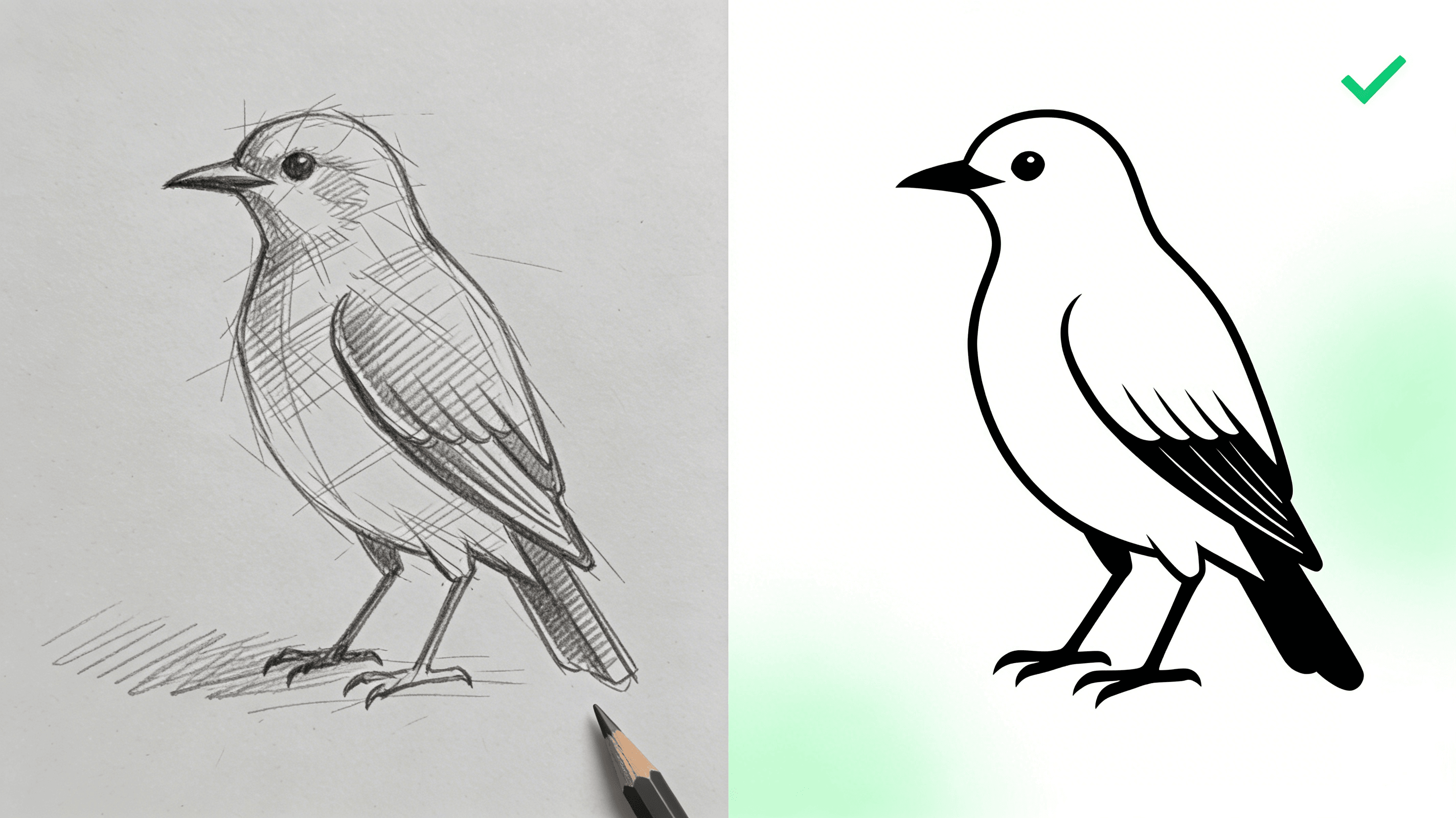
Это не просто теория. Попробуйте сами. Возьмите один и тот же объект, нарисуйте его сначала с затенением и штриховкой, а затем создайте вариант в чистых линиях. Пропустите оба изображения через один и тот же инструмент ИИ. Версия в чистых линиях почти всегда даст лучшую топологию и более чёткие края. Эскизная версия может выглядеть приемлемо на экране, но при увеличении вы обнаружите неровные поверхности и разрывы контуров. Если вы планируете 3D-печать результата или использование в игровом движке, эти недостатки быстро усугубятся.
Краткий чек-лист для хорошего линейного рисунка, подготовленного для ИИ:
- Черные контуры на чисто белом фоне. Без цветной бумаги, без сетки.
- Штрихи одинаковой толщины. Изменяющаяся толщина линий усложняет оценку глубины.
- Без штриховки или перекрестной штриховки. Только контурная линия.
- Анфас или в три четверти. Профильные снимки тоже подходят, но с видами строго сверху возникают проблемы.
- Чистота соединений. Углы должны сходиться аккуратно. Зазоры говорят ИИ, что контур разомкнут.
Метод 1. Преобразование линейного рисунка в 3D с помощью ИИ-инструментов (2–5 минут)
Это самый быстрый метод с большим отрывом. Вы загружаете рисунок, ИИ воссоздает из него 3D-сетку, и вы скачиваете готовую модель. Опыт моделирования не требуется. Ничего не нужно устанавливать. Для тех, кто хочет получить 3D-модель из контурного рисунка, не тратя часы на изучение Blender, это то, что нужно.
Как искусственный интеллект преобразует контурные рисунки в трёхмерные модели
Современные инструменты на базе ИИ для создания 3D-моделей из изображений используют метод, называемый реконструкцией по нескольким видам. ИИ анализирует ваш 2D-рисунок и прогнозирует внешний вид объекта с разных ракурсов. Он генерирует вид спереди, вид сзади, виды сбоку и вид сверху, а затем объединяет их в единую 3D-модель.
Поскольку контурные рисунки содержат явную информацию о границах, модели приходится решать гораздо более простую задачу по сравнению с фотографиями. Здесь нет фоновых помех, нет вариаций освещения, нет текстурных деталей, требующих анализа. В результате получается более чистая сетка, требующая меньшей последующей обработки.
Не все инструменты ИИ одинаковы. Некоторые настроены на создание форм изделий, другие — на персонажей. Одни генерируют герметичные полигональные сетки, готовые к 3D-печати, другие фокусируются на визуальном качестве для игровых объектов. Инструмент, который вы выбираете, должен соответствовать вашей конечной цели.
Шаг за шагом вместе с Triverse AI
Triverse AI создан именно для этой задачи: преобразования плоского изображения в 3D-модель, оптимизированную для 3D-печати или пайплайнов создания игровых ресурсов. Этот процесс максимально прост.
Шаг 1. Подготовьте свой контурный рисунок. Следуйте контрольному перечню из предыдущего раздела. Черные контуры, белый фон, без теней. Отсканируйте рисунок, если он на бумаге. Сохраните в PNG или JPG.
Шаг 2. Загрузка в Triverse AI. Перейдите в Triverse AI Studio и воспользуйтесь функцией Image-to-3D. Перетащите файл в рабочую область. Отобразится предпросмотр, чтобы убедиться, что загружено верное изображение.
Шаг 3. Настройте параметры генерации модели. Triverse позволяет установить целевое количество полигонов (50K, 500K или 1M треугольников) и параметры текстур. Для простого контурного изображения продукта или объекта обычно достаточно 50K. Если объект имеет выраженный рельеф поверхности, увеличьте до 500K. Для 3D-печати можно полностью отказаться от текстур (STL содержит только геометрию). Для игровых движков или рендеринга включите PBR текстуры (физически корректное затенение) с разрешением 4K.
Шаг 4. Создание и проверка. Нажмите «Сгенерировать». Процесс обычно занимает 2-5 минут. После завершения используйте средство просмотра, чтобы вращать и осматривать модель. Проверьте пропуски в геометрии (пустоты или отверстия в сетке), качество поверхности (выглядит ли поверхность чистой или неровной?) и пропорции (соответствует ли полученная форма вашему эскизу?).
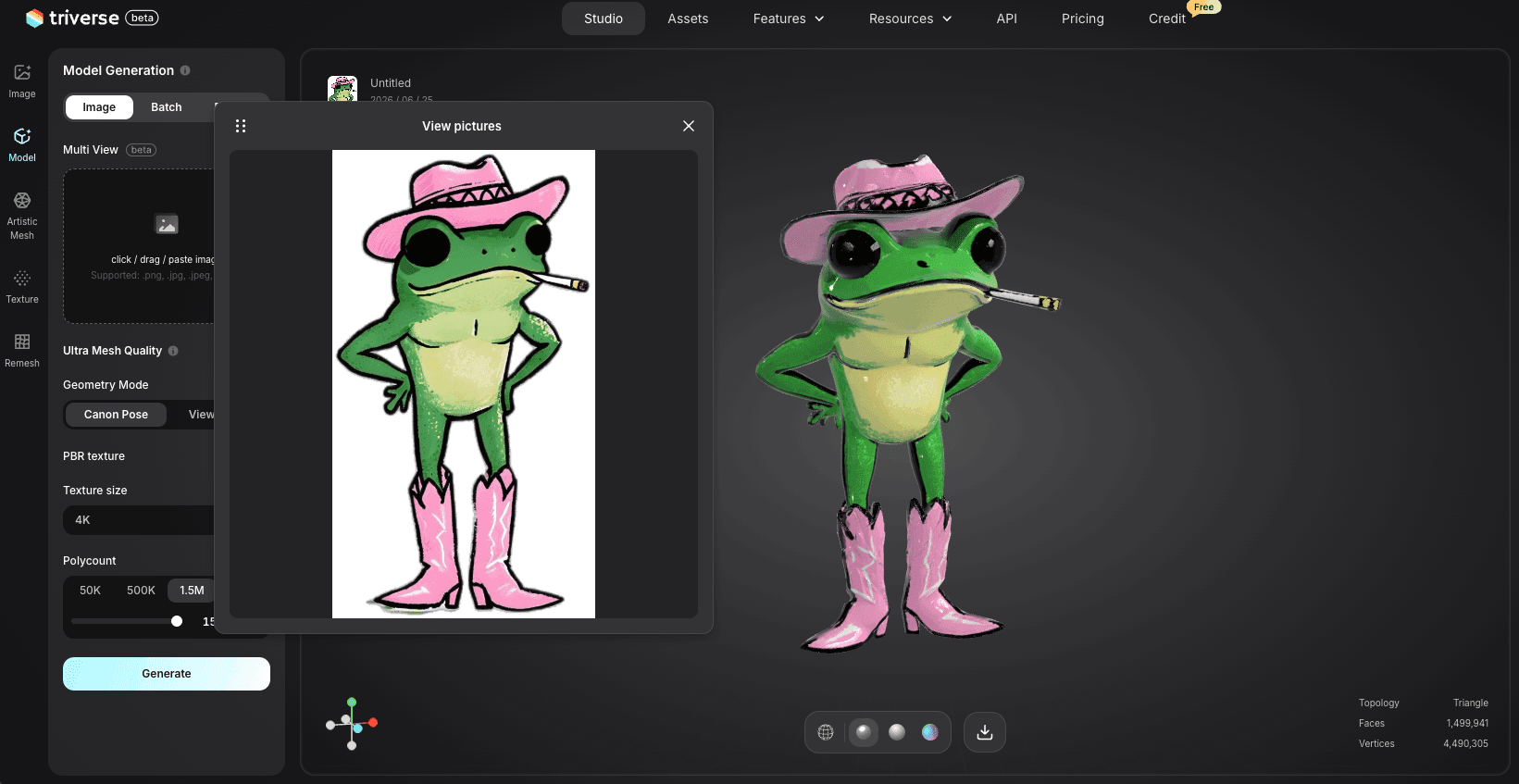
Шаг 5. Экспортируйте модель. Triverse поддерживает форматы OBJ, STL, GLB, FBX, 3MF и USDZ. Для 3D-печати скачайте файл в формате STL. Для игровых движков лучше всего подходят OBJ или FBX. Если вы планируете дальнейшее редактирование модели в Blender или САПР, наиболее универсальным выбором будет формат OBJ.
Метод 2. Преобразование контурных чертежей в 3D-модель с помощью операции выдавливания в САПР (1–4 часа)
ИИ-инструменты быстры, но бывают случаи, когда вам нужна точность. Если ваш чертеж — это технический проект с точными размерами, ИИ не справится с этой задачей. Вам нужна параметрическая САПР, которая работает с размерами.
Fusion 360 здесь является стандартом де-факто. Бесплатна для любителей и стартапов с годовым оборотом до $1 000. AutoCAD и SolidWorks — альтернативы, если они уже оплачены вашим работодателем. Принцип работы во всех трёх программах одинаков: вы обрисовываете или импортируете 2D-профиль, а затем выдавливаете его в 3D-пространство.
Когда использовать CAD (САПР) для преобразования линейных чертежей в 3D
Используйте этот метод, когда ваш чертеж представляет собой механическую деталь, корпус устройства, архитектурный элемент или любой объект с рабочей геометрией. Например, кронштейны, корпуса, адаптеры, шестерни. Если объект должен входить в другой объект или соответствовать допускам, CAD — это единственный способ, который гарантирует точность.
Цена вопроса — время и навыки. Fusion 360 можно освоить, но дело нетривиальное. Ожидайте, что первый час вы потратите на уроки, прежде чем приступать к работе над реальным чертежом. И есть жёсткое правило: если ваш чертёж чисто визуальный и не содержит размерных данных, CAD здесь не подойдёт. Вы потратите больше времени на добавление размеров, чем модель того стоит.
Пошаговая инструкция по работе в CAD
Шаг 1. Импортируйте или обведите чертёж. Fusion 360 поддерживает импорт файлов DXF и DWG из AutoCAD. Если ваш чертёж представляет собой отсканированное изображение или фотографию, используйте инструмент «Подложка», чтобы разместить его в качестве подложки, а затем обведите контуры с помощью инструментов эскиза. Сначала задайте эталонный размер, чтобы все элементы масштабировались корректно.
Шаг 2. Очистка геометрии. 2D-эскизы часто содержат открытые контуры, перекрывающиеся линии и вспомогательную геометрию. Используйте инструменты обрезки и удлинения для эскизов, чтобы замкнуть каждый контур. Даже один зазор препятствует выдавливанию.
Шаг 3. Выдавливание или вращение. Выберите замкнутый контур и воспользуйтесь инструментом «Выдавливание». Введите точную глубину в соответствии с размерами на чертеже. Для цилиндрических деталей используйте инструмент «Вращение» вокруг центральной оси. Избегайте визуальной оценки размеров. Точность критически важна.
Шаг 4. Добавьте механические свойства. Скругления, фаски, отверстия, резьба. Они превращают простую вытяжку в функциональную деталь. Применяйте их после того, как основная геометрия станет твердой. Редактирование скруглений на незавершённой модели может повредить последующие элементы.
Шаг 5. Экспорт. Для 3D-печати экспортируйте как STL. Для производства используйте STEP или IGES. Для игровых движков в Fusion 360 есть встроенный экспортёр OBJ и FBX в меню инструмента 3D-печати.
Метод 3. Преобразуйте ваш контурный рисунок в 3D-модель в Blender (4-10 часов)
Если ваш контурный рисунок изображает персонажа, существо, органический объект или любой другой предмет с плавными изгибами, Blender предоставляет вам уровень контроля, недоступный ИИ-инструментам. Вы создаёте модель вручную, используя свой рисунок в качестве образца прямо в видовом окне, и сами решаете, как именно будет расположен каждый полигон.
Это самый трудоемкий метод. Но это также тот, который создает по-настоящему готовую к использованию в игре геометрию с чистой топологией. Инструменты на базе ИИ дают вам сетку. Blender дает вам сетку, для которой можно настроить скелетную анимацию, создать анимацию и оптимизировать под конкретный бюджет движка.
Почему Blender остаётся значимым
Будем честны в том, что инструменты ИИ не могут делать. Они испытывают трудности с топологией. Поток граней функционален, но редко бывает чистым. Если попытаться оснастить скелетом персонажа, созданного ИИ, для анимации, деформации будут рваться в местах соединений, потому что петли полигонов не повторяют линии мышц. Инструменты ИИ также создают однородно плотные сетки, которые тратят треугольники на плоские поверхности и недостаточно прорабатывают изогнутые области.
Blender решает все эти проблемы. Вы контролируете количество полигонов. Вы решаете, где будут проходить кольца ребер. Вы оптимизируете под целевую платформу. Для игрового персонажа эта разница — пропасть между моделью, которая работает, и моделью, которая просто сносно смотрится во вьювере.
Преобразуйте линейные рисунки в 3D в Blender с шаг за шагом
Шаг 1. Настройте эталонное изображение. Откройте Blender, нажмите N, чтобы открыть боковую панель, перейдите в раздел View и добавьте ваш контурный рисунок в качестве фонового изображения. Масштабируйте и расположите его так, чтобы он соответствовал запланированному реальному размеру. Если ваш рисунок имеет высоту 20 см, задайте эталонному изображению соответствующий размер. Это обеспечит единый масштаб при экспорте с другими инструментами.
Шаг 2. Наметьте базовую форму. Начните с примитивных фигур. Кубы для основного корпуса. Цилиндры для конечностей или цилиндрических элементов. Соотнесите силуэт с вашим референсом, но пока не добавляйте детали. Это этап блокинга. Скорость приоритетнее точности.
Шаг 3. Уточнение с помощью экструзии и реберных петель. При необходимости добавьте субдивизионное сглаживание, но не полагайтесь на него для детализации. Используйте петлевые разрезы (Ctrl+R) для добавления реберных петель, экструдируйте грани для создания объема и корректируйте вершины, чтобы они соответствовали контуру вашего эскиза. Работайте от крупных форм к мелким деталям.
Шаг 4. Проверьте топологию. Переключитесь в режим отображения каркаса. Обратите внимание на полюсы (вершины, к которым примыкает более 5 рёбер), вытянутые грани и неравномерную плотность полигонов. Для игровых движков старайтесь использовать преимущественно четырёхугольники, прибегая к треугольникам лишь там, где это необходимо. В руководстве по Blender есть подробные инструкции по настройке фоновых изображений и настройке видового окна.
Шаг 5. UV-развёртка и текстурирование. Разметьте швы вдоль естественных краёв. Разверните с помощью Smart UV Project для быстрых результатов или ручные швы для точности. Примените базовый материал, используя Principled BSDF. Если вам нужны PBR-текстуры, добавьте карты шероховатости, металличности и нормалей.
Шаг 6. Экспорт. OBJ — формат с наилучшей совместимостью. Для Unreal Engine экспортируйте в формате FBX с встроенными материалами. Для Unity подойдут и OBJ, и FBX. Обязательно проверяйте масштаб при импорте. В Blender нет фиксированной системы единиц — используются «блендеровские единицы», которые вы сопоставляете с реальными измерениями. В Unity по соглашению используются метры. При экспорте из Blender в Unity объект размером в 1 единицу в Blender становится объектом размером в 1 метр в Unity. Если ваша модель импортируется в неправильном масштабе, измените настройки экспорта или примените в Blender операцию Ctrl+A > Scale перед экспортом.
Профи-совет. Следите за количеством полигонов. Современные мобильные устройства (Snapdragon 8 Gen 3 и новее) легко справляются с 50–100 тыс. треугольников, но для более старых мобильных устройств лучше ориентироваться на 10–30 тыс. Количество полигонов в объектах окружения для ПК обычно не превышает 50–100 тыс. Персонажи для ПК-игр содержат от 100 до 500 тыс. полигонов в зависимости от уровня детализации. Используйте модификатор Decimate в режиме Planar в Blender, чтобы уменьшить количество полигонов на плоских поверхностях, сохраняя детализацию на изогнутых участках, или модификатор Un-Subdivide для быстрого создания уровней детализации (LOD).
Метод 4. Гибридный процесс работы для создания 3D-моделей из 2D-линейного рисунка (30–60 минут)
Иногда самое разумное решение — объединить оба подхода. Сгенерируйте базовую модель с помощью ИИ, а затем доработайте её в CAD или Blender, чтобы проработать важные детали. Именно такой подход я бы использовал в большинстве реальных проектов.
Когда гибридный подход приносит лучшие результаты
Этап работы с ИИ обеспечивает скорость: 3D-модель за считанные минуты с корректными пропорциями и детализацией поверхности. Этап CAD или Blender обеспечивает точность: задайте точные размеры, добавьте крепежное отверстие, улучшите топологию вокруг конкретного узла.
Это особенно хорошо подходит для продуктовых дизайнеров, у которых есть концептуальный набросок и которым нужна быстрая визуализация модели, а также возможность впоследствии уточнить механические детали. Создайте общую форму с помощью ИИ, импортируйте её в Fusion 360, затем вытяните и вырежьте элементы, требующие точности. Подробнее о подготовке модели к 3D-печати после этого этапа можно найти в нашем руководстве по созданию 3D-моделей для 3D-печати.
Воспользоваться услугой 3D-печати
Если ваша цель — создать физический прототип и у вас нет 3D-принтера, такие сервисы, как Shapeways, i.materialise и JLCPCB 3D-печать, примут ваш файл в формате STL и отправят напечатанную деталь. Загрузите модель, выберите материал (смола для высокой детализации, нейлон для прочности, металл для функциональных деталей) и дождитесь получения заказа.
Гибридный подход здесь идеален, поскольку сервису нужен герметичный и правильно масштабированный STL. ИИ быстро генерирует герметичную сетку. Вы проверяете масштаб и толщину стенок в Fusion 360 или Blender перед загрузкой. Десять минут чистки вместо часов моделирования с нуля.
Как оценить и исправить 3D-модели, генерируемые ИИ
Получить модель — это первый шаг. Понять, действительно ли она работоспособна — второй. Именно здесь большинство руководств останавливаются. Они показывают вам красивый сгенерированный результат и исходят из того, что всё работает. Часто это не так, во всяком случае, не с первой попытки.
Пятиточечная проверка качества
Прежде чем отправить созданную модель в слайсер, игровой движок или клиенту, сверьтесь с этим контрольным списком.
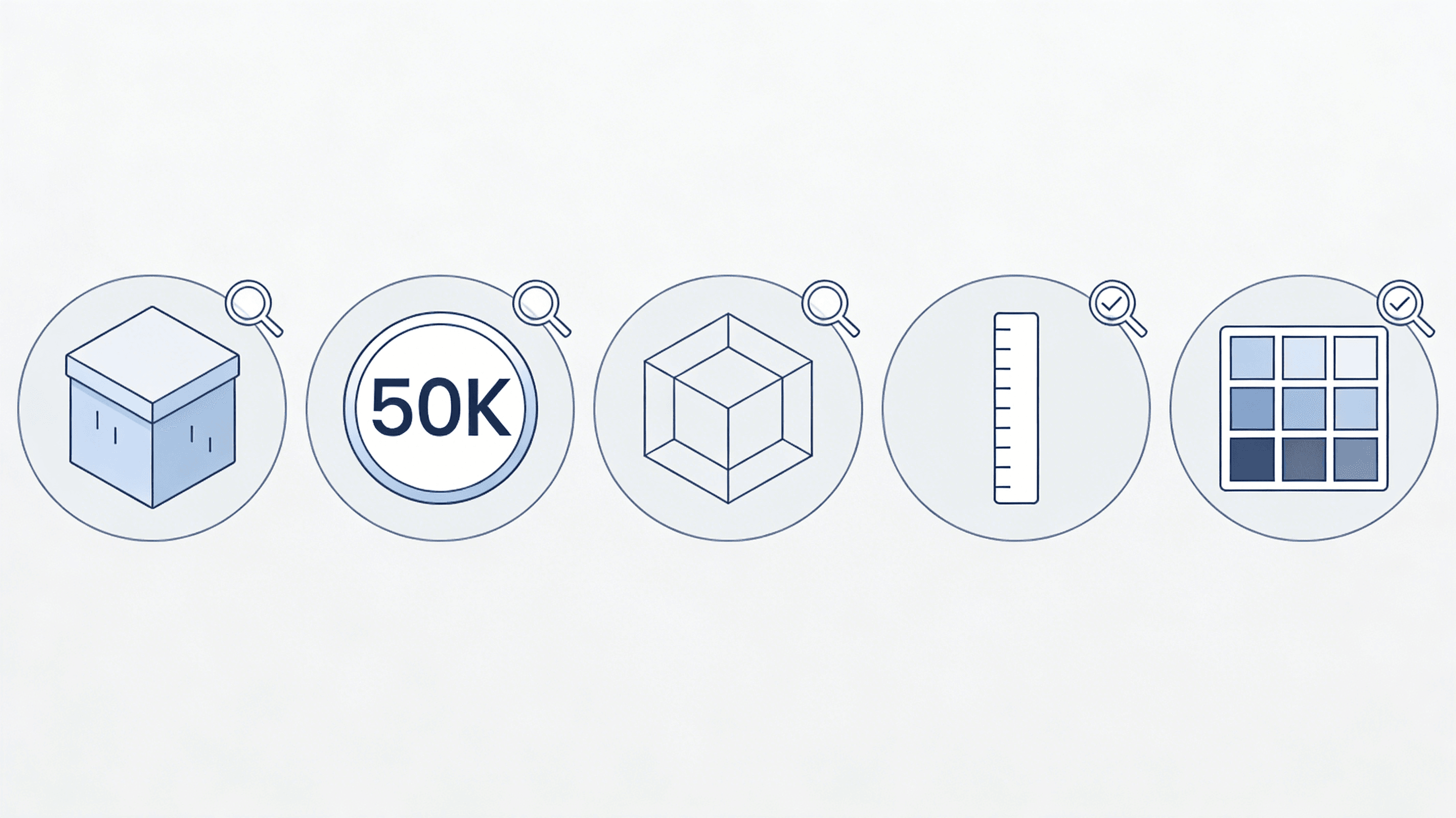
- Водонепроницаемость. Сетка должна быть полностью замкнутой. Никаких отверстий, открытых краёв или негерметичной (немногообразной) геометрии. Современные слайсеры, такие как Bambu Studio и Orca Slicer, автоматически обнаруживают негерметичные (несомкнутые) сетки и предлагают их исправить. Если слайсер не может устранить проблему, откройте модель в Blender, включите аддон 3D Print Toolbox (Редактирование > Настройки > Аддоны > поиск "3D Print") и нажмите "Проверить всё", чтобы определить проблемные места.
- Подсчёт полигонов. Проверьте количество треугольников в меню оверлея Blender. Для мобильных игр: менее 50K для пропов, менее 100K для персонажей. Для ПК-игр: общее количество полигонов должно быть менее 500K. Для 3D-печати важнее водонепроницаемость модели, чем количество полигонов, однако огромные файлы (более 2 миллионов треугольников) могут замедлить работу слайсера и вызвать зависание программы.
- Топология. Каркасный вид в Blender. Ищите равномерное распределение ребер. Неровные, накладывающиеся или перекрученные реберные петли — признак того, что ИИ испытывало трудности с этой областью. Такие участки будут сильно деформироваться при анимации и могут вызывать артефакты при рендеринге.
- Масштабирование.Измерьте модель относительно реального объекта в Blender. Стул не должен быть высотой 50 метров. Если масштаб неверен, примените преобразование масштаба (Ctrl+A > Масштаб) в Режиме объекта, чтобы экспорт соответствовал виду в 3D-вьюпорте.
- Позиционирование текстуры. Поверните модель в разных условиях освещения. Растягиваются или скользят ли текстуры? Если да, то UV-карта смещена. Пересоздайте карту с помощью Triverse AI или используйте редактор UV в Blender для корректировки.
Частые решения
Негерметичная сетка: Выделите все грани в режиме редактирования, нажмите F для заполнения отверстий. Для сложных отверстий используйте модификатор Voxel Remesh в Blender. Он перестраивает сетку в сплошной водонепроницаемый объем. Вы теряете некоторые детали поверхности, но получаете гарантированно пригодную к печати модель.
Слишком много полигонов: добавьте модификатор Decimate в Blender. Установите отношение 0,5 для уменьшения на 50%, затем настройте визуально. Используйте режим «Отменить подразделение», если сетка имеет уровни сглаживания, или режим «Плоский» для уменьшения количества полигонов на плоских гранях.
Проблемы с текстурами: если ИИ-текстура чуть отличается, Triverse AI позволяет её перегенерировать. Или используйте редактор шейдеров Blender для ручной настройки значений шероховатости. Для полной ретекстуризации Substance Painter или инструменты генерации текстур с использованием ИИ могут применить новый PBR-материал.
Импортирование модели в Unity и Unreal Engine
Установка и настройка в Unity
Перетащите файл OBJ или FBX в папку Assets. В окне предпросмотра импорта будет показана модель с материалами по умолчанию. Перейдите на вкладку Import Settings и настройте следующие параметры:
Установите Масштабный коэффициент равным 1, если ваша модель была экспортирована в реальном масштабе. По умолчанию в Unity 1 единица = 1 метр. Если ваша модель импортирована с неправильным размером, отрегулируйте этот параметр здесь, а не масштабируйте в сцене.
ВключитьГенерировать коллайдеры для пропов, с которыми взаимодействует игрок. Для статичного декора отключите их для экономии производительности.
В разделе Материалы установите Режим создания материалов в значение «Стандартный (устаревший)» для быстрой настройки или оставьте значение «Нет», если вы назначаете пользовательские PBR-материалы в сцене.
Создайте новый материал (Панель проекта > Создать > Материал), назначьте карту альбедо и нормаль-карту, если они у вас есть, и перетащите его на модель. Руководство по импорту моделей в Unity охватывает весь цикл импорта.
Создание проекта в Unreal Engine
Импортируйте как FBX. Встроенный импортер FBX в Unreal Engine лучше обрабатывает материалы, скелеты и данные коллизий по сравнению с OBJ. В браузере контента нажмите «Импорт», выберите ваш файл FBX и укажите тип «Статичная сетка» (Static Mesh), если модель не является анимированной.
В редакторе статических мешей проверьте настройки коллизии. Unreal автоматически генерирует простые оболочки коллизий, но для сложных форм может потребоваться создание кастомного коллизионного меша. Нажмите правой кнопкой мыши на меш, выберите «Выпуклая коллизия» и задайте разумное количество оболочек (4–6 для большинства объектов).
Для материалов Unreal Engine импортирует базовые слоты материалов из FBX. Вам потребуется создать инстансы материалов в редакторе и вручную привязать текстуры. PBR-текстуры от Triverse AI (базовый цвет, шероховатость, металличность) автоматически сопоставляются с системой материалов Unreal.
LODs: Для настольных игр создавайте как минимум 2 уровня детализации (LODs). LOD 0 — это модель с полным разрешением, LOD 1 уменьшает количество треугольников до 50%, а LOD 2 — до 25%. Unreal Engine автоматически генерирует их в редакторе статических сеток на панели LOD. Это позволяет снизить количество draw calls, когда модель находится далеко от камеры.
Сравнительная таблица: какой метод выбрать для перевода чертежа в 3D
Метод | Время | Идеально для | Уровень умения | Необходимые инструменты |
ИИ-инструменты (Triverse AI) | 2-5 минут | Прототипы, простой реквизит, 3D-печать | Начинающий | Только в браузере |
САПР (Fusion 360) | 1–4 часа | Механические детали — прецизионная посадка | Средний уровень | Fusion 360 (бесплатная версия) |
Руководство по Blender | 4–10 часов | Персонажи, органические фигуры, игровые ресурсы | Средний уровень | Blender (бесплатно) |
Гибридный (ИИ + САПР) | 30-60 мин | Разработка дизайна продукта, физические прототипы | Начальный+ | Браузер + базовые САПР |
Если модель нужна прямо сейчас, начните с Triverse AI. Если требуются точные допуски, начните с CAD. Если нужен персонаж с чистой топологией, пригодный для риггинга, начните с Blender. А если вы хотите получить лучшее сочетание скорости и точности, используйте гибридный подход. Сначала генерируйте, затем дорабатывайте.
Часто задаваемые вопросы о создании 3D-модели из линейного рисунка
Может ли ИИ действительно создать 3D-модель только по линейному рисунку?
Да. Современные инструменты ИИ, такие как Triverse AI, анализируют контуры и признаки глубины в линейном рисунке и реконструируют из них 3D-сетку. Качество результата сильно зависит от входных данных: чистое черно-белое линейное изображение дает значительно лучшие результаты, чем затененные эскизы или фотографии. Технология не идеальна. Мелкие детали, например текст на этикетке банки, могут перенестись нечетко. Однако для форм и силуэтов результаты достаточно хороши для прототипирования и 3D-печати.
Какой самый быстрый способ превратить линейный рисунок в 3D-модель? Инструменты ИИ.
С помощью Triverse AI процесс занимает 2–5 минут от загрузки до получения модели для скачивания. Никакой другой метод не может сравниться с этим. Экструзия в CAD обычно занимает 1–4 часа. Ручное моделирование в Blender занимает 4–10 часов и более, в зависимости от сложности. Если скорость является вашим приоритетом, ИИ — единственный практичный выбор.
Нужны ли навыки 3D-моделирования для использования инструментов конвертации на основе ИИ?
Нет. Инструменты ИИ, такие как Triverse AI, созданы для людей без опыта 3D-моделирования. Загрузите рисунок, нажмите «Сгенерировать» и скачайте результат. Тем не менее знание основ Blender поможет при доработке. Проверка замкнутости сетки, корректировка масштаба и исправление мелких проблем сетки занимают около 10 минут в Blender и могут сэкономить часы неудачных попыток печати.
В чем разница между конвертацией линейного рисунка и фотографии в 3D?
Линейные рисунки дают ИИ более чистые входные данные. Явные контурные линии на пустом фоне устраняют неоднозначность затенения и текстуры. Фотографии требуют от ИИ оценки глубины по визуальным признакам в изображении, что сложнее и менее точно. Если у вас есть выбор между сканированием линейного рисунка и фотографированием того же объекта, отсканируйте рисунок. Чем чище входные данные, тем чище геометрия.
Как подготовить линейный рисунок для 3D-конвертации с помощью ИИ?
Черная ручка на белой бумаге. Или цифровой эквивалент: черные штрихи на белом холсте в Procreate, Photoshop или Krita. Используйте штрихи постоянной толщины. Виды спереди или под углом 3/4 дают ИИ максимум информации. Избегайте затенения, штриховки или перекрестной штриховки. Избегайте цветной бумаги, линий сетки или текстурированных фонов. Чем проще входные данные, тем предсказуемее результат.
Можно ли распечатать на 3D-принтере модель, сгенерированную из линейного рисунка?
Да, если сетка замкнута. Triverse AI по умолчанию генерирует замкнутые сетки, поэтому большинство моделей готовы к печати сразу. При импорте STL в слайсер, такой как Bambu Studio, Orca Slicer или Cura, программа автоматически обнаружит проблемы и предложит их исправить. Для пользователей принтеров Bambu типичный рабочий процесс: экспорт из Triverse в формате STL → импорт в Bambu Studio → проверка предупреждений → нарезка. Инструмент 3D Print Toolbox в Blender нужен только если модель имеет сложные проблемы, которые слайсер не может исправить автоматически.
Какой лучший бесплатный инструмент для конвертации рисунка в 3D?
Triverse AI предлагает бесплатные кредиты на генерацию. Fusion 360 бесплатен для любителей и стартапов. Blender бесплатен и имеет открытый исходный код навсегда. Если вы хотите самый быстрый бесплатный путь к модели для 3D-печати: Triverse AI для генерации, Blender для быстрой проверки качества и Cura или PrusaSlicer для нарезки. Общая стоимость: ноль долларов.
Как сделать мою 3D-модель, сгенерированную ИИ, более реалистичной?
Сосредоточьтесь на трех вещах. Материалы: используйте PBR-текстуры с реалистичными параметрами шероховатости и металличности. В Blender назначьте их в редакторе шейдеров, используя Principled BSDF. Освещение: используйте карту окружения HDRI вместо одиночного точечного источника света. Это создает фотореалистичные отражения и окружающий свет, благодаря которым любая модель выглядит лучше. Несовершенства поверхности: идеально гладкие поверхности выглядят синтетическими. Добавьте легкие шумовые текстуры к шероховатости для легкого матового эффекта на окрашенных поверхностях или увеличьте металличность и уменьшите шероховатость для полированного металла и стекла.
Начните с контурного рисунка
Существует множество способов воплотить вашу идею линейного рисунка в жизнь. Ни один из них не является неправильным. Выберите тот, который соответствует отведённому времени и итоговой цели.
Если у вас уже готов контурный рисунок, Triverse AI — это самый быстрый путь от бумаги к 3D-модели. Загрузите рисунок, сгенерируйте модель за считанные минуты и экспортируйте в любом формате, который нужен вашему проекту. Опыт моделирования не требуется!