如何修复 3D 打印模型网格:工具与技术
大多数网格错误由孔洞、非流形边、法线翻转以及拓扑问题引起。本指南将分析这些问题,并展示如何使用 Meshmixer、Netfabb 或 Blender 精确地修复它们。
3D 打印让用户能够将数字设计转化为实体物件,但即使是最复杂的模型,若未经充分的网格预处理,也无法保证成功。3D 打印创建可打印的 3D 模型是避免这些陷阱的第一步;而网格修正则是确保模型正确打印的关键,否则可能浪费材料并使您的设计面临风险。
以下内容将介绍常见的网格问题及其识别方法、主流修复工具(包括像 Triverse Remesh 这样的 AI 辅助解决方案),以及使模型可直接打印的工作流程。
网格生成错误的成因
在修复任何问题之前,了解问题出在哪里有助于理解根本原因。
STL(标准三角语言)是 3D 打印的标准格式。它使用成千上万个微小三角面片来描述您的模型,形成由平面面片组成的网格,以逼近光滑曲面。三角面片越多,逼近度越高。CAD 软件的工作方式不同:它存储数学上完美的曲线。而 STL 存储的是多边形近似模型。误差往往产生于这一转换过程。
当您将一种格式转换为另一种格式、扫描真实物体或使用AI生成模型时,转换过程会引入细微缺陷。三角形重叠;边缘未能完全对齐;面方向错误。这些都属于网格错误问题。
三个来源导致了几乎所有的网格错误:
CAD 到 STL 导出。 当您将 Fusion 360 或 SketchUp 模型导出为 STL 时,三角化算法会对所有曲线进行近似处理。小半径圆角、薄壁和复合曲面最容易出现网格破损;同时还会产生微小缝隙和法线翻转。
3D扫描技术:手持扫描仪捕捉数百万个数据点,并将其三角剖分成网格。对深色物体、透明表面或反光材料的扫描几乎总会产生充满噪点和孔洞的网格,这些网格在打印前需要清理。
AI 模型生成。 AI 3D 工具通过根据文本提示或参考图像预测几何形状来生成模型。生成结果虽看似细节丰富,但往往包含不规则的三角面片密度、因过度生成导致的非流形边,以及在多材料打印前需要重建的 UV 布局。任何使用 AI 工具生成 3D 模型的人都难免遇到这些问题。
了解您的文件属于哪个类别,能让您明确从哪里开始以及哪些工具最有效。
最常见的 5 种网状结构错误:速查表
有五个问题反复出现:
1. 网格孔洞
唯一最常见的错误。三角形应连接而未连接的地方存在间隙。
修复:在 Meshmixer 中,进入 Inspector → 单击红色标记 → 修补孔洞。在 Blender 中,选择边界边环并按下F。在 Netfabb 中,自动修复功能可自行处理大多数孔洞。
2. 法线反向
法线朝内而非朝外,因此切片器无法确定表面的内外侧。
修正:在Meshmixer中,Inspector → 点击蓝色标记 → 反转法向。在Blender中,Shift+N重新计算法向朝外。Netfabb在其标准自动修复流程中会修正法线。
3. 非流形几何
由两个以上面共享的边,或无法形成封闭体积的面。这是最严重的错误类型。
修复:对于简单的非流型边,Meshmixer 的自动修复通常可以解决。对于复杂情况,重新网格化(Meshmixer → Analysis → Remesh)比尝试手动修复每条重叠边更可靠。
4. 分体机壳
该模型在一个文件内包含多个互不连接的实体。有时是有意为之(如装配体),有时则是扫描产生的碎片。
修复:在 Meshmixer 中,使用“编辑”→“分离外壳”来查看每个部件,然后删除不需要的碎片。在 Blender 中,P→“按松散部件分离”操作同理。
5. 三角形数量过多
具有几十万个三角形的模型在切片器中加载缓慢,并可能导致预览窗口崩溃。
修复: Meshmixer 分析 → 重网格 → 减少目标三角面数。Blender 的“精简”修改器可让您精细控制缩减比例。从 0.1(减少 90%)开始,逐渐调高,直到在质量和多边形数量之间找到平衡。
网格错误诊断清单
既然您已经了解了五种错误类型,请花60秒时间排查切片软件内部的问题。大多数切片软件(Cura、PrusaSlicer、Bambu Studio)都会准确指出问题所在。
寻找以下错误消息:
- "非流形网格" 指代被异常数量面共享的边或顶点。您的模型包含现实中不存在的几何结构。
- “非水密”/“网状开孔” 意味着模型中存在孔洞。切片器需要一个封闭的体积来确定材料的放置位置。
- "法线反向" 红色表示三角面朝向错误。切片程序无法区分内部和外部。
- “堕落的面孔” 表示扁平的零面积三角形,会破坏计算。
- "检测到多个固态物"表示文件中存在多个独立的正文。有时是刻意为之;有时是扫描过程中产生的痕迹。
这项诊断检测只需60秒,就能准确告知您问题所在。没必要修理错误的地方。
如何防止网格错误
事后修复属于被动应对。事前预防更能节省时间。
导出前请检查您的模型。 在 CAD 软件中,请在转换为 STL 格式之前确认网格是否完整封闭。大多数现代 CAD 工具都具备“检查几何体”功能,请启用该功能。
调整导出时的三角形分辨率。更高的分辨率意味着更平滑的曲线,但会产生更多的转换瑕疵。对于 3D 打印,“标准”或“中等”分辨率最为理想:足够精细以保证表面平滑,又足够稀疏以避免在锐角处出现三角化错误。
切片前请先验证。在打开切片器之前,先将您的 STL 文件加载到 Meshmixer 或 Netfabb 中。先在那里修复错误。养成仅需 2 分钟的小习惯,能省去数小时的沮丧。
关于AI生成的模型:当拓扑结构过于混乱难以高效修复时,应使用调整后的参数重新生成。在AI工具中更改提示词详细程度、输出分辨率或网格密度,通常比后期处理能产生更整洁的结果。同时请注意打印朝向与支撑结构设置。即便完美的网格模型,若设置不当也会打印效果不佳。
如何在 Meshmixer 中修复网格模型(逐步教程)
Meshmixer 是大多数网格修复任务的得力工具。它由 Autodesk 免费提供,支持 Mac 和 PC,并且在所有免费选项中,其检查工具最为直观。
步骤 1:导入模型。
打开 Meshmixer 并将您的 STL 文件拖放到工作区。若模型一出现就显示为部分透明或出现间隙,那就是问题所在。
步骤 2:启动检查器。
按下 Ctrl+I (或选择编辑 → 检查员)。Meshmixer 会扫描网格,并将发现的每个问题分别用红色和蓝色进行标记。蓝色标记表示非流形边缘;红色标记显示孔洞。左上角的数字会显示存在的问题总数。
第三步:自动修复这些小问题。
在检查器中点击“自动修复全部”。对于大多数下载的 STL 文件,此操作可在 5 秒内修复 80–90% 的问题。Meshmixer 会自动填充孔洞、删除退化面并解决简单的重叠问题。
步骤 4:手动处理其余内容。
如果仍有标记,请逐个点击。Meshmixer 提供情境感知的修复选项:“填充孔洞”、“移除尖刺”、“接受”或“拒绝”。对于孔洞,“填充孔洞”适用于中等大小的孔洞。对于较大的缺口,请使用“编辑”→“实体化”来重新网格化缺失部分。
步骤5:若需要,进行重新划分网格。
对于由 AI 生成的或经过密集扫描且三角形密度不规则的网格,请使用“分析 → 重网格化”功能来重新网格化。调整目标面数以在细节与文件大小之间取得平衡。
步骤 6:导出
选择:文件 → 导出。选择 STL 二进制可获得最小文件大小和最广泛的切片器兼容性。
Meshmixer 可处理最广泛的修复场景。其不足之处在于完整的手动编辑套件需经过练习掌握,但仅使用检查器与自动修复工具即可解决多数问题。
如何在 Blender 中修复网格
Blender 是重量级选项。它拥有免费软件中功能最全面的网格编辑工具,但针对纯修复任务时,其学习曲线比 Meshmixer 更为陡峭。
Blender中最快的修复流程如下:
第一步:导入。转到“文件”→“导入”→“STL (.stl)”并加载您的模型。切换到编辑模式(Tab),并确保面选择模式已激活。
步骤 2:合并重复顶点。 按下 M → 按距离合并(Merge by Distance)。这会合并重叠的顶点,这是导入文件中网格错误的常见原因之一。
步骤3:重新计算法线。 按 Shift+N 将所有法线朝外重新计算。如果执行后模型看起来内外颠倒,请尝试 Shift+Ctrl+N 进行反转操作。Blender的视图叠加(橙、蓝色面着色)会显示法线的方向。
步骤 4:填补孔洞。 在选中所有面的状态下,按 Alt+F 填充小孔洞。对于较大的缺口,请手动选择边界边线环,然后按 F 创建面。
步骤5:使用网格菜单进行清理。 前往网格 → 清理。“简并溶解”可移除零面积的平坦三角形。“有限溶解合并”能在保持形状的前提下简化几何结构。“分离不连续面”可将问题区域隔离以便单独修复。
步骤 6:必要时进行精简。 对于扫描获取或 AI 生成的高多边形模型,使用“精简几何体”修改器在不破坏整体形状的情况下降低面数。
当 Meshmixer 的自动修复功能无法完全解决问题,或者您需要对扫描模型进行重新拓扑时,Blender 表现出色。对于大多数业余爱好者常用的 STL 文件,执行步骤 1–4 通常即可。
如何在Netfabb中修复网格模型
Netfabb Basic 是最快的方案,而且完全免费。
Autodesk 提供 Netfabb Basic 作为独立下载版本,无需授权。它专为一项任务而生,且表现卓越:快速自动修复 STL 文件。
步骤 1:打开文件。将您的 STL 文件拖入 Netfabb 窗口。
步骤 2:点击“自动修复”。操作完成。Netfabb 会分析网格,识别所有错误,并应用标准修复流程:填充孔洞、修正法线以及移除重叠部分。
步骤3:审阅更改。Netfabb 会显示修复前后的对比视图,并列出详细的修复项目列表。如有需要,您可以手动添加额外的修复步骤。
步骤 4:导出。右键单击修复后的网格,导出为 STL 格式。
当您有一批下载的 STL 文件且只需快速切片时,Netfabb 是理想之选。它虽然没有 Meshmixer 的可视化工具或 Blender 那样深度的编辑功能,但对于原始模型的一键修复而言,它是最高效的选择。
AI生成的模型:不同网络问题,不同解决方案
Meshy AI 这类 AI 工具生成的模型存在一些传统建模文件中不会出现的特定网格问题:
- 非规则三角形密度 网格的某些区域三角形聚集,而其他区域则较为稀疏。这会导致切片不均匀以及表面伪影。
- 因过度生成操作而产生的非流形边缘。 AI 模型有时会产生额外的几何体(薄壳、内部面或双重表面),从而形成非流形状态。
- UV 映射错误。 如果您使用多材质或多色打印,AI 生成的 UV 布局通常需要重新生成。
如何处理AI网格问题:
- 先运行Meshmixer检查器。它可检测出明显的问题(孔洞、破面、反转法线、非流形边缘)。
- 使用Meshmixer中的分析→Remesh功能来均匀化三角形分布。仅此操作即可修复大部分AI网格的异常问题。
- UV 问题需要使用 Blender 或专用的 UV 编辑器。AI 工具未必能生成规范的 UV 接缝。
有时最快的方法并非正确的修复方式。一个AI生成的模型往往包含数百个网格错误,或者拓扑结构混乱到每次修复都会导致两个新问题。
调整参数后重新生成要比手动修复更快
Triverse AI可输出六种可直接用于打印的格式(.GLB、.OBJ、.STL、.3MF、.FBX、USDZ),并生成拓扑结构整洁、可直接用于切片器的文件。在 Triverse 内部,Remesh 功能可将高多边形模型转换为干净的低多边形版本(四边形或三角形网格),而无需离开平台。
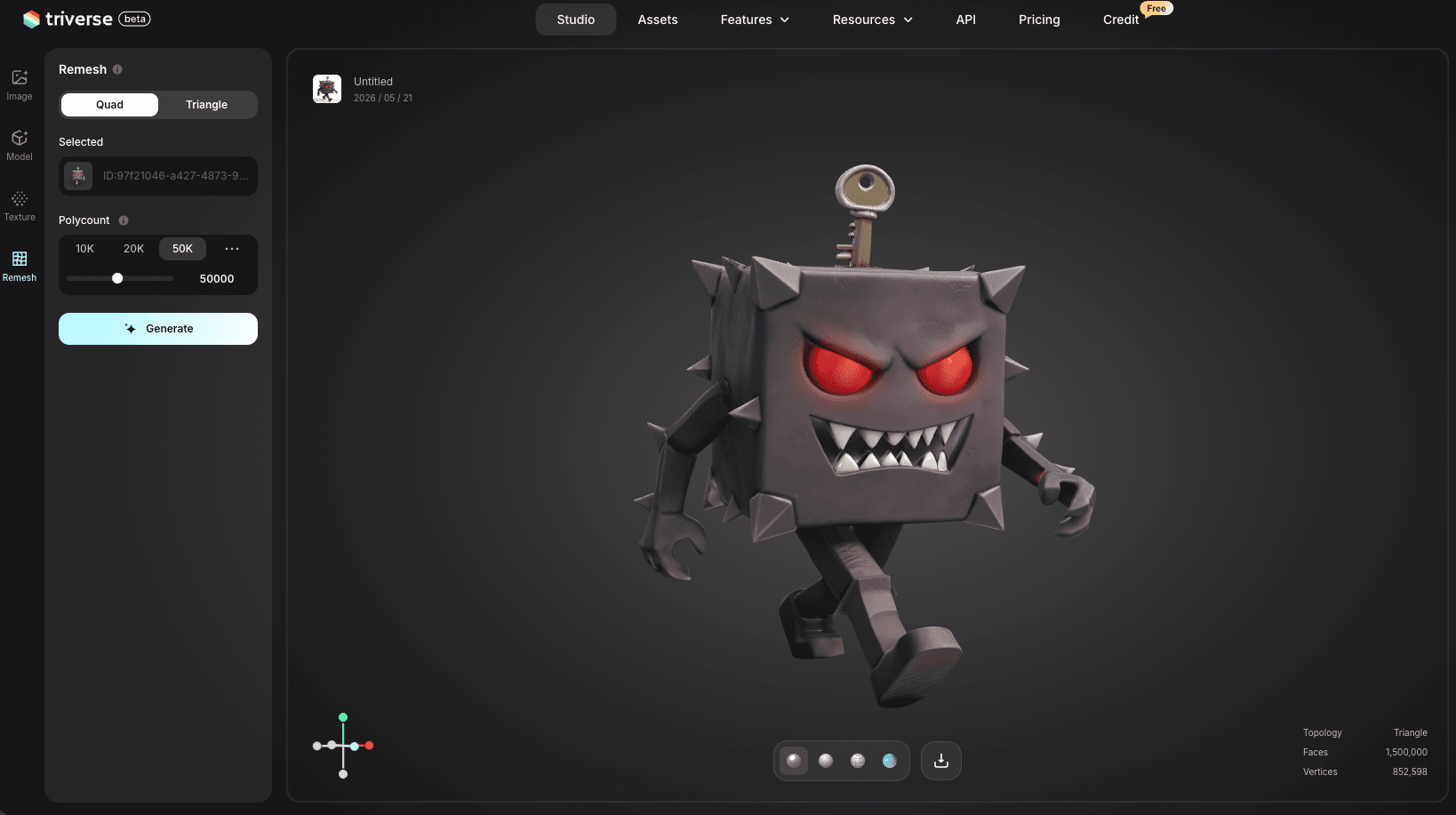
重新网格化后:
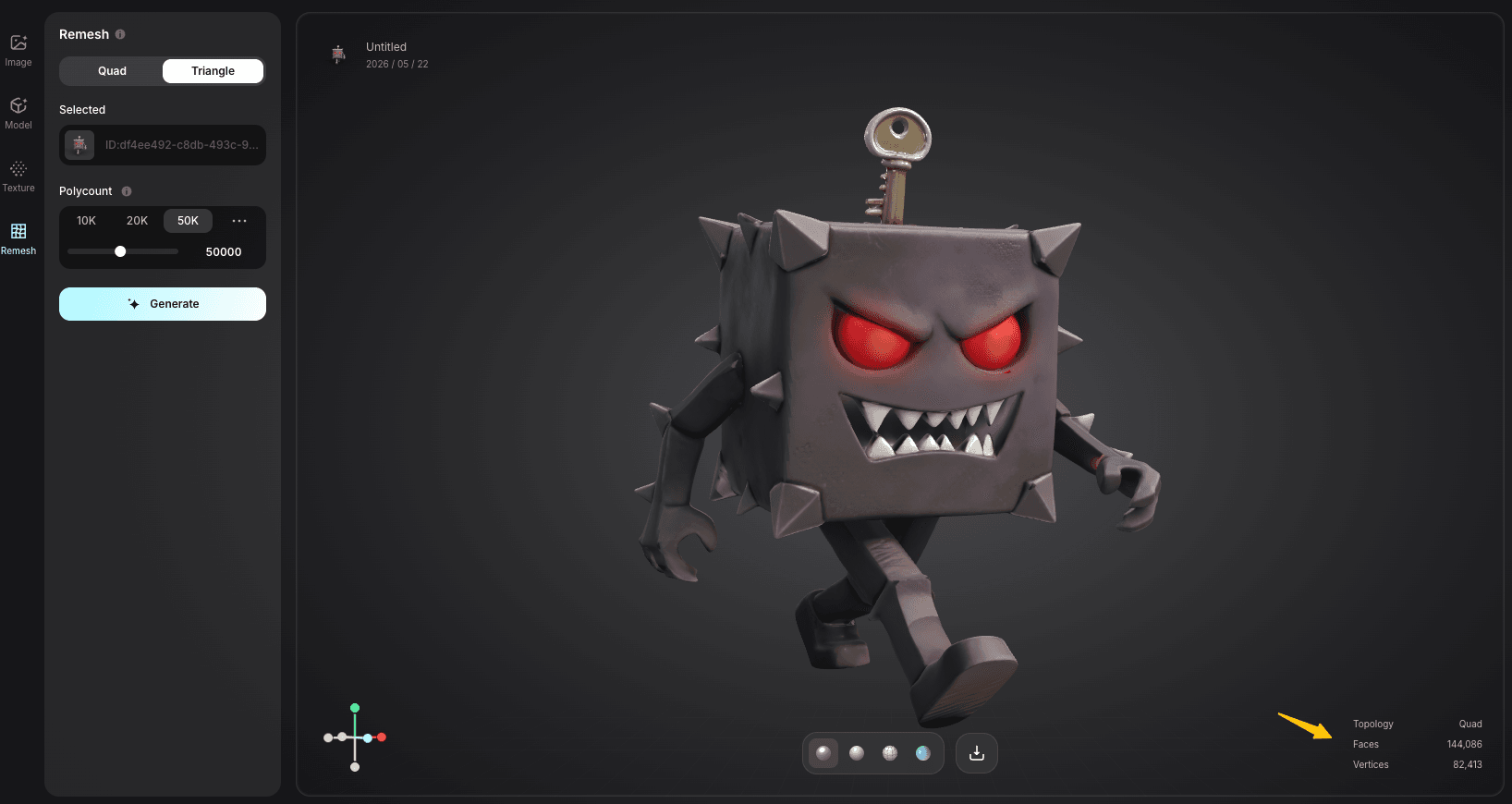
它不会修复外部上传的模型文件,但对于 Triverse 生成的资产,它完全跳过了导出 → 修复 → 重新导入的流程。
何时应重做而非修复
大多数维修指南往往跳过此步骤,但有时最快的途径是从头开始。
一个存在数百个网格错误或需大幅重拓扑的模型,修复往往耗时一小时,重新生成却仅需数分钟。对于 AI 生成的模型,重新生成几乎总是胜过修复。
下载的免费STL文件存在大量错误?请检查同一模型是否有更高质量的版本。Thingiverse或Printables上的许多热门模型都有多个版本可供下载。通常,下载量和“喜欢”数最多的那个版本质量最佳。
对于您从头开始创建的模型,从一开始就学习如何创建专用于3D打印的3D模型可以完全避免大多数模型网格问题。
网格修复软件比较
工具 | 最佳适用场景 | 费用 | 自动维修 | 手工工具 | 学习曲线 |
|---|---|---|---|---|---|
全面修复、编辑与重新拓扑 | 免费 | 是的 | 出色 | 中低 | |
STL 一键快速修复 | 免费(基础套餐) | 强劲 | 有限 | 极低 | |
建模与修复全流程 | 免费 | 中等 | 卓越 | 中高 | |
扫描并清理,按过滤器修复 | 免费 | 中等强度 | 中度 | 中等 |
对于大多数用户,从 Netfabb 开始进行快速修复,遇到更复杂的情况则转向 Meshmixer,并将 Blender 作为工具之一,用于拓扑重建和高级编辑。
关于 3D 打印网格修复的常见问题
结论
现在您已掌握完整的网格修复流程。下次切片器报错时,无需再猜测原因。运行诊断检查清单,将错误与对应的修复方法匹配,然后恢复打印。
从简单操作入手。打开Netfabb,点击自动修复,看看效果如何。大多数文件只需点击一次即可完成修复。如果这还不够,Meshmixer的检查器会引导你完成后续操作。
如果您已厌倦修复他人的网格错误,请在 Triverse AI 平台上生成自己的模型,该平台从一开始就能输出干净的几何体。Triverse AI可构建水密、流形网格,能够直接导入任何切片器,无需修复步骤。把时间留给打印,而不是修复。