工作台API定价
积分

本文目录

首页
博客
How to Create Printable 3D Models for 3D Printing (Step-by-Step Guide)

How to Create Printable 3D Models for 3D Printing (Step-by-Step Guide)

2026年4月29日

You spent six hours designing the perfect part. The walls look right. The dimensions check out. You hit export, load it into your slicer, and start the print. Twenty minutes later, the first layer doesn't stick. An hour in, the walls start to sag. Two hours in, it's a tangled mess of filament on your build plate.

The printer isn't the problem. It's the gap between what looks right on screen and what can actually be printed. This guide covers wall thickness, overhang angles, tolerances, mesh integrity, drain holes, and minimum feature sizes. Let's dive in!


Why Most 3D Models Fail When Printed

A 3D model can look completely correct on your screen, and still fail when printed.

This is one of the most common and frustrating problems in 3D printing. Everything seems fine inside Blender, Fusion 360, or any CAD software. The model renders properly, the shape looks solid, and nothing appears broken.

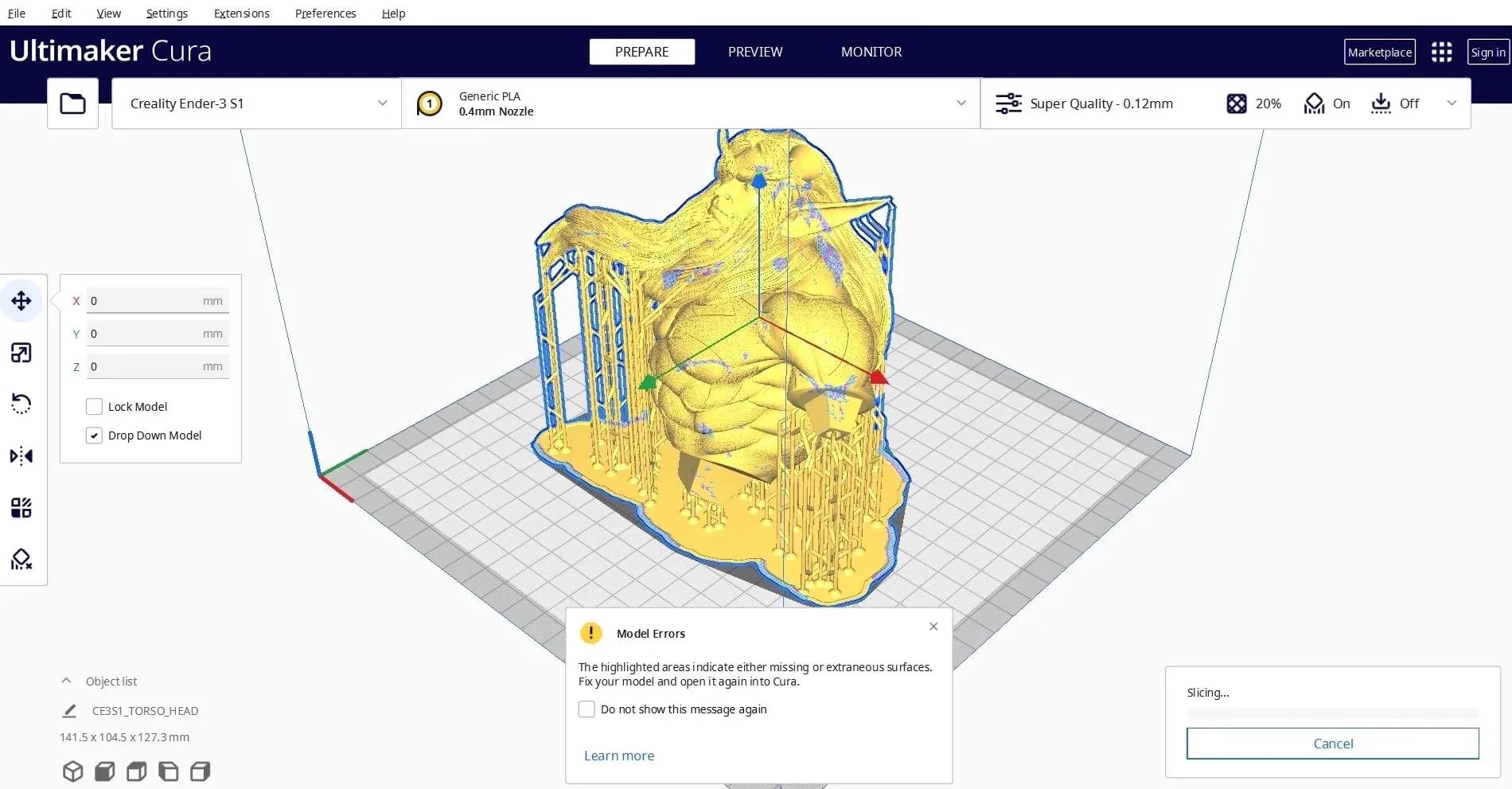
3D model slicing errors

But once you export it to a slicer, everything changes.

Suddenly, you see errors like:

  • missing faces or holes in the mesh
  • thin walls that collapse during slicing
  • inverted normals or broken surfaces
  • prints that fail halfway through

At that point, most beginners assume the printer is the problem.

It usually isn't.

The real issue is that a 3D printable model is not defined by appearance, but by whether it behaves as a physically valid object after slicing.


What Makes a 3D Model Actually Printable

Before modeling, you need to understand one core principle:

3D printing is physical, not visual.

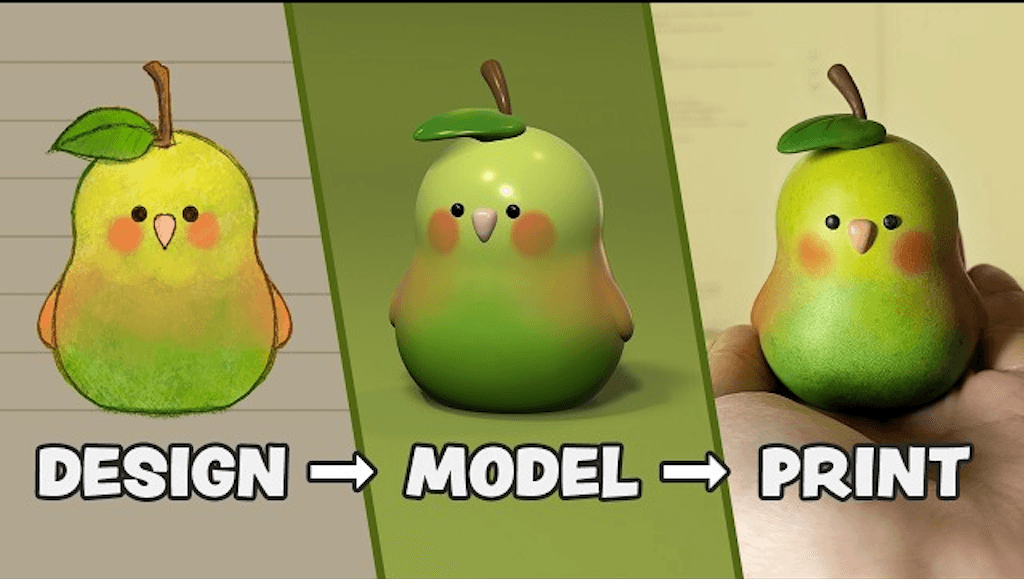
3D printing workflow

A printable model must meet these conditions:

  • Watertight (no holes in the mesh)
  • Manifold (clear inside vs outside geometry)
  • Non-self-intersecting surfaces
  • Structurally thick enough for printing
  • Proper real-world scale

If any of these fail, the model can break during slicing or printing-even if it looks perfect in the viewport.


Two Ways to Create 3D Models Today

There are currently two practical workflows for building 3D printable models.

Traditional Workflow: Manual Modeling

This is the standard approach used in tools like Blender, Fusion 360, and SolidWorks.

It involves:

  • Constructing geometry manually
  • Managing topology and structure
  • Fixing mesh errors repeatedly
  • Iterating through trial and error

This method offers full control, but the bottleneck is not creativity-it is technical setup and cleanup.

Beginners often spend more time fixing geometry than actually designing.

If you're selecting tools for this stage, see The Best CAD Software for 3D Printing in 2026 for a full breakdown of options.

Modern Workflow: AI-Assisted Generation

A major shift in 3D modeling is not better tools-it is faster access to usable geometry.

In traditional workflows, every idea starts from zero. You block out shapes, fix early mesh issues, and only then reach something usable for refinement. The process is slow, repetitive, and often discourages iteration.

AI tools change this starting point.

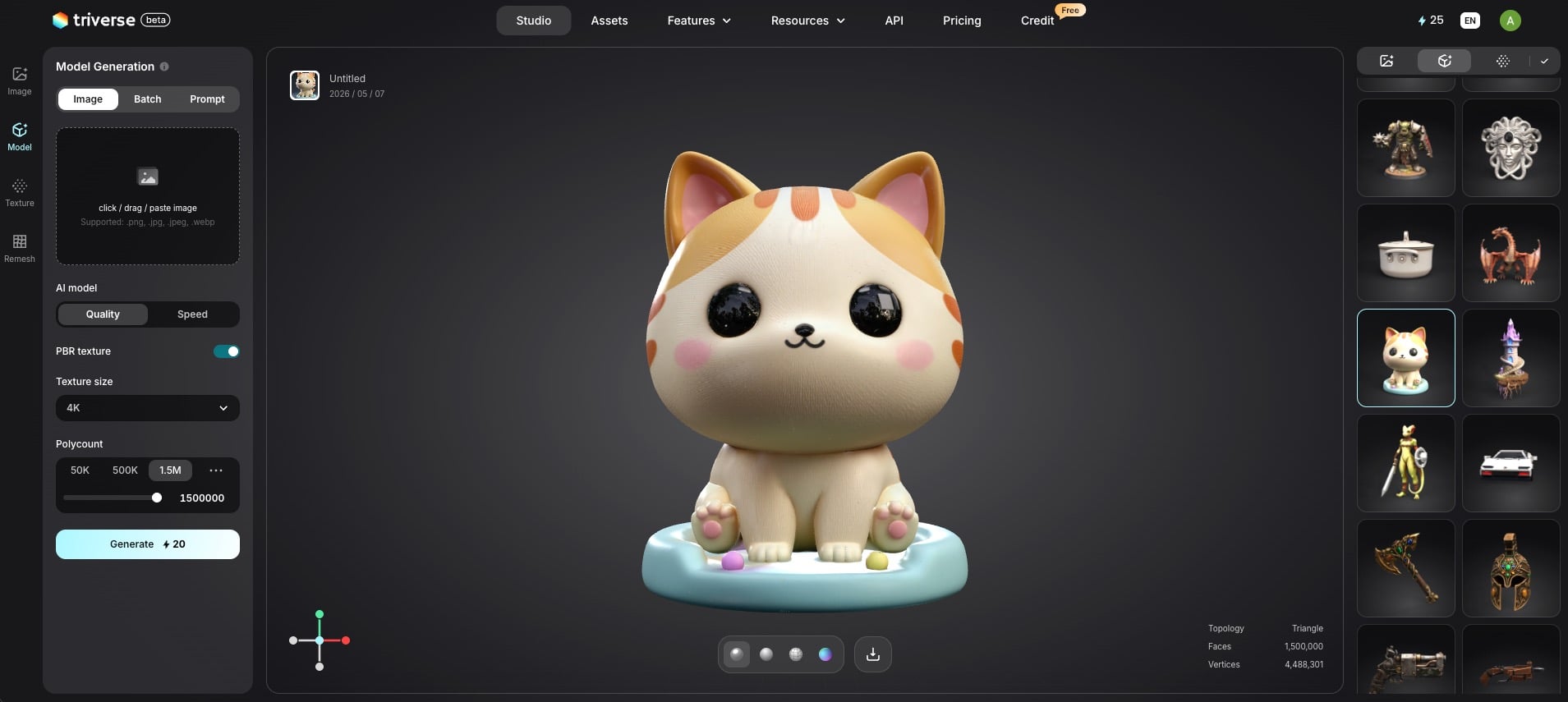
Instead of building geometry manually, tools like Triverse AI generate structured 3D base models directly from text prompts or reference images. This removes the most time-consuming part of the workflow: the initial construction phase.

The impact becomes clearer in practice:

  • faster transition from idea to print-ready base model
  • Fewer early structural errors in the mesh
  • More time spent on design decisions instead of setup

This does not mean the model is finished or production-ready. It means you are no longer starting from nothing.

The difference becomes even clearer when comparing Image to 3D vs Text to 3D workflows. Both generate base geometry, but they interpret input differently-visual reference vs language-driven generation-resulting in different starting structures.


Step-by-Step Workflow for 3D Printing

Once you understand the structure and tools, the actual workflow becomes straightforward.

Step 1: Define Your Idea

Before opening any software, sketch on paper:

  • Basic shape
  • Approximate dimensions
  • Intended use (decorative or functional)
  • Print orientation

A quick sketch prevents major redesigns later.

Step 2: Generate a Base Model

AI tools such as Triverse AI can create a rough 3D model from text or images in seconds. The value here is not final quality-it is speed of iteration.

This is especially useful when:

  • Testing ideas quickly
  • Avoiding early CAD setup overhead
  • Creating multiple variations of a concept

Think of this step as skipping the "blank canvas problem".

Step 3: Refine in Blender or CAD Tools

Once you have a base model, refinement happens in traditional tools like Blender or Fusion 360.

This is where real design work begins:

  • Adjusting proportions
  • Cleaning surface geometry
  • Adding functional details like joints or holes
  • Improving smoothness and structure

At this stage, you are editing something usable, not building from zero.

Step 4: Validate Printability

This is the most important step many people skip.

  • Open the model in Autodesk Meshmixer → Edit → Make Solid → Accept defaults (fixes ~80% of issues).
  • Check for non-manifold edges, flipped normals, thin walls, and holes.
  • For stubborn problems, use Autodesk NetFabb (click the red X).

The 5 rules below are the most common causes of failed prints. Follow them before exporting.

Rule 1: Wall Thickness

The #1 cause of failed prints.

Material

FDM Minimum

SLA/Resin Minimum

Functional Parts

PLA

1.5mm

0.5mm

2.0-3.0mm

PETG

1.5mm

0.6mm

2.0-3.0mm

ABS

1.8mm

-

-

TPU (Flexible)

2.0mm

-

-

Rule 2: 45-Degree Overhang Rule

Surfaces steeper than 45° need supports. Use 45° chamfers to make features self-supporting. Place support contact points on hidden surfaces.

Rule 3: Tolerances for Moving Parts

  • Snap-fit joints: 0.2-0.3mm clearance per side
  • Hinge pins: 0.2-0.3mm clearance
  • Press-fit: 0.1-0.2mm interference. Always print a small test piece and measure with calipers first.

Rule 4: Drain Holes for Hollow Prints

Add at least two holes (one at the lowest point). SLA: 4-6mm diameter; FDM: 3mm is enough.

Rule 5: Minimum Feature Size

  • Raised text: 1.5mm tall × 0.8mm thick
  • Engraved text: 1.0mm tall
  • Pillars/pins: ≥2.0mm diameter
  • Thin ribs: ≥1.5mm thick

Step 5: Export and Slice

Recommended Formats:

  • STL: Universal compatibility (export in binary mode).
  • 3MF: Modern slicers - preserves color, material, and settings.
  • OBJ: Good intermediate format from Blender.

In your slicer (Ultimaker Cura, PrusaSlicer, etc.):

  • Optimize orientation for bed adhesion and minimal supports.
  • Check the first 10 layers carefully.
  • Run a 20mm calibration cube first for new materials.


Common Reasons 3D Prints Fail

  1. Geometry Integrity Issues - Non-manifold geometry, holes, flipped normals, self-intersecting meshes.
  2. Structural Design Limitations - Walls too thin, unsupported overhangs, weak internal structure.
  3. Slicing Configuration Errors - Wrong scale, bad supports, incorrect temperatures/speeds.
  4. Early Design Mistakes - Designing for visuals instead of print physics.


Printability Checklist (Before Slicing)

  • Is Mesh watertight and manifold?
  • Do all walls meet minimum thickness?
  • Overhangs ≤45° or properly supported?
  • Hollow parts have drain holes?
  • Model repaired in Meshmixer?
  • Slicer preview (especially first layers) looks good?


Why Triverse AI 3D Generation Changes the Workflow

Triverse image to 3D

Traditional modeling requires full manual construction before a usable model exists.

AI-assisted workflows remove this constraint.

Old way: Idea → Manual modeling → Debugging

New way: Idea → AI base → Refinement → Print

The key shift is not automation-it is reduced time to reach usable geometry.

Less time is spent building the structure. More time is spent making design decisions.


Conclusion

Creating printable 3D models is not about fancy software, it's about understanding print physics and following a solid workflow.

Combine AI for speed, CAD for precision, apply the 5 key design rules, and always validate in Meshmixer. Do this consistently, and your print success rate will improve dramatically.

The gap between a model that looks good and one that actually prints well is now smaller than ever.

Start today - turn your ideas into real prints.


FAQs about Making 3D Models for 3D Printing

Why do my 3D models look perfect in Blender or Fusion 360 but still fail when printed?

Because visual correctness on screen does not equal printability. Issues like missing faces, non-manifold geometry, flipped normals, thin walls, or broken surfaces are often invisible in the modeling software but cause failures during slicing or printing.

What makes a 3D model actually printable?

A printable model must be watertight (no holes), manifold (clear inside vs outside), non-self-intersecting, structurally thick enough for the material, and at a proper real-world scale. These physical requirements are more important than how it looks in the viewport.

Should I start with traditional CAD modeling or use AI tools?

The modern recommended workflow is AI-assisted. Use AI tools like Triverse AI to quickly generate a base model from text or images, then refine it in Blender or Fusion 360. This avoids starting from a blank canvas and greatly reduces early technical friction.

How do I fix common mesh errors before printing?

Use Autodesk Meshmixer: import the model, go to Edit → Make Solid, and accept defaults. This resolves most issues with holes, non-manifold edges, and flipped normals. You can also use slicer repair tools for additional fixes.

What file format should I export for 3D printing?

  • STL: Most widely compatible and commonly used.
  • 3MF: Modern format that carries more metadata.
  • OBJ: Useful when working with materials from Blender. Choose based on your slicer and needs.

When should I check if my model is printable?

In Step 4: Validate Printability — after refining the model but before exporting. Check for non-manifold edges, flipped normals, mesh holes, and thin walls. Repair issues before slicing.

How does AI generation help in creating printable 3D models?

AI dramatically speeds up the initial geometry creation phase. Instead of manual modeling from scratch, it generates a usable base model in seconds, allowing you to focus more on refinement, proportions, functional details, and printability.

免费试用 Triverse AI

立即注册,即可获得免费积分!一键生成精美3D模型,还支持限时免费下载模型文件!

分享此文章