How to Install Games on a Modded Wii U: A Complete Guide
2026年4月14日
This guide is for personal and educational purposes only. We do not condone piracy or copyright infringement.
Already have a modded Wii U? What are you supposed to do next?
Installing games on a modded Wii U is much more troublesome than simply dragging files into a folder. There are mainly four methods to achieve this. Some are fast but require more technical skills, while others are more stable but take longer. There is no universal answer; it depends on your hardware, patience, and the type of games you want to play.
In this guide, we will introduce all four methods for installing games on the Wii U step by step so that you can choose the method that best suits you.
Note: Modifying your Wii U does carry some risks. Every time you make changes to your system, there is a chance it could result in an unrecoverable brick. If your console is already modded and running stably, you’re good to go. If not, you should fix that first before proceeding.

How to download WUP Installer GX2:

No matter which one you decide to follow, you will need WUP Installer GX2. This is because the final step of every method is to install the game onto your Wii U using WUP Installer GX2.
So, let us start by downloading it.
Open the link: https://github.com/Fangal-Airbag/wup-installer-gx2/releases
Download wup_installer_gx2.wuhb file
Plug in your Wii U SD card, open the Wii U folder, create a new folder, and call it install. (Later, drag and drop all your downloaded games here for further installation).
Open the apps file, drag and drop the wup_installer_gx2.wuhb file into it.
Method 1: Use NUSspli to Install Games Directly on Your Wii U
What NUSspli Is

NUSspli is a homebrew app that downloads and installs Wii U games directly from Nintendo's servers. No PC required. No SD card transfers (if installing to USB).
It's the most convenient option, if the game you want is available.
Step 1: Install NUSspli
Power off your Wii U and remove the SD card.
On your PC, download NUSspli from its GitHub page.
After extracting the files, copy them into the appropriate folder on your Wii U SD card.
Insert the SD card back into your Wii U and power it on. Make sure your console is connected to the internet.
Open the Homebrew Launcher and launch WUP Installer GX2.
From the list, select NUSspli and install it to your USB storage (recommended).
Once the installation is complete, exit the application. If everything is set up correctly, NUSspli will appear on your Wii U home menu.
Step 2: Download and Install Games
Launch NUSspli from the Wii U home menu.
Go to Download Content, where you can browse all available titles.
Use the shoulder buttons to switch between different categories, including Games, Updates, DLC and Demos.
Select a game, choose your installation location, and start the installation process.
Common Mistakes & Tips
- Use a wired connection if possible
For faster and more stable downloads, consider using a USB Ethernet adapter. Wi-Fi connections may occasionally cause errors or interruptions. - Fix Homebrew Launcher crashes
If your Wii U shuts down when opening the Homebrew Launcher, try launching the Health & Safety app first. Wait a few seconds, then exit and try again. - Update Tiramisu if needed
If you see an error indicating that your Tiramisu version is outdated, download the latest version and copy the files to your SD card, replacing the existing ones.
Method 2: Wii U Downloader / USB Helper: Faster Downloads via PC
This method uses a PC to download games, which is significantly faster than using NUSspli directly on the Wii U. However, it involves a few more steps.
Before starting, make sure you have already installed WUP Installer GX2, as it will be required for the final installation. The instructions for installation are above.
Step 1: Download and Set Up Wii U Downloader
Go to the GitHub release page: https://github.com/Xpl0itU/WiiUDownloader/releases
Download WiiUDownloader-Windows.zip, then extract the file and run the included executable.
If you see a Windows security warning, click “More info” → “Run anyway.”
Step 2: Select and Queue Your Game
Open WiiUDownloader and search for the game you want.
Select the game, then make sure “Decrypt contents” is checked at the bottom.
Next:
- Go to the Update tab and select the update
- Go to the DLC tab and select the DLC (if available)
All selected items (base game, update, and DLC) will appear in the download queue on the left sidebar.
Click Download Queue, then choose where you want to save the files.
Once the download is complete, you will have three files:
- Base game
- Update
- DLC
Step 3: Transfer Files to Your SD Card
Insert your Wii U SD card into your PC.
Drag and drop all three files into the install folder.
If the install folder does not exist, create it manually.
Step 4: Install the game on Wii U
Insert the SD card back into your Wii U.
Launch WUP Installer GX2 from the Homebrew Launcher.
You should see the game files you just added.
Install them in the following order:
- Base game
- Update
- DLC
For each installation, select USB storage (recommended).
Once everything is installed, exit the application.
Your game will appear on the Wii U home menu.
Official Guide
You can also refer to the guidelines for WiiUDownloader.
Common Mistakes & Tips
1. USB Disconnect / Installation Fails Midway
If your installation fails midway, the issue is usually insufficient power to your USB device.
The Wii U’s USB ports provide limited power, which may not be enough for external storage devices, especially during large installations.
How to fix:
- Use a USB Y cable to draw power from two USB ports
- Or use an externally powered hard drive
2. System Memory Error
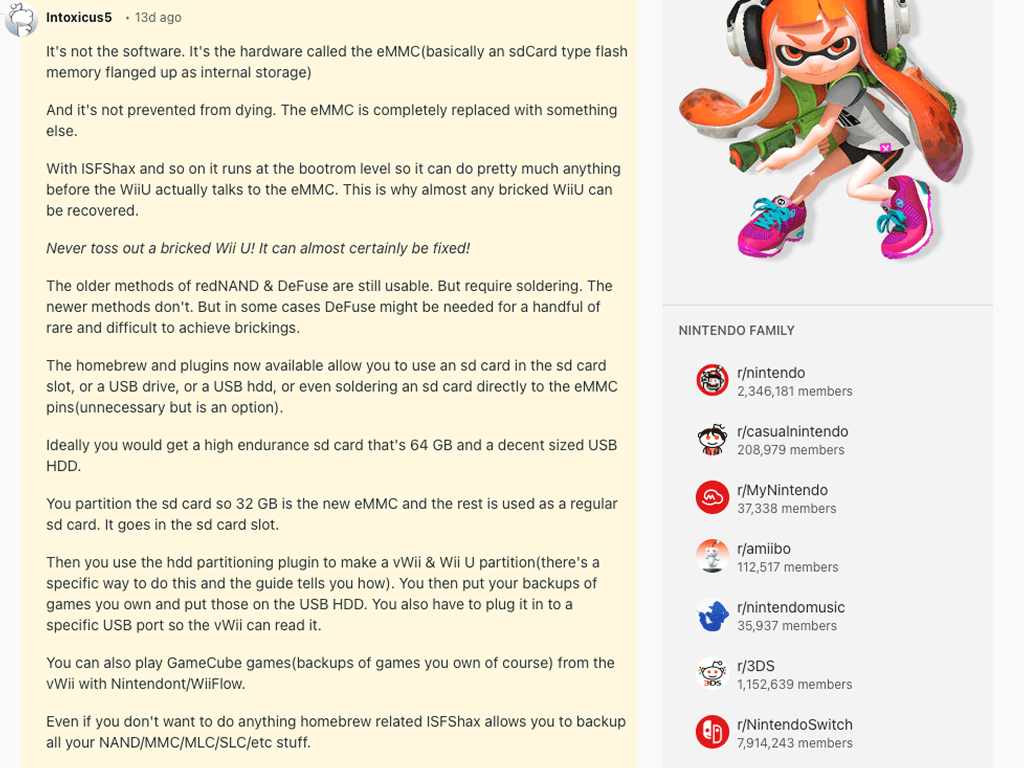
If you see an error like 160-0103 stating there is a problem with system memory, this usually indicates a hardware failure in the Wii U’s internal storage (eMMC).
This is not caused by software or installation issues, and cannot be fixed through normal troubleshooting.
How to fix:
- For most users: return or replace the console
- For advanced users: You can’t fix the broken internal storage, but you can bypass it by using external storage like an SD card or USB drive. See detailed steps in this Reddit comment:

3. Download Stops Midway in WiiUDownloader
If your download stops partway through (for example, around 30–40MB) and does not continue, the issue is usually related to network instability rather than the software itself.
This can happen due to unstable connections or temporary issues with Nintendo’s content servers.
How to fix:
- Try downloading again (it may work after a few attempts)
- Switch to a more stable network
- Download during off-peak hours (such as late at night)
It is slower and involves both the SD card and the Wii U installer.
Method 3: Dump Your Own Game Discs
Step 1: Dump the Game from the Disc
Pop your disc into your console, launch Wii U Disc Dumper from the home menu, and choose the dump format .app.
When prompted, select the partition with the larger size (in GB), then press A to start. Follow the on-screen instructions. Once finished, exit to the menu.
The backup will be saved in the wudump folder on your SD card.
Step 2: Prepare Files on SD Card
Insert the SD card into your computer and open the wudump folder. You will find a game folder, which you could rename to the game name.
Then go to the root of the SD card, create a folder named install (lowercase), and move the game folder into it.
Step 3: Install the Game on Wii U
Insert the SD card back into your Wii U and power it on. Launch WUP Installer GX2, select the game from the install folder, and install it.
Once finished, press the Home button, and the game will appear on the main menu.
When it's finished, click the home button, and you will find the game on the main Wii U menu.
Common Mistakes & Tips
- Wii U cannot read discs
Check if the disc is damaged or dirty. If it looks fine, the issue may be with the disc drive itself. Look for label damage or unusual patterns on the disc.
If there is no visible disc rot, note that the Wii U laser can be quite finicky and may struggle to read even clean discs. In this case, using a Wii U-compatible laser cleaning disc or kit is recommended.
- Thumping noise when reading discs, cannot read
This issue is most commonly caused by a failing disc drive or laser rather than the game disc itself.
If you don’t want to switch to USB loading or replace the entire console, you can order a replacement optical disc drive and follow this guide to replace a broken DVD drive
Method 4: UWUVCI (Ultimate Wii U Virtual Console Injector)

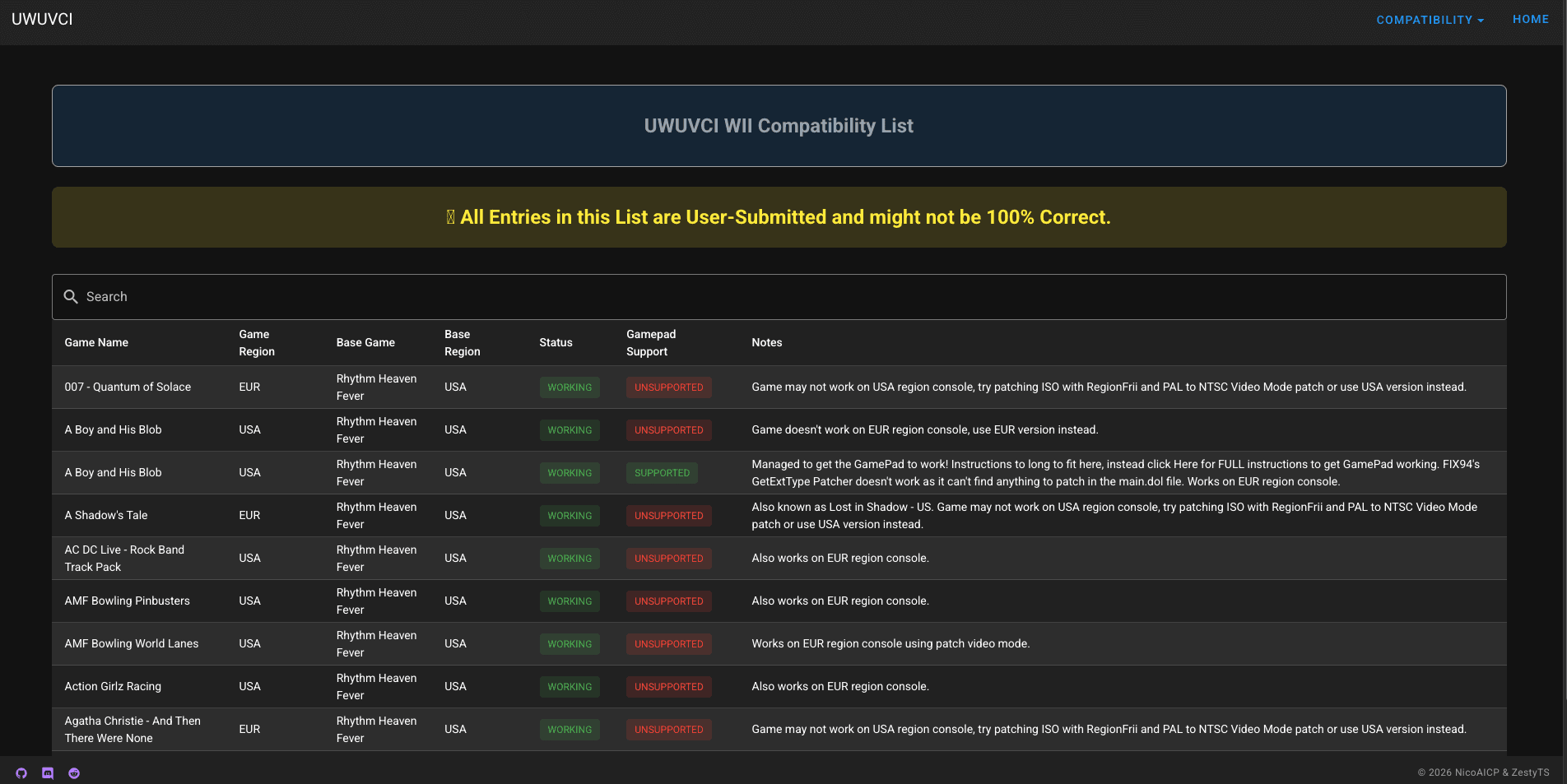
Note: Not every game is supported. You can check compatibility in the early Version of the UWUVCI Webpage.
Step 1: Download and Set Up UWUVCI
Open the GitHub link: https://github.com/stuff-by-3-random-dudes/UWUVCI-AIO-WPF/releases
Download and extract the files, then run the installer and follow the instructions.
(If a security warning pops up, click “More info” and choose “Run anyway”.)
After installation, launch UWUVCI AIO.exe to open the program.
Once you exit the initial tutorial, you will see a list of supported consoles on the left sidebar.
You can also refer to the official guide for each console type.
Here, we’ll take GBA VC Inject as an example.
Step 2: Choose a Base and Enter Required Keys
First, choose a base (an existing Virtual Console game used as a container to run your injected game).
Next, you will need to enter a Title Key and Common Key.
You can find these on sites like:
wiiuemulator (https://www.wiiuemulator.com/)
or wiiutitlekey (https://wiiutitlekeys.pages.dev/).
We recommend the second one, as it also provides the Common Key.
Copy and paste the keys into their respective fields, then click the check button to verify them.
Once verified, you can download the base.
Step 3: Select Your Game File (ROM) and Customize
Next to ROM Path, click “Select File” and choose your game file (.iso, .wbfs, .nkit.iso, or .nkit.gcz).
This is the actual game you want to inject.
You can then add an icon image and a TV image. You can either download them from the server or create your own.
Step 4: Generate and Install the Game
Click WUP Installable, then open the output folder to locate your generated files.
Finally, drag the generated folder into the install folder located at the root of your Wii U SD card.
Insert the SD card back into your Wii U, launch WUP Installer GX2, select the game, and install it.
Choose your installation location (USB is recommended).
Once the process is complete, the game will appear on your Wii U home menu.
Common Mistakes and Tips
- Title Key “too long” error
If you copy the Title Key using the website’s copy button and UWUVCI says the key is too long, try manually highlighting and copying the key instead. This usually fixes the issue. - App stuck on “downloading needed files”
If the app appears stuck while downloading, it may not actually be frozen.
If you are using a community-maintained version (not the original version by Zesty), the download progress may not display correctly, which can make it seem stuck or unusually slow.
Quick Comparison: Which method should I choose on My Modded Wii U?
Method | Pros & Cons | Best For |
Method 1: NUSspli | ✔No PC needed when downloading games | Beginners who want the simplest setup |
Method 2: Wii U Downloader | ✔ Much faster downloads | Users downloading many or large games who want speed and efficiency on PC |
Method 3: Dump from Disc | ✔ Uses your own game discs | Users who own physical games and want to back them up digitally |
Method 4: UWUVCI Injection | ✔ Supports more game types (e.g., retro / VC) | Advanced users who want more flexibility |
From Player to Creator: Build Your Own Game Assets with Triverse AI

Love a prop or character from your favorite game? Want to bring it into the real world, or even create your own?
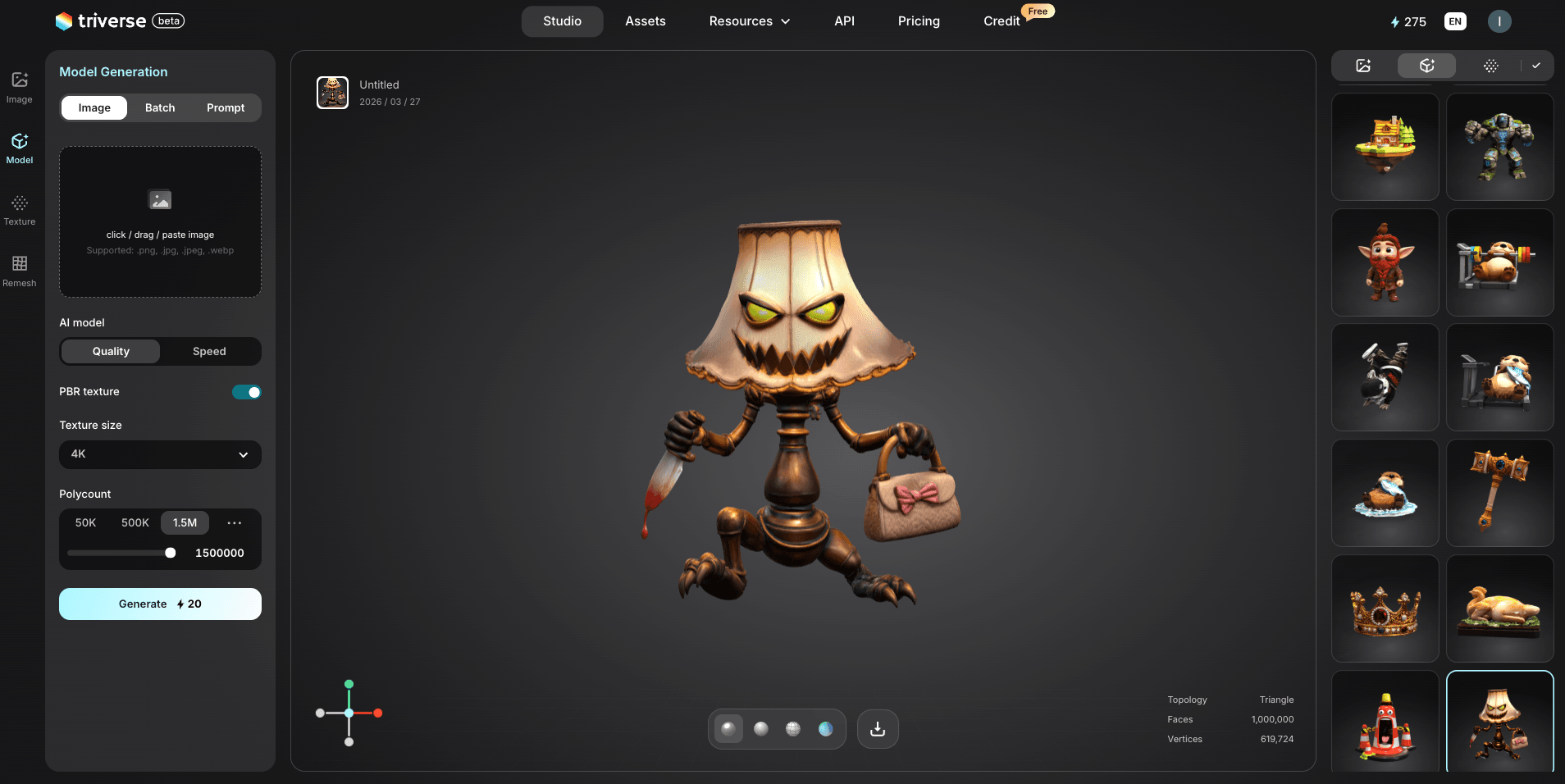
With Triverse AI, you can turn ideas into 3D assets in just a few clicks. From text to image to image to 3D and text to 3D, AI texturing, and remeshing, everything is designed to make creation fast and intuitive.
Start designing your own assets and bring your ideas to life, whether for games, projects, or just for fun.
If you want to take it a step further, such as retexturing assets the way you want, remeshing models, or even designing your own 3D assets, what can you do next?
This is what many users want but often struggle to achieve.
Traditional 3D tools, such as Blender and Maya, have a steep learning curve, as skills like retopology cannot be mastered overnight and require long-term practice. Meanwhile, there are few stable free alternatives.
This is exactly what Triverse AI is built for. Triverse AI allows users to create 3D models with just one click by typing a prompt or uploading references, turning ideas into ready-to-use 3D assets in seconds without requiring any prior 3D experience. It is a powerful AI 3D generator for game development and 3D printing.
Example:
If you want to improve a broken or low-quality texture in a Wii U game, you could:
- Take a screenshot of the original asset
- Use Triverse’s image-to-3D pipeline
- Use built-in remeshing and AI texturing tools to refine the details
- Export the model in a format compatible with your workflow
Triverse increases the accessibility of game asset creation for beginners, helping them skip months of learning complex DCC tools. It is not intended to replace professional software, but to lower the barrier for players to customize their game experience.
If you are already familiar with Wii U modding, Triverse AI can help you take your creativity to the next level.
Conclusion
Installing games on a modded Wii U may seem overwhelming at first, but once you understand the workflow, it becomes much more straightforward. Whether you choose NUSspli for simplicity, a PC-based method like Wii U Downloader for speed, dumping your own discs for a more nostalgic approach, or UWUVCI for retro and custom experiences, each method serves a different need.
The key is to pick the method that matches your setup and comfort level, rather than trying to use everything at once. Start simple, get familiar with the process, and then explore more advanced options if needed.
With the right tools and a bit of patience, your Wii U can become a much more flexible and powerful gaming system.
FAQs about Installing Games on Modded Wii U
Can I mod a Wii U without an SD card?
Almost all Wii U modding methods require an SD card for the initial setup. Some advanced configurations reduce SD reliance later, but you’ll need one to get started.
Is downloading Wii U games legal?
It depends on your region. Downloading games you don’t own typically violates copyright law. Backing up your own discs is generally safer, but always check local regulations.
Can I install games to internal storage?
Yes, but internal storage is limited (8GB or 32GB depending on model). Most users install to USB for more space and flexibility.
What USB drive size do I need?
A 128GB drive is enough for casual use. If you plan to install many games, 256GB or larger is recommended for better long-term storage.
Will this brick my Wii U?
There is always some risk, but it is low if you follow the instructions carefully. Avoid interrupting installations or using unreliable files.
Do I need to region-free my console?
Usually not. Most modern tools handle region differences automatically, though some compatibility issues may still occur depending on the game.
Can I play online with a modded Wii U?
Yes, online play is generally still possible. However, using a modded system always carries a small risk, depending on the setup.
How do I update games after installation?
Updates and DLC can be installed the same way as games, often through the same tools.
What’s the difference between Tiramisu and Aroma?
Tiramisu is older and simpler. Aroma is newer, more flexible, and actively maintained, making it the preferred option for most users.