Where to Make Your Own Custom VRChat Avatar (2026 Guide)
2026年3月12日
Wondering how to create your own avatar in VRChat after the official shutdown of Ready Player Me in January 2026? Absolutely. You don’t need to pay an artist $500 on Fiverr or spend 300 hours crying over Blender tutorials just to stand out.
If you are searching for where to make your own custom VRChat avatar, you now have three primary options—including a massive new AI shortcut. Let’s dive into the ultimate step-by-step workflow on exactly how to create a VRChat avatar, rig it, and get it into the game.
Before You Start: Know The VRChat Trust Rank System
Before we even touch a 3D modeling program, we need to talk about the biggest roadblock that trips up beginners: the VRChat Trust Rank system.
If you just created your VRChat account today, you cannot upload a custom avatar yet. VRChat restricts uploading to prevent spam and malicious files. When you start, your rank is "Visitor." To unlock the ability to upload custom 3D models and worlds, you need to reach the "New User" rank.
How do you rank up fast?
- Link your accounts: If you play on Steam or Meta Quest, make sure you create an actual account on the VRChat website and link them together.
- Play the game: Spend a few hours exploring different public worlds.
- Make friends: Send and accept friend requests. Engaging socially is the fastest way to boost your Trust Rank.
Once you get an email or in-game notification that you've reached "New User" status, you are officially cleared to upload!
Method 1. Use Blender to Create a Custom VRChat Avatar
The most traditional method to create VRChat avatar models from scratch is using Blender, a free, professional-grade 3D modeling software.
If you want absolute, 100% control over every single vertex, texture, and bone in your character's body, Blender is the undisputed king. You can build anything from a hyper-realistic human to a giant flying toaster.
The Cons: However, the learning curve of Blender is brutal. To make a VRChat avatar in Blender, you have to learn box modeling, sculpting, retopology (making the mesh game-ready), UV unwrapping, texture painting, rigging (building the skeleton), and weight painting (telling the mesh how to bend with the bones). For a beginner, this is a massive time sink that can take months to master.
Method 2. Use VRoid Studio & Booth.pm to Create An Avatar for VRChat
If you want a custom anime-style character but don't want to learn Blender, this is the most popular community method. It requires a bit of software juggling, but it gets great results.
- Download VRoid Studio
Head over to Steam and download VRoid Studio. It’s a completely free character creator that feels a lot like playing The Sims. You can use sliders to adjust body types, face shapes, and hair.
- Hunt for Assets on Booth.pm
While VRoid's default clothes are okay, everyone uses Booth.pm to make their avatars unique. Booth is a massive Japanese marketplace where indie creators sell custom hair presets, clothing textures, and accessories specifically for VRoid. You buy the texture files and import them directly into VRoid Studio.
- Exporting and Optimizing
Once your anime character looks perfect, you need to export it. However, VRoid models are notoriously unoptimized for VR. When exporting, you must aggressively use the quality sliders to reduce your polygon count (especially the hair meshes) to ensure you don't lag everyone in the VRChat lobby. VRoid will export your model as a .VRM file.
- The Unity VRChat Creator Companion (VCC) Setup
VRChat doesn't accept .VRM files directly. You have to convert them.
- To initiate a VRChat create avatar project, download the VRChat Creator Companion (VCC) from the official VRChat website: https://hello.vrchat.com/.
- Create a new "Avatar Project" in VCC and open it. This launches the Unity game engine.
- You need a special community plugin. Go to GitHub and find the VRM Converter for VRChat repository (
esperecyan.github.io). Add this package to your VCC project. - Drag and drop your
.VRM filedirectly into your Unity assets folder at the bottom of the screen. - Click on your model, look at the top menu bar, find the "VRM0" tab, and click "Duplicate and Convert for VRChat".
- Finally, open the VRChat SDK control panel in Unity, log in, and hit "Build and Publish".
Method 3. Generate a Custom Avatar with Triverse AI
What if you don't want an anime character? What if you want a highly detailed monster, a sci-fi soldier, or a stylized mascot, but you have zero 3D modeling skills?
With Ready Player Me gone, Triverse AI can help to generate an ultimate VRChat 3D model. While competitors like Meshy or Rodin struggle with messy, unusable geometry, Triverse is specifically designed to output clean 3D topology. It completely eliminates the hardest part of 3D creation: modeling and texturing.
Here is the exact zero-modeling shortcut for how to create a VRChat avatar using Triverse AI.
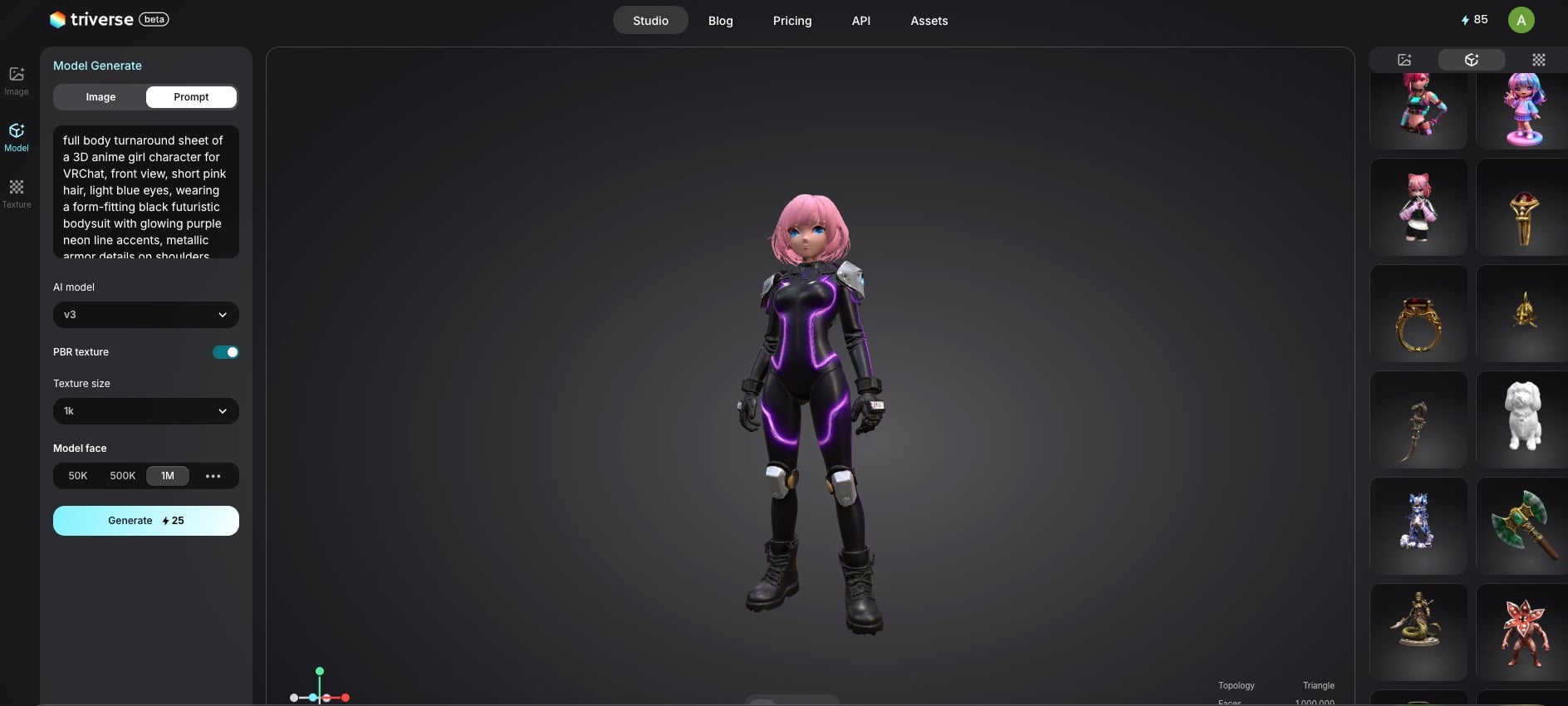
Step 1: Text-to-3D in Triverse
Head to the Triverse AI platform. You can either upload a 2D reference image or type a descriptive text prompt as below.
full body turnaround sheet of a 3D anime girl character for VRChat, front view, short pink hair, light blue eyes, wearing a form-fitting black futuristic bodysuit with glowing purple neon line accents, metallic armor details on shoulders and knees, tactical gloves, black combat boots, clean white studio background, soft studio lighting, high detail, photorealistic 3D render, game asset aesthetic, 8k resolution, --ar 1:1 --style raw --v 6.0Within minutes, Triverse will generate a fully textured 3D model. Once you are happy with the result, download your model. You can export the result as a textured .GLB file.

Step 1.5: Quick Format Conversion
Adobe Mixamo currently requires .FBX or .OBJ files. Because Triverse outputs a .GLB, you need to do a quick conversion. You can either drag the .GLB into Blender and click File > Export > FBX, or simply drop the file into a free, secure online format converter (like AnyConv) to change it from GLB to FBX in about 10 seconds.
Step 2: Auto-Rigging with Mixamo
Triverse AI generates the "skin" of the avatar, but it needs "bones" to move in VRChat. For this, we use Adobe Mixamo—a free auto-rigging tool used by indie game developers everywhere.
- Go to Mixamo and create a free account.
- Click "Upload Character" and select your Triverse 3D file.
- Mixamo will ask you to place virtual markers on your character's Chin, Wrists, Elbows, Knees, and Groin.
- Click next, and the AI will automatically build a full humanoid skeleton for your model in under two minutes!
- Click "Download." Make sure the format is set to FBX for Unity and the pose is set to "T-Pose."
Step 3: Uploading via VCC
Now, we bring it home.
- Open the VRChat Creator Companion (VCC) and start a new Avatar project to launch Unity.
- Drag your rigged Mixamo
.FBXfile and its texture image files into your Unity assets folder. - Click your model in the assets folder. In the Unity "Inspector" tab on the right, click "Rig," change the Animation Type to Humanoid, and hit Apply.
- Drag the model into your scene hierarchy (the left panel).
- Click your model in the hierarchy, go to the Inspector, and click "Add Component." Search for VRChat Avatar Descriptor and add it. This is the script that tells VRChat where your character's eyes and voice are.
- Adjust the "View Position" (a little grey sphere) so it sits exactly between your avatar's eyes.
- Open the VRChat SDK menu at the top, log in, and click Build and Publish!
Taking It Further: VRChat Optimization & PhysBones
Getting your avatar into the game is a massive achievement, but if you want to be a true VRChat pro, you need to understand optimization and physics.
PCVR vs. Quest Optimization
VRChat is split into two main player bases: PCVR players (using high-end gaming rigs) and standalone players (using the Meta Quest headset). PCVR can handle heavy, unoptimized models. The Quest cannot.
If you want your avatar to be Quest compatible, you need to be ruthless with your polygon count. Quest avatars should ideally sit below 20,000 polygons. If your Triverse AI or VRoid model is too heavy, you can import the mesh into Blender, select it, and apply a Decimate Modifier. This mathematically reduces the poly count while keeping the overall shape intact. Once decimated, export it back to Unity.
Adding Jiggle Physics (VRChat PhysBones)
Nobody likes stiff hair or capes that clip through bodies. To add life to your avatar, VRChat uses a system called PhysBones. In Unity, you can select specific bones in your avatar's armature (like a ponytail or a fox tail), click "Add Component," and attach a "VRChat PhysBone" script. This allows the object to bounce naturally as you walk, and even allows other players in VR to grab and interact with your avatar's hair or ears!
Troubleshooting Common Unity & VCC Errors
Game development is messy, and you will inevitably encounter a red error console in Unity. Here is how to fix the top three most common VRChat SDK upload errors:
1. "Blueprint ID already exists"
This happens if you try to re-upload an avatar you previously uploaded, but something went wrong. To fix this, click on your avatar in the hierarchy, look at the Inspector, and find the "Pipeline Manager" script. Click "Detach" to wipe the old ID, then try uploading again.
2. Materials rendering pink (Especially on Quest)
If your model looks completely neon pink, it means your textures are using a shader that the platform doesn't support. Meta Quest does not support Unity's "Standard" shader. Select all the materials in your assets folder, go to the Inspector, click the Shader dropdown, and change it to VRChat / Mobile / Toon Lit.
3. "Spine hierarchy missing"
If the VRChat SDK refuses to let you upload because of bone errors, your Mixamo or VRoid rig is mapped incorrectly. Click your model in the assets folder, go to the Rig tab, ensure it's set to Humanoid, and click "Configure." Manually check that the Chest, Spine, and Hips bones are assigned to the correct slots in the Unity avatar mapper.
Frequently Asked Questions about VRChat Avatar
1. Where is the best place to make a custom VRChat avatar in 2026?
If you want total control, Blender is the best choice. If you want a standard anime look, use VRoid Studio. If you want a fast, highly detailed, and unique base mesh without learning 3D modeling, Triverse AI is the fastest and best solution currently available.
2. What happened to Ready Player Me?
Ready Player Me officially discontinued its consumer-facing avatar generation services on January 31, 2026. Users who previously relied on it must now transition to alternatives like VRoid or AI 3D generators.
3. How do I import a VRoid model into VRChat?
You cannot import a VRoid model directly. You must export it from VRoid Studio as a .VRM file, open the VRChat Creator Companion (VCC), install the "VRM Converter for VRChat" GitHub package, and use Unity to convert the .VRM into a VRChat-compatible prefab before uploading.
4. Do I need to know Blender to upload a VRChat avatar?
No! While Blender is great for custom optimization and fixing topology, you can bypass it entirely. You can generate a model in Triverse AI, auto-rig it in Mixamo, and upload it straight through Unity without ever opening Blender.
5. What is the VRChat Creator Companion (VCC)?
The VRChat Creator Companion (VCC) is the official hub software provided by VRChat. It manages your Unity projects, ensures you are using the correct version of the Unity Editor, and automatically keeps your VRChat SDK (Software Development Kit) up to date.
6. Can you create your own avatar in VRChat easily?
Yes. While it used to take hundreds of hours of 3D modeling, tools like Triverse AI allow you to generate the base 3D model from a text prompt, significantly reducing the friction for beginners.
Verdict
Learning how to create VRChat avatar models doesn't have to be a nightmare of expensive commissions and endless tutorials. While traditional methods like Blender and VRoid Studio are powerful, they require significant time investments.
If you want to skip the grind and get a high-quality, 100% unique 3D model ready for auto-rigging in minutes, AI is the answer. Stop settling for generic presets. Try Triverse AI today, generate your first custom 3D character from a simple text prompt, and bring your ultimate virtual identity to life!