Best Online 3D Printing Slicers for Fast and Easy Printing
Slice models with online 3D printer slicers in 2026. Compare top browser-based tools, explore workflows, and prepare AI-generated models for fast, reliable 3D printing without desktop software.
June 4, 2026
By 2026, the 3D printing workflow will be quite different from what it is now. Instead of using heavy desktop software, many creators now go from AI-generated models in Triverse AI to browser-based slicing and then directly to printing in minutes. Teachers and small teams have been using a more convenient workflow for beginners recently because it requires relatively little setup.
This guide will show you how online slicers operate in the above workflow, which tools are worth focusing on, and how to integrate them with Triverse AI models.
Why Use an Online 3D Printer Slicer in 2026?
Online slicers run directly in the browser, so you can prepare a model for printing without installing Cura, PrusaSlicer, or other desktop software. For many users, this removes one of the biggest setup barriers in the workflow.
No Installation Required and Cross-Device Access
The main appeal here is convenience. You can open a slicer on almost any device, including laptops, tablets, school or lab computers, and even lightweight Chromebooks. Since everything runs in the browser, it works well for quick tasks and situations where you do not want to manage software installs.
Quick Access for Beginners and Teams
For beginners, desktop slicers can feel a bit heavy at first because of the number of settings involved. Online tools reduce that friction by offering preset printer profiles, simpler interfaces, and sometimes cloud-based project sharing. In team environments, this also helps keep everyone aligned without constantly exchanging files or configurations.
Top Online Slicers Comparison 2026
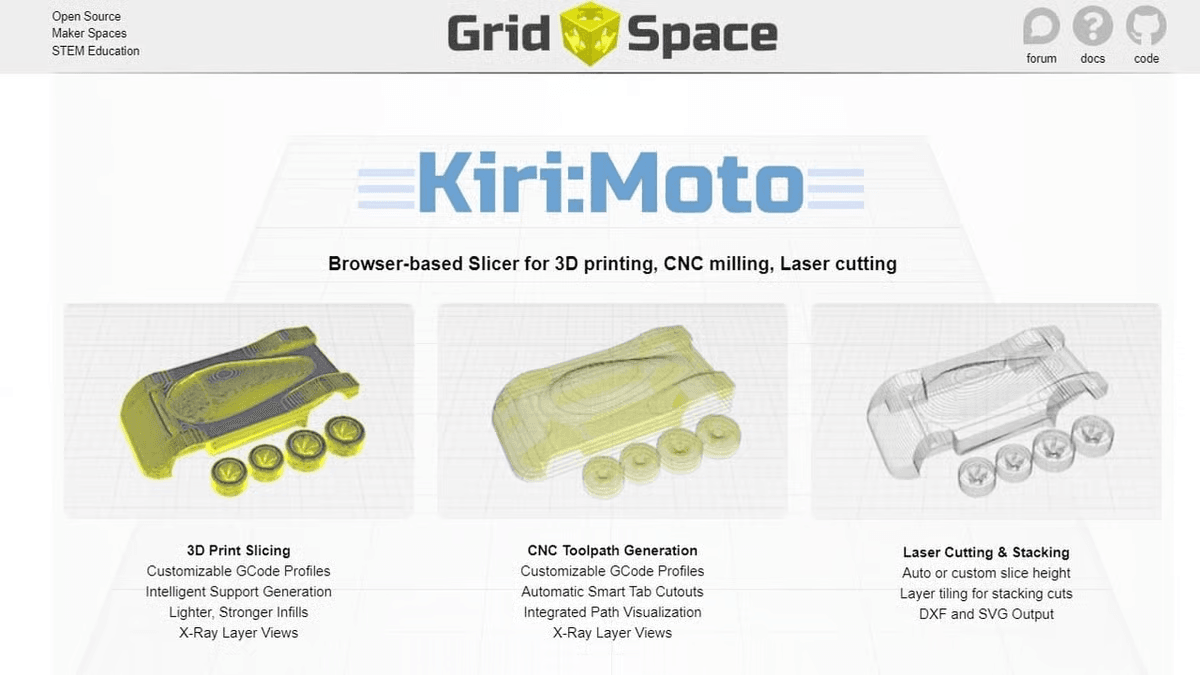
Several online slicers have emerged as practical solutions for browser-based 3D printing workflows in 2026. While they share similar core functionality, they differ significantly in focus, ecosystem integration, and target users.
Slicer | Key Features | Pricing / Plans | Ideal Users |
Kiri: Moto | Lightweight, general-purpose slicing | Free | Beginners, education, quick prototyping |
AstroPrint | Cloud-based printer management, remote workflow | Free tier + Paid plans (cloud storage, collaboration, advanced profiles) | Distributed teams, remote printing workflows |
Bambu Cloud Slicing | Ecosystem-driven, tightly integrated with hardware, one-click printing | Paid | Users with Bambu hardware, fast, streamlined printing |
Kiri: Moto is also selected for light and easy slicing, particularly for educational purposes or rapid prototyping processes. AstroPrint is more than just slicing; it brings cloud-based printer management and collaboration to the table. Bambu Cloud Slicing, on the other hand, prioritizes seamless hardware integration, ensuring efficient and rapid printing workflows for users already within the Bambu ecosystem.
How to Choose the Right Online Slicer for Your Workflow
Choosing the right slicer depends on your printing goals and complexity level.
Matching Slicer Features to Project Needs
- Simple prototypes → lightweight browser slicers
- Engineering parts → tools with precise control
- Art/figurines → support-heavy slicing systems
Considering Model Complexity and Size
High-poly or large models may:
- Slow down browser performance
- Require simplification before slicing
- Work better in desktop slicers
Integration with Existing Tools
If you're using Triverse AI, look for slicers that:
- Accept STL/3MF exports directly
- Preserve scaling and orientation
- Support multi-material workflows
Seamless Workflow: Generate in Triverse AI → Slice Online
Step 1: Upload a Reference Image
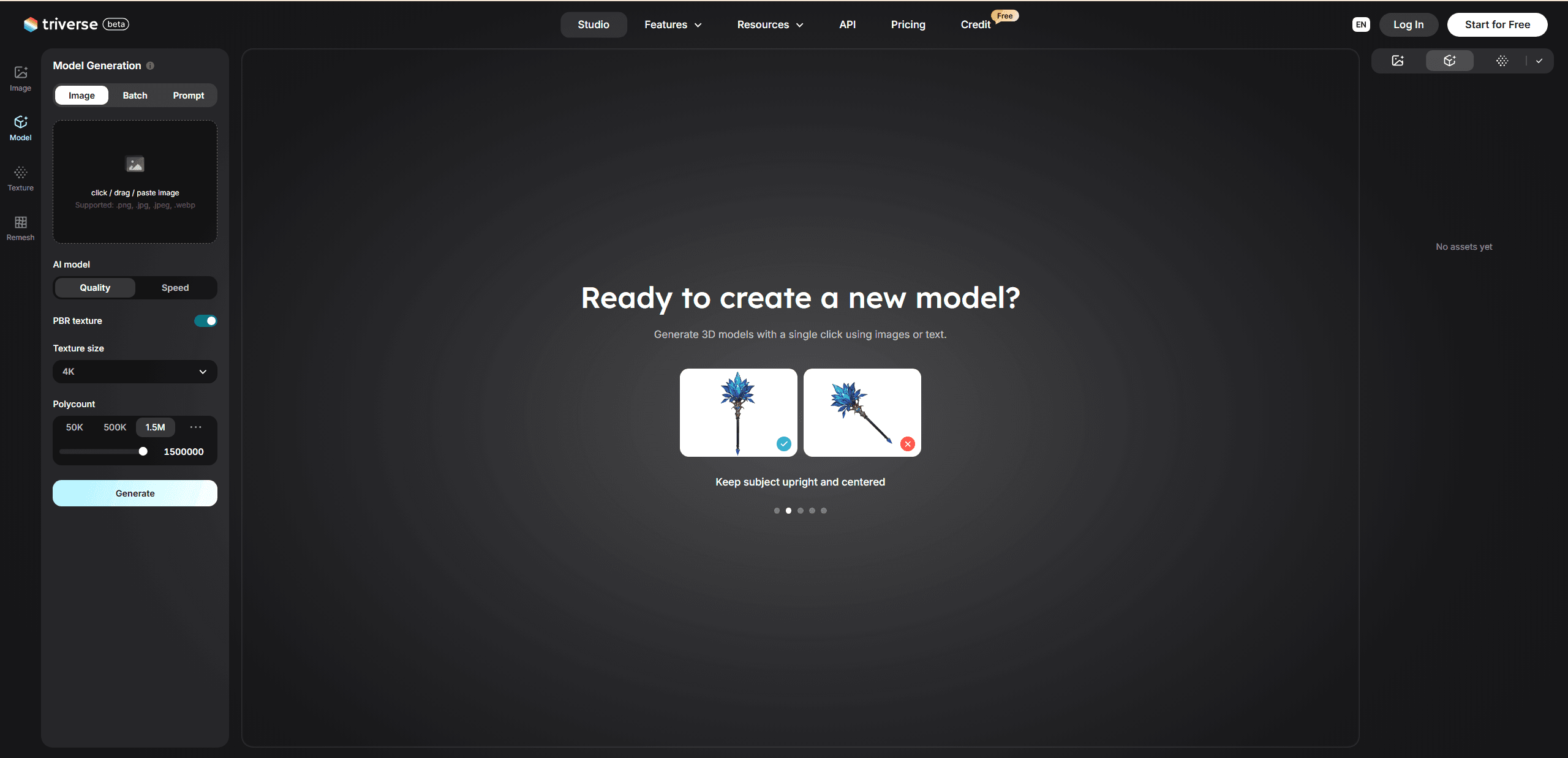
Open Triverse Studio and go to Model Generation → Image to 3D. Upload a reference image of your figurine — this can be concept art, a photo, or a sketch. Supported formats include PNG, JPG, JPEG, and WEBP. For best results, use a high-resolution image with a clean or transparent background, clear silhouette, and even lighting.
Step 2: Configure Generation Settings
Before generating, review the settings on the left panel. The defaults (Quality mode, PBR texture on, 4K texture, 1M polycount) work well for most figurines. Here is what to adjust depending on your needs:
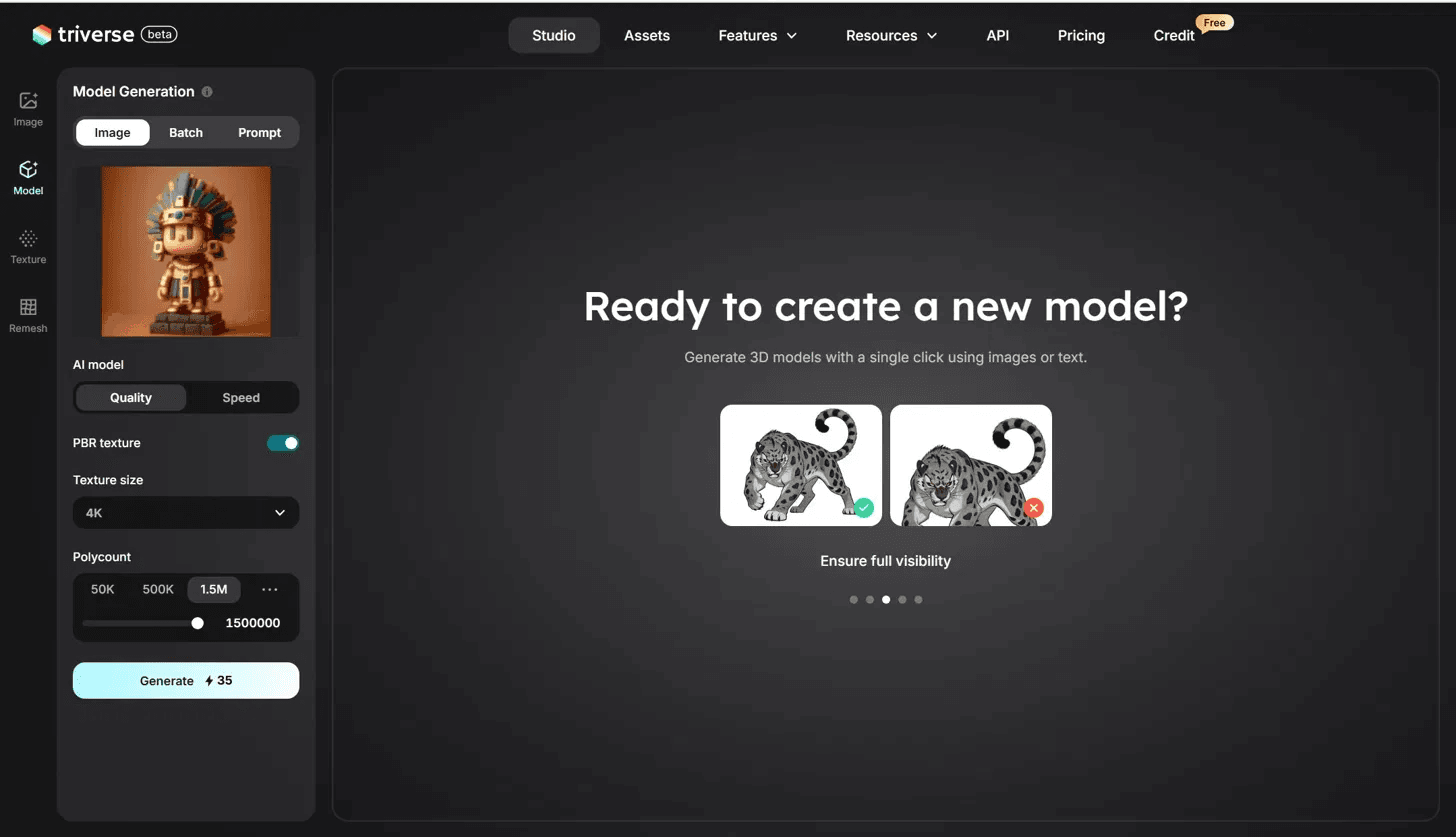
- AI Model — Choose Quality for detailed figurines with accurate geometry, or Speed for quick test iterations.
- PBR Texture — Keep it on for realistic surface previews. For printing-only workflows where you do not need visual textures, it can be turned off.
- Texture Size — 4K is ideal for hero assets. 1K or 2K is fine for small prints where surface detail is less visible.
- Polycount — For a desk-sized figurine (around 10–15 cm), 500K to 1.5M faces provide enough surface detail for clean print results. Lower values like 50K work better for simple background props.
Step 3: Generate and Inspect the Model
Click Generate and wait for the model to build (roughly 60–90 seconds, depending on the mode). Once ready, rotate and inspect it in the 3D viewer. Click the Wireframe icon at the bottom of the viewport to check the mesh topology. Pay special attention to facial features, small accessories, and the base — these are the areas most likely to need review before printing.
Step 4: Export for Slicing
If the model needs refinement, you can use the Remesh tool to optimize topology or apply AI Texturing to adjust surface materials. When satisfied, click the Download icon at the bottom of the viewport and choose your export format:
- Choose STL for broad slicer compatibility — it contains geometry only, which is all most slicers need.
- Choose 3MF if you want to preserve color, material data, and print-related metadata for a smoother handoff to the slicer.
Triverse AI also supports GLB, OBJ, FBX, and USDZ exports for other workflows. If your slicer flags mesh issues after export, fix STL file errors before proceeding — though most online slicers now handle minor problems automatically.
Limitations of Online Slicers and When Desktop Software Is Better
Handling Large or Detailed Models
Online slicers can struggle with big or very detailed models. If a print has lots of parts or a dense mesh, the browser might slow down or even fail to finish slicing. For heavy models, a desktop slicer usually handles it better.
Advanced Slicing Features
Online tools are getting better, but they still miss some options. Things like placing supports exactly where you want them, customizing infill patterns, or using multiple extruders are mostly desktop features. If you need that kind of control, a desktop slicer is the way to go.
Processing Speed
Online slicers rely on your internet and the server. A big file or slow connection can make slicing take longer. Desktop slicers run on your own computer, so they tend to be faster and more stable. For tricky or precise prints, desktop software is usually easier to work with.
Bottom Line
Online 3D printer slicers have made 3D printing more accessible and convenient than ever. For quick prototypes, classroom projects, or small-scale prints, browser-based tools can handle most everyday tasks without the hassle of installing software.
That said, desktop slicers still offer the precision and advanced features needed for complex models, heavy supports, or multi-material prints. Choosing the right tool comes down to your project’s complexity and how much control you need over the final print. For many users in 2026, combining speed, simplicity, and reliability is what makes online slicers an ideal first step in the printing workflow.
FAQs about Best Online Slicer 3D Printer Platforms
Which online slicer is easiest for beginners to start with?
Tools with preset printer profiles and simplified interfaces are best for beginners, especially browser-first platforms.
Can I slice large models entirely in the browser?
Yes, but performance depends on model complexity and your device’s memory.
Are there file size or format limitations?
Most tools support STL and 3MF, but very large files may require simplification.
How do online slicers compare to desktop software in speed and features?
Online slicers are faster to start but less powerful in advanced customization.
Can I directly export Triverse AI models to an online slicer?
Yes, exporting STL or 3MF from Triverse AI is fully compatible with most browser slicers.
Is there any risk of losing settings when switching devices?
Cloud-based slicers usually sync settings, but free versions may not always retain full history.