GLB vs OBJ: Differences, Use Cases, and Conversion Tips
GLB and OBJ are two of the most common 3D file formats, but they serve very different purposes. Here's when to use each and what to watch for.
June 22, 2026
You finished a 3D model. You hit Export. The dropdown gives you GLB and OBJ. Which one should you use?
The honest answer is: it depends entirely on where that model is going. A Three.js scene has different needs than a Cura slicer. An animated character needs different support than a static print. Pick wrong, and you either lose your textures, break your animations, or bloat your load time. Here's what actually matters when you compare these two formats.
What Is GLB? (The glTF Binary Format)
GLB is the binary, self-contained version of glTF — the GL Transmission Format created by Khronos Group, the same organization behind WebGL and OpenGL. Think of it as the shipping container of 3D: everything goes in one box and arrives intact.
A GLB file packages three things together:
- The geometry: Vertices, faces, UV coordinates, normals.
- The materials and textures: PBR properties like base color, metallic, roughness, normal maps, all embedded directly in the file.
- Animation data: Skeletal rigs, blend shapes, keyframe clips.
This single-file design is what sets GLB apart from nearly every other 3D format. When you send a GLB file, you send exactly what the recipient needs. No missing MTL files, no orphaned texture folders, no broken material links.
The "B" in GLB stands for binary. That means you can't open it in a text editor and poke around. What you get instead is a compact file that's significantly smaller than equivalent OBJ data. A 10MB OBJ setup (the .obj text file plus .mtl material file plus loose PNG textures) might compress down to 3-5MB as a GLB.
GLB became the format of choice for web-based 3D after Khronos released glTF 2.0 in 2017. It's now an ISO international standard (ISO/IEC 12113:2022) and is supported natively by Three.js, Babylon.js, Google Model Viewer, and every major game engine.
What Is OBJ? (The Wavefront Object Format)
OBJ dates back to the 1980s, developed by Wavefront Technologies for its Advanced Visualizer software. It's one of the oldest 3D file formats still in active use — and that longevity says something. When every tool on the planet still understands a format from the Reagan administration, there's a reason.
OBJ is a plain-text (ASCII) format. You can open an .obj file in any text editor and read the raw geometry data. A vertex looks like v 1.0 0.5 -0.3. A face is f 1/2/3 4/5/6 7/8/9. This transparency makes OBJ exceptionally easy to debug, parse, and understand.
OBJ stores geometry in the main .obj file and materials in a separate .mtl (Material Template Library) file. Textures are loose image files that the MTL references by filename. Move the folder, rename the images, or send only the .obj without the .mtl, and your textures vanish. This is the most common source of "my OBJ has no textures" complaints in forums.
OBJ has some hard limits. It doesn't store animation data. It doesn't carry PBR material definitions in a standardized way. The MTL format supports basic material properties (ambient, diffuse, specular, shininess) but not the physically-based rendering workflows that modern real-time engines rely on.
GLB VS OBJ: 7 Key Differences
GLB | OBJ | |
|---|---|---|
File structure | Single binary file (.glb) | Geometry (.obj) + material (.mtl) + textures (separate) |
File size | Smaller (binary compression) | Larger (plain text, verbose) |
Material support | Full PBR (metallic, roughness, normal, occlusion) | Basic (ambient/diffuse/specular via MTL) |
Animation support | Yes — skeletal and blend shape | No |
PBR textures | Embedded, self-contained | Requires custom MTL setup per tool |
Web performance | Excellent — single HTTP request | Poor — multiple file fetches |
Human readable | No | Yes |
When to Use GLB: Three Clear Scenarios
Web and Real-Time 3D Rendering
If you're building with Three.js, Babylon.js, or displaying models in a browser via Google's <model-viewer> web component, GLB is the clear choice. glTF was designed for this from the ground up, which is why people call it "the JPEG of 3D."
A single GLB file loads in one HTTP request. The browser gets the geometry, the PBR material parameters, and the textures all at once. With OBJ, the browser has to fetch the .obj text file, parse it, find the MTL reference, fetch the MTL file, parse it, and then fetch each texture image. That's four or five round-trip flights instead of one. For a 3D viewer on a mobile connection, that difference is noticeable.
Three.js's GLTFLoader handles GLB files natively and automatically sets up the PBR materials with the correct texture channels. If you're using the MeshStandardMaterial pipeline, the transition from file to rendered model is nearly frictionless.
Game Engines with Animated Content
Game engines need more than geometry. Characters walk, jump, and swing swords. Environmental assets have doors that open and switches that flip. OBJ can't carry any of that — it's strictly static.
GLB preserves the full glTF scene graph including skeleton definitions, bone weights, and animation clips. Unity imports GLB files directly with the FBX converter fallback. Unreal Engine handles GLB/GLTF through its experimental glTF Importer or via the GLTF for UE plugin. Godot 4 has native glTF import support.
If your pipeline involves animated characters, rigged models, or anything that moves, OBJ is not a realistic option. GLB or FBX are your formats.
AI-Generated 3D Models
Most AI 3D generation tools — Triverse, Meshy, Tripo — export GLB by default, and Triverse AI in particular lets you choose from GLB, OBJ, STL, 3MF, FBX, and USDZ at export. The reason is straightforward: these tools generate PBR material information along with the geometry, and GLB is the only common format that preserves both in a single, portable file.
Export the same model as OBJ and the PBR information goes into a non-standard MTL setup, or gets discarded entirely, depending on the tool. What arrives in your game engine or 3D software is a plain, unshaded mesh — the AI-generated materials don't transfer.
For creators bringing AI-generated models into real-time 3D workflows, GLB export is the choice that keeps the quality intact.
When to Use OBJ: Three Clear Scenarios
3D Printing and Slicer Workflows
Every slicer software — Cura, PrusaSlicer, Bambu Studio, Orca Slicer — accepts OBJ files natively and without friction. The slicer doesn't care about your materials or PBR settings. It needs clean geometry; it can slice into layers. OBJ provides exactly that, with minimal parsing overhead.
Converting an AI-generated model for 3D printing almost always involves OBJ or STL as the intermediate format. Triverse AI supports direct OBJ export, which works well as a bridge into your slicer. If you export GLB from the AI tool and need to print, run it through Blender or Meshmixer first to convert to STL or OBJ.
The simplicity of OBJ's geometry format also means fewer compatibility issues. Slicers have been reading OBJ for decades. The edge cases and quirks are well documented.
Cross-Platform Model Exchange
OBJ is the lowest common denominator of 3D file formats. Every major 3D application — Blender, Maya, 3ds Max, ZBrush, Cinema 4D, Houdini, Substance — reads and writes OBJ without plugins or conversion steps. Send a model to a collaborator who uses a different tool? OBJ works.
This universality is why OBJ remains in heavy use for archival and exchange, even with its limitations. When you don't know what software the recipient is running, OBJ is the safest bet.
The text-based format also makes OBJ easy to validate. If a model isn't loading correctly, you can open the .obj file, check the vertex indices, verify the face definitions, and identify the problem directly.
Learning Computer Graphics
OpenGL and WebGL programming tutorials almost universally use OBJ as the example format. The reason is pedagogical: OBJ's simple, human-readable syntax maps cleanly onto the underlying graphics concepts being taught.
When you're learning what vertices, normals, texture coordinates, and faces actually are — and how a 3D engine interprets them — OBJ is a transparent learning tool. A student can print out a simple OBJ file, read it line by line, and understand exactly how the data maps to rendered geometry.
This makes OBJ the right educational format even if it isn't the right production format.
How to Convert Between GLB and OBJ
Both directions are straightforward.
How to Convert OBJ to GLB
In Blender (recommended for most users):
- Open Blender and import your OBJ file: File → Import → Wavefront (.obj)
- Make sure the MTL file is in the same folder — Blender reads it automatically
- After import, check that textures appear in the viewport (EEVEE or Cycles)
- Export: File → Export → glTF 2.0 (.glb/.gltf)
- Choose Binary (.glb) for a single self-contained file
- Under "Include", enable "Selected Objects" if you only want part of the scene
Using the command line (obj2gltf):
npm install -g obj2gltf
obj2gltf -i model.obj -o model.glb
This tool converts OBJ to glTF/GLB format. It handles basic material conversion but won't perfectly replicate complex MTL setups.
Online converters:
- Free Triverse OBJ to GLB Converter: Upload an OBJ and get a GLB in seconds, no software install needed.
- convert3d.org: Browser-based, no install needed.
- 3dencoder.com: Supports batch conversion.
Note: animations in the original OBJ file won't survive conversion — OBJ doesn't store them in the first place.
How to Convert GLB to OBJ
In Blender:
- Import the GLB/GLTF file: File → Import → glTF 2.0 (.glb/.gltf)
- Blender reads the embedded materials and textures
- Export: File → Export → Wavefront (.obj)
- Make sure "Export MTL" is checked — this generates the .mtl file alongside the .obj
- Texture images are exported as loose PNG files in the same folder
What you lose in the conversion:
- Animations — GLB skeletal data doesn't survive the round-trip
- PBR material definitions — Blender exports basic MTL properties, not physically-based parameters
- Embedded textures become external image files — keep the folder intact when sharing
For 3D printing specifically:
Convert GLB to STL rather than OBJ if your slicer supports it. STL is simpler than OBJ for print workflows and avoids potential geometry interpretation issues. Triverse AI supports direct STL export alongside OBJ, which sidesteps the conversion step entirely.
If you need a quick browser-based conversion, Triverse's GLB to OBJ tool does the job without downloading any software.
How to Export GLB and OBJ from Triverse AI
Triverse AI lets you generate 3D models from images or text prompts, and directly export in six formats: GLB, OBJ, STL, 3MF, FBX, and USDZ.
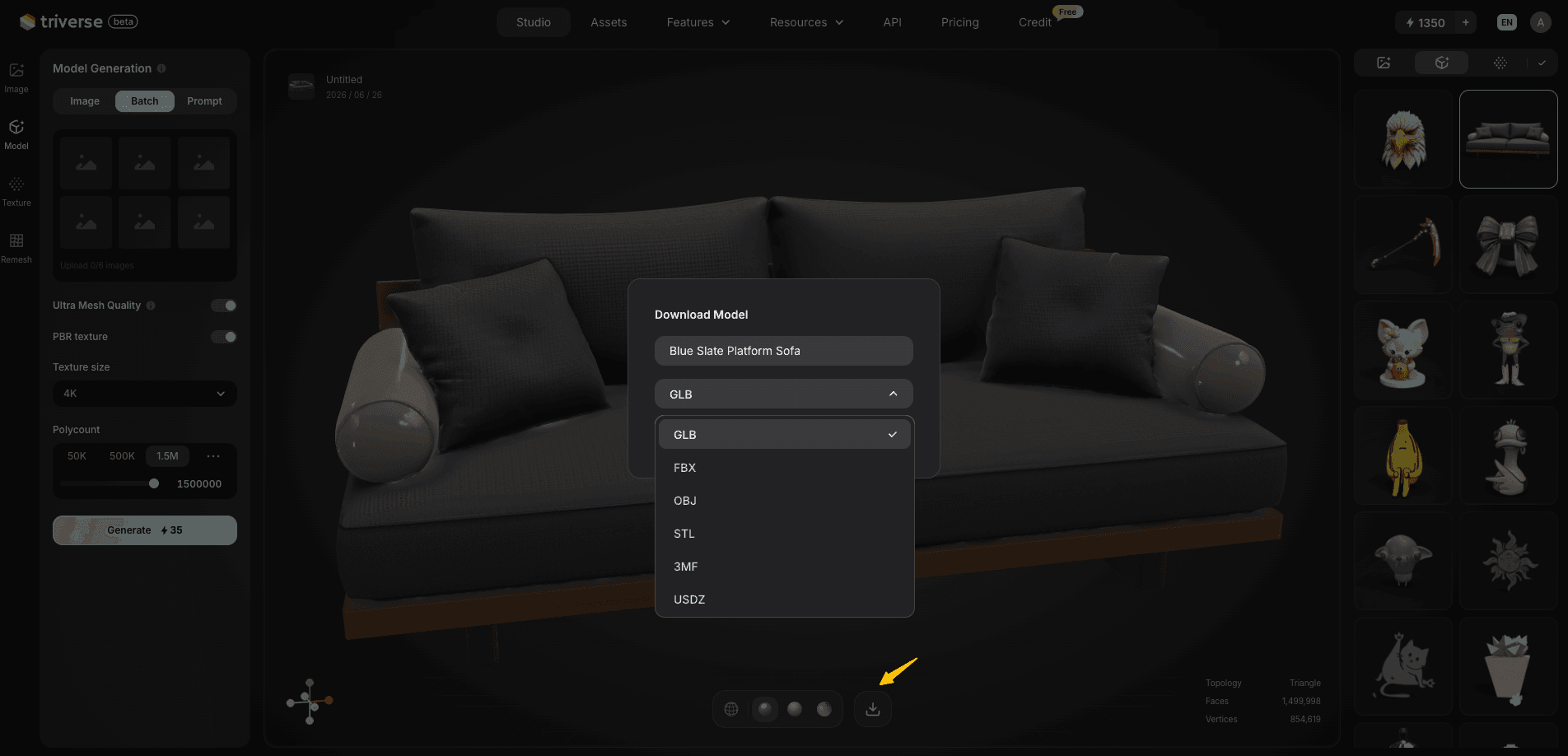
Pick GLB when your model is heading into a game engine, a web 3D scene, or an AR/VR application. GLB keeps the PBR material data that Triverse generates alongside the geometry, so what you see in the preview is what loads in your engine or browser.
Pick OBJ when you're sending the model to a slicer for 3D printing, or when you need a format that every 3D application will accept without conversion. OBJ is the universal fallback. If you're not sure what software the recipient uses, OBJ is the safe bet.
If you're printing an AI model and your slicer needs STL, Triverse exports STL directly too. No middle-man conversion step required.
Bonus: GLB vs OBJ vs FBX: A Quick Note on the Third Format
FBX sits between OBJ and GLB in terms of complexity and capability. It supports animations, complex materials, and camera data, and it's the dominant format in film and AAA game production.
If you're choosing between GLB and OBJ, FBX doesn't change that decision. Use GLB for web and real-time engines, use OBJ for 3D printing and cross-tool compatibility. FBX comes into the picture when you need the most robust animation and material support in a traditional production pipeline — and in that case, you'd typically reach for FBX over GLB, not alongside it.
For most indie developers, web 3D creators, and AI 3D artists, GLB and OBJ cover the ground you actually need.
Frequently Asked Questions about GLB VS OBJ
1. Which format has better material support?
GLB. OBJ's MTL format supports only basic material properties — ambient, diffuse, specular, and shininess. GLB's PBR material model covers base color, metallic, roughness, normal mapping, ambient occlusion, and emissive properties, matching what modern real-time rendering engines expect. If your model has textures generated by an AI tool, those textures stay intact only in GLB.
2. Can I 3D print a GLB file?
No. Slicer software doesn't read GLB format directly. Convert GLB to STL or OBJ first. In Blender, import the GLB, then export as STL for printing or OBJ if your slicer prefers it. Triverse AI supports direct STL and OBJ export, which means you can skip the conversion step if you know the model will go to a slicer.
3. Does OBJ support animations?
No. OBJ is a static geometry format. It stores mesh data only — vertices, faces, UVs, normals. Any rigging, skeletal animation, or blend shape data is lost. For animated models, use GLB or FBX.
4. Why are GLB files smaller than OBJ?
Two reasons: binary encoding compresses numbers far more efficiently than ASCII text, and GLB packages everything — geometry, textures, materials — into one file instead of three or more. An OBJ file that takes 8MB as .obj plus .mtl plus four texture PNGs might compress to 3MB as a single GLB. The savings scale with texture count and mesh complexity.
5. How do I open a GLB file without Python or Blender?
Use an online viewer: Google's gltf.report or modelviewer.dev let you drag in a GLB file and inspect it in the browser. VS Code has a GLTF Tools extension that renders GLB previews in the editor.
6. Which format should I use for AI-generated 3D models?
GLB is generally the better choice for AI-generated models intended for real-time 3D use (games, web, AR/VR). AI tools like Triverse generate PBR material data along with geometry, and GLB preserves that information when you export. If you're exporting for 3D printing instead, OBJ or STL is more practical since slicers read those formats directly.
7. Can I convert AI-generated models from GLB to OBJ without losing quality?
You can convert the geometry — the mesh transfers cleanly. But the PBR material definitions embedded in the GLB don't survive the round-trip to OBJ's MTL format. What you get in the OBJ is basic diffuse color and specular values, not the full PBR material stack. For printing, this doesn't matter. For real-time rendering, you'll need to rebuild or regenerate the materials in your target application.
The Bottom Line: Match the Format to the Pipeline
GLB and OBJ aren't rivals. They're different tools for different jobs.
GLB is the right choice when you're building for the web, working with real-time engines, or need to preserve PBR materials and animations generated by AI tools. It's compact, self-contained, and designed for the modern 3D web stack.
OBJ is the right choice when compatibility is the top priority — 3D printing workflows, cross-tool model exchange, or educational contexts where you need to see and edit the raw geometry data. It's not flashy, but it works with everything.
Most AI 3D generation tools, including Triverse AI, give you both options at export. If you're heading to a game engine or web app, grab the GLB. If you're slicing for print or sharing with a collaborator who uses different software, OBJ or STL is the safer path.