How to Make a UV Map Car in Roblox Studio
Learn how to UV map a car for Roblox Studio. Manual unwrapping dos and don'ts, PBR texture setup with SurfaceAppearance, or use an AI 3D generator to skip the grind.
March 18, 2026
Stretched, pixelated textures on your custom vehicles? If you're building a racing game or city roleplay, learning how to make a UV map car in Roblox Studio is one of the biggest roadblocks for indie developers. Import a car without proper texturing data and you get a messy, unpainted gray block. Fixing it means diving into complex software, marking seams, and mathematically unwrapping your 3D mesh, like a tedious, hours-long process. Most Roblox creators are brilliant scripters, not 3D artists.
But what if you didn't have to do it the hard way? This guide covers the essential Do's and Don'ts of manual UV unwrapping, a step-by-step Blender workflow, how to set up PBR textures with SurfaceAppearance in Roblox, and a way to bypass the grind entirely with AI-generated, well-unwrapped vehicle models.
What Is a UV Map and Why Do Roblox Cars Need Them?
To get the steps right, you need to understand what the engine is actually doing behind the scenes.
When you look at a 3D car in your game, you're looking at a MeshPart existing in 3D space, which uses X, Y, and Z coordinates. But a texture file (like a PNG or JPG of your car's paint job, rust, or decals) is completely flat. It only exists in 2D space, using U and V coordinates.
The Candy Wrapper Analogy
Think of a UV map like a candy wrapper. When the candy is fully wrapped, it covers a complex 3D shape. But if you take scissors, cut specific lines in the wrapper, and lay it completely flat on your desk — you're looking at its UV layout.
What Happens Without a UV Map in Roblox
Roblox cars require this mapping data. If you upload a raw .FBX or .OBJ file without a UV map, the Roblox engine has no instructions on how to wrap your 2D texture around the 3D car doors, hood, and wheels. The result: the engine smears the texture across the entire model, creating the dreaded "stretched pixels" look that makes a game feel cheap and unfinished.
The Do's and Don'ts of Car UV Layout
If you choose the traditional route of unwrapping a car in software like Blender or Maya, you need to understand the golden rules of topology. Making a mistake here means your car will look terrible once imported into your Roblox place. If you want to know how to make a UV map car in Roblox Studio the old-fashioned way, memorize these critical Do's and Don'ts:
✅ DO hide your Blender seams: Whenever you cut your 3D model to flatten it (creating UV islands), it creates a "seam." Textures rarely line up perfectly across seams, which can cause visible rendering lines. Always place your cuts underneath the car chassis, deep inside the wheel wells, or naturally along the gaps between the car doors and the hood.
❌ DON'T stretch the UV islands: When laying out your flattened pieces, you must use a checkered test pattern. If the black and white checkers look like perfect squares on your 3D car, your map is good. If they look like long, warped rectangles, your final textures will be stretched.
✅ DO maximize your UV space: Roblox compresses uploaded images to a maximum resolution of 1024×1024 pixels. Every single pixel counts. Pack your UV islands as tightly as possible in your layout software so you aren't wasting empty space.
❌ DON'T overlap mirrored parts if you plan to use text: Overlapping the left and right sides of the car's UV islands is a great way to save texture space. However, if you put a "POLICE" decal or a racing sponsor logo on an overlapped UV map, it will read perfectly on the left side of the car, but it will be mirrored and backwards on the right side.
✅ DO group by material: Keep the rubber tires, glass windows, and metal body panels grouped in logical sections on your UV layout to make applying PBR textures easier later.
Getting these rules right takes massive amounts of trial and error. Unwrapping a high-quality sports car can easily take a beginner four to five hours. Let's walk through the actual process.
Manual UV Unwrap Workflow in Blender
Here's the step-by-step process for how to make a UV map car in Roblox Studio using Blender.
Step 1: Import Your Car Model
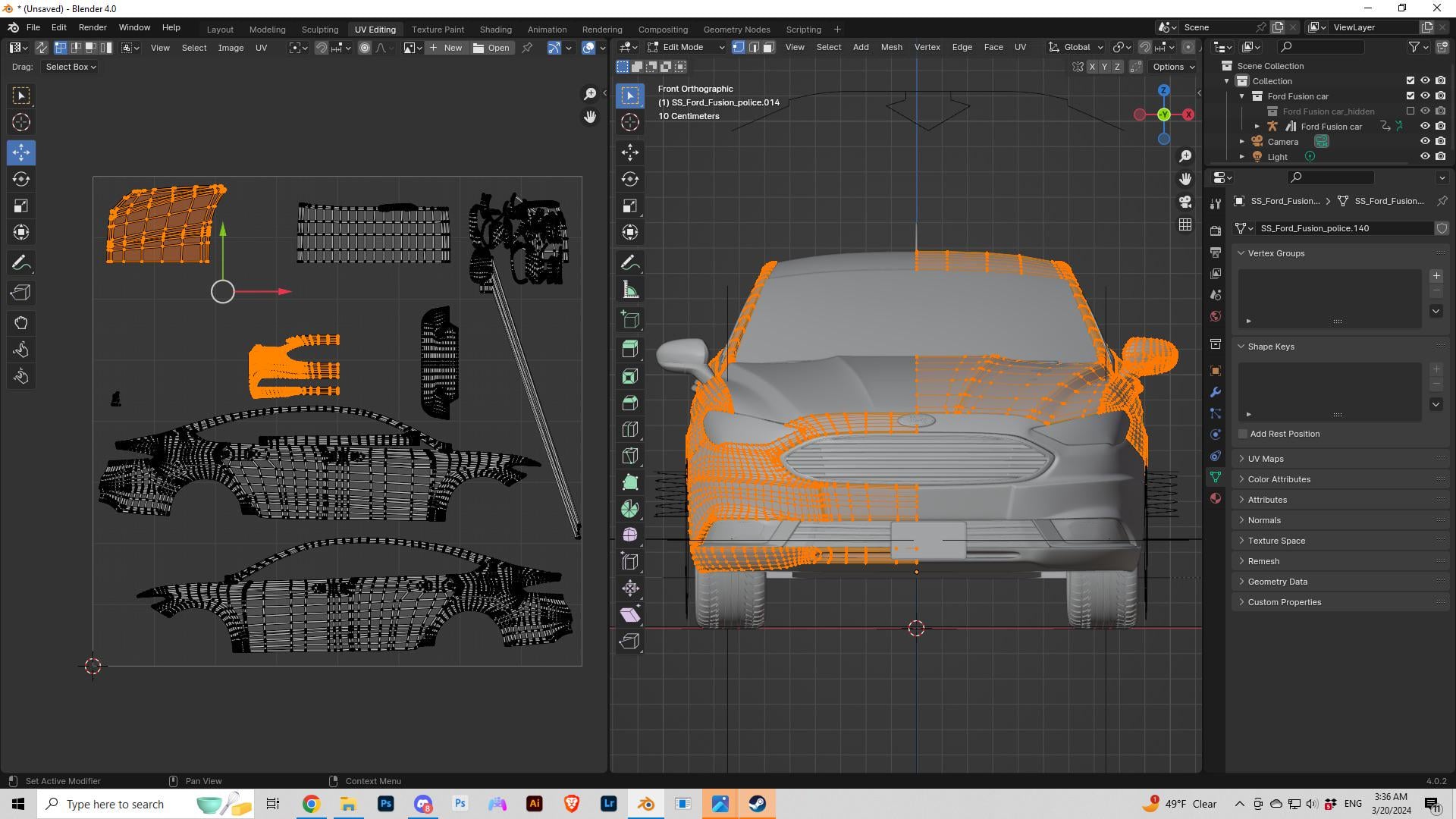
Open Blender and import your car model (File → Import → FBX/OBJ). If you downloaded a model from a marketplace, it may already have a basic UV map — check by switching to UV Editing workspace. If the UV layout looks like a chaotic mess of overlapping triangles, you'll need to re-unwrap it.
Step 2: Mark Seams on the Chassis
In Edit Mode, select edges where you want the UV to split. Press Ctrl+E and choose Mark Seam. The strategy:
- Cut along the bottom of the car chassis (hidden from view)
- Cut inside the wheel wells
- Cut along the natural panel gaps — between doors and the body, around the hood and trunk
- Avoid placing seams on visible, flat surfaces like the roof or hood
The fewer seams you create, the fewer texture discontinuities you'll have to deal with.
Step 3: Unwrap and Pack UV Islands
Select all faces (A), press U, and choose Unwrap. Switch to the UV Editor to see your flattened layout. If the unwrap looks distorted:
- Select individual islands and use Pin (P) on key vertices
- Re-unwrap with U → Unwrap to let Blender recalculate around your pins
- Once all islands look correct, select all and press UV → Pack Islands to arrange them efficiently within the 0–1 UV space
Quick test: Apply a checkered texture to your model. If the squares look uniform across the entire car, your UV map is solid. If they stretch or compress in areas, adjust those islands.
Step 4: Export as FBX for Roblox
Before exporting, apply your transforms: select the car, press Ctrl+A, and choose All Transforms. Then go to File → Export → FBX. Make sure "Apply Modifiers" is checked and the scale is set correctly (Roblox uses meters by default).
The Breakthrough: Generating Auto-UV Mapped Cars with Triverse AI
If you're a game developer — not a full-time 3D modeler — your time is better spent coding physics, designing race tracks, and marketing your game. Instead of spending days learning how to make a UV map car in Roblox Studio manually, you can use Triverse AI to execute a "Zero-Unwrap Pipeline."
Bypassing the Manual Grind
Triverse AI is a 3D model generation tool built for game developers. Unlike traditional workflows, where you model the car, mark the seams, unwrap the UVs, and paint textures manually, Triverse handles the generation end-to-end. Results vary — complex or unusual vehicles may need manual cleanup — but for most standard car designs, the UV unwrapping and PBR texture baking are done for you.
When you prompt Triverse for a "low-poly cyberpunk sports car", the AI generates the 3D mesh along with a UV layout and baked textures. You may still want to check the UV in Blender before import, especially for vehicles with custom decals or symmetrical logos.
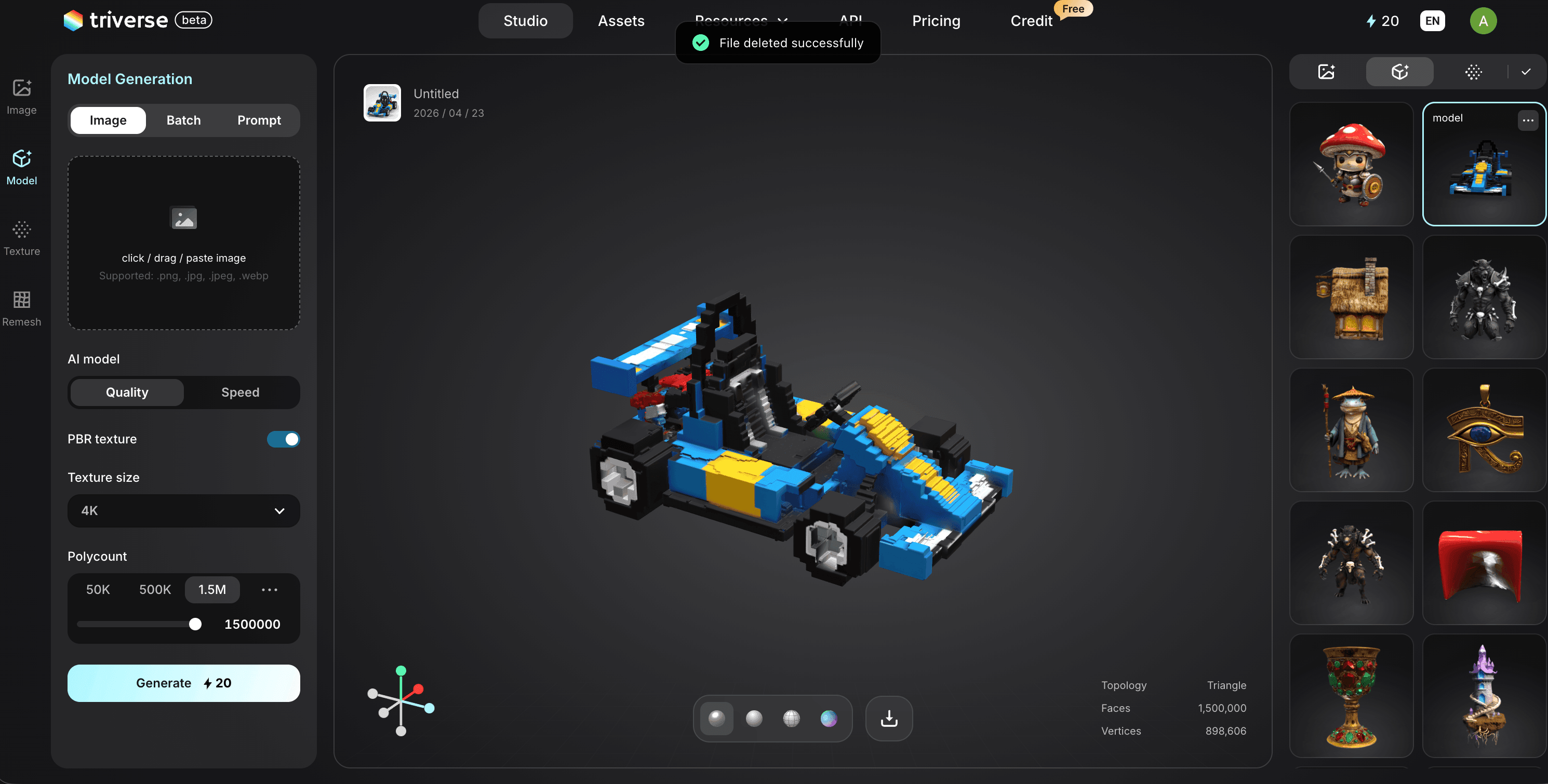
With this approach, the answer to how to make a UV map car in Roblox Studio shifts from "spending four hours in Blender" to "generate, check, and import" — often faster, but not entirely hands-off.
How To Import Your Textured Car To Roblox Studio
Once you've generated your vehicle — whether manually in Blender or via Triverse AI — getting it into your game is straightforward. Here's the exact, step-by-step workflow.
Step 1: Navigating the Roblox Polygon Limit
Roblox has strict engine constraints to ensure games run smoothly on mobile phones and older tablets. Historically, Roblox enforced a strict 10K-polygon limit per MeshPart. While they have recently expanded this limit for newer workflows, keeping individual parts under 10,000 triangles is still the gold standard for game optimization. Check Roblox's mesh requirements for the latest limits.
When you export your vehicle from Triverse AI, you can utilize its built-in decimation features to ensure the car's topology fits well within game-engine limits. Alternatively, if you have a highly complex vehicle, split the mesh — export the four wheels as separate FBX files from the main car chassis.
Step 2: Uploading via the Asset Manager
Don't just drag and drop your file into the workspace. To properly handle custom 3D assets, use the bulk import tool.
- Open your game in Roblox Studio.
- Go to the View tab at the top of your screen and click Asset Manager.
- Click the Bulk Import button (the icon looks like a folder with an upward arrow).
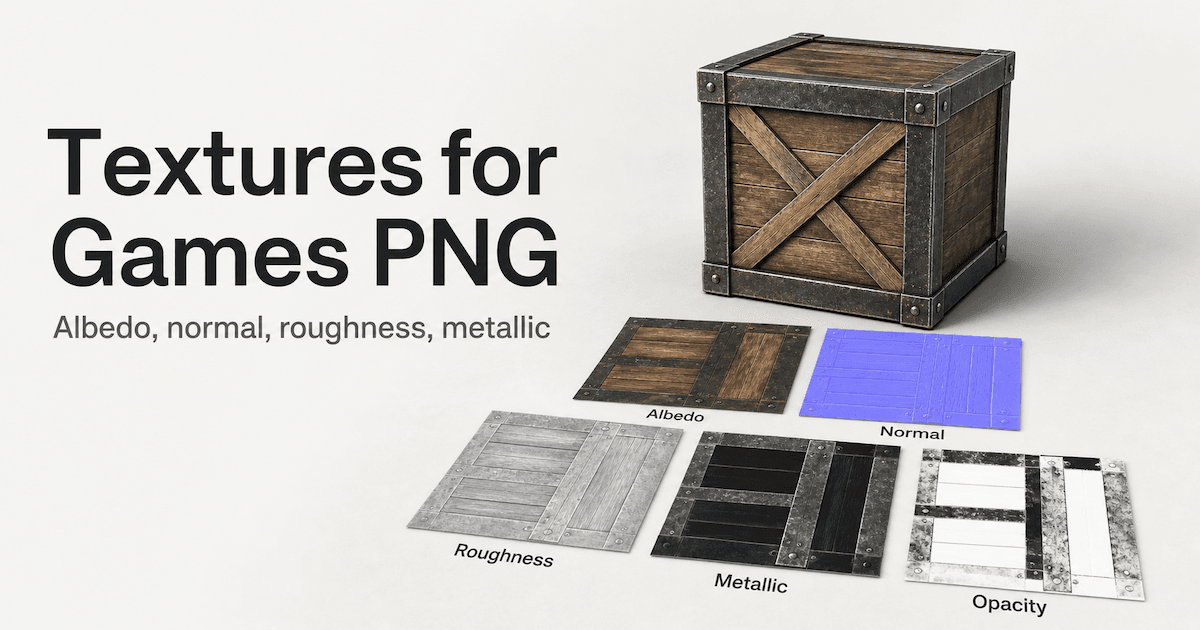
- Select the .FBX file of your car, along with the generated texture maps (usually an Albedo/Color map, a Normal map, and a Roughness map).
- Click Apply All and let Roblox upload the assets to the cloud.
Step 3: Setting Up SurfaceAppearance (PBR Textures)
This is the most critical step that generic tutorials miss. Old Roblox games used a basic TextureID property, which looks flat and cartoonish. Modern developers use SurfaceAppearance to create realistic, metallic cars with proper light response.
- Right-click in your Workspace and insert a MeshPart.
- In the Properties window, set the MeshId to the car you just uploaded in the Asset Manager.
- Hover over your new MeshPart in the Explorer window, click the plus (+) icon, and insert a SurfaceAppearance object.
- Click on the SurfaceAppearance object to open its specific properties. You'll see slots for different texture maps:
- ColorMap: Link the Albedo (base color) image.
- NormalMap: Link the purple/blue Normal map image. This tells the engine how light should bounce off the car's grill, panel gaps, and tire treads, giving fake 3D depth to flat surfaces.
- RoughnessMap: Link the Roughness map. This dictates which parts of the car are shiny (like polished metal or glass) and which are matte (like rubber tires).
By using the SurfaceAppearance node, your car will reflect the game's sunlight realistically — looking like a professional asset, not a flat-colored block.
What to Look for in an AI 3D Generator for Roblox
Not all AI 3D generators are built with Roblox in mind. When comparing tools, here's what actually matters for your workflow:
Polygon budgets. If the output is 200K triangles, you're spending more time decimating than creating. Look for tools that let you control mesh density before export.
- UV quality. Some generators produce overlapping UVs or waste texture space. For Roblox's 1024px limit, efficient UV packing is non-negotiable.
- PBR texture output. You need ColorMap, NormalMap, and RoughnessMap at a minimum to use SurfaceAppearance. If a tool only outputs a flat color texture, you're back to manual work.
- Export formats. Roblox accepts FBX and OBJ. If your tool only exports GLB, you'll need a conversion step. Triverse exports directly to GLB, OBJ, STL, 3MF, FBX, and USD — no middleman needed.
Meshy delivers impressive general-purpose 3D models and has set a high bar for AI-generated art quality. Roblox's own Cube 3D is emerging as an in-platform option. But if your pipeline ends in Roblox Studio and you need engine-ready constraints from the start — manageable polygon counts, clean UV layouts, and PBR textures that plug directly into SurfaceAppearance — Triverse AI targets that specific gap.
Whether you need a fleet of low-fidelity background cars for city traffic or a well-unwrapped hero vehicle for your player character, the goal is the same: get that asset out of the browser and functioning inside Roblox Studio as fast as possible.
Frequently Asked Questions about Roblox Studio UV Map
1. Can you UV unwrap directly inside Roblox Studio?
No. Roblox Studio does not have native UV unwrapping or advanced 3D modeling tools. You must export your MeshPart to a dedicated 3D software program like Blender or Maya, unwrap it there, apply your textures, and then re-import the asset back into Roblox.
2. Why are my car textures blurry in Roblox?
Blurry textures are usually caused by bad texel density. If a large part of your car (like the hood) occupies a very small space on your 2D UV map, the engine has to stretch a few pixels over a massive area. To fix this, open your UV editor in Blender and scale up the islands for the largest parts of your vehicle.
3. What is the maximum texture resolution for Roblox Studio?
Roblox automatically compresses textures to optimize game performance, especially for mobile devices. The current maximum resolution Roblox will display is 1024×1024 pixels. Even if you upload a 4K texture map for your car, Roblox will scale it down, so design your UV layouts efficiently within a 1024×1024 space.
4. Do I need to bake textures for Roblox cars?
Yes, if you want realistic lighting. While you can assign basic colors to different parts of a mesh inside Roblox, baking a proper PBR texture set (Color, Roughness, Metalness, Normal) in Blender or Substance Painter is the only way to achieve professional-quality vehicle paint and tire rubber.
5. Why are my Roblox textures stretched?
Stretched textures happen when your 3D mesh is scaled in Object Mode, but the scale wasn't applied before unwrapping. In Blender, always select your car, press Ctrl+A, and choose Scale before you mark your seams and unwrap.
6. How do I fix overlapping UVs?
In Blender's UV Editor, overlapping islands will cause texture bleeding. Select all your UV islands, click on the "UV" menu at the top of the editor window, and select Pack Islands. The software will automatically separate them and give each piece of the car its own dedicated space.
7. What is the max polygon count for a Roblox car MeshPart?
Historically, Roblox enforced a strict 10,000 triangle limit per single MeshPart. While newer Studio updates have pushed limits higher for specific workflows, keeping your main car chassis under 10K triangles is highly recommended to reduce lag, especially for mobile players.
8. What file format does Roblox accept for 3D cars?
Roblox Studio accepts both .FBX and .OBJ files for 3D meshes. However, .FBX is vastly superior and highly recommended because it carries scaling data, orientation, and multi-part data, making it the industry standard for game development.
Conclusion
Learning how to make a UV map car in Roblox Studio manually is a rite of passage for 3D artists, but it shouldn't be a barrier for game developers who just want to build fun, immersive experiences. Spending hours unwrapping seams in Blender is no longer the only option.
Triverse AI offers a free trial; new users get 1,000 credits for signing up, enough to run the Image-to-3D generator up to 33 times. Download your UV-mapped models in GLB, OBJ, STL, 3MF, FBX, or USDZ format with PBR textures included. No paywall on your assets.