Text to STL: 5 Best Methods to Turn Words into 3D Printable Files
Turn any text description into a print-ready STL file. This guide compares Blender, TinkerCAD, OpenSCAD, and Triverse AI, walks through the full workflow from prompt to printed object, and shows you which method works best for your project.
June 23, 2026
You have a clear idea of what you want to print. A custom figurine. A replacement part that doesn't exist on Thingiverse. A gift with someone's name embossed on it. You search the usual sites, scroll through pages of models, and come up empty. The old answer was to learn CAD. That meant weeks of tutorials before you could produce anything printable.
In 2026, that's no longer the only path. Let's dive in!
What Text to STL Means: From Description to 3D Printable File
Text to STL refers to any workflow that turns written input into a 3D printable STL file. That input might be literal text that you type and extrude into 3D lettering. It might be a natural language description fed into an AI model. Either way, the end result is an STL file ready for your slicer.
This matters because most people who own a 3D printer don't know how to model. They rely on downloadable files from sites like Thingiverse, Printables, and MyMiniFactory. When the exact model doesn't exist, they're stuck. Text to STL tools bridge that gap. You describe what you want, and the software produces the geometry.
Who Uses Text to STL Conversion
- Makers and hobbyists creating one-off prints without learning CAD
- Product designers prototyping concepts from a brief
- Tabletop gamers generating custom miniatures and tokens
- Educators producing manipulatives and classroom aids
- Small businesses creating branded giveaways or replacement parts
Each of these groups has different needs. Some want speed. Some want precision. The right tool depends on what you're trying to build.
How to Make 3D Text in Blender and Export STL
Why Blender for Text Extrusion
Blender is free, open-source, and powerful. It's not designed specifically for text to STL conversion, but its built-in Text Object lets you extrude any typed string into 3D geometry. The learning curve is steep. If you're willing to invest the time, Blender gives you full control over typography, bevels, and mesh quality.
Step-by-Step: Turn Text into a Printable STL in Blender
1. Create a new text object
Open Blender. Delete the default cube (press X, confirm). Press Shift + A, go to Text, and click. A "Text" object appears in the viewport.
2. Enter your text
Press Tab to enter Edit Mode. Delete the placeholder text and type what you want. Press Tab again to exit Edit Mode.
3. Extrude and style the text
With the text object selected, go to the Properties panel on the right. Click the Text tab (icon looks like a letter F). Under Geometry, find Extrude and set a value (start with 0.02 for a thin extrusion, or 0.1 for thicker lettering). Adjust Size to scale the text. Change the font under Font if you want something other than the default.
4. Convert to mesh
Text objects in Blender aren't true meshes until you convert them. With the text selected, go to Object → Convert To → Mesh. Now it's real geometry.
5. Check for mesh errors
Go to Edit Mode (Tab). Press A to select all. Use Mesh → Clean Up → Merge by Distance to remove duplicate vertices. This step prevents slicer errors later.
6. Export as STL
Go to File → Export → Stl (.stl). Choose a location and save. The file is ready for Cura, PrusaSlicer, or Bambu Studio.
When Blender Makes Sense
Blender works well if you already know the interface or need fine control over bevels, spacing, and mesh topology. It's overkill if you just want a name tag in two minutes. For that, TinkerCAD is faster.
TinkerCAD Text to STL: The Fastest Option for Beginners
Why TinkerCAD Works for Simple Text
TinkerCAD runs in your browser. No installation, no account required to try it. Autodesk built it for education, which means the interface is intuitive enough for a 10-year-old. The text tool extrudes any string into 3D geometry in seconds. You won't get beveled edges or custom fonts without extra work, but for labels, keychains, and basic embossing, it's hard to beat the speed.
Step-by-Step: Generate STL from Text in TinkerCAD
1. Open TinkerCAD
Go to tinkercad.com. Create a free account or continue as a guest. Click "Create new design."
2. Add a text object
On the right panel, scroll to "Text" under Basic Shapes. Drag it onto the workplane.
3. Type your text
Click the text object. In the pop-up panel, type your text. Choose a font from the dropdown. Set the height (extrusion depth) to at least 3 mm for structural integrity.
4. Scale and position
Use the corner handles to resize the text. Drag it into position on the workplane.
5. Export STL
Click "Export" in the top right. Select "STL" and download.
TinkerCAD Limitations
You can only extrude literal text. No natural language input. No AI. Complex shapes beyond basic geometry quickly hit the tool's ceiling. For those cases, you need something more capable.
OpenSCAD Text Extrusion: Parametric STL from Code
Why OpenSCAD for Parametric Text
OpenSCAD doesn't have a graphical interface. You write code to define geometry. This sounds harder, but it's powerful for anything that needs precision. Change one number in the script, and the entire model updates. If you want to generate text with exact dimensions, repeatable across multiple sizes, OpenSCAD is the right tool.
Step-by-Step: Script a Text Object and Export STL
1. Install OpenSCAD
Download from openscad.org. Install like any other application.
2. Write the extrusion script
OpenSCAD uses a simple syntax. Here's a basic text extrusion script:
// Text extrusion scriptfont = "Liberation Sans:style=Bold";text_string = "HELLO";text_height = 10;  // mmextrusion_depth = 5;  // mm
linear_extrude(height = extrusion_depth)    text(text_string, size = text_height, font = font);
3. Preview and render
Press F5 to preview. Press F6 to render the full geometry.
4. Export STL
Go to File → Export → Export as STL. Save the file.
When to Use OpenSCAD
If you need to generate the same text at multiple sizes or combine text with other parametric geometry, OpenSCAD shines. The script approach takes time to learn, but it's efficient once you know the syntax. For anything organic or complex, you'll want a different tool.
Fusion 360 Text to STL: Professional CAD for Precise Lettering
Why Fusion 360 Belongs in the List
Fusion 360 is Autodesk's professional CAD platform. It's not free, but the personal license (formerly free for hobbyists, now limited) still lets you design and export. Fusion handles text differently from Blender or TinkerCAD. You sketch the text as a profile, then extrude it into 3D. This gives you precise control over dimensions and lets you combine text with mechanical features like holes, threads, and assemblies.
Step-by-Step: Create 3D Text and Export STL in Fusion 360
1. Create a sketch
Open Fusion 360. Start a new design. Click "Create Sketch" and select a plane (usually the XY plane).
2. Add text to the sketch
Go to Sketch → Text. Click to place the text box. Type your text. Choose a font. Set the height.
3. Extrude the text
Click "Finish Sketch". Select the text profile. Go to Create → Extrude. Set the extrusion distance. Click OK.
4. Check geometry
Inspect the model for thin walls or non-manifold edges. Fusion 360's "Inspect" tools help identify issues before export.
5. Export STL
Go to File → Export. Select "STL" as the format. Choose binary or ASCII (binary is smaller). Export.
When Fusion 360 Makes Sense
If you're designing something that combines text with functional geometry (a labeled enclosure, a branded part, a mechanical component with embossed text), Fusion 360 gives you tools that Blender and TinkerCAD lack. The learning curve is real, but so is the payoff.
Generate STL from Text with Triverse AI
Why AI Changes the Text-to-STL Landscape
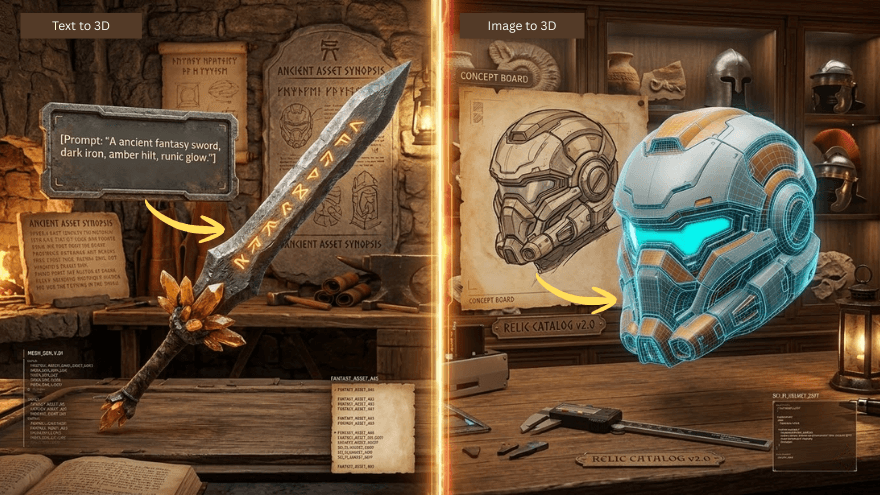
The four tools above all require you to manually define geometry. Blender and Fusion need you to build the shape. TinkerCAD needs you to drag and drop. OpenSCAD needs you to write code. Triverse AI works differently. You type a plain English description of the object you want, and the model generates the full 3D mesh. This is what most people mean when they search for "text to STL" in 2026.
How to Use Triverse AI for Text-to-STL
1. Open Triverse Studio
Go to triverse.ai/studio. Log in or create a free account.
2. Select the text-to-3D workflow
Click "Model Generation" and choose "Prompt". This opens the text input interface.
3. Write a specific prompt
The more specific your description, the better the result. Instead of "a dragon," write: "A small dragon figurine with folded wings, tail curled around a circular base, standing upright, approximately 50mm tall, suitable for FDM printing."
4. Generate and preview
Click "Generate." Quality mode takes 60–90 seconds. When finished, the model appears in the 3D viewer. Rotate, zoom, and inspect from all angles.
5. Check mesh quality
Use the "Wireframe" view to inspect topology. If the model has thin walls or floating parts, revise the prompt and regenerate.
6. Export STL or 3MF
Click the "Download" icon. Select "STL" for universal slicer compatibility, or "3MF" if you want to preserve scale and unit data. Triverse also exports OBJ, GLB, FBX, and USDZ for other workflows.
What Makes Triverse Different
- Natural language input: No CAD skills required. Describe what you want in plain English.
- Automatic texturing: PBR materials are generated with the model. No separate UV work.
- Watertight by default: Most exports are print-ready without mesh repair.
- Speed: 1–2 minutes from prompt to STL, versus hours in traditional CAD.
When to Use AI vs Traditional Tools
Use Triverse AI when you want to print something organic, complex, or one-off: figurines, props, decorative objects, concept prototypes. Use Blender, Fusion, or OpenSCAD when you need precise mechanical dimensions or parametric control. Use TinkerCAD when you just need a name tag in two minutes.
Text to STL Tools Compared in 2026
Tool | Input Type | Export Formats | Time to STL | Best For |
|---|---|---|---|---|
Blender | Manual text extrusion | STL, OBJ, FBX, GLB | 10–30 min | Custom typography, beveled text |
TinkerCAD | Manual text input | STL, OBJ | 2–5 min | Quick labels, name tags |
OpenSCAD | Code/script | STL, OFF, DXF | 5–15 min | Parametric, repeatable geometry |
Fusion 360 | Sketch + extrude | STL, 3MF, STEP | 10–20 min | Mechanical parts with text |
Triverse AI | Natural language prompt | STL, OBJ, GLB, 3MF, FBX, USDZ | 1–2 min | Organic shapes, figurines, concept models |
How to Prepare and Slice Your STL File for 3D Printing
Check the Mesh Before Slicing
Every STL should be inspected before it goes into the slicer. Common issues include:
- Non-manifold edges: Gaps in the mesh that confuse the slicer
- Thin walls: Features below 0.8mm that won't print cleanly
- Inverted normals: Faces pointing the wrong direction
Most slicers flag these automatically in the preview pane. For a deeper check, import the file into Blender and run Mesh → Clean Up → Merge by Distance, then use the 3D Print panel (built into Blender 3.0+) to analyze non-manifold geometry. If you find errors, see the STL repair guide for fixes.
Import into Your Slicer
Drag the STL into Cura, PrusaSlicer, or Bambu Studio. All three read STL without conversion. Check that the model sits flat on the build plate. If not, use the "Lay Flat" or "Autoplace" function.
Recommended Settings for AI-Generated Models
AI-generated models often have intricate surface detail. Start with:
- Layer height: 0.2mm (balance of speed and detail)
- Infill: 15–20% for display pieces, 40%+ for functional parts
- Supports: Enable if overhangs exceed 45 degrees
- Wall count: 3 for a better surface finish on organic shapes
Always preview the toolpath before printing. Look for gaps or unsupported areas that the slicer might have missed.
Pro Tips: Writing Prompts That Actually Work
Describe Physical Attributes, Not Feelings
Prompts work best when they describe real geometry. Start with the object type, then add:
- Dimensions: "50mm tall," "pencil-width thickness"
- Pose or orientation: "standing upright," "seated with legs crossed"
- Base requirements: "flat circular base for stability"
- Print-specific notes: "no floating parts," "suitable for FDM"
Avoid subjective words like "beautiful," "majestic," or "cool." They don't help the model.
When to Use Image-to-3D Instead
Text prompts struggle with objects that have specific visual identities: a character from a game, a logo, a real product. In those cases, use the image-to-3D workflow. Upload a reference image, and the model reconstructs the geometry from visual data rather than guessing from text.
Frequently Asked Questions about Text to STL
Can I generate STL from text for free?
Yes. TinkerCAD is free and runs in your browser. OpenSCAD is free and open-source. Triverse AI offers a free tier with credits included on sign-up, enough to generate and export several models.
What's the best file format for 3D printing: STL, OBJ, or 3MF?
STL is the most universally supported. It stores geometry only—no color, no scale metadata. 3MF is increasingly preferred because it preserves units, materials, and print settings. OBJ is better suited for rendering and game engines than for printing.
Do AI-generated STL files need repair?
Most Triverse AI exports are watertight and slice without errors. Complex prompts occasionally produce thin walls or minor mesh issues. Always preview in your slicer before printing. Run a mesh analysis if the slicer reports problems.
How accurate are AI text-to-3D models?
Accuracy depends on prompt quality. A specific, detailed description yields a more predictable result. AI excels at organic and decorative objects. If you need precise mechanical tolerances (a gear that fits a shaft, a housing that snaps into place), use parametric CAD like Fusion 360 or OpenSCAD.
How long does it take to generate STL from text?
Triverse AI generates a full mesh in 60–90 seconds in Quality mode. Blender, TinkerCAD, and Fusion require manual modeling time that varies by complexity—anywhere from 2 minutes for a name tag to hours for detailed assemblies.
Can I sell models generated with Triverse AI?
Commercial rights depend on your subscription plan. Check the current licensing terms on the Triverse AI pricing page for details.
Conclusion: Which Text-to-STL Method Should You Use?
The right tool depends on what you're trying to build. If you need a quick name tag, TinkerCAD does the job in under five minutes. If you want parametric control over dimensions, OpenSCAD or Fusion 360 gives you precision. If you're willing to invest time learning a full 3D suite, Blender offers unmatched control over typography and mesh topology.
For anything beyond extruded letters—organic shapes, figurines, props, concept prototypes—AI-based tools like Triverse AI have become the practical choice, which can turn a plain language description into a printable STL in under two minutes, no CAD experience required. In 2026, that's what most people mean when they search for "text to STL". The technology has arrived.