STL vs OBJ vs 3MF: Which 3D Printing File Format Should You Use in 2026?
STL, OBJ, or 3MF: which file format is best for 3D printing? Compare mesh data, color support, file size, and slicer compatibility. Plus, how to export the right format.
June 15, 2026
STL works everywhere but carries nothing except raw triangles. OBJ adds textures but complicates the workflow. 3MF packs geometry, color, materials, and print settings into one compressed file but not every slicer reads it yet. Here is when to use each one.
Why Your 3D Printing File Format Matters
How the Wrong Format Causes Failed Prints
A file format decides what information reaches the slicer. That information might be only the shape, the shape plus appearance, or the shape plus materials, color, and print settings. Send the wrong format to the wrong slicer and the results are predictable: missing surfaces, inverted normals, or a model that looks fine on screen and prints as a mess.
If you send a file to the slicer that it cannot understand, you might get some problems. You might get surfaces that are missing, or the inside and outside might be switched around or the model might look fine on the computer. It will be a mess when it is actually printed. Some printers that can print lots of colors and use the 3MF format will not pay attention to color information if it is, in an OBJ file. Older slicers that only read STL will reject a 3MF entirely.
A common example: exporting a multi-color model as STL for Bambu Studio, then wondering why the AMS ignores all color assignments. STL simply cannot carry that data. Exporting the same model as 3MF solves it instantly. Knowing what your slicer needs before you export saves a round-trip.
Quick Answer: Which Format to Pick
Situation | Best Format |
Single-color FDM print | STL or 3MF |
Resin miniatures | STL |
Multi-color or multi-material print | 3MF |
Sending to Blender or game engine | OBJ or GLB |
Bambu Studio with AMS | 3MF |
Maximum compatibility with any slicer | STL |
STL: The Industry Standard for 3D Printing
What Is an STL File?
STL (Standard Tessellation Language) stores 3D geometry as a collection of triangles. Each triangle is defined by three vertices and a surface normal. Nothing else. No color, no texture, no material data, no units. It is the simplest widely used 3D file format and has been the default for 3D printing since the 1980s.
Pros and Cons of STL
Every slicer on the market reads STL. Every 3D modeling tool exports it. Compatibility is never a question. The format is simple, predictable, and well understood.
The tradeoff is that STL files contain only raw triangles. There is no compression, so files with high polygon counts get large quickly. There is no way to store color, material assignments, or print settings inside the file. If you need any of those, you need a different format. STL also stores redundant vertex data since each triangle defines its own three corners independently, even when triangles share edges. This makes file sizes larger than necessary for complex models.
When to Use STL
Use STL when you are printing a single-color model on any FDM or resin printer. It works everywhere. If your workflow is "export, open in slicer, print," STL is the path of least resistance. It is also the safest choice when sharing files with others since you know their slicer will accept it. Before slicing, check that your model meets the minimum wall thickness requirements for your printer type.
OBJ: When to Choose OBJ for 3D Printing
What Is an OBJ File?
OBJ (Wavefront Object) stores geometry as vertices, edges, and faces. Unlike STL, it supports quads and polygons in addition to triangles. OBJ files can reference an external MTL (Material Template Library) file that defines surface materials, and texture maps can be linked as separate image files. This makes OBJ a bridge format between 3D modeling, rendering, and printing.
Pros and Cons of OBJ
OBJ carries more data than STL. It supports vertex colors, texture coordinates, and material references. This makes it useful for workflows that move between Blender, game engines, and 3D printers. The format is widely supported across creative software.
For pure 3D printing, OBJ has downsides. The MTL and texture files must travel with the OBJ or materials break. Some slicers read OBJ geometry but ignore the material data entirely. File sizes can be large since OBJ is a text-based format with no built-in compression. For printing, OBJ adds complexity without adding much value unless you specifically need texture data in your slicer.
When to Use OBJ for 3D Printing
Use the OBJ file format when your 3D model needs to move from an editor like Blender, Maya, or ZBrush to a slicer. This is because OBJ helps keep UV mapping and material assignments intact. OBJ is a choice when you send 3D assets to game engines such as Unity or Unreal. This is because texture data is important in these engines.
For printing alone, STL or 3MF are the simpler and more reliable choices.
3MF: The Modern Built for 3D Printing
What Is a 3MF File?
3MF (3D Manufacturing Format) was designed specifically for 3D printing by Microsoft and a consortium of printer manufacturers. It stores geometry, colors, materials, print settings, and multi-part assemblies in a single compressed ZIP archive. The format uses XML internally, which makes it structured and extensible. 3MF was built to solve the problems STL was never designed to handle.
Pros and Cons of 3MF
3MF files are smaller than equivalent STL files because of built-in compression. They carry color and material data natively, which matters for multi-color printers like Bambu Lab machines with AMS. Print settings (layer height, infill, supports) can be embedded in the file, so a 3MF opened in the same slicer that created it reproduces the exact same configuration. The format enforces watertight geometry by design, which reduces mesh errors compared to STL.
The main limitation is compatibility. Not every slicer fully supports 3MF yet. Older software and some resin slicers still prefer STL. The format is also less common in game engine and rendering workflows, where OBJ and GLB dominate. If you share files publicly and want maximum compatibility, 3MF is not yet as universal as STL.
When to Use 3MF
Use 3MF when you print on Bambu Studio, PrusaSlicer, or any slicer that fully supports 3MF. It is a choice for multi-color prints. You should also use it for material setups. The 3MF format lets you take print settings with your file.
If you work within a single slicer and printer ecosystem, 3MF is the most complete format available. It eliminates the need to reconfigure settings every time you open a file. If you are working within a single ecosystem (one slicer, one printer), 3MF is the most complete format available.
Side-by-Side: STL vs OBJ vs 3MF Comparison
Feature | STL | OBJ | 3MF |
Geometry | Triangles only | Triangles, quads, polygons | Triangles |
Color support | No | Via MTL file | Native |
Texture support | No | Via external images | Embedded |
Compression | No | No | Yes (ZIP) |
Print settings | No | No | Yes |
Multi-part assemblies | No | Limited | Yes |
File size (same model) | Large | Large | Small |
Slicer compatibility | Universal | Most slicers | Growing |
Watertight enforcement | No | No | Yes |
Which Format Should You Choose?
- For FDM Single-Color Prints: STL is the safe default. 3MF is better if your slicer supports it since it carries embedded settings and compresses the file.
- For Resin Miniatures: STL. Most resin slicers (Chitubox, Lychee) have full STL support. 3MF support in resin slicers is still inconsistent.
- For Full-Color Prints: 3MF is the only practical choice. It carries color data natively and works with Bambu Studio AMS and PrusaSlicer MMU workflows. OBJ can carry color through MTL files, but slicer support is unreliable.
- For Game Assets That Also Need to Print: Export OBJ or GLB for the game engine workflow, then export a separate STL or 3MF for the slicer. Do not try to use one file for both purposes.
Skip the Format Headache: Export Any Format from Triverse AI
Why AI-Generated Models Eliminate Conversion Problems
Most format errors happen during conversion. A model created in one tool, exported to one format, then converted to another for the slicer introduces opportunities for broken normals, lost textures, and corrupted geometry at every step. Triverse AI exports directly to every major format from the same source mesh, so no conversion step is needed.
How to Export from Triverse AI
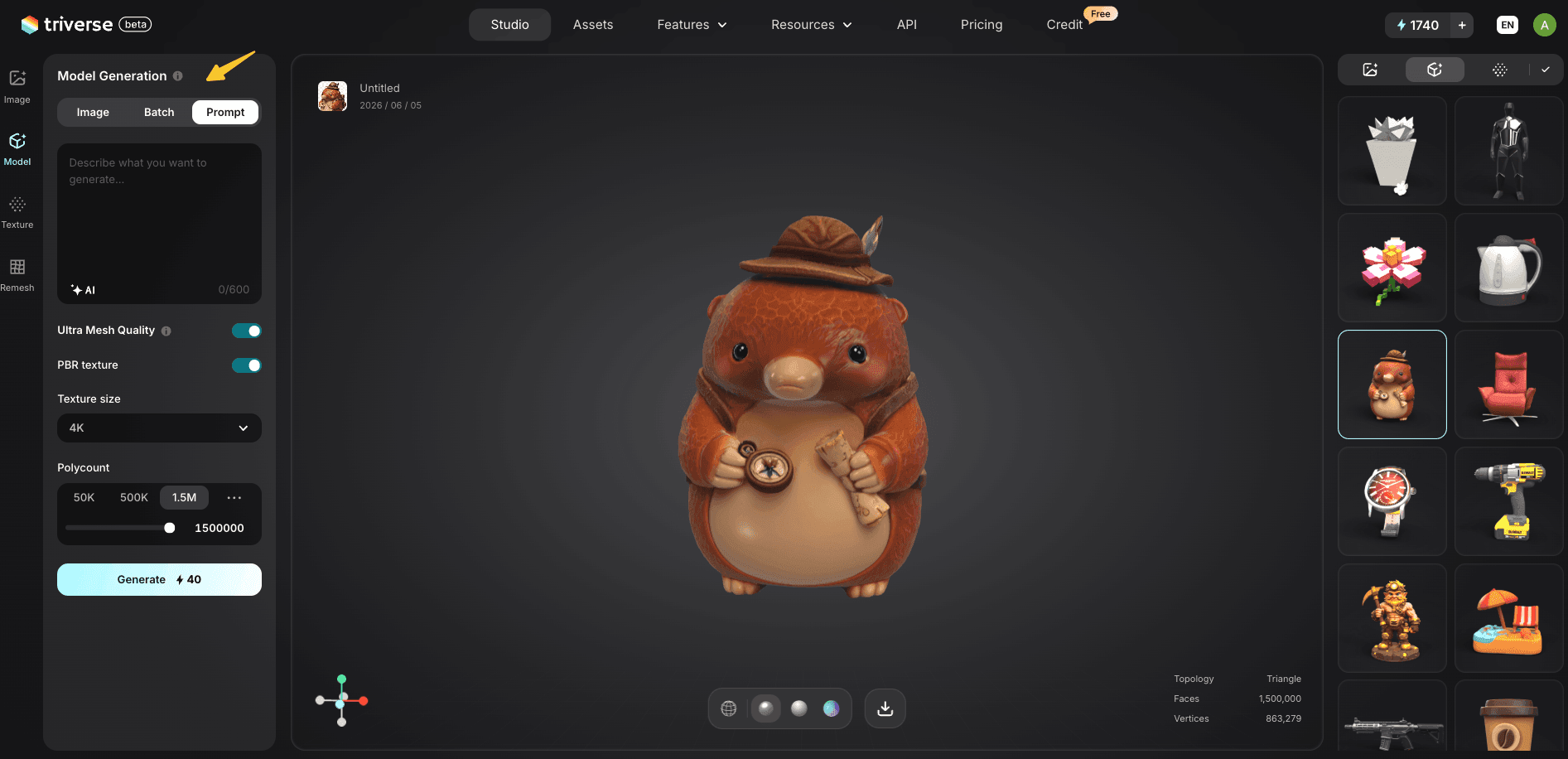
In Triverse Studio, generate your model using Image-to-3D or Text-to-3D, click the Download icon, and choose the format that matches your workflow:
Your Goal | Export Format | Notes |
FDM single-color print | STL | Watertight mesh, universal slicer compatibility. Set polycount to 500K or lower. |
Resin miniature | STL | Use 1M to 1.5M polycount for maximum surface detail. |
Multi-color print (Bambu AMS, Prusa MMU) | 3MF | Color and material data embedded. Open directly in Bambu Studio or PrusaSlicer. |
Blender editing or game engine | OBJ | Packaged with MTL file and texture maps. |
Web or AR preview | GLB or USDZ | Lightweight, real-time ready. |
Unity or Unreal Engine | FBX | Preserves materials and hierarchy. |
All six formats export from the same generated model. Generate once, export to whatever your project needs.
How to Convert Between STL, OBJ, and 3MF
Free Online Converters
Several free browser-based tools handle basic format conversion. Search for "STL to OBJ converter" or "3MF to STL converter", and you will find options that take an upload and return the converted file. These work for geometry-only conversions. Color and texture data may not survive depending on the tool. For reliable conversion with materials preserved, use Blender instead.
Using Blender for Format Conversion
Open Blender, go to File → Import, select your source file. Blender reads STL, OBJ, and 3MF natively. Make any adjustments needed, then go to File → Export and choose the target format. Blender preserves UV mapping and materials during conversion, making it the most reliable free option for complex files.
3MF to STL Step-by-Step Guide
If your slicer does not support 3MF, convert to STL using one of these methods. Open the 3MF in Bambu Studio or PrusaSlicer, then export as STL from the slicer. Alternatively, open in Blender and export as STL. Be aware that color, material, and print setting data will be lost during conversion since STL does not support these features. For a detailed walkthrough, see the 3MF to STL conversion guide.
STL vs OBJ vs 3MF: Common File Format Errors and Fixes
Non-Manifold Geometry in STL Files
STL files have no built-in mesh validation. Holes, flipped normals, and overlapping faces are common, especially in files downloaded from free STL libraries. Run a mesh check in your slicer before printing. For manual repair, use Meshmixer or Blender's 3D Print Toolbox. If errors persist, repair the mesh before slicing.
Missing Textures in OBJ Files
OBJ files reference external MTL and image files by filename. If these files are moved, renamed, or separated from the OBJ, textures disappear. Always keep the OBJ, MTL, and texture images in the same folder. If textures are missing after import, use File → External Data → Find Missing Files in Blender to reconnect them.
Corrupted 3MF Archives
3MF files are ZIP archives internally. If the archive is damaged during download or transfer, the slicer will fail to open it. Re-download the file first. If the problem persists, try opening it in a different slicer. Bambu Studio and PrusaSlicer handle slightly damaged 3MF files differently, so one may succeed where the other fails.
Conclusion
Three formats, three different strengths. Match the format to the job, not the other way around. If you're generating models with AI tools like Triverse AI and printing multi-material, 3MF is the right default for 2026.
FAQs about STL VS OBJ VS 3MF
Is 3MF better than STL for 3D printing?
For modern slicers that support it, yes. 3MF is smaller, carries more data, and enforces watertight geometry. For maximum compatibility across all slicers and printers, STL is still the safer choice.
Can Cura open OBJ files?
Yes. Cura reads OBJ geometry but may ignore material and texture data. For printing, the geometry imports correctly. For color data, use 3MF instead.
What file format does Bambu Studio use?
Bambu Studio uses 3MF as its native project format. It also reads STL and OBJ. For multi-color prints with AMS, 3MF is required to carry color assignments.
Do I need to repair STL files before printing?
Not always, but checking is recommended. STL has no built-in mesh validation, so errors like non-manifold edges and holes can exist without warning. Preview in your slicer and run a mesh check before printing. AI-generated STL files from Triverse AI are watertight by default and typically slice without errors.
Which format preserves color and texture data?
3MF carries color and material data natively. OBJ stores them via external MTL and image files. STL does not support color or texture data.
What formats does Triverse AI export?
GLB, OBJ, STL, 3MF, FBX, and USDZ. All six formats export from the same generated model with no conversion needed.