The Best CAD Software for 3D Printing in 2026 (Free & Paid)
Want to find the best CAD software for 3D printing in 2026? In this guide, we compare free, beginner-friendly tools and learn how AI generators like Triverse are changing the workflow.
You must have encountered this: you export your design, load it into the slicer, and the screen fills with red warnings about non-manifold edges.
Here's the truth: people don't quit 3D printing because printers fail. They quit because CAD software makes them feel stupid. You open Fusion 360, stare at the interface, and close it. Try TinkerCAD, make a lumpy blob, and the printer gathers dust.

In this guide, we'll break down the absolute best cad software for 3d printing available this year, how long they take to learn, and why the 2026 hybrid workflow changes everything.
Why Your CAD Software Choice Can Make or Break a Print
Your slicer doesn't understand engineering or art; it only understands a watertight mesh.
When you export, your CAD wraps the model in triangles. If they don’t connect perfectly, you’ve got a non-manifold edge: geometry that can’t physically exist. Your slicer either chokes or guesses wrong. Either way, you get stringing, layer shifts, or failed prints.

Parametric tools like Fusion 360 and SolidWorks make bad geometry hard to create. Polygonal tools like Blender give you freedom, and plenty of ways to break your mesh without realizing it.
Run your STL through a mesh repair tool before printing. Takes 30 seconds, saves hours of wasted filament.
The Learning Path of Using CAD Software
Zero to First Design: 1-2 Days
- TinkerCAD: Browser-based, impossible to break
- AI 3D generation tools (e.g., Triverse AI): Describe what you want, get a model in minutes
This stage isn't about learning CAD — it's about proving you can create.
Ready to Learn Real CAD: 2-4 Weeks
- Fusion 360 (free personal license): The default recommendation for a reason
- FreeCAD: Free forever, steeper curve, no subscription anxiety
- Onshape: Browser-based, collaborative, created by SolidWorks founders
This is where parametric modeling clicks. You'll make ugly shapes. That's normal.
Comfortable and Curious: 2-4 Months
- Continue with Fusion 360 or FreeCAD
- Add Blender for organic/character modeling
- Consider SolidWorks if pursuing engineering professionally
The 9 Best CAD Software for 3D Printing
Before diving in, here's the split that matters: parametric CAD gives you precise dimensions and mathematical accuracy. Polygonal/sculpting CAD gives you artistic freedom and organic shapes. Most people need one or the other. This guide covers both.
1. Blender — The World's Most Popular Free 3D Software
Price: Free, open-source | Type: Polygonal/sculpting | Curve: 1-3 months

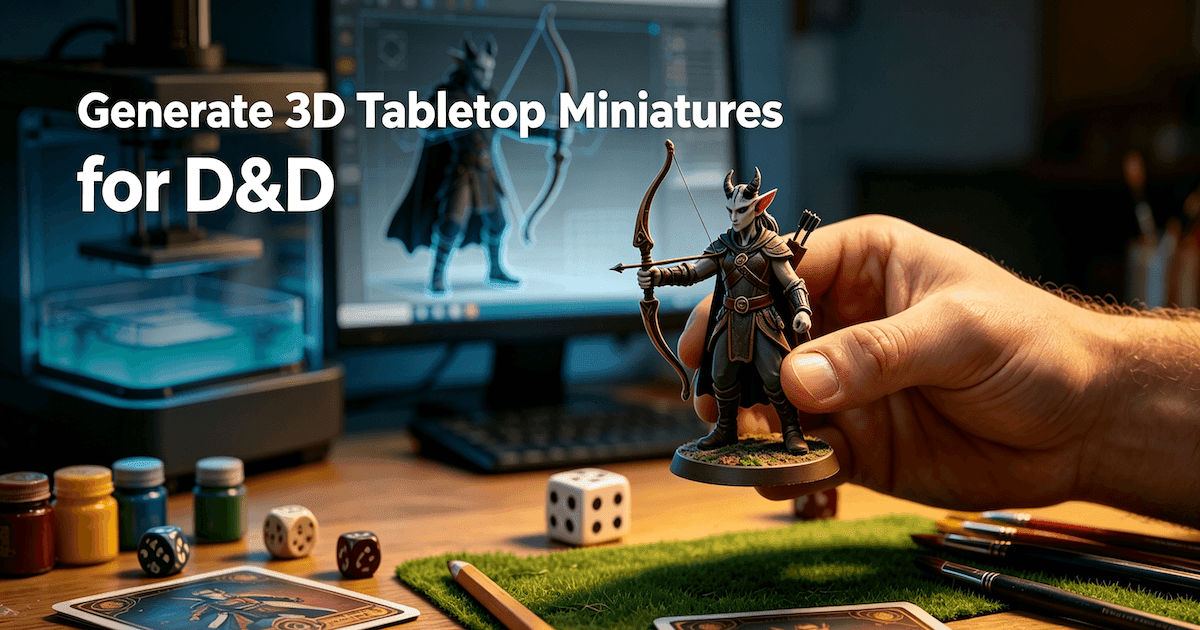
Let's get this out of the way: Blender is not parametric CAD. You won't define dimensions or constrain sketches. What you will do is sculpt, push, pull, and manipulate mesh directly. For D&D miniatures, character figures, cosplay props, architectural visualization, game assets — anything organic or artistic — Blender is unmatched. For mechanical brackets or precision parts, it's the wrong tool.
But here's what makes Blender remarkable for 3D printing: it's free, open-source, has the most comprehensive tutorial ecosystem of any 3D software on the planet (some of the best content is completely free on YouTube), and outputs STL files that slicers can read.
What it's actually good at for printing:
- Tabletop gaming miniatures and figures
- Cosplay masks, props, and costume pieces
- Artistic sculptural pieces
- Conceptual models before moving to parametric CAD
The catch for 3D printing:
- Easy to create non-manifold geometry — use the 3D Printing Toolbox addon to check before exporting
- No dimension precision — you can't say "make this hole exactly 5mm"
- Steep learning curve — but the payoff in capability is massive
Honest take: If you want to print characters, creatures, or anything organic, learn Blender first. It's harder than TinkerCAD, but the skills actually transfer to professional workflows. And if you decide to move to parametric CAD later, you'll understand mesh topology better than people who have only used TinkerCAD.
2. TinkerCAD — Best for Absolute Beginners
Price: Free | Type: Browser-based, Boolean | Curve: Hours
If you've never opened a 3D modeling program, TinkerCAD is your starting line. Drag-and-drop based on primitive shapes: boxes, cylinders, spheres. You drag a cylinder onto a box, turn it into a "hole," group them, and make a bracket.

What it's actually good at:
- Simple functional parts: brackets, enclosures, phone stands
- Modifying existing designs from MakerWorld/Printables
- Quick prototyping before moving to serious CAD
- Teaching kids the Boolean concept
Where it hits the wall:
- Curves beyond basic cylinders
- Precise mechanical tolerances
- Complex assemblies or moving parts
- Anything a professional would take seriously
Honest take: Spend a weekend here. Make 10 things. If you're still excited, move to Fusion 360. If not, you saved yourself weeks of frustration.
3. Autodesk Fusion 360 — The Standard for Precision Work
Price: Free personal license / $495/year | Type: Parametric | Curve: 2-4 weeks
Autodesk Fusion 360 is what happens when professional CAD meets accessible design. You don't just draw shapes — you define exact dimensions using sketches and constraints. Design an entire robotic arm, realize the base peg needs to be 2mm wider: change one number. The software mathematically rebuilds the entire model instantly.
This is parametric modeling done right. The learning curve is real, but the tutorial library is infinite. Any problem you encounter, someone solved it on YouTube.
The free license limits (2026):
- 10 active documents (archive old ones, you're fine)
- Limited export formats (STL works fine)
- Non-commercial use only
Best for:
- Functional parts that need to snap together
- Mechanical assemblies with moving components
- Anything requiring dimensional accuracy
4. FreeCAD — Best Open-Source Option
Price: Free, forever | Type: Parametric | Curve: 2-4 weeks
FreeCAD is the VLC of CAD: ugly, confusing, but does everything and costs nothing.
Sketch-based workflow very similar to Fusion 360. The interface was clearly designed by engineers who never met a user experience researcher. But under the rough exterior is a genuinely capable parametric CAD.

Pros:
- No subscription, no cloud dependency, no license anxiety
- Excellent for mechanical engineering projects
- Huge plugin ecosystem (quality varies)
- Works on Linux without dual-booting
Cons:
- The learning curve is brutal. Expect a week of feeling lost.
- Documentation is inconsistent — you'll rely on YouTube
- Crashes happen. Save early, save often.
Honest take: If you're philosophically opposed to subscriptions or need Linux compatibility, this is your answer. It's capable, just not friendly. Put in the time, and it pays off.
5. Onshape — Best Browser-Based CAD
Price: Free (public designs) / Paid plans | Type: Parametric | Curve: Medium
Created by the original SolidWorks founders, Onshape brings professional-grade parametric CAD entirely to the cloud. No powerful computer needed — it runs in any browser.

Handles complex assemblies beautifully. Fantastic for collaborative projects where multiple people design parts for the same print. The free tier works if you don't mind your designs being publicly accessible.
Best for:
- Collaborative classroom or maker space workflows
- Users without access to powerful hardware
- Teams designing interlocking parts
Watch out for:
- Cloud dependency (you need internet)
- Free tier = public designs only
6. SketchUp — Best for Quick Architectural Mockups
Price: Free web version / $119/year Pro | Type: Direct modeling | Curve: Days
SketchUp occupies an awkward middle ground. Incredibly easy to learn — push and pull faces directly — but not parametric. Requires the Solid Inspector plugin to fix non-manifold geometry.
If you're coming from an architecture background, this feels natural. For everyone else, it's between TinkerCAD and real CAD without the benefits of either.
Best for:
- Architectural models and interior design mockups
- Simple woodworking project planning
- People who think in "push this face" terms
Skip if: You want precise mechanical engineering or functional parts.
7. SolidWorks — Best Professional Standard
Price: $3,995+ (Free for students) | Type: Parametric | Curve: Months

SolidWorks is what actual engineers use. Deeply embedded in professional workflows, industry-standard file formats, and exceptional precision.
The student license is free through qualifying programs. If you're in engineering or industrial design, learn SolidWorks — it's a resume line.
For hobbyists: Expensive and overkill. Not worth it unless you're transitioning to professional work.
8. Rhino 3D — Best for Complex Surface Modeling
Price: $995 (educational discounts available) | Type: NURBS/surface | Curve: Weeks to months

Rhino excels at complex organic surfaces — automotive design, jewelry, architecture. The NURBS mathematics handle curved surfaces with mathematical precision.
Less common in hobby 3D printing, but excellent if you're making jewelry, custom headphones, or anything requiring smooth organic surfaces.
9. PrusaSlicer/Simplify3D — Best Slicers That Double as CAD
These aren't CAD software, but they're worth mentioning: some advanced slicers include basic modeling capabilities or mesh editing tools. For minor adjustments to downloaded models — scaling, rotating, cutting, you don't always need full CAD software.
Best for:
- Quick STL modifications without opening Fusion 360
- Hole cutting and basic Boolean operations
- Multi-material optimization
CAD Software for 3D Printing Feature Comparison
Software | Best Use | Type | Curve | Price |
|---|---|---|---|---|
Blender | Organic sculpting, artistic models | Polygonal | 1-3 months | Free |
TinkerCAD | Beginners, basic shapes | Boolean/Mesh | Hours | Free |
Fusion 360 | Engineering, precision | Parametric | 2-4 weeks | Free/Paid |
FreeCAD | Open-source mechanical | Parametric | 2-4 weeks | Free |
Onshape | Browser-based teams | Parametric | Medium | Free/Paid |
SketchUp | Architecture mockups | Direct | Days | Free/Paid |
SolidWorks | Professional engineering | Parametric | Months | $3,995+ |
Rhino 3D | Surface modeling | NURBS | Weeks | $995 |
Bonus: Not CAD, But Useful - Triverse AI 3D Generation Tools
Triverse AI is not CAD software. It can't define tolerances, create parametric sketches, or give you a dimensionally accurate mechanical part. But if you need to quickly generate a complex organic base mesh — the kind of thing that would take dozens of hours to sculpt by hand in Blender — it can save you serious time.
Here's the specific scenario where Triverser AI helps:
You need a decorative element, an organic handle, a character bust, or a sculptural piece. Traditionally, you'd fire up Blender, block out the shape, sculpt for hours, retopologize, check for manifold issues, and finally export.

With Triverse AI, you describe what you want, generate a clean manifold mesh, and download a GLB/FBX file. Then you bring that base mesh into your CAD software of choice — Fusion 360 for adding precise mounting points, or TinkerCAD for simple Boolean cuts, and then print.
AI tools like Triverse AI generate the organic shape. CAD handles the engineering. Neither replaces the other.
This workflow is especially useful for people who primarily work in parametric CAD (Fusion 360, FreeCAD) but occasionally need organic geometry and don't want to learn Blender from scratch just for one project.
Which CAD Software Should You Actually Learn?
Complete beginner with a specific idea:
→ TinkerCAD. Get from zero to first print in a weekend.
Curious and want to see if you like it:
→ TinkerCAD first. Graduate to Fusion 360 if you keep coming back.
Serious about functional 3D printing:
→ Commit to Fusion 360. 30 minutes daily for a month. It clicks.
Making characters, miniatures, cosplay:
→ Blender. Nothing else free comes close to organic modeling.
Engineering student or aspiring professional:
→ SolidWorks through school + Fusion 360 on the side.
Common Questions about The Best CAD Software for 3D Printing
The Bottom Line
The best CAD software isn't about features — it's about matching the tool to where you are.
If you've never opened a 3D modeling program, start with TinkerCAD. Get something printed. Prove to yourself that you can create. That momentum matters more than learning "proper" CAD right away.
If you're serious about functional parts — replacement brackets, mechanical assemblies, things that need to actually work — commit to Fusion 360 or FreeCAD. The learning curve is real, but it's documented everywhere. Put in 30 minutes a day, and it clicks eventually.
If you're here for miniatures, cosplay props, or anything organic, learn Blender. The skills don't transfer to engineering CAD, but that's fine — different tools for different goals.
The 2026 landscape has changed. AI tools like Triverse AI can generate base shapes in minutes — they're not CAD, but they can get you unstuck. Generate a base mesh, refine it in parametric CAD, and print. Skip the blank-page paralysis.
Pick one. Make things. The software is just the tool — the real skill is showing up consistently enough to get good.

Dennis Kirk is an AI 3D specialist and game developer with more than 5 years of industry experience, mastering production workflows across Unity, Unreal Engine, and Godot. He focuses on demystifying next-generation 3D workflows for creators of all skill levels. His writing spans hands-on technical walkthroughs, asset optimization strategies, and in-depth software reviews, helping developers build faster and smarter.