3D Printing First Layer Calibration: Bed Leveling, Z-Offset, and Perfect Adhesion
Bed leveling, Z-offset, slicer settings: get them all right in one guide. Covers PLA, PETG, ABS, and AI-generated models. Print-perfect first layers every time.
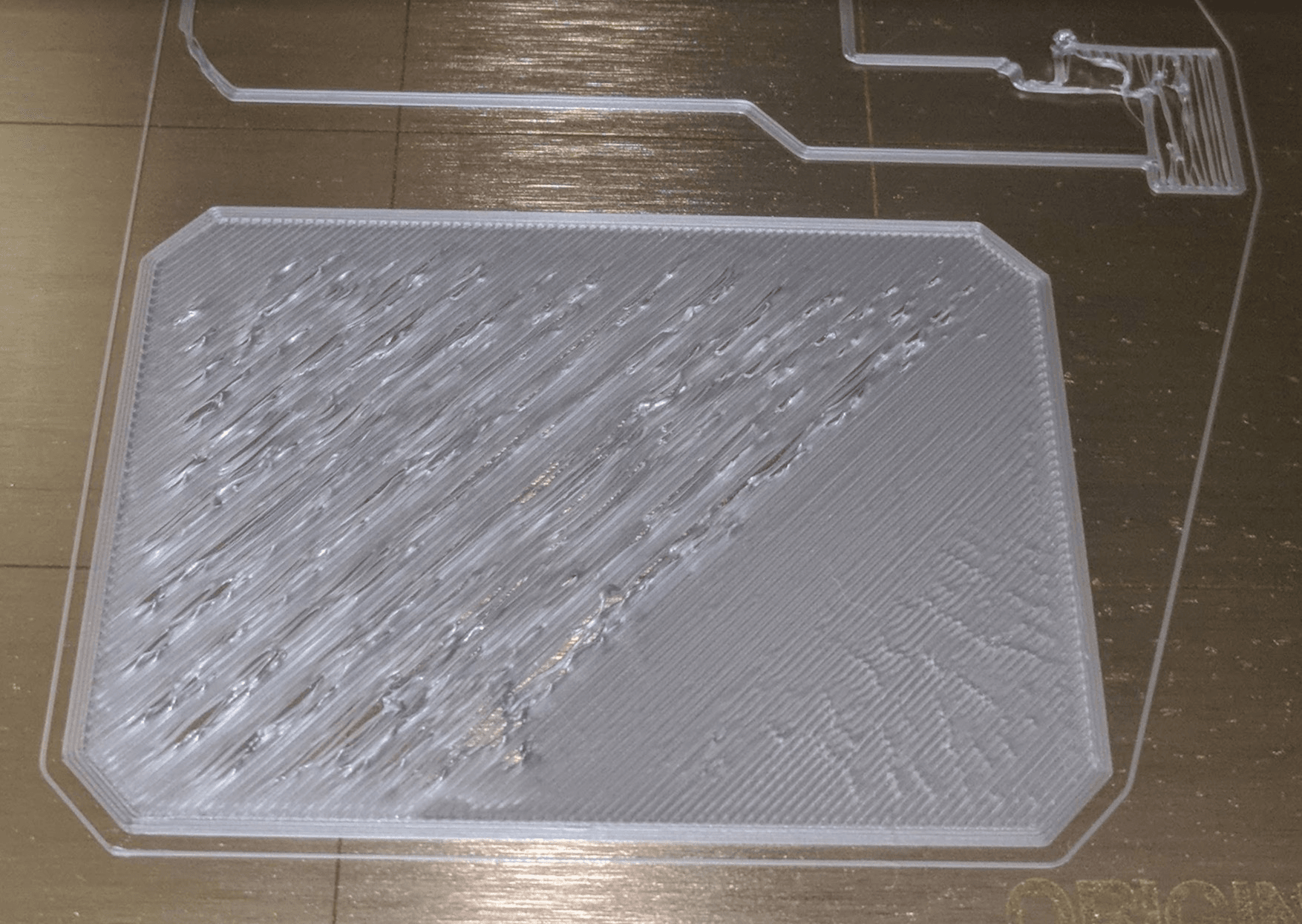
You've been there. The printer warms up, the model loads, the first layer goes down, and it is a mess. Gaps. Ridges. Corners lifting. You re-level the bed. Same result. You adjust the Z-offset. Still wrong. The first layer is the most sensitive step in 3D printing, and when it is off, nothing else matters.
This guide cuts straight to fixing 3D printing first-layer error. We cover the difference between bed leveling and Z-offset — most people confuse these two; walk through the exact calibration steps, give you slicer settings for every common material, and map every common first layer symptom to its cause and fix. By the end, your first layer will be consistent across every print.
Bed Leveling vs Z-Offset: Understanding the Difference First
These two procedures work together, and they are not interchangeable. Mixing them up is the single most common reason first layer calibration fails.
What Bed Leveling Actually Does
Bed leveling makes the build plane parallel to the nozzle's movement path. The goal is not a perfectly flat bed — it is parallelism. Even if your bed has a slight bow in the center, leveling makes the nozzle stay at the same height above the bed surface at every point.
Thermal expansion changes the bed's position as it heats up. This is why you always level with the bed at printing temperature. Cold leveling gives you a false result.
What Z-Offset Actually Does
Z-offset is the fine vertical adjustment you apply after leveling is complete. It controls the squish — how much the first layer gets compressed against the build plate. Think of it as your fine-tuning knob.
A positive Z-offset raises the nozzle. A negative offset lowers it. Which direction does what depends on your firmware, and that is where people get confused. On some systems, negative means closer to the bed. On Bambu Lab printers, all values are negative by default. Check your printer's documentation before you assume.
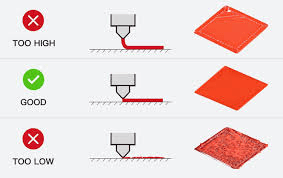
Too high: gaps between lines, poor adhesion. Too low: ridges, scraped marks, Elephant's Foot on the bottom of your print.
The Correct Order
Always level the bed first. Then set your Z-offset. Changing the bed leveling does not reset your Z-offset. But if you physically adjust the bed — swapping build plates, moving screws — re-level before you touch the Z-offset again.
The 3-Step First Layer Calibration Process
Once you understand the difference between bed leveling and Z-offset, calibration becomes straightforward.
Step 1. Level Your Bed While It Is Hot
Heat your bed to your normal printing temperature before you start. Move the nozzle to each corner and the center of the bed. Slide a standard sheet of A4 paper under the nozzle. Adjust the bed screws until you feel slight but consistent resistance when pulling the paper — the paper should drag without tearing.
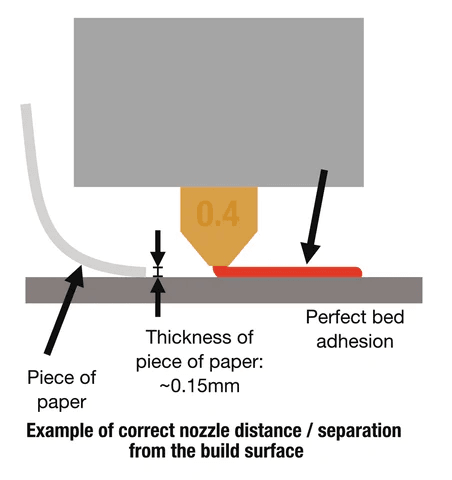
Repeat this process at every point two to three times. Adjusting one corner affects the others. Pay special attention to the center, where bed warping is most common.
For assisted leveling: Creality users have CR-Touch, Prusa printers offer Mesh Bed Leveling, and Bambu Lab machines automatically build a detailed bed mesh. These tools do not replace the paper method for the initial tram — they compensate for surface irregularities after.
Step 2. Set Your Z-Offset
Start a first layer test print. Bambu Lab users can make live adjustments through the device screen or directly in Bambu Studio under Device, then Calibration, then Z-Offset. Prusa MK series printers with LoadCell run automatic first-layer calibration but still allow manual fine-tuning through the menu. On the Prusa MINI, go directly to Calibration then Z-Offset. On Creality machines running Marlin firmware, start a slow first-layer print, then access Tune then Z-Offset and adjust in 0.05mm increments.
Save your new offset to EEPROM or printer memory after every change. Most people who lose their Z-offset simply forgot to save it.
Step 3. Dial In Your Slicer Settings
Hardware calibration alone is not enough. Your slicer settings determine how the first layer actually prints.
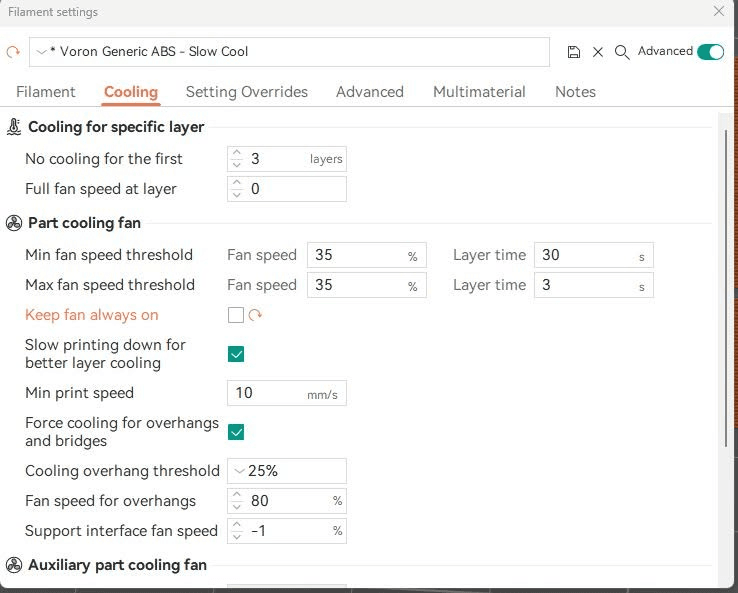
Set the first layer height between 0.20mm and 0.28mm for a standard 0.4mm nozzle. Use a slower first layer speed of 20 to 40mm/s — printing the first layer fast is one of the most common mistakes. Give the filament time to bond. Disable the part cooling fan for the first one or two layers. Premature cooling weakens adhesion, particularly with PLA.
First Layer Slicer Settings by Software
Cura First Layer Settings
Set the initial layer height between 0.20mm and 0.24mm. Increase the initial layer line width to 110 to 120 percent of your nozzle diameter — this gives the filament more surface area to bond to. Reduce the first layer speed to 20 to 30mm/s. Use a skirt to prime the nozzle or a brim for larger models and materials with adhesion challenges.
PrusaSlicer and Bambu Studio Settings
The numbers are similar: initial layer height 0.20 to 0.25mm, first layer speed 20 to 30mm/s. Bambu Studio has one useful extra: enable full bed mesh compensation, then create a dedicated first layer profile that lets you override speed, flow rate, and temperature specifically for the initial layer. This is especially helpful when you are printing complex geometries with uneven first-layer contact areas.
For a deeper look at how wall count and layer height interact, check the wall thickness recommendations for your printer type.
First Layer Settings by Filament Type
Settings that work for PLA will fail on PETG. Here is what to change.
PLA
Nozzle: 200 to 210 degrees Celsius. Bed: 50 to 60 degrees Celsius. PLA is the most forgiving filament for first layer calibration. Slight errors still result in usable prints. Watch for Elephant's Foot — if the bottom of your print flares outward, the nozzle is sitting slightly too close.
PETG
Nozzle: 230 to 245 degrees Celsius. Bed: 70 to 85 degrees Celsius. PETG needs greater squish for good bonding. Set your Z-offset slightly lower than you would for PLA. PETG also tends to over-adhere to some build surfaces. Use a release agent like hairspray or a PEI sheet if the print sticks too firmly.
ABS and ASA
Nozzle: 230 to 250 degrees Celsius. Bed: 100 to 110 degrees Celsius. These materials warp significantly when temperature fluctuates. An enclosure is not optional — it is the minimum requirement for consistent first layers with ABS. First layer adhesion is particularly tricky because the material shrinks as it cools, pulling at the build plate.
TPU
Nozzle: 220 to 250 degrees Celsius — check your specific brand. Bed: 50 to 60 degrees Celsius. Print TPU very slowly: 15 to 25mm/s for the first layer. It needs extra squish and works best with a direct-drive extruder. TPU is highly compression-sensitive, which means Z-offset matters more here than with any other filament. Small adjustments make a big difference.
Settings vary significantly across types of 3D printer filament — if you are switching materials, recalibrate your first layer before your first real print.
First Layer Troubleshooting: Symptom to Solution
Most readers find this article because something is already wrong. Here is how to diagnose it fast.
Gaps Between Lines? Your Nozzle Is Too High
If the lines your printer lays down do not connect and the filament does not bond to the build plate, the nozzle is sitting too far away. Lower your Z-offset in 0.05mm increments. Slow the first layer speed down to 20mm/s. Reduce your first layer height slightly.
Ridged or Scraped Lines? Your Nozzle Is Too Low
If lines are visibly flattened with raised ridges between them, the nozzle is too close. The filament is getting crushed. Raise your Z-offset. Increase your first layer height. If the bottom of your print flares outward — this is called Elephant's Foot — increase the Z-offset or reduce the bed temperature slightly.
Print Lifting at Corners Only?
The center is fine. The corners lift and curl. This is almost always a bed leveling problem. Re-level the bed while it is heated. Check the center of the bed for warping. Eliminate any drafts in the room. Add a brim of 8 to 15mm in your slicer or apply a thin layer of glue stick or hairspray at the corners.
First Layer Fine, Subsequent Layers Fail
If your first layer looks perfect but layers start failing partway through the print, the problem is not first layer calibration — it is layer adhesion. Increase your nozzle temperature slightly. Reduce print speed. Check for drafts cooling the print unevenly.
A Note on Bed Cleanliness
Before you touch your Z-offset, clean the bed. IPA at 90 percent or higher dissolves most filament residue. A dirty bed causes more first layer failures than any other single factor. If your first layer worked yesterday and fails today, the bed is probably dirty, not uncalibrated.
One-Sided Failures After Running ABL?
Auto bed leveling compensates for tilt across the bed surface. It does not set your Z-offset and it does not configure your first layer settings in the slicer. After running ABL, you still need to set a proper Z-offset and dial in your initial layer height and speed independently.
How to Read a First Layer Test Print
Print a large single-layer square or a dedicated calibration rectangle. For Creality printers, a 20mm calibration cube with the first three walls works well. For Prusa and Bambu Lab, the built-in calibration prints are specifically designed for this.
Look for evenly spaced, slightly squished lines with a faint shine. That is correct. Gaps mean the nozzle is too high. Overly flattened lines with ridges mean the nozzle is too low. Consistent results across the entire square means your Z-offset is set. Inconsistent results across corners means the bed needs re-leveling.
Printing AI-Generated Models: Extra First Layer Prep
AI-generated models often have complex, irregular bases that need extra attention before the first layer has a real chance.
Start in your slicer. Before you send the model to print, rotate it so the largest flat face contacts the build plate. Do not assume the orientation the AI chose is the right one for printing.
When you are generating the model, include flat base specifications in your prompt. Describe the intended use — "stable base suitable for FDM printing" or "flat bottom, no overhangs on base" — and the AI tool has a better chance of producing geometry that prints cleanly.
With Triverse AI, run the Remesh tool before exporting. This optimizes the bottom geometry and turns a thin or broken surface into a clean, watertight mesh. Export as STL, drop it into your slicer, add a brim of 8 to 15mm for extra grip, and set first layer flow to 105 to 110 percent. A clean, solid base gives your calibrated first layer something solid to bond to.
For more on getting print-ready geometry from the start, see how to create 3D models for printing.
Quick-Reference Z-Offset Guide by Printer
There is no universal Z-offset. Here is where to start for common printers, then fine-tune from there with a test square.
Printer | Typical Z-Offset Range | Notes |
|---|---|---|
Ender 3 (stock) | -0.1 to -0.2mm | Very setup-dependent |
Prusa i3 MK3S+ | Auto (LoadCell) | Fine-tune ±0.05mm range |
Bambu Lab X1 / P1S | -0.5 to -0.7mm | Negative values in Bambu firmware |
Creality CR-10 | 0 to +0.3mm | Glass vs spring steel makes big difference |
Voron / RatRig | -0.05 to +0.1mm | Fine-tuned high-performance rigs |
These values are starting points only. Your exact Z-offset depends on your specific machine, build surface, filament, and environmental conditions. Always fine-tune with a first layer test print and adjust in 0.05mm increments.
For the official Z-offset calibration procedure for your printer, consult the Prusa First Layer Calibration Guide.
FAQs about 3D Printing First Layer Calibration
Bottom Line
First layer calibration is a one-time setup that pays off on every print after. Level the bed hot, set the Z-offset with a test square, dial in slicer settings per material, and keep the build plate clean. Most failures trace back to one of those three things.
Work through the troubleshooting section in order, and you will find the problem fast. Gaps mean raise the nozzle. Ridges mean lower it. Corners lifting means re-level the bed.
If your first layer is inconsistent despite good calibration, Triverse AI generates print-ready STL models with clean, flat bases that slice and bond reliably on a well-calibrated first layer.