3D Printing Wall Thickness Guide: Minimum Settings by Material and Technology
What wall thickness do you need for 3D printing? Minimum settings for PLA, ABS, PETG, and resin by printer type and use case. Plus, how to check wall thickness on AI-generated models.
Getting wall thickness wrong is one of the fastest ways to waste filament and time. Too thin and the print fails mid-job or snaps in your hand. Too thick and you burn through material for no structural benefit. The numbers depend on your printer type, nozzle size, material, and what the part actually needs to do. This guide covers the 3D printing wall thickness problem and settings.
Quick Decision Table about 3D Printing Wall Thickness Settings
FDM (0.4mm nozzle) | SLA / MSLA | SLS | |
|---|---|---|---|
Minimum viable | 0.8mm (2 perimeters) | 0.3mm (supported) | 0.5mm |
Recommended | 1.2mm (3 perimeters) | 0.5mm (supported), 1.0mm (unsupported) | 0.8mm |
Safe for functional parts | 1.6mm+ (4 perimeters) | 1.5mm+ | 1.5mm+ |
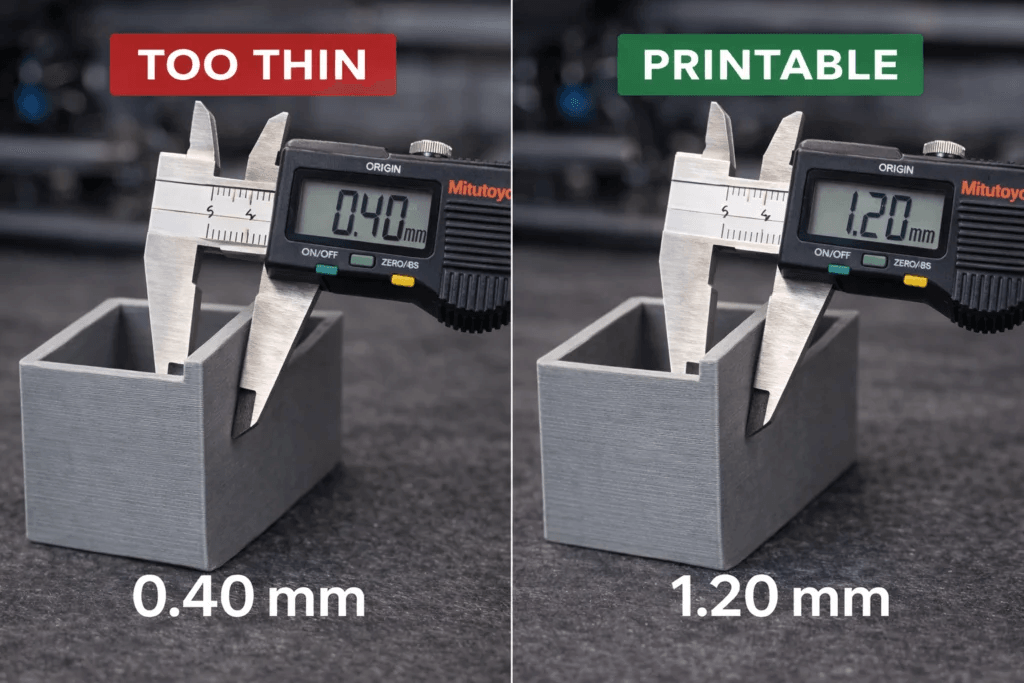
These numbers apply to most standard materials. Material-specific adjustments are covered in the FDM section below.
What Is Wall Thickness in 3D Printing? (And Why It Makes or Breaks Your Print)
Wall Thickness vs Shell Thickness vs Wall Line Count: What's the Difference?
Think of wall thickness as the shell of your print. It's the solid material that surrounds the infill, and it's the main thing keeping your model from collapsing into itself. In most slicers, you control it one of two ways: set the thickness directly in millimeters, or choose a wall line count (the number of perimeters the extruder lays down). At a 0.4mm nozzle, three wall lines give you roughly 1.2mm of wall thickness.
Shell thickness means the same thing, though some slicers use "shell" to include top and bottom solid layers as well. Different software uses different terms. The result is always the same: how much solid material wraps around the infill.
Why Wall Thickness Matters: Failure Modes and Material Waste
Walls below your printer's minimum don't print. The slicer either skips them or produces a single fragile line that snaps on first contact. On the other end, walls thicker than necessary add print time, burn material, and can cause warping on large flat surfaces as thick sections cool unevenly. The goal is always the thinnest wall that meets the strength requirement for your specific part.
FDM Wall Thickness by Nozzle Size: The 2x Rule Explained
FDM Wall Thickness by Nozzle Size: From 0.2mm to 0.8mm Nozzles
The baseline rule for FDM is simple: minimum wall thickness equals nozzle diameter multiplied by two. Three perimeters is the recommended starting point for most prints.
Nozzle Size | Minimum (2 perimeters) | Recommended (3 perimeters) | Strong (4 perimeters) |
|---|---|---|---|
0.2mm | 0.4mm | 0.6mm | 0.8mm |
0.4mm | 0.8mm | 1.2mm | 1.6mm |
0.6mm | 1.2mm | 1.8mm | 2.4mm |
0.8mm | 1.6mm | 2.4mm | 3.2mm |
Supported vs Unsupported Walls: How Geometry Changes Your Minimum
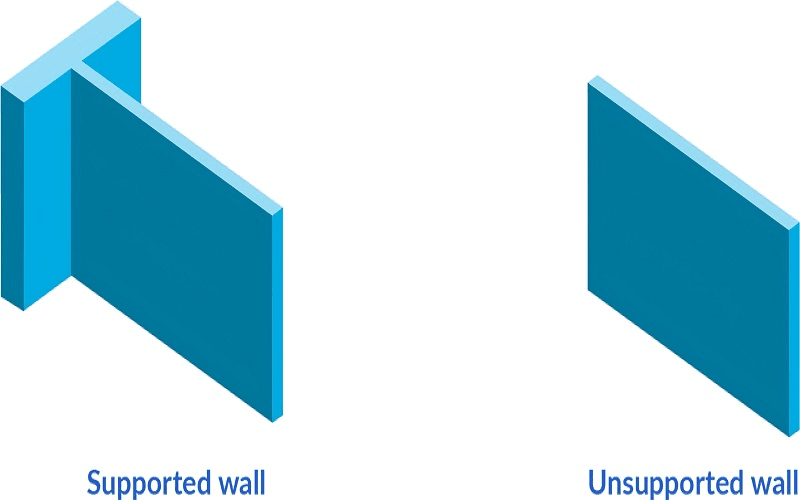
A supported wall connects to other geometry on both sides, like the side of a box. These can run thinner because the surrounding structure adds rigidity. An unsupported wall has one free edge, like a thin fin or a raised lettering detail. Unsupported walls need at least one extra perimeter compared to supported walls. A 0.8mm supported wall might survive on a 0.4mm nozzle, but a 0.8mm unsupported wall will wobble during printing and likely fail.
FDM Wall Thickness by Material: PLA, ABS, PETG, TPU
- PLA follows the nozzle rule directly. 1.2mm at 0.4mm nozzle is reliable for most prints. PLA is rigid and bonds well between layers.
- ABS needs one extra perimeter compared to PLA. ABS shrinks as it cools, and thinner walls amplify warping. 1.6mm is a safer starting point at 0.4mm nozzle.
- PETG behaves similarly to PLA in most cases. PETG is slightly more flexible, which actually helps thin walls survive. 1.2mm works well.
- TPU is a flexible filament that needs thicker walls to maintain shape. Start at 1.6mm minimum. Thinner walls in TPU will flex and distort under their own weight during printing. Each type of 3D printer filament behaves differently under thin wall conditions.
Resin and Powder: SLA and SLS Minimum Wall Thickness Guide
SLA Minimum Wall Thickness: Resin Printing Wall Strength Explained
SLA and MSLA printers cure resin with light, so wall thickness isn't tied to nozzle size. The limits come from the XY resolution of the light source and whether the wall is supported by surrounding geometry.
Supported walls (connected to adjacent structure) can go as thin as 0.3mm on a well-calibrated MSLA printer. Unsupported walls (free-standing, single-sided) need at least 1.0mm to survive the peel forces that occur each time the build plate lifts between layers. For functional resin parts, 1.5mm or above is recommended.
SLS Minimum Wall Thickness: Powder Fusion and Wall Strength
SLS (Selective Laser Sintering) uses a laser to fuse powder material. The minimum wall thickness depends on laser spot size and powder grain size. Most SLS systems handle 0.5mm walls for small features, but 0.8mm is the practical minimum for anything structural. Recommended thickness for functional SLS parts is 1.0 to 1.5mm.
How Laser Spot Size Affects Your Limits
A smaller laser spot can resolve finer wall features. Consumer MSLA printers with 0.05mm XY resolution can produce 0.3mm walls in supported geometry. Industrial SLA machines with tighter laser focus achieve even finer results. SLS laser spots are typically larger (0.1 to 0.3mm), which is why SLS minimums are higher than SLA.
Best Wall Thickness for Any Project: Use Case Guide
Decorative Models and Display Pieces
Display models sit on a shelf and handle no load. Minimum viable walls are fine here: 0.8mm on FDM, 0.5mm on SLA. Spiral vase mode prints use a single wall line (0.4mm on standard nozzle) and work well for vases and lampshades that don't need structural strength.
Functional Parts and Mechanical Components
Brackets, clips, hinges, and replacement parts need to handle force. Use 1.6mm or thicker on FDM with PETG or ABS. For SLA functional parts, use engineering resin with 1.5mm walls. If the part will be bolted or screwed, add extra thickness around fastener holes to prevent cracking.
Miniatures and Small-Scale Prints
Resin miniatures at 28mm scale routinely use 0.5 to 1.0mm walls for body sections. Thin features like swords, staffs, and antennae can go down to 0.3mm on resin but will be fragile. FDM miniatures need 0.8mm minimum and benefit from a 0.2mm nozzle for finer detail.
Enclosures and Boxes
Boxes, cases, and housings need consistent walls on all six sides. 1.2mm is the minimum for a rigid FDM enclosure in PLA. If the box has snap-fit features or hinges, increase wall thickness to 2.0mm around those areas to prevent cracking during assembly.
How to Check Wall Thickness in Cura, PrusaSlicer, and Bambu Studio
How to Check and Set Wall Thickness in Cura
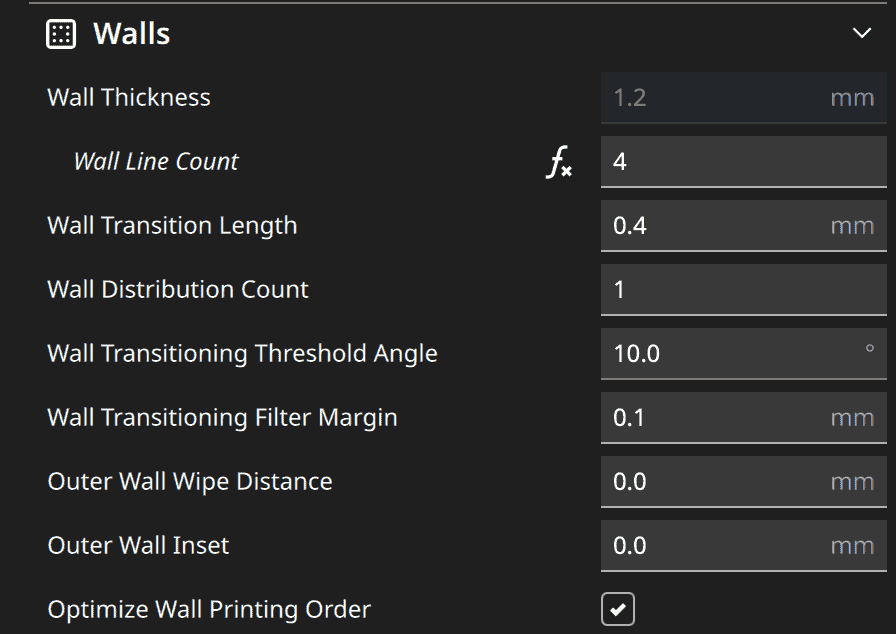
In Cura, wall thickness is controlled by the Wall Thickness setting (in mm) or Wall Line Count (number of perimeters). Set Wall Line Count to 3 for a 1.2mm wall at a 0.4 mm nozzle.
After slicing, switch to Preview mode and use the Color scheme dropdown to select Line Type. Walls display in a distinct color so you can visually verify where walls are too thin. Gaps in the wall color indicate areas the slicer skipped because they're narrower than the nozzle can fill.
How to Set Wall Thickness in PrusaSlicer
In PrusaSlicer, go to Print Settings → Layers and perimeters → Vertical shells. Set Perimeters to 3 for standard prints. Enable Detect thin walls to force the slicer to fill narrow sections it would otherwise skip. Use Slice now and inspect the preview layer by layer to confirm walls are complete.
How to Set Wall Thickness in Bambu Studio
Bambu Studio uses the Wall generator setting under Quality. The Classic generator follows traditional perimeter logic. The Arachne generator varies wall width dynamically to fill gaps that classic perimeters would leave empty. For prints with thin or variable-width walls, Arachne produces more consistent results. Preview the sliced model and check wall completeness before printing.
Troubleshooting: Why Your Walls Keep Breaking
Walls Too Thin
The model geometry is thinner than your slicer can handle. Increase wall count in the slicer settings. If the model itself has thin geometry, thicken it in Blender using the Solidify modifier or repair the mesh in Meshmixer using Extrude.
Unsupported Walls
Tall, thin walls with no adjacent geometry wobble during printing and eventually detach or lean. Reduce print speed for these sections, add brims for bed adhesion, use tree supports for complex overhangs, or redesign the part with supporting ribs.
SLA Under-Curing
If the walls feel rubbery after curing, they're under-cured. Increase the exposure time per layer in your slicer settings. Bottom layer exposure should be 3 to 5 times the normal layer exposure to ensure strong adhesion to the build plate.
SLS Under-Sintering
If walls crumble or leave powder on your fingers, the laser didn't put enough heat into those areas. Increase laser power or reduce scan speed. If the powder bed temperature is too low, walls on the outer edges of the build chamber may sinter incompletely.
Why AI-Generated Models Often Have Thin Walls (And How to Fix Them)
The Problem: AI Optimizes for Visuals, Not Printability
AI model generators optimize for visual appearance, not for 3D printing constraints. A model that looks perfect in a 3D viewer can have walls that vary from 0.2mm to 5mm across different sections. Thin sections are invisible on screen but cause print failures. This is the most common issue when printing AI-generated models without checking them first.
How to Check Wall Thickness on an AI-Generated Model
Follow the standard workflow for creating printable 3D models and slice the model to inspect the preview layer by layer. Gaps, missing perimeters, and single-line walls indicate areas that are too thin. For a more precise check, use Meshmixer → Analysis → Thickness to generate a color-coded heatmap showing exact wall measurements across the entire model. Red areas are below your minimum threshold.
Generating Print-Ready Wall Geometry with Triverse AI
Most AI model generators optimize for how a model looks in a viewer, not how it prints. Wall thickness varies unpredictably across a single model. Some sections end up paper-thin. Others are solid blocks. The result is a model that needs manual repair before it prints reliably.
Triverse AI takes a different approach. When you generate a model in Triverse Studio, the geometry is built with printability constraints from the start. The Remesh tool rebuilds topology into a consistent mesh structure, and you can set a target polycount that matches your printer's resolution. This reduces the chance of walls that vary from 0.3mm in one area to 2mm in another.
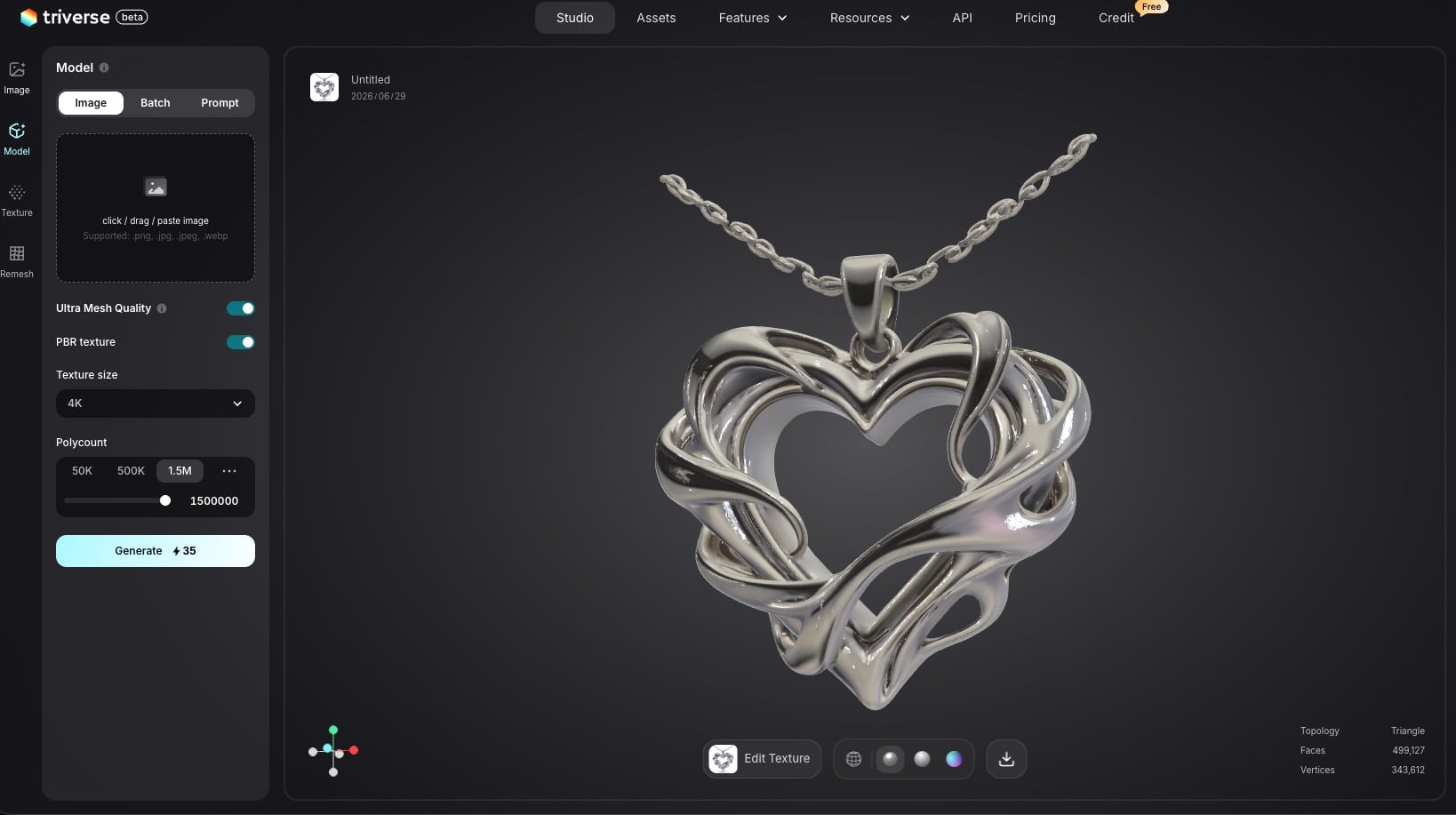
For models intended for FDM printing, include wall thickness specs in your prompt — for example, "minimum 1.2mm wall thickness" or "print-ready walls suitable for FDM." Export as STL or 3MF, drop it into your slicer, and the wall preview should show consistent perimeters without gaps or single-line sections.
This does not replace the need to check your model before printing. But it reduces the time you spend fixing thin walls in Meshmixer or Blender after export.
Fix Thin Walls with Triverse Remesh and Meshmixer
Triverse AI also includes a Remesh tool that rebuilds mesh topology into cleaner geometry and lets you control polycount before export. A more uniform mesh reduces the chance of inconsistent walls in the final print. Models exported as 3MF can be converted to STL if your slicer requires it.
For models that still have thin sections after export, open the STL in Meshmixer, use Edit → Extrude to thicken specific areas, or apply a global offset using Blender's Solidify modifier set to a uniform thickness value.
Frequently Asked Questions about 3D Printing Wall Thickness
Conclusion: Get Wall Thickness Right Before You Print
Wall thickness is one of those settings you set once and forget, until something goes wrong. A print that fails halfway through because the walls were too thin. A bracket that cracks under load because you didn't add enough perimeters. A resin miniature that warps during curing because the shell was too thin to hold its shape.
The numbers in this guide give you a starting point. 0.8mm minimum for FDM with a 0.4mm nozzle. 1.2mm recommended for most prints. 1.6mm or thicker for functional parts. For SLA, 0.5mm supported and 1.0mm unsupported. For SLS, 0.8mm minimum and 1.0–1.5mm for parts that need strength.
If you're designing from scratch, follow these guidelines from the start. If you're printing AI-generated models, run them through the slicer preview and check for gaps before you commit filament or resin. Tools like Triverse AI's Remesh can help even out inconsistent geometry before export, reducing the chance of thin-wall failures.
Get the walls right, and the rest of the print usually follows.