The Best 3D Printer for Kids in 2026: The Complete Guide Parents Need
Discover the best 3D printer for kids in 2026. We review the safest, enclosed, and easy-to-use printers. Plus a helpful AI workflow to skip complex CAD.
A quick note: there isn't a truly 'kid-friendly' 3D printer. These machines have hot parts at 200°C+, moving mechanisms, and they require some level of adult supervision, pretty much no matter what the marketing says.
That said, if you're willing to be present and teach, it's genuinely one of the best learning experiences you can give a kid. They go from being consumers of stuff to actually making stuff. And there's something powerful about holding something you designed and printed yourself.

This guide will show you why and help you pick the right 3D printer for your kids.
Why 3D Printing is Worth the Effort
Before we get into products, let's address the skepticism. Is this just an expensive gadget that ends up in a closet?
I've noticed that kids who get hooked on 3D printing change how they think about problems. A broken toy isn't broken anymore; it's a design challenge. A birthday present can be customized. A school project can stand out.
One mom on a parenting forum put it well: she got a printer for her kids and husband as a Christmas gift, expecting it to be her husband's thing. Six months later, the kids are designing and printing stuff she never imagined. "I just wanted some peace and quiet," she joked, "and I got it — they're too busy creating."
The actual learning, though? It happens at the computer, not the printer. Kids don't need to understand gear ratios or stepper motors to benefit from this. They need to learn how to think through a problem, design a solution, and iterate when it doesn't work. That's the stuff that sticks.
The Reality of 3D Printer‘s Safety
Let's be real about this before you buy anything.
Every 3D printer needs adult supervision. Not forever, but for a long time. One experienced educator compared it to supervising kids in the kitchen — you can teach them to be careful, but you don't leave them alone with boiling pasta right away.
The type of printer matters:
- FDM (filament-based): Hot nozzle, heated bed. Burns are possible but usually minor with PLA.
- Resin (vat-based): Requires handling photopolymer resin and isopropyl alcohol. Honestly, not appropriate for kids in most home situations. Too many chemicals, too much PPE needed.
For kids under 10, you're going to be in the room for most prints. For kids 10-13, they'll get the hang of it faster than you think, but you should still be around for troubleshooting. By 14+, most kids can run a printer independently after a proper safety talk.
Ventilation matters. You're melting plastic. Even "safe" PLA has some off-gassing. If the printer lives in a bedroom, get an air purifier. Budget $80-150 for this — it's not optional if you're printing more than occasionally.
What Actually Makes a Printer "Kid-Friendly"
Here's what separates a printer that generates frustration from one that generates learning:
Auto Bed Leveling Is Non-Negotiable
Old-school printers required you to manually level the bed — adjusting four corners with a sheet of paper while the nozzle is hot. This is tedious for adults and completely baffling for kids. Every failed first layer wastes an hour of print time and demotivates everyone.
Auto bed leveling means the printer figures this out itself. You still need to clean the bed and load filament, but the fiddly stuff is handled. For kids especially, this is the difference between "this is awesome" and "why does nothing ever work".
Enclosure Helps, But Isn't Always Necessary
An enclosed printer keeps curious fingers and pets away from hot parts. It also maintains consistent temperature and eliminates drafts that can ruin prints. For families with younger siblings or pets, this is genuinely valuable.
But enclosures add cost. The Bambu P1S is enclosed and excellent, but the A1 Mini isn't and is still one of the best recommendations I can make. Your call depends on your household.
Software Ecosystem Matters More Than Hardware
This is something the spec sheets don't tell you. The slicer software (what turns a 3D model into printer instructions) and the model library make or break the experience.
Bambu Studio with MakerWorld is the smoothest experience right now — you find a model, tap print, and it shows up on your printer. Prusa's ecosystem (PrusaSlicer + Printables) is excellent too, with stricter quality control on shared models. Creality's Cura-based approach works but feels more fragmented.
For kids especially, friction kills interest. The less between "I want to print this" and "it's printing," the better.
Top 7 Best 3D Printers for Kids (2026 Reviews)
Here's the honest breakdown. No fluff, no padding with products that don't deserve to be here.
Toybox 3D Printer - Best for Young Kids (Ages 5-8):
Price: $299 + optional subscription
The Toybox is the only printer designed from scratch for young kids. Everything else on this list is an adult machine adapted for children — Toybox is the exception.

It works with a companion app, has a curated model library with things kids actually want (characters, toys, decorations), and requires basically no setup. You unbox it, load filament, and a 6-year-old can browse the app and tap print.
The limitations are real: tiny build volume (100mm), proprietary filament, and no real growth path. Your kid will outgrow it in 2-3 years. But for the right age group, it's unmatched.
Who this is for: You have a 5-7 year old, you want zero technical friction, and you're okay with the subscription model for the model library.
Skip this if: Your kid is 8+ or wants to design their own things eventually.
Bambu Lab A1 Mini - Best Starter for Most Families:
Price: $199 standalone, $379 with AMS Lite
This is the most common recommendation from educators who work with kids, and for good reason. The Bambu Lab A1 Mini is genuinely plug-and-play, fast enough that kids don't lose interest waiting, and affordable enough that you're not terrified of them breaking it.

Setup takes under 20 minutes. The touchscreen interface is intuitive. Auto bed leveling works. The model library (MakerWorld) has thousands of free prints. It just works.
The tradeoffs: small build volume (180mm), not enclosed, and the community for repairs is smaller than Creality's. But for a first family printer where the goal is "kid designs and prints cool stuff," this hits the sweet spot.
The AMS Lite ($180 add-on) enables multi-color printing and automatic filament switching. Multiple parents told me they skipped this initially and regretted it — the convenience of not having to babysit filament changes is real. Not mandatory, but worth considering.
Who this is for: First-time buyer, kid aged 8-12, budget $200-400. You want minimal frustration and maximum creative output.
Skip this if: You have a very young child who might poke at it, or you want the largest possible build volume.
Creality Ender 3 V3 SE - Best for Learning How Things Work:
Price: $199
The Ender series is the most popular budget 3D printer line ever, and the V3 SE is the refined modern version. Here's why it still matters for kids despite not being the "best" anymore:
It teaches through troubleshooting.
When something goes wrong — and things will go wrong — your kid learns why. They adjust the bed, clean the nozzle, and tweak settings. This is genuinely educational in a way that Bambu's automation isn't. You understand the machine, not just how to operate it.

The community support is unmatched. Every problem has been solved and documented. A clogged nozzle? 50 YouTube tutorials. Layer adhesion issues? Forums full of solutions. This stuff matters when you're learning.
The tradeoffs are real: manual bed leveling (tedious), more failed prints initially, and it requires parental involvement for the first few weeks. But if your goal includes actual understanding of how 3D printing works, this teaches more than any other printer at this price.
Who this is for: Kid age 10+, parent willing to be hands-on during learning phase, educational focus on mechanics and engineering, and budget-conscious.
Skip this if: You want "it just works" without troubleshooting, or your kid will lose interest if the first few prints fail.
Flashforge Adventurer 5M Pro - Best Enclosed Printer Under $500:
Price: $449
The Adventurer 5M Pro is underrated. Fully enclosed, auto bed leveling, touchscreen, Wi-Fi, and a quick-swap nozzle system that makes maintenance easier.

The slicer software (FlashPrint) isn't as polished as Bambu Studio or Cura, and the community is smaller. But for families prioritizing enclosure and safety without the Bambu premium, this is a legitimate choice.
One thing worth noting: Flashforge has been improving their ecosystem steadily. The printer itself is solid, and the software is functional even if it lacks Bambu's polish.
Who this is for: You want an enclosure for safety (young kids, pets) but can't justify the P1S price. You don't need multi-color printing.
Skip this if: You want the smoothest software experience or multi-color capability.
Bambu Lab A1 Combo - Best Multi-Color on a Budget:
Price: $399 (often on sale for less)
Bambu Lab A1 Combo is the A1 Mini with the full-size build plate (256mm vs 180mm) and AMS Lite included. The $180 price jump gets you a lot: no more "this print is too big" frustrations, and multi-color printing without manual filament swaps.

During holiday sales, this combo has been available for $350-380. At regular price, it's fair value — you're paying for the AMS and build volume, not fancy hardware.
Who this is for: You want multi-color capability without the P1S price. You want the Bambu ecosystem but need more build space than the Mini offers.
Skip this if: You don't need colors or the larger build plate yet.
Best Overall: Bambu Lab P1S Combo
Price: $549
Here's where the community consensus really holds up. The P1S is called "the best bang for your buck in 3D printing" by users who own multiple machines. Educators running classroom fleets swear by it.
Why it works: enclosed, CoreXY motion system (fast and smooth), 4-color AMS, massive community, proven reliability. Schools have reported 4,000+ hours on P1S units with minimal issues. That's real-world validation.
The enclosure is genuinely useful — it keeps temperature stable, drafts out, and small hands safe. The AMS enables colorful prints that keep kids excited ("look what it made!"). And the build volume (256mm) handles virtually anything a kid (or adult) would want to print.
Yes, it's $549. But it's also the last printer you'll need to buy for this purpose. Schools and serious hobbyists reach for P1S-level machines because they just work.
Who this is for: You're serious about this, you want the best practical experience, budget allows it. Your kid is 10+ and showing genuine interest.
Skip this if: Budget is tight, kid is young, or you want to start small and upgrade later.
Bambu Lab X1 Carbon - Best for Serious Teens:
Price: $1,100
Bambu Lab X1 Carbon is a professional tool that happens to be used by motivated teenagers. LiDAR first-layer scanning, carbon fiber frame, the fastest prints in its class, and build quality that justifies the price tag.

For a 14-year-old getting into cosplay, competitive robotics, or product design, this is the right tool. It's what professionals use. It will outlast high school and follow them into college if they're serious.
For a casual 12-year-old making keychains? Massive overkill. But if you're reading this and thinking "my kid is really into this," the X1C is the investment worth making.
Who this is for: Teen 14+, serious about design/engineering, or family using this for years to come.
Skip this if: This is your first printer, or you're unsure if the interest will stick.
Quick Comparison between 3D Printers for Kids
Printer | Price | Build Volume | Enclosed | Multi-Color | Kid Age | The Deal |
|---|---|---|---|---|---|---|
Toybox | $299 | 100mm | Partial | No | 5-8 | Only one is designed for little kids |
A1 Mini | $199 | 180mm | No | Optional | 8+ | Best first printer |
Ender 3 V3 SE | $199 | 220mm | No | No | 10+ | Best for learning mechanics |
Flashforge 5M Pro | $449 | 220mm | Yes | No | 9+ | Best enclosed under $400 |
A1 Combo | $399 | 256mm | No | Yes (Lite) | 10+ | Best multi-color budget |
P1S Combo | $549 | 256mm | Yes | Yes | 10+ | Best overall, editor's choice |
X1 Carbon | $1,100 | 256mm | Yes | Yes | 14+ | Best for serious teens |
Filament of 3D Printer
Start with Bambu or Hatchbox PLA. PLA is safe, easy to print, and forgiving of minor settings mistakes. Don't start with exotic materials — your kid will get frustrated when prints fail for reasons that have nothing to do with their design.
Colors: grab a rainbow set plus black and white. $80-120 gets you enough variety for most projects. Kids get excited about color choices, and being able to print in multiple colors without babysitting (with AMS) keeps the novelty alive.
One pro tip: buy an extra roll of the same color your kid uses most. Running out of filament mid-print and waiting 3 days for delivery kills momentum.
The Actual First 3D Print Learning Curve
Here's what you're in for:
Day 1: Unbox and set up. A1 Mini and P1S take 20-30 minutes. Ender 3 V3 takes 1-2 hours if you're being careful. Run the included test print.
Days 2-7: Print something pre-made. Browse MakerWorld or Printables, find something cool, and send it to the printer. Celebrate when it works. Debug when it doesn't.
Week 2: Your kid wants to print something specific. Maybe it exists, maybe it doesn't. This is when you introduce TinkerCAD.
Week 3+: First original design. It'll be simple — a keychain, a name tag, something flat. That's fine. That's how everyone starts.
The learning curve is front-loaded. The first few weeks require the most attention. After that, it's mostly smooth sailing, with occasional troubleshooting sessions that are honestly part of the fun.
When Your Kid Has Ideas But No CAD Skills Yet
In 2026, you do not have to force your child through hours of CAD tutorials. The breakthrough solution is combining your new plug-and-play printer with generative AI.
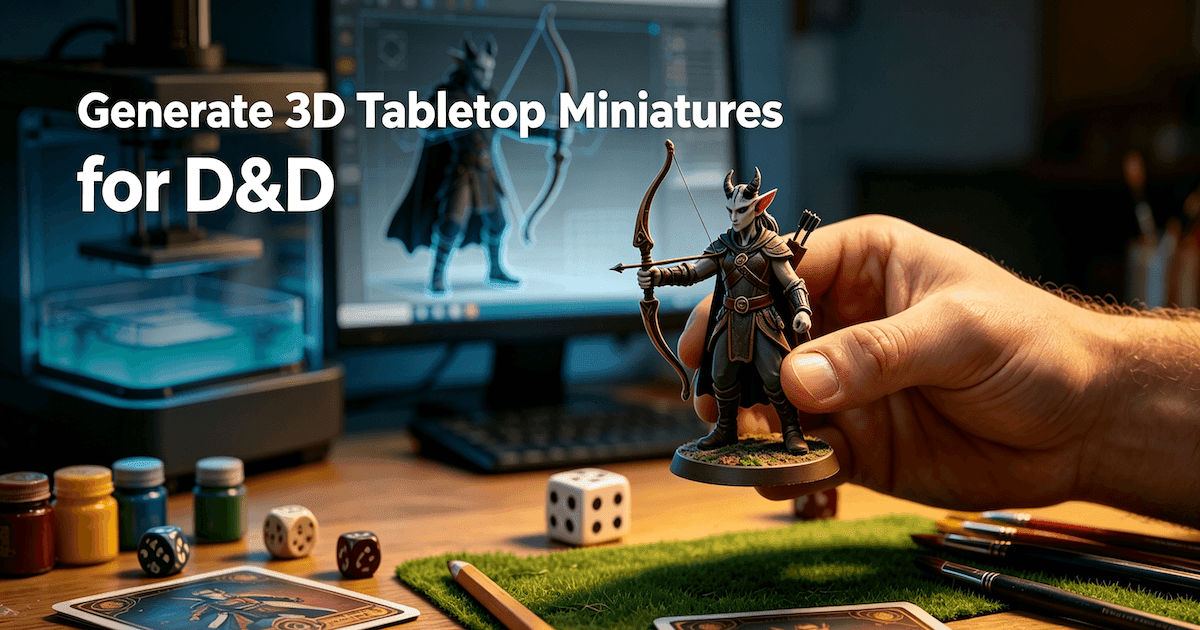
Using a platform like Triverse AI, your child can use Text-to-3D or Image-to-3D technology. They simply type a description of what they want to hold in their hands, and the AI generates the geometry from scratch. It turns the creative process from a frustrating technical hurdle into a magical experience.

Here is how to use Triverse AI to bypass complex software completely:
Step 1: The Idea Phase
Sit down with your child at the computer or tablet. Ask them what they want to make. Help them type a simple prompt into Triverse AI. For example, "a low-poly fantasy sword" or "a fantasy warrior helmet."
Step 2: AI Generation
Click generate. Within seconds, Triverse AI will construct a fully textured, 3D mesh based on their words. They can spin it around on the screen and see their idea come to life instantly.

Step 3: Export and Slicing
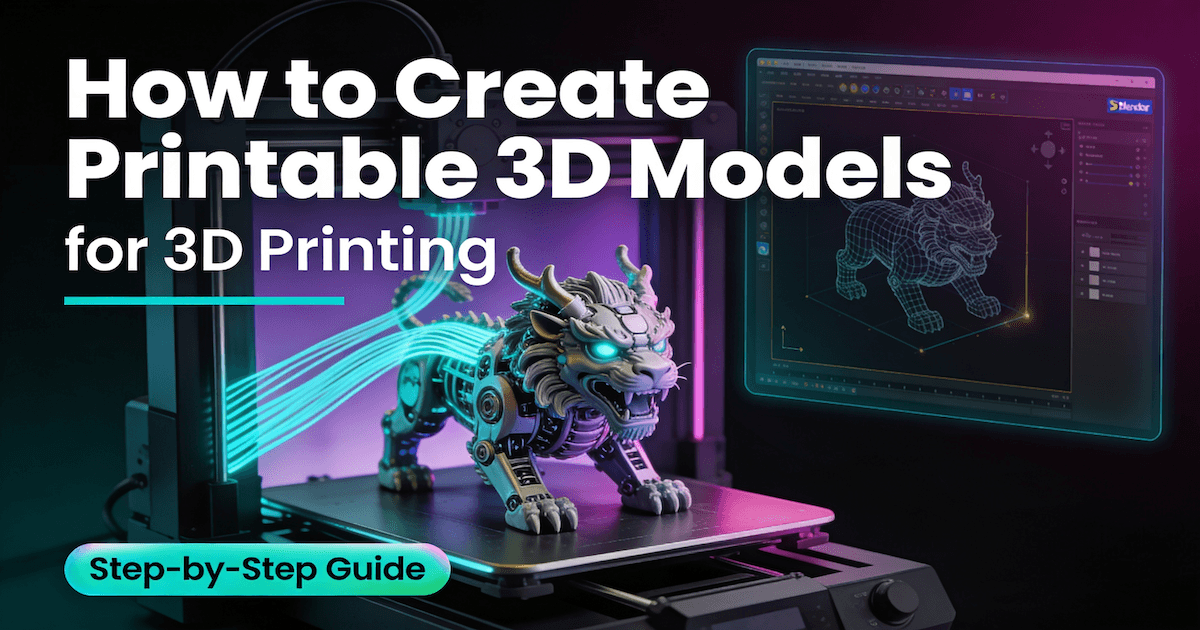
Once they love the model, download the file. Triverse generates clean topology that works beautifully with 3D printers.
Step 4: Print
Send the file to your Bambu, Flashforge, or Creality machine. Because you chose a modern, auto-leveling printer, the machine will handle the rest.
This workflow empowers kids. It shifts their brain from fighting with software mechanics to focusing purely on imagination and storytelling.
Common Questions about 3D Printer for Kids
The Bottom Line
Here's what I tell parents who ask:
- Ages 5-7: Get the Toybox. It's designed for this age, and nothing else is.
- Ages 8-12, first printer: A1 Mini. $199, it works out of the box, and you'll actually use it.
- Ages 10+, want to learn mechanics: Ender 3 V3 SE. More work, more reward, teaches real skills.
- Safety priority, budget $300: Flashforge Adventurer 5M Pro. Enclosed without the Bambu price.
- Ages 10+, want the best experience: P1S Combo. Worth every dollar if you're serious.
- Teen, serious interest: X1 Carbon. This is a professional tool.
Whichever you choose, remember: the failed prints aren't failures. They're tuition. Every maker has stories of midnight disasters, wasted filament, and things that came out completely wrong. That's part of the process.
Don't let the software slow your child down. Pair their new machine with modern technology to unlock their full creative potential. Try Triverse AI today and let your child start generating their dream toys before the printer even arrives at your door. Your vision, now 3D.