Best Free AI PBR Texture Generators in 2026
Looking for a free AI PBR texture generator? We tested the top free tools — from Substance alternatives to AI-powered texture makers. See which ones actually output game-ready textures.
Adobe Substance Painter is $54 per month. If you're at a studio with a seat budget, that's just line items on an invoice. If you're an indie developer, a student, or someone who just wants to texture a 3D model without committing to a subscription, $54/month is a meaningful barrier.
The good news: there are real alternatives now, and some of them are genuinely free. The caveat that most "best free texture generator" roundups skip over: not all of these tools produce output you can actually use in a game engine without additional work. Some cap resolution at 1K. Some don't export the right texture channels. Some are free but require enough Blender knowledge to be a barrier in themselves.
This guide tests the tools that actually matter. We'll cover what each one does well, where each one falls short, and which one is worth your time depending on what you're trying to ship.
What PBR Texturing Actually Means & Why It Matters for Games
PBR stands for physically based rendering. It's a way of describing how surfaces look under different lighting conditions, not with hand-tuned parameters, but with textures that represent real physical properties of materials.
A PBR material isn't one texture. It's a set of maps, each describing a different aspect of the surface:
- Albedo (Base Color) — the raw color of the material, without lighting or shadows baked in
- Normal Map — fake depth and detail, encoded as color information that a game engine reads as surface angle changes
- Roughness — how smooth or rough the surface is, from mirror-smooth chrome (0) to matte clay (1)
- Metallic — whether the surface is metal (1) or non-metal (0), with everything in between for painted metals
- Ambient Occlusion (AO) — soft shadows in crevices and contact points, making models look grounded
Game engines like Unity and Unreal use these maps in real time to render 3D objects under dynamic lighting. The key word is "real time". PBR textures are what make a 3D model look correct when you move a light around in your scene.
This is why PBR textures are table stakes for game-ready 3D models. A model with a flat color texture looks like a 2002 video game. The same geometry with a proper PBR texture set looks like something from 2026.
The Best Free AI PBR Texture Generators
Here's an honest comparison of the free tools that actually produce PBR-ready textures. (If you want to jump straight to generating 3D models from text or photos first, see our text-to-3D guide and image-to-3D guide.)
Triverse AI Texturing
- Price: Free tier available
- PBR Output: ✅ Full set — albedo, normal, roughness, metallic, AO
- Resolution: Up to 4K
- Export: GLB (PBR materials embedded), PNG
- Best for: Game developers who want a complete, engine-ready workflow
Triverse stands out because it doesn't just generate PBR maps. It generates them alongside a 3D model and wraps everything into a GLB file with PBR materials already assigned. You can drag the file directly into Unity or Unreal and have a correctly textured object without manually assigning texture channels.
For AI texturing specifically, Triverse gives you two options: describe the material you want with a text prompt ("a weathered stone wall with moss patches"), or upload a reference image and let the AI match the texture style. Both options apply to a model you generate within Triverse first. You can't upload your own external 3D model for retexturing.
The limitation worth noting: Triverse is a web-based tool. If you need a fully offline pipeline or you're working with textures that require precise hand-control, you'll eventually hit a ceiling. But for the workflow most indie developers actually have, it covers the ground.
GenPBR
- Price: Free
- PBR Output: ✅ Full set — normal, roughness, metallic, AO
- Resolution: 512px free (1K with free account)
- Export: PNG (individual maps), MaterialX
- Best for: Quick PBR maps from a single albedo image, fully in-browser
GenPBR is one of the most honest free tools in this space. You upload a single image — typically an albedo or diffuse map — and it generates normal, roughness, metallic, and AO maps in the browser. No installation, no uploads to external servers (it's client-side processing), and no watermarks on the free output.
The 1K resolution cap on free accounts is a real limitation. For mobile game textures or low-fidelity prototyping, 1K is fine. For desktop games with close-up camera work, you'll want 2K or 4K — which requires a paid account. GenPBR is the best free PBR texture generator for quick workflows where you already have an albedo image and just need the supporting maps.
It's also notable that GenPBR uses non-AI algorithms — real PBR estimation from image analysis — which means the results are consistent and deterministic rather than generative. Whether that's better or worse than AI-driven texture generation depends on what you're making.
Material Maker
- Price: Free, open source
- PBR Output: ⚠️ Procedural textures (not AI-generated PBR maps in the traditional sense)
- Resolution: Up to 4K
- Export: PNG
- Best for: Stylized, procedural textures for indie games
Material Maker is open source and genuinely free, which is rare in this space. It's a node-based procedural texture generator — you build texture networks visually, combining noise functions, patterns, and mathematical operations to create stylized textures.
The catch: Material Maker doesn't generate PBR maps from a reference image. It generates procedural patterns from scratch. This makes it excellent for stylized, non-realistic textures (stone, wood grain, bricks, abstract patterns) but poorly suited for matching a specific real-world material. It's more like Substance Designer than Substance Painter — a material authoring tool, not an image-to-texture converter.
If your game has a stylized aesthetic, Material Maker is a legitimate free option. If you're working with realistic or semi-realistic materials, it's a steep learning curve for results that are harder to match to a reference.
ArmorPaint
- Price: Free, open source
- PBR Output: ✅ Full PBR set — works as a 3D painting tool
- Resolution: Up to 4K
- Export: PNG, USD
- Best for: Manual PBR painting on 3D models, Blender users who want free offline tools
ArmorPaint is miscategorized in most "AI PBR texture generator" articles. It's not AI. It's a free, open-source PBR texture painting application — you load a 3D model and paint materials directly onto it in real time, with GPU-accelerated rendering and a node-based material system.
Think of it as Substance Painter, except free and open source. It's a genuinely powerful tool for someone with Blender experience. For someone who wants to type "worn leather couch" and get PBR textures immediately, ArmorPaint isn't the answer.
The $19 one-time license for compiled binaries is one of the best deals in 3D software. You can also compile it yourself for free from the GitHub source if you're comfortable with that.
Dream Textures (Blender Add-on)
- Price: Free (Blender add-on)
- PBR Output: ⚠️ Limited — primarily generates albedo and normal maps
- Resolution: 2K
- Best for: Blender users who want AI texture generation inside their existing workflow
Dream Textures is a Blender add-on that integrates AI texture generation directly into Blender. You can generate textures using Stable Diffusion pipelines within Blender, which is genuinely useful for Blender artists who don't want to switch tools.
The limitation: it's primarily an image generator. Getting proper PBR maps (roughness, metallic, AO) requires running multiple generation passes and manually building the material in Blender's shader editor. For Blender users who know their way around the software, this is workable. For everyone else, it's a significant amount of setup.
Comparison Table between Free AI PBR Texture Generators
Tool | Price | PBR Full Set | Max Resolution | Export Formats | AI-Generated | Best For |
|---|---|---|---|---|---|---|
Triverse | Free tier | ✅ Yes | 4K | GLB, PNG | Yes | Game-ready pipeline |
GenPBR | Free | ✅ Yes | 1K free | PNG, MaterialX | No | Quick PBR from albedo |
Material Maker | Free/Open | ⚠️ Procedural | 4K | PNG | No | Stylized procedural |
ArmorPaint | Free/Open | ✅ Yes | 4K | PNG, USD | No | Blender painters |
Dream Textures | Free | ⚠️ Limited | 2K | PNG | Yes | Blender-only workflows |
Substance Sampler | $19/mo | ✅ Yes | 4K | PNG, UDIM | Yes | Professional pipelines |
How to Generate PBR Textures
The specific workflow depends on which tool you're using. Here's the practical path for the most common scenario: you have a 3D model (from a text-to-3D generator or any other source), and you need PBR textures on it.
Option 1: Generate Full AI Texturing with Triverse AI
This is the simplest path if you're using Triverse for your 3D models. The workflow runs in two stages: first, generate a base model in Triverse (via image-to-3D or text-to-3D), then apply AI texturing to it.
Stage 1. Generate your base model
- Generate a model using Triverse's image-to-3D or text-to-3D feature.
- It comes with default textures, but if you also want to customize a variety of textures, check the following steps.
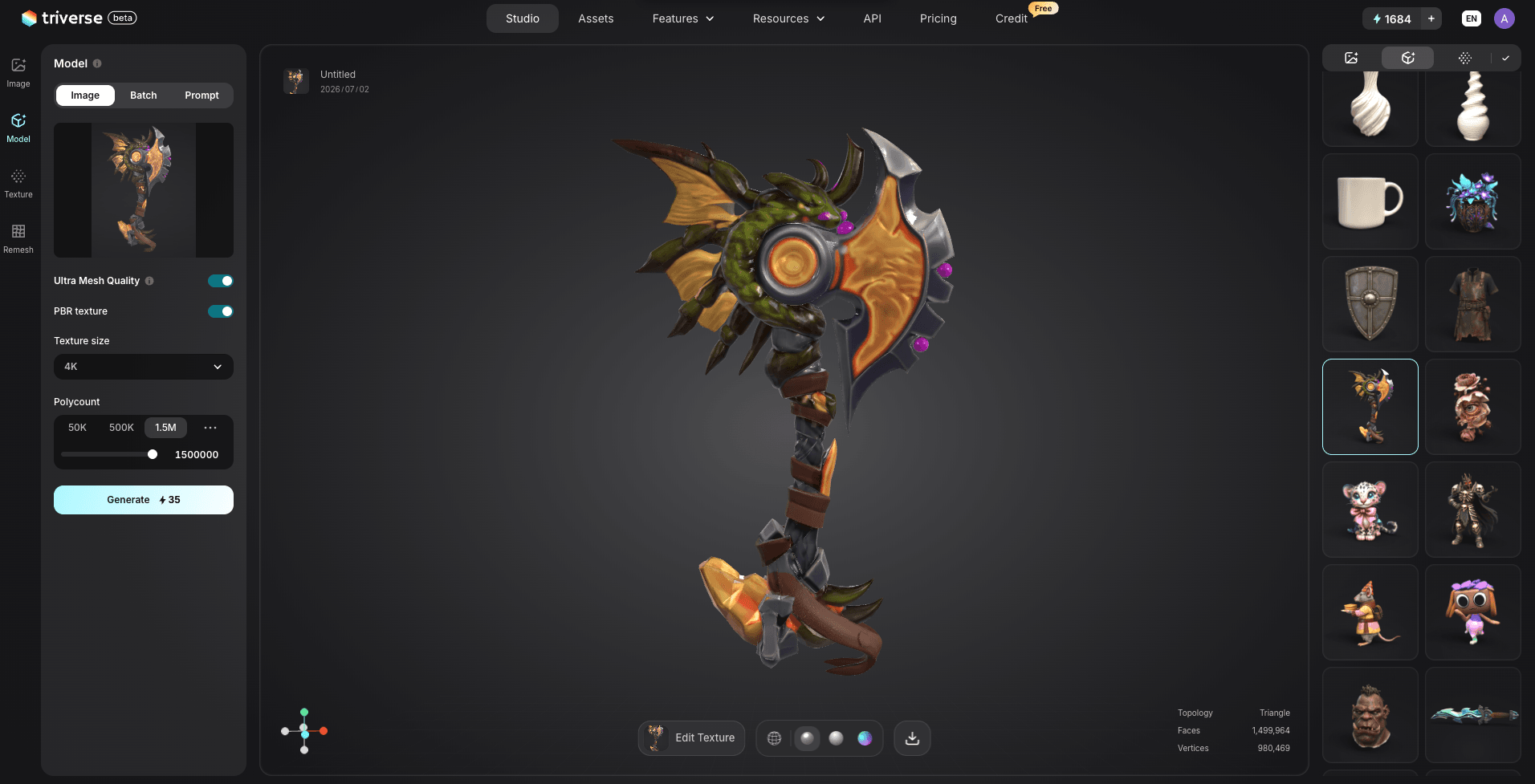
Stage 2. Apply AI texturing as needed
- Then go to the Texture tab in Triverse Studio.
- Choose how to guide the texture:
- Reference image: Upload a photo of a material and the AI matches the texture style.
- Text prompt: Describe the material you want — "weathered oak floorboards," "brushed aluminum with fingerprints," "cracked desert sand".
- Select texture resolution: 4K for desktop game assets, 2K for mobile or prototypes.
- Generate: the AI applies the material to your model and outputs a textured GLB with PBR maps.
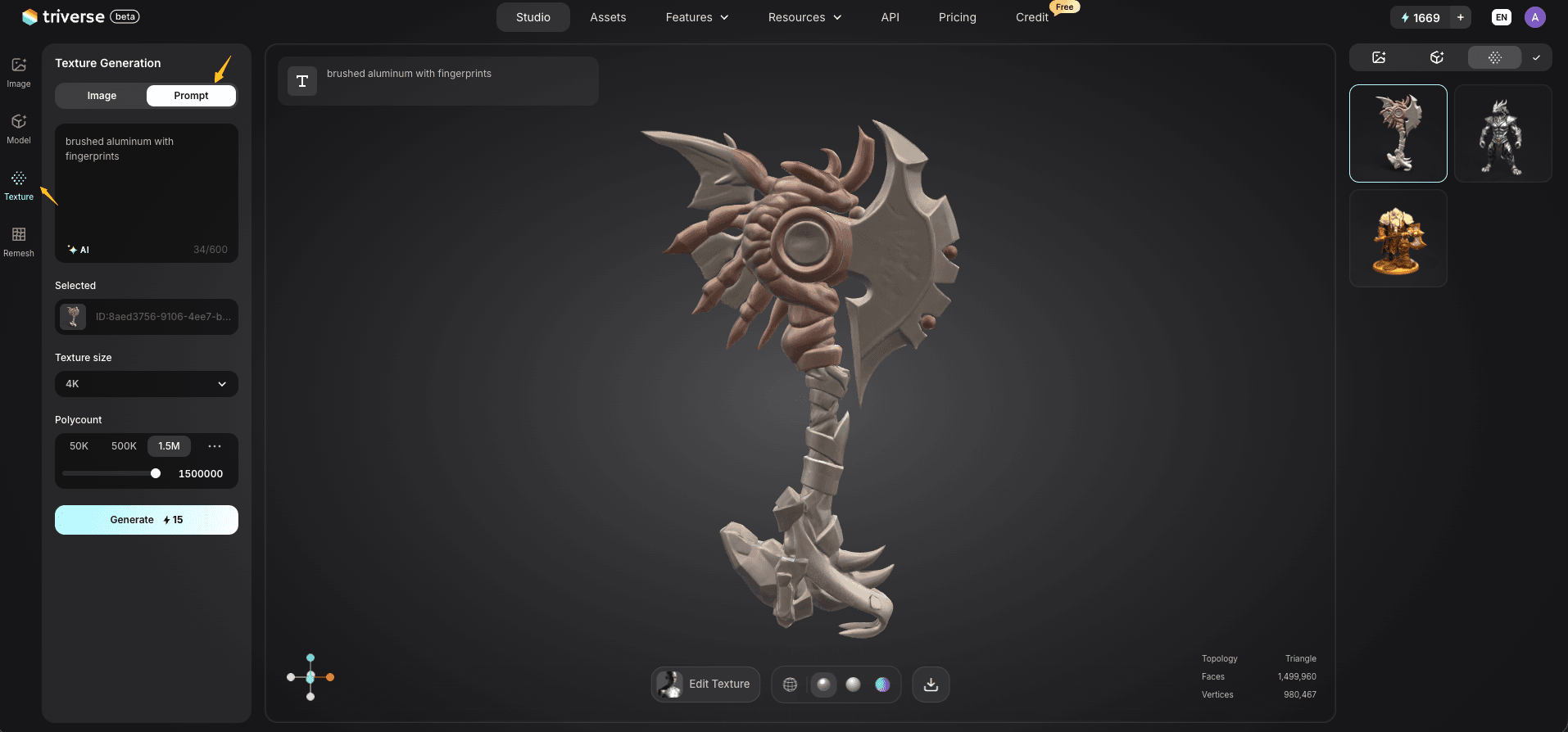
- Export for your engine: GLB for Unity/Godot (PBR materials embedded), FBX + PNGs for Unreal.
The GLB export is the standout feature. It contains the mesh, geometry, and PBR material with all texture channels correctly assigned. You can drag it into Unity and see the correct material immediately. No manual channel assignment, no shader configuration.
Option 2: PBR Map Generation from an Existing Image with GenPBR
If you have a 3D model from another tool and only need PBR maps:
- Start with an albedo or diffuse image — either a texture you already have or a new image that represents your material's base color
- Go to genpbr.com/generate (no account needed for 512px)
- Upload your image
- Configure generation mode — CPU-based (Canvas) is slower but works everywhere; GPU-based (WebGL) is faster but requires WebGL support
- Generate and preview in the 3D viewer
- Download as individual PNG maps or as a MaterialX package
- In Blender or your game engine, create a material and assign each map to the correct channel
Which Resolution Do You Actually Need?
This is a common question, and the answer depends on how close the camera gets to your textures.
512px: Mobile games with fixed cameras, background objects, very distant assets 1K (1024px): Mobile games with dynamic cameras, mid-distance assets 2K (2048px): Desktop games, near-camera props and characters, stylized aesthetics 4K (4096px): Desktop games with close-up camera work, cinematic assets, high-quality 3D printing textures
For most indie game development, 2K is the sweet spot. 4K is standard for "premium" assets. Going above 4K is only necessary for arch-viz or film production.
Using AI PBR Textures in Unity and Unreal
This is where most free tools leave you hanging. Here's what to actually do once you have your textures.
Unity
With a GLB file (from Triverse):
- Drag the GLB into your Project window — Unity auto-imports it with PBR materials
- Drag the prefab into your scene
- Done. The textures are assigned correctly.
With PNG maps (from any tool):
- Import all PNG maps into your Project (albedo, normal, roughness/metallic, AO)
- Create a new Material (right-click → Create → Material)
- Select the Shader as "Universal Render Pipeline/Lit" (for URP) or "Standard" (for Built-in)
- Assign textures to channels:
- Albedo Map → Base Map
- Normal Map → Normal Map (check "Create from Grayscale" if importing a heightmap)
- Metallic Map → Metallic Map
- Roughness → Smoothness (if your roughness is in the alpha of the metallic map)
- Assign the material to your mesh
Common issues: Normal maps look inverted or flat. Check if the texture is set to "Normal Map" in the import settings. AO looks washed out. Try increasing the AO texture's intensity in the material inspector or multiply it with the albedo in a shader graph.
Unreal Engine
Importing GLB/FBX:
- In Content Browser, right-click → Import /game folder and select your GLB or FBX
- In the import options, check Import Materials and Import Textures
- Unreal creates materials with the correct texture assignments
- Drag the mesh into your level
Creating materials manually from PNG maps:
- Import all PNG texture maps
- Right-click in Content Browser → Create Basic Asset → Material
- Open the Material Editor
- Connect texture samplers to the correct inputs: Base Color, Normal, Metallic, Roughness, Ambient Occlusion
- Compile and save
- Apply the material to your mesh
Common issues: Textures look too dark or washed out in Unreal. Check the texture import settings — Albedo should have sRGB enabled; Normal, Metallic, and Roughness should have sRGB disabled. Wrong texture channels are the most common cause of bad-looking PBR materials in Unreal.
Honest Verdict: When Free Tools Are Enough (And When They're Not)
Free AI PBR texture generators are genuinely good enough for most indie game development in 2026. Here's an honest assessment of where they work and where they'll let you down.
Free tools are enough when:
- You're making a 2D game or stylized 3D game and don't need photorealistic materials
- Your game has a small team, and you need to move fast on visual fidelity
- You're prototyping and can upgrade to paid tools once you have a shipped product
- Your texture needs are consistent — one or two material types repeated across many assets
Free tools fall short when:
- You need UDIM workflows (multiple texture tiles for high-res character work)
- You're making photorealistic visualization where material accuracy is mission-critical
- You need complex baked effects like curvature, cavity, or thickness maps
- Your art pipeline requires precise control over individual texture channels
For most indie developers reading this, Triverse's free tier will get you further than you expect. The combination of AI texturing, 4K PBR output, and GLB export is a complete workflow — not a crippled demo of a paid product.
If you hit the limits of the free tier, Substance Sampler at $19/month is worth it for the resolution, baking quality, and UDIM support. But don't pay $54/month for Substance Painter until you actually need the advanced features that $19/month can't give you.
Frequently Asked Questions about Best Free AI PBR Texture Generators
Conclusion
The landscape of free AI PBR texture generators is better in 2026 than it's ever been. For most indie game development workflows, Triverse's free tier covers the ground that used to require a $54/month Substance Painter subscription.
If you want the full picture: Triverse AI is the strongest all-in-one option — AI texturing, 4K resolution, and GLB export with embedded PBR materials. GenPBR is the fastest way to get PBR maps from an existing albedo image. ArmorPaint is the best free option if you're comfortable painting textures manually.
For 90% of indie projects, Triverse alone is enough. The honest case for paying for Substance Sampler at $19/month — or Substance Painter at $54/month — only kicks in when you need UDIM workflows, high-precision baking, or a production team with a proper art pipeline.
Start free. Ship your game. Upgrade when it makes financial sense.