Free 3D Objects for Unity: Where to Find and How to Import Them
Find free 3D objects for Unity and import them without the 100x scale error, pink materials, or inside-out faces. Covers the best free sources, FBX import settings, and fixes for the three most common Unity import problems.
August 4, 2026
You download a beautiful free model. You drag it into your Unity scene. It is 100 times too big. The materials are bright pink. The front face points backward.
This is not a broken asset. It is an import problem, and almost every Unity beginner hits it. Free 3D objects for Unity often arrive in formats or scales the engine does not assume. The fix is a few settings, not a different download. What you want at the end is a clean game-ready 3D model that drops into your scene without surprises.
By the end of this guide you will know which sources ship Unity-ready assets, which formats Unity supports, and how to repair the three most common import failures before they reach your shipped build.
What Makes a 3D Object Unity-Ready?
A Unity-ready 3D object is not just a file that opens in the editor. It should behave predictably inside a real project. At minimum, check the file format, scale, pivot, materials, textures, polygon count, collider setup, render pipeline compatibility, and license. If the model fails on several of those points, it may still be useful as a reference, but it is not truly ready for production.
Check | Why It Matters |
File format | Determines whether Unity can import geometry, materials, rigs, or animation. |
Scale | Prevents props from appearing too large or too small in the scene. |
Pivot | Affects placement, rotation, animation, snapping, and modular building. |
Materials | Determines how the model appears under Unity lighting. |
Textures | Missing texture folders often cause pink or plain materials. |
Poly count | Impacts runtime performance, especially on mobile and VR. |
Collider | Needed for physics, interaction, and gameplay blocking. |
License | Decides whether the asset can be used commercially or modified. |
What File Formats Does Unity Actually Support for 3D Objects?
Start here, because format decides everything else.
FBX: The Default Choice for Unity
FBX carries meshes, materials, animations, and skinned meshes in one file. It is the format Unity expects for characters and animated props, and it beats OBJ for anything rigged. Export from Blender with the correct scale applied, and Unity reads it cleanly. FBX is the safe default for any asset you plan to animate.
OBJ: Simple Meshes Without Animation
OBJ handles static geometry and UVs but supports no animation and limited material data. It is fine for props, environment pieces, and anything that never moves. Avoid OBJ for characters or anything rigged. The missing animation data is the dealbreaker.
Other Supported Formats
Unity also imports glTF and GLB, which are gaining traction for game interchange and keep materials more portable than OBJ. The legacy 3DS format still imports but should be avoided for new work. Collada, or DAE, has partial support and is unreliable for complex assets. For low poly vs high poly budget thinking, the format choice matters less than the triangle count you ship.
Format | Best For | Watch Out For |
FBX | Unity production assets, rigs, animation, UVs | Export settings vary by DCC tool. |
OBJ | Simple static props and broad compatibility | Limited material and animation support. |
DAE | Interchange from some tools | Less common in modern Unity pipelines. |
GLB / glTF | Real-time and web asset exchange | May need importer package or workflow checks. |
BLEND / Maya files | Source files | Avoid relying on proprietary files in production teams. |
Best Free Sources for 3D Objects in Unity
Not all free sources ship Unity-ready assets. These do. The best source depends on the job: a quick prototype benefits from Unity-ready packages, a custom environment may need broader model libraries, and a commercial project needs license terms that are easy to document later.
Unity Asset Store
The Unity Asset Store free tier filters by 3D object type, rating, and update date. Sort by recent to avoid 2018 assets that use outdated shaders. Useful free categories include Props, Environments, and Characters. Watch for version warnings, since a package built for Unity 2019 may need shader fixes in Unity 2026. Asset Store packages arrive as .unitypackage or UPM packages, and the Package Manager preserves folder structure and import metadata.
Fab
Fab is useful when you want a wider marketplace that includes 3D models and game-ready assets across different ecosystems. It helps with props, environments, scans, and stylized assets, but not every file is prepared specifically for Unity. When using Fab assets in Unity, check the included formats and whether textures are packaged clearly. If the asset ships as FBX, OBJ, GLB, or separate texture maps, import it into a test scene first instead of placing it directly into a production level.
Sketchfab
Sketchfab supports direct download of FBX and OBJ models and has a large variety of free Creative Commons and store-licensed models. Filter by license to find CC assets that allow commercial use. The "Editorial use" license forbids commercial games, while "Commercial use" allows them. This distinction matters for any project you plan to sell.
Kenney
Kenney offers hundreds of free asset packs, all public domain. Download the complete packs for a cohesive art style across your game. The assets import into Unity without setup and cover UI, spaceships, characters, and terrain. Because the style is consistent, they reduce the "asset pack collage" problem where every downloaded model looks like it came from a different game. Kenney is the fastest way to prototype a full game for free.
Quaternius
Quaternius ships pre-assigned Unity materials under a CC0 license, which means no attribution and free commercial use. Models come in FBX and OBJ. The library covers low-poly environment pieces, vehicles, and characters suited to mobile and indie games.
Poly Haven
Poly Haven provides CC0 models in FBX, OBJ, and BLEND formats. The geometry and textures are clean, though the models are not always optimized with LODs for game use. Import the FBX, then build LODs in Unity if you need them for performance.
OpenGameArt and Community Asset Libraries
OpenGameArt and similar community libraries can be useful for niche assets, older game styles, and open-license resources. The tradeoff is that quality and file organization vary a lot. Use these libraries when you have time to inspect license terms, fix materials, adjust scale, or convert formats. They are less predictable than Unity-specific packages, but valuable when you need something unusual.
How to Import a 3D Object Into Unity
For a downloaded Unity Asset Store package, use Package Manager or the Asset Store workflow. For a loose model file, place the model and its texture folder inside the project's Assets directory. Unity will import the file and show it in the Project window.
Select the model and review the Inspector. Check scale factor, normals, materials, animation settings, and whether textures are assigned. Then drag the model into a test scene before using it in the real level. The test scene is important. A model can look fine in the Project preview and still have a bad pivot, wrong scale, missing material, or too many triangles for the target platform.
The Unity Import Pipeline: Scale, Materials, and Normals
These three fixes solve most broken imports.
How to Check and Fix Scale on Import
Different tools use different unit scales. A model built in centimeters exports as 100 times too large in Unity's meter-based world. In the FBX Import inspector, change the Scale property, or re-export from Blender with the scale applied. A model that looks gigantic is almost always a scale mismatch, not a modeling error.
In Blender, run Ctrl+A and choose Apply, then All Transforms, before export. That bakes scale, rotation, and location into the mesh. A model left at 0.01 scale in Blender exports tiny, and Unity multiplies it by 100 by default, which is the classic 100x jump. Applying transforms first removes the surprise and keeps your scene units honest.
Fixing Missing or Pink Materials in Unity
Pink materials mean Unity cannot find a shader or a texture. Reassign the material manually by selecting the mesh, opening the Materials tab, and pointing each slot at the correct shader, usually URP Lit or Standard. If textures are missing, import them as separate image files alongside the model so Unity can link them. Missing textures show up as pink or flat gray, and they are the most common problem with free Unity assets.
Fixing Flipped Normals in Imported Models
Backwards-facing surfaces appear inside-out or invisible. In Blender, select the mesh, go to the Shading menu, and choose Recalculate Normals before re-exporting. Unity's Model Import tab also has a Normals setting that can force a consistent direction. Fixing it at the source is cleaner than patching it in the engine.
Mesh Compression and Read/Write Settings
Two import settings quietly cost performance. Mesh Compression set to Off keeps full precision but larger build files. Low or Medium shrinks the build with negligible visual loss for most props. Read/Write Enabled lets scripts touch the mesh at runtime but doubles memory, so turn it off for static props. Leave it on only for meshes you deform or sample in code.
What to Check Before Using a Free Unity Model
Free assets save time only when they do not create hidden cleanup work. A five-minute check before import can prevent hours of material repair, scale fixes, or license confusion later.
License and Commercial Use
Do not assume "free" means "free for commercial games." Some models allow personal use only. Some require attribution. Some are editorial. Some cannot be modified. Unity Asset Store assets use the standard Unity Asset Store EULA, while assets from Sketchfab or OpenGameArt may use different terms. Before shipping, record the asset source, creator, license, and download date. This is especially important for team projects and commercial releases.
Poly Count and Performance
A beautiful free model may be too dense for the game. Check the triangle count in Unity, Blender, or another 3D tool. A prop that appears once in a cutscene has a different budget from a rock, crate, or tree that appears hundreds of times. If the model feels too heavy, judge it against the target platform, camera distance, and how often the asset appears in the scene. Then test it in a scene that resembles the final game.
Texture Files and Missing Materials
Missing textures are a frequent issue with free Unity assets. Sometimes a model looks pink or gray or really flat. This happens because Unity does not know where to find the texture maps or the material does not work with the project's render pipeline. Keep the texture folder with the model. Look for base color, normal, roughness, metallic, and opacity maps. If the model includes normal maps, make sure Unity imports them as Normal Map texture type rather than regular color images.
Scale, Pivot, and Collider Setup
Scale problems are easy to miss until gameplay begins. A chair may be taller than the player, a crate may be too small to collide with, or a doorway may not match the character controller. Pivot placement also matters. A door should rotate around its hinge. A weapon should have a grip point that makes sense. A modular wall should snap from predictable corners or centers. Colliders should match gameplay needs. Detailed mesh colliders can be expensive. For most props, simple box, capsule, or convex colliders are easier to control.
Best Free Unity Asset Packs for Specific Game Types
Match the pack to your project so imports stay clean. Specific recommendations change as marketplaces update, so check the current listing before downloading.
Low Poly Environment Packs
Low poly packs are best for mobile games, stylized 3D games, game jams, prototypes, and educational projects. Look for packs that include prefabs, demo scenes, and consistent material atlases. KayKit's free Unity sample pack is a useful example because it includes low-poly optimized models, Unity-ready prefabs, textures, and animated characters. Kenney's 3D packs are also strong for prototypes and stylized environments because the assets are consistent and lightweight. For any low poly environment pack, check whether the assets share the same scale and visual style. A pack with fewer consistent pieces is often easier to use than a huge mixed pack.
Sci-Fi and Modern Props
Sci-fi and modern props are useful for first-person prototypes, VR training scenes, puzzle games, and level dressing. Search for crates, barrels, pipes, consoles, furniture, doors, panels, and modular walls. When choosing a sci-fi prop pack, inspect render pipeline compatibility. A pack designed for HDRP may not look right in a URP project without material conversion. Also check texture size; 4K textures can look great but may be unnecessary for small props.
Characters and Creatures
Free character packs are harder to use than static props because rigging and animation matter. A character can have a nice mesh but still be difficult to animate if the skeleton is non-standard or the avatar is not set up correctly. For Unity, look for packs that mention rigging, Humanoid avatar compatibility, animation clips, and render pipeline support. Supercyan's Character Pack: Free Sample and KayKit's sample pack are examples of free character-oriented assets that include Unity-specific setup details. Generic characters are useful for prototypes, NPCs, and test scenes. For a final game, they often need customization so they do not look like stock assets.
Optimizing After Import: LODs and Lightmap UVs
After a model imports cleanly, two steps keep your scene fast. Build LODs for any prop that repeats or sits far from the camera. Unity's LOD Group component swaps simpler meshes by distance, and the triangle budget you save funds hero assets elsewhere. For static props that receive baked lighting, generate a second UV channel for lightmaps in the Model Import tab so the GI bake has clean islands to work with.
Common Unity 3D Import Problems and How to Fix Them
Keep this as a checklist for the next broken import.
Step 1: Model Is 100x Too Big or Too Small
Cause: mismatched export scales between tools. Fix: change the FBX Import Scale in the inspector, or re-export from Blender with scale applied. Set Blender's unit to meters before export to match Unity.
Step 2: Textures Are Pink or Missing
Cause: materials not linked or wrong shader. Fix: reassign materials manually, import textures as separate assets, and set the shader to URP Lit or Standard. Verify the texture path so Unity can find the files.
Step 3: Model Appears Flat or Shiny
Cause: wrong material type or unimported roughness and metallic values. Fix: enable Import Materials in the FBX Import inspector and confirm the shader reads roughness and metallic. A fully metallic value on a non-metal surface makes it look like chrome.
Step 4: Front Face Points Backward
Cause: flipped normals from the source mesh. Fix: in Blender, select the mesh and choose Recalculate Normals before re-exporting. Unity's Normals import setting can also force a consistent direction.
When Free Unity Assets Are Not Enough
Free 3D objects work well for prototypes, game jams, placeholder scenes, and learning projects. They become harder to use when the game needs a specific visual identity. Style mismatch is the biggest issue. A realistic sci-fi crate, a cartoon tree, a voxel sword, and a photogrammetry rock may all be good assets, but they may not belong in the same game. Custom sizing is another issue. A free model might almost fit the level but have the wrong proportions, no matching variations, or no modular pieces. At that point, editing the asset can take longer than creating a custom one.
Generate Custom 3D Objects for Unity with Triverse AI
When the exact prop you need is not in any free pack, generating it beats compromising. Here is how both Triverse AI modes work for Unity developers.
How to Use Triverse AI Artist Mesh for Unity
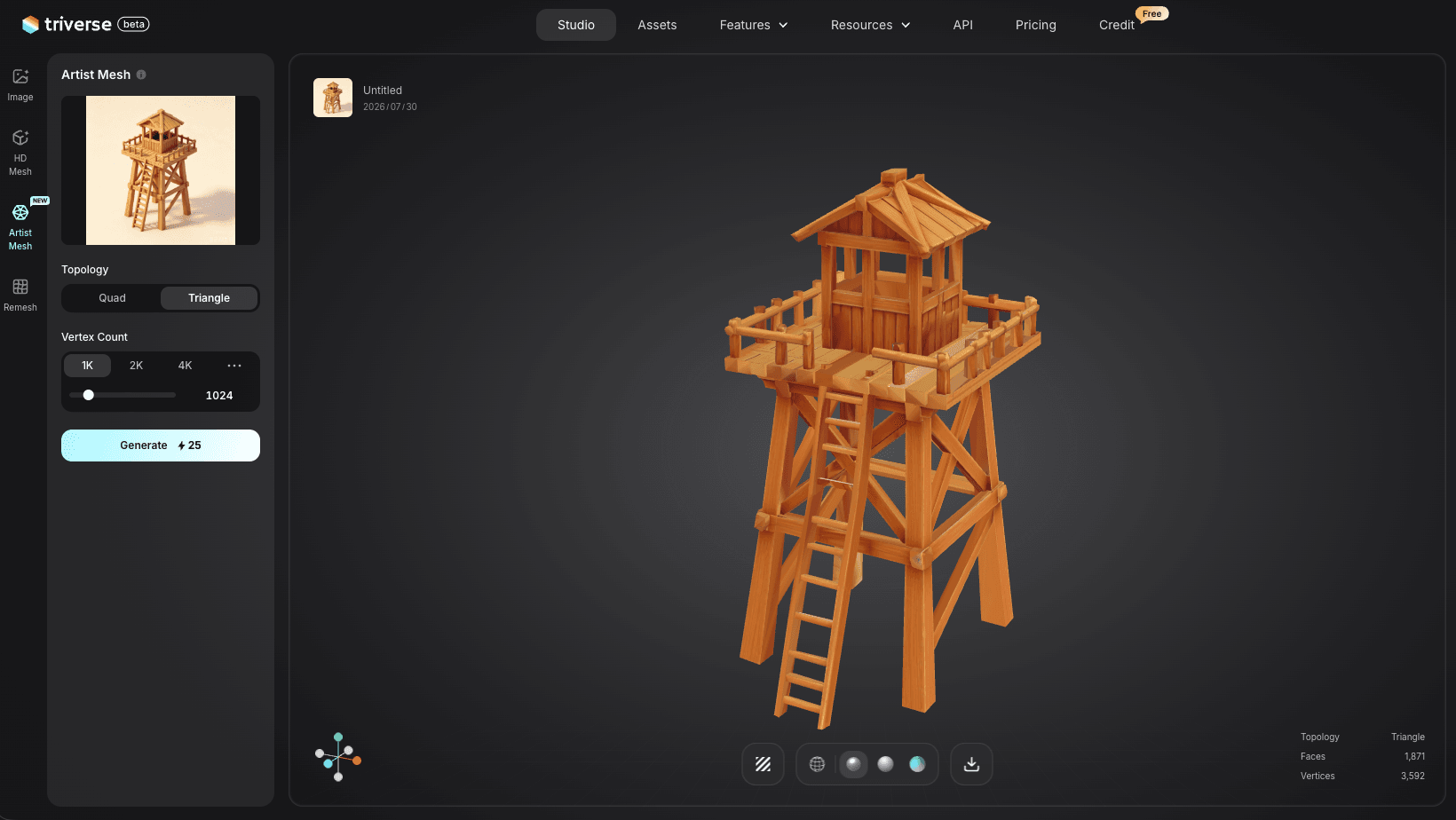
Step 1: Upload a Reference Sketch or Photo. Go to Triverse AI's Studio and select Artist Mesh. Drag and drop or paste a PNG, JPG, JPEG, or WebP image. A clean silhouette photograph or concept art sketch works best.
Step 2: Choose Vertex Count and Topology. Select the vertex count preset that fits your project: 1K for background props, 2K for standard props, 4K for hero props or detailed characters. Pick Triangle topology for rigid static meshes.
Step 3: Generate and Export. Hit Generate. Download as FBX or OBJ. Import into Unity, check the triangle count, and adjust the Scale property if the model comes in too large. Apply a material with a normal map from a free source to add surface detail.
How to Use Triverse AI HD Mesh for Unity
Step 1: Describe or Upload Your Prop. Choose HD Mesh in Triverse AI's Studio. HD Mesh accepts text or an image. Type a description such as "a sci-fi coolant valve with metal casing and industrial pipes" or upload a reference sketch.
Step 2: Generate the Mesh. Hit Generate. The output is a higher polygon mesh that works as a detailed hero prop or as a high poly source for baking.
Step 3: Export and Refine in Unity. Download as OBJ. In Blender, retopologize if needed, UV unwrap, then bake the detail down to a low poly version. Import the low poly result into Unity through the standard pipeline.
If you already have a concept sketch or reference render, image-to-3D can be a better option when shape accuracy matters more than prompt exploration.
You May Also Like:
Quads VS Triangles Retopology Guide↗
AI 3D Model Generators for Game Dev Guide↗
Bottom Line
Free packs handle the generic 80 percent of every game: crates, barrels, chairs, rocks, trees. They fail on the 20 percent that makes your game recognizable. A specific logo, a character with your silhouette, a weapon no other game has, these are worth generating or modeling yourself. Triverse AI turns a reference sketch or description into a clean mesh you import directly into Unity, which covers the assets no pack will ever have.
For the assets you do download, check the license before shipping, run the scale and material checklist at import, and build LODs for anything repeated in your scene. A few minutes of import prep saves hours of debugging in a finished level.
FAQs about Free 3D Objects for Unity
What file formats work for 3D objects in Unity?
Unity imports FBX, OBJ, glTF, GLB, and DAE. FBX is the best choice because it carries meshes, materials, and animation in one file. OBJ works for static props but supports no animation. Avoid legacy 3DS for new projects.
Where can I get free 3D models for Unity?
The Unity Asset Store free section, Fab, Sketchfab with a commercial license filter, Kenney, Quaternius, Poly Haven, and OpenGameArt all provide Unity-compatible models. Kenney, Quaternius, and Poly Haven use CC0 or public domain licenses, which allow commercial use without attribution.
Why is my 3D model too big in Unity?
The model was exported in centimeters or inches while Unity uses meters. Fix it by changing the Scale property in the FBX Import inspector or by re-exporting from Blender with the correct unit. A 100x size difference is almost always a unit mismatch.
Why are my imported materials pink in Unity?
Pink means Unity cannot find the shader or texture. Reassign the material to URP Lit or Standard and import the texture files separately so they link correctly. Missing texture paths are the usual cause.
Can I use free Unity assets in a commercial game?
Only if the license allows it. CC0 and public domain assets from Kenney, Quaternius, and Poly Haven are safe for commercial use. Sketchfab models need a Commercial use license, not Editorial. Always check the license tag before shipping.
How do I import FBX into Unity?
Drag the FBX file into your Project window. Unity creates a model asset with import settings. Open the inspector to adjust scale, materials, and normals. Drag the model from the Project window into your scene to place it.
What are prefabs in Unity?
A prefab is a saved, reusable instance of a GameObject with its components and settings. Downloading assets that ship as prefabs saves you from rebuilding materials and transforms by hand. You can create your own prefab by dragging a configured object into the Project window. Prefabs also let you update one source and push the change to every placed copy in the scene.