Générateur de textures IA pour les modèles 3D : Générer automatiquement des textures professionnelles PBR
Générez automatiquement des textures PBR professionnelles avec des générateurs de textures IA. Comparez les meilleurs outils, apprenez les workflows de texturage IA et créez plus rapidement des actifs 3D prêts pour le jeu.
3 juin 2026
Qu'est-ce qu'un générateur de textures IA ?
Un générateur de textures par IA est un logiciel qui utilise l'intelligence artificielle pour créer automatiquement des textures pour des modèles 3D. Cela signifie que les personnes qui créent ces modèles n'ont pas besoin de peindre ou de photographier les surfaces manuellement. Elles peuvent créer des textures réalistes ou stylisées en quelques minutes. Ces outils exploitent souvent des réseaux neuronaux, des algorithmes procéduraux et de vastes ensembles de données de textures pour produire des cartes PBR (Physically Based Rendering - rendu physique) de haute qualité adaptées aux jeux, aux films et aux applications AR/VR.
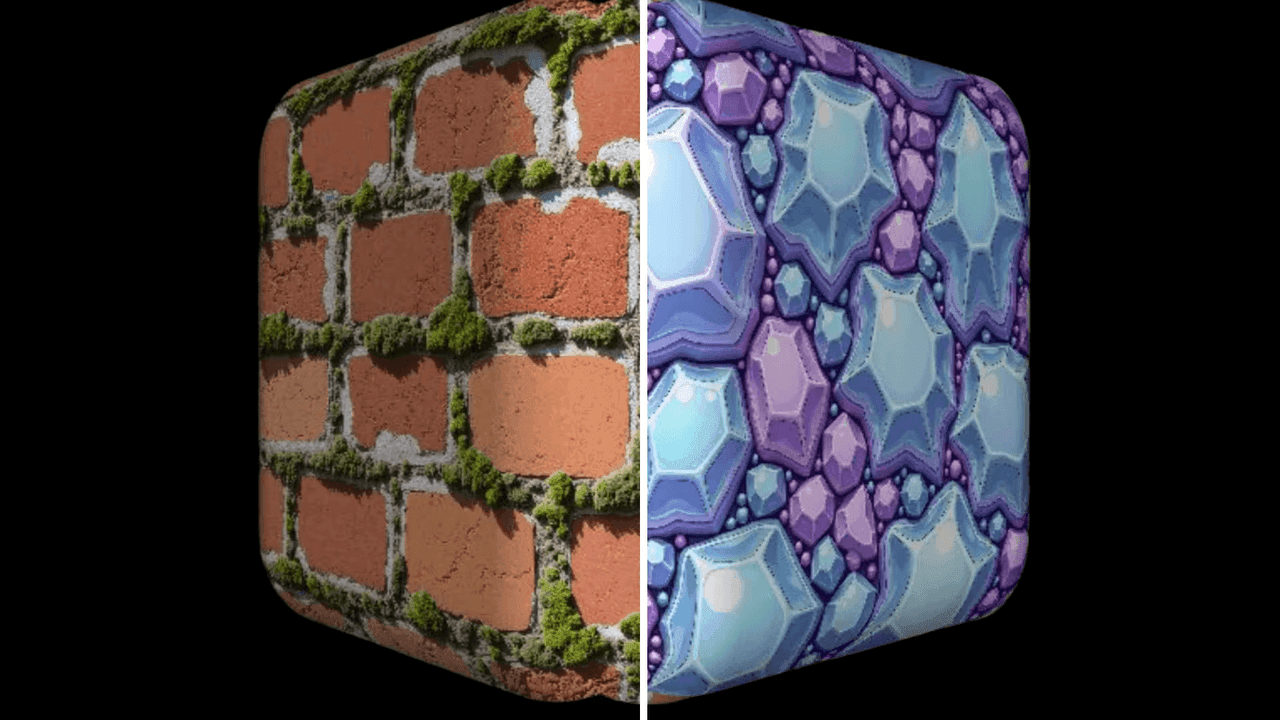
Avec des plateformes comme Triverse AI, les débutants et les professionnels peuvent rapidement passer d'un maillage 3D brut à un modèle entièrement texturé. Cela permet d'économiser un temps considérable et facilite grandement le processus.
Ce que les générateurs de textures IA produisent réellement
Avant de choisir un outil, il est très important de savoir à quoi vous vous attendez. Tous les générateurs de textures IA ne produisent pas les mêmes résultats :
Type de sortie | Description | Utilisation typique |
Couleur de base / Albedo | La couleur visible de la surface sans éclairage | Textures pour jeux vidéo, infographie |
Carte normale | Simule les détails de surface sans polygones supplémentaires | Ajoute du réalisme sans augmenter la complexité du maillage |
Carte de rugosité | Contrôle l'apparence mate ou brillante d'une surface | Réalisme des matériaux |
Carte métallique | Définit les surfaces métalliques par rapport aux non métalliques | Flux de travail PBR |
Occlusion ambiante (AO) | Ajoute un ombrage subtil dans les creux | Renforce l'impression de profondeur |
Cartes UV | Coordonnées pour appliquer les textures | Nécessaire pour un mappage correct dans les logiciels 3D |
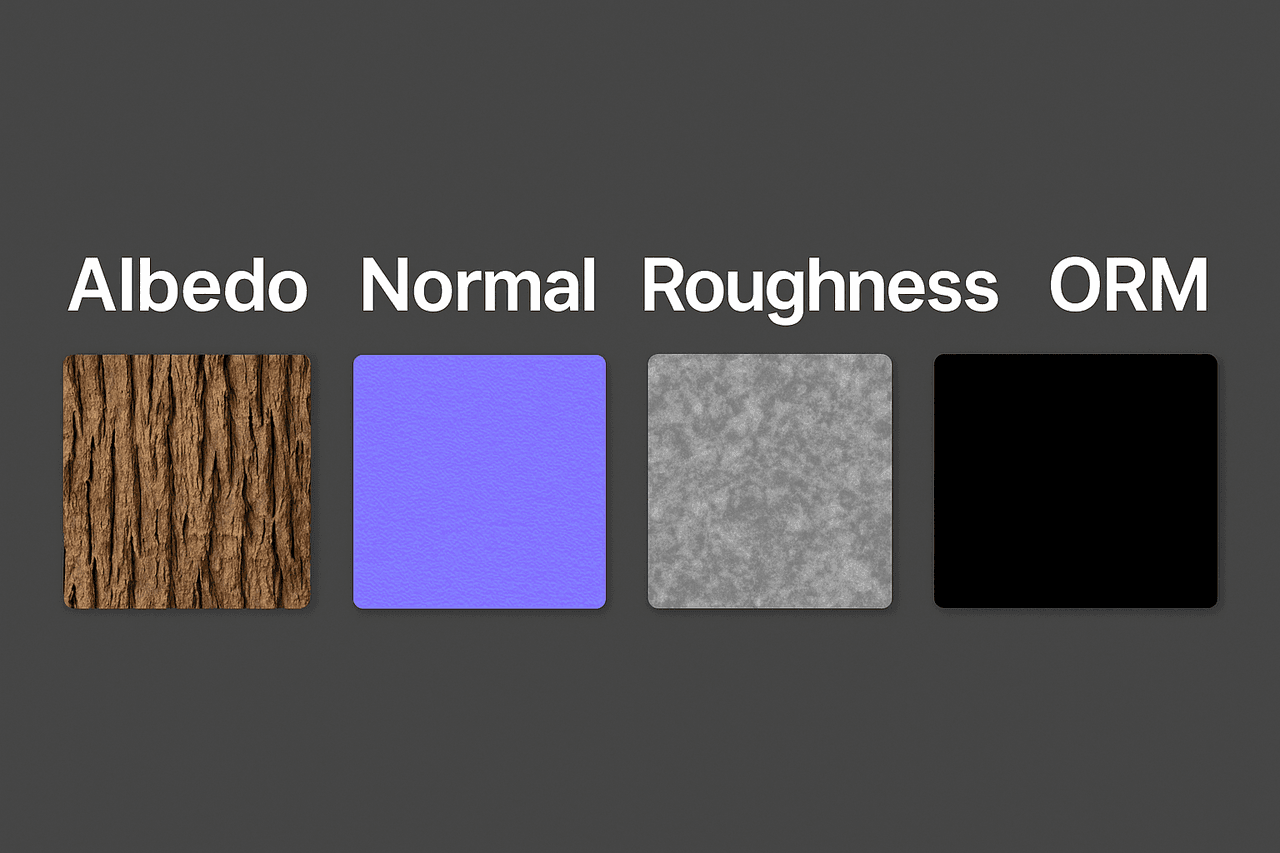
Certains outils ne génèrent que des textures de couleur de base, tandis que des solutions avancées comme, l'outil de texturage de Triverse AI peuvent automatiquement produire des ensembles de textures PBR complets, prêts à être importés dans des moteurs comme Unity ou Unreal.
Texturage par IA vs. Texturage Traditionnel
Le texturage par IA change fondamentalement la vitesse et l'économie de la création d'assets, mais il ne remplace pas complètement les méthodes traditionnelles. Lorsque vous utilisez des outils comme Substance Painter pour effectuer le texturage manuellement, vous avez un contrôle très fin sur l'élément et pouvez être très précis. Le problème est que cela prend beaucoup de temps. Si vous créez quelque chose de complexe, comme un personnage 3D ou un arrière-plan ou un arrière-plan, un artiste expérimenté peut mettre de nombreuses heures, voire plusieurs jours, pour le réaliser.
En revanche, l'IA peut générer une première passe solide en moins d'une minute et un ensemble affiné en 5 à 15 minutes. La qualité s'est considérablement améliorée. De nombreux résultats sont désormais adaptés à la production après de légères retouches. Cependant, l'IA peut encore produire des artefacts, comme un étirement de texture sur les surfaces courbes ou des motifs incohérents sur les formes organiques.
L'approche la plus intelligente en 2026 est un flux de travail hybride : utiliser l'IA pour créer rapidement des textures de base et des variations, puis appliquer un travail manuel ciblé pour les assets principaux où une perfection absolue est requise.
Meilleurs Générateurs de Textures par IA pour Modèles 3D
Voici les principaux outils de textures par IA en 2026, chacun avec ses forces uniques :
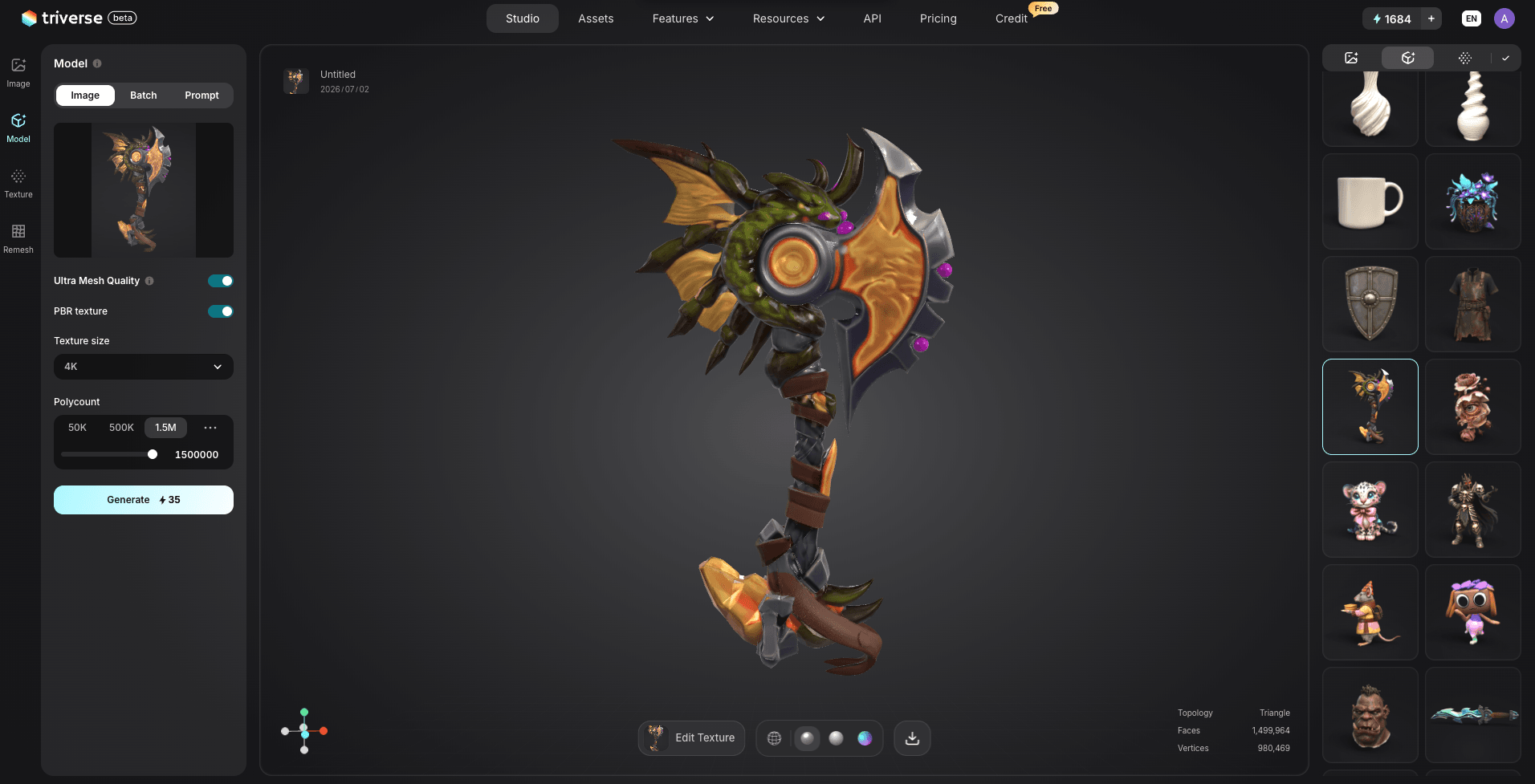
1. Triverse excelle dans les flux de travail sans couture et tout-en-un. Il permet aux utilisateurs de générer un modèle 3D et d'appliquer immédiatement des textures IA professionnelles au sein de la même plateforme, puis d'exporter des ensembles PBR complets. Cette approche de bout en bout minimise les frictions et produit des résultats cohérents, ce qui la rend particulièrement adaptée aux débutants, aux créateurs indépendants et aux équipes qui accordent de l'importance à la vitesse et à la simplicité.
2. Meshy est une option pour les créateurs de jeux et les projets nécessitant un traitement en temps réel. Il génère des cartes PBR de qualité comme les cartes Diffuse, Normale, Rugosité, Métallique et AO. Ces cartes sont d'excellente qualité. L'outil permet des itérations rapides grâce à l'affinement des prompts et s'intègre parfaitement à ses propres fonctionnalités de génération de modèles 3D, ce qui le rend idéal pour la création rapide d'assets et l'export vers les moteurs de jeu.
3. Tripo se distingue par la haute qualité de ses résultats et le contrôle qu'il vous offre. Il peut traiter des images détaillées, jusqu'aux textures 4K, et dispose d'une fonctionnalité très intéressante appelée Magic Brush. Cette fonction Magic Brush vous permet de modifier les images générées par Tripo à l'aide d'un pinceau, pour obtenir exactement ce que vous souhaitez. Cela fait de Tripo un choix idéal lorsque vous voulez que l'ordinateur fasse une partie du travail pour vous.
4. Neural4D est privilégié pour les travaux photoréalistes et cinématiques. Il excelle à rendre les matériaux tels qu'ils apparaissent dans la réalité. Il est également très performant pour extraire les détails des images et les utiliser pour accroître le réalisme. Les cartes PBR produites par Neural4D sont excellentes car elles reproduisent de manière réaliste l'interaction de la lumière avec les objets. Cela signifie que peu de travail supplémentaire est nécessaire pour obtenir un bon rendu, ce qui explique pourquoi Neural4D est souvent utilisé pour des projets d'envergure et des travaux professionnels comme la visualisation haut de gamme et les productions professionnelles de haut niveau.
Pour choisir parmi ces outils, considérez votre priorité principale : rapidité et création d'assets pour jeux (Meshy/Triverse), contrôle créatif (Tripo), ou photoréalisme (Neural4D).
Comment choisir le bon outil de texture par IA
Votre choix doit répondre aux besoins de votre projet.
Les équipes axées sur la création rapide d'assets de jeu préfèrent généralement, Meshy ou Triverse pour leur vitesse et leur compatibilité avec les moteurs de jeu. Les projets nécessitant un contrôle artistique fin bénéficient du Magic Brush de Tripo. Pour un photoréalisme maximal et une précision des matériaux, Neural4D ou Tripo sont de meilleures options. Les artistes travaillant sur du contenu stylisé ont tendance à préférer le moteur de style polyvalent de Meshy.
Si vous débutez, le flux de travail intégré de Triverse facilite la prise en main. La plupart des plateformes offrent des crédits d'essai gratuits, il vaut donc la peine de tester plusieurs outils avec vos modèles spécifiques et votre direction artistique.
Critères | Outil recommandé |
Prise en main facile | Triverse AI, Tripo |
Style artistique | Neural4D |
PBR haute résolution | Meshy, Triverse AI |
Prototypage rapide | Tripo, Triverse AI |
Intégration au moteur de jeu | Triverse AI, Meshy |
Le Flux de Travail Complet de Texturage IA
Voici un flux de travail pratique basé sur le processus réel de texturage de Triverse AI :
- Préparez ou Générez Votre Modèle de Base
Créez un nouveau modèle dans Triverse à l'aide de prompts texte ou image, ou téléchargez un maillage existant (OBJ, GLB, etc.). La plateforme gère automatiquement la topologie de base et les UV dans la plupart des cas. Aucun dépliage UV manuel parfait n'est requis. - Passez dans le Module de Texturage
Dans Triverse Studio, sélectionnez votre modèle et passez en mode Texturage IA. Vous avez deux principales options d'entrée : - Prompt Texte : Décrivez le matériau souhaité (par exemple, "équipement tactique usé, tissu noir mat avec des égratignures et de la saleté subtiles, style militaire, 4K").
- Image de Référence : Téléchargez une photo de la texture ou du matériau que vous souhaitez projeter sur le modèle.
- Configurez et Générez
Choisissez la résolution de texture (1K, 2K ou 4K), sélectionnez les paramètres de qualité, et cliquez sur Générer. Triverse appliquera un jeu complet de matériaux PBR tout en préservant votre géométrie d'origine. Générez plusieurs variations du matériau pour comparer rapidement différents styles. - Examinez et Ajustez
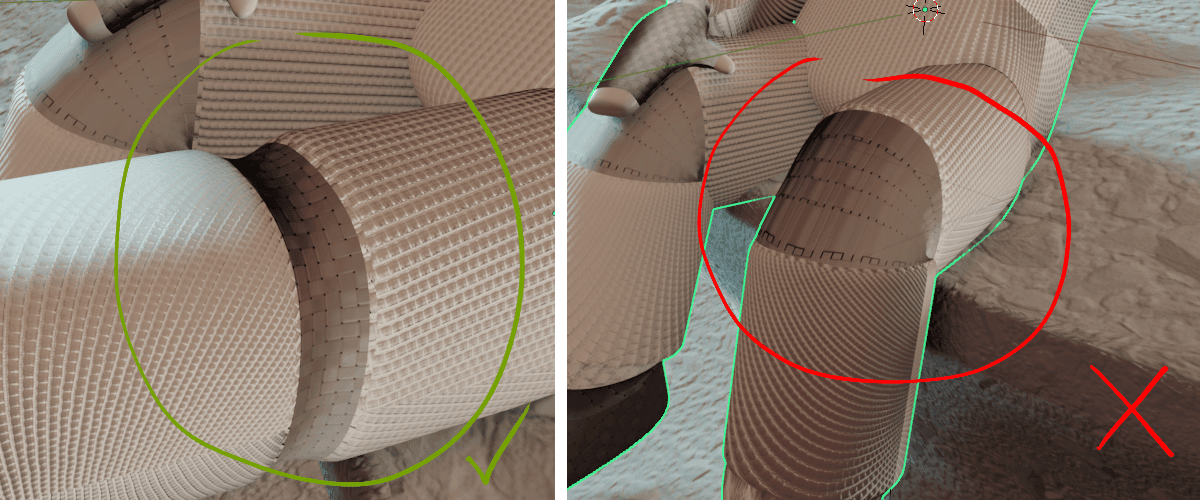
Examinez le modèle dans la vue en temps réel. Vérifiez si vous pouvez détecter des coutures, des étirements ou des anomalies. C'est le modèle texturé que vous devez inspecter. Vous pouvez créer immédiatement des versions du modèle texturé avec différents messages ou visuels. Si vous souhaitez être plus prudent, vous pouvez exporter les cartes de textures vers un autre programme. Effectuez davantage de modifications dans Substance Painter ou Blender, sur le modèle texturé.
- Exporter le Modèle Final
Exportez le modèle entièrement texturé avec toutes les cartes PBR (Albedo/Diffuse, Normale, Rugosité, Métallique). Les formats pris en charge incluent GLB, FBX, OBJ, et plus encore — directement optimisés pour Unity, Unreal Engine, Godot ou Blender.
Résultat : L'ensemble de ce flux de travail peut être effectué en 15 à 40 minutes pour une ressource de complexité moyenne, vous permettant de créer plusieurs variantes de matériaux à partir d'un seul modèle de base avec un effort minimal.
Conseils de Pro pour des Résultats Idéaux
- Vérifiez toujours les cartes UV avant de générer les textures.
- Utilisez des images de référence comme guide de style.
- Générez les textures à la résolution native de votre plateforme pour éviter les artefacts de redimensionnement.
- Combinez les cartes générées par IA avec des retouches manuelles pour un réalisme accru.
Limitations de la génération de textures IA
- Certaines textures IA peuvent avoir un aspect répétitif sur de grandes surfaces.
- Les textures stylisées peuvent nécessiter un réglage manuel.
- Les types de matériaux extrêmes (liquide, verre, etc.) nécessitent souvent des réglages supplémentaires des shaders.
- Peu d'outils d'IA prennent encore entièrement en charge les modèles multi-matériaux.
L'Avenir de la Texturation par IA
La texturation par IA progresse rapidement vers une intégration plus profonde et une intelligence accrue. Dans les années à venir, nous pouvons nous attendre à une génération de textures en temps réel directement dans les moteurs de jeu, à des matériaux qui s'adaptent dynamiquement à l'éclairage et à l'environnement, et à une simulation basée sur la physique améliorée pour les surfaces complexes comme les tissus, la corrosion et la peau.
Les plateformes de bout-en-bout deviennent plus puissantes, combinant génération de modèles, texturation intelligente, optimisation et exportation en un clic. Cette évolution rendra la création d'actifs 3D de haute qualité plus rapide et plus accessible, tout en permettant aux artistes de se concentrer sur la créativité et le polissage final plutôt que sur des tâches répétitives.
FAQ : Générateur de textures IA pour modèles 3D
Que sont les textures PBR et pourquoi sont-elles importantes ?
Les textures PBR simulent des matériaux du monde réel sous différents éclairages, garantissant un réalisme à travers toutes les plateformes.
Peut-on utiliser commercialement les textures générées par IA ?
Oui, mais vérifiez toujours les conditions de licence de l'outil.
Comment optimiser la résolution des textures pour différentes plateformes ?
Exportez en résolution cible et compressez les textures pour une utilisation mobile ou VR.
Quels formats de fichiers sont pris en charge pour l'exportation ?
Généralement PNG, JPG, TGA et PSD ; certains outils prennent également en charge le format EXR multicanal.
Puis-je générer des textures pour plusieurs modèles à la fois ?
Les outils avancés comme Triverse AI prennent en charge le traitement par lots.
Comment la qualité des textures IA se compare-t-elle à celle des textures créées manuellement ?
Elles sont de qualité de plus en plus comparable, bien que des ajustements manuels puissent améliorer les détails et l'unicité.
Les textures IA peuvent-elles traiter à la fois des matériaux stylisés et réalistes ?
Oui, mais certains outils se spécialisent soit dans le photoréalisme, soit dans les styles stylisés.
Les textures générées par IA nécessitent-elles des cartes UV ?
Oui, les cartes UV sont nécessaires pour un placement correct des textures.