How to Make a 3D Logo from a 2D Image
Want a real 3D logo you can use in Unity, Unreal, or a 3D printer? This guide shows how to convert any 2D logo into a game-ready 3D model with many meth.
2026年5月27日
Turning a flat logo into a real 3D model used to mean learning Blender, paying a 3D artist, or settling for a fake "3D effect" that you can't export or print.
Most online "3D logo makers" are misleading. They add a lighting effect and call it 3D, but you can't import the result into a game engine or print it on a physical object.
This guide covers the traditional methods and AI methods that produce real 3D files, compares them to traditional approaches, and walks you through every step.
Why 3D Logos Are Worth the Effort
A 3D logo with depth, material texture, and real lighting response stops the scroll in a way flat designs rarely do anymore.
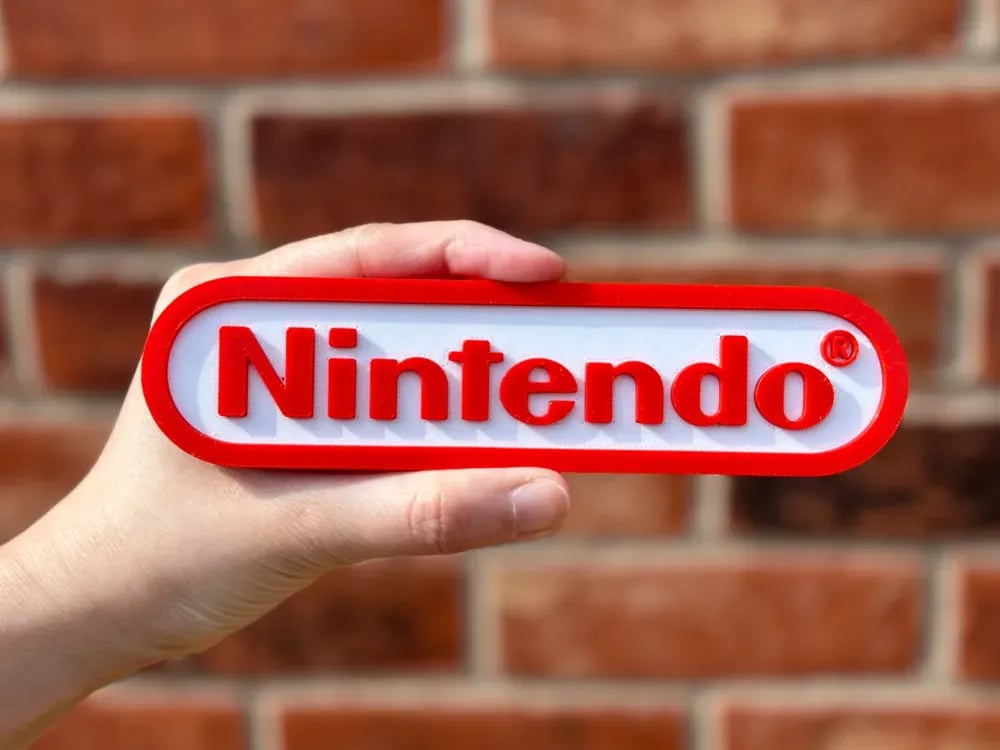
Nintendo's 3D wordmark shows up on consoles, merchandise, and startup screens with consistent depth. PlayStation uses spherical forms that only work in three dimensions. MINI's chrome badge catches light a flat PNG cannot replicate.
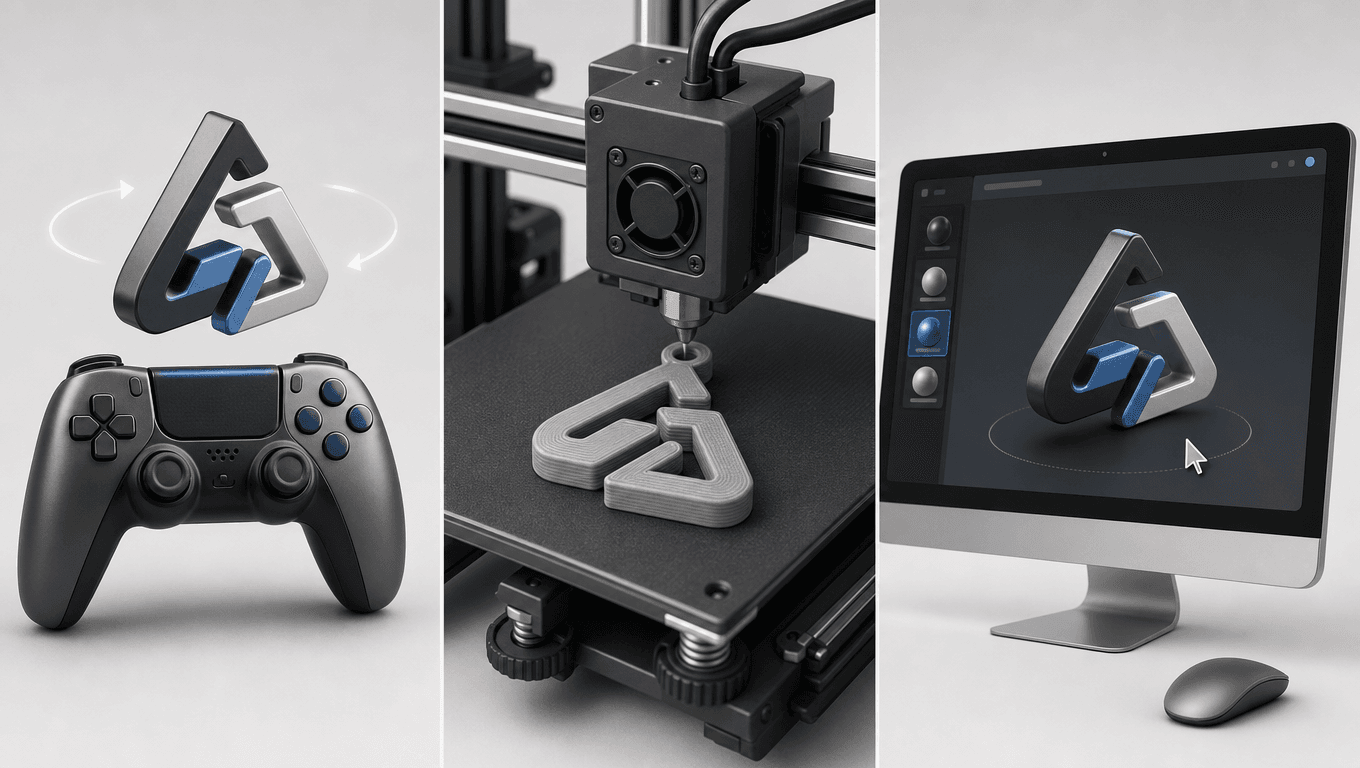
For indie game developers, a 3D logo isn't just a nice visual touch. It's a functional asset. You can place it on a splash screen that rotates in real time. You can mint it as an NFT with actual geometry. You can 3D print it as conference swag. You can drop it into a Unity scene and let players walk around it.
For small businesses, a 3D logo opens up physical merchandise that flat logos can't deliver. Keychains, desk ornaments, embossed business cards, and trade show displays all benefit from real geometry rather than flat prints.
The hard part used to be the production pipeline.
3D Logo Ideas and Inspiration
Before you convert your logo, it helps to see what other creators have built. The range of possible outputs is wider than most people expect.
- Indie Game Splash Screens: A spinning 3D logo at startup sets the tone for your entire game. Players notice when a logo has real geometry and reacts to scene lighting. It signals production quality before the first level loads.
- 3D Printed Keychains and Desk Decor Logo keychains are popular conference giveaways. With a real 3D model, you can print your logo as a keychain, paperweight, or desk ornament. The depth and material choice (PLA, resin, metal-filled filament) make each version feel different.
- Website Hero Sections with WebGL: A 3D logo embedded in your homepage with Three.js or a similar library lets visitors rotate your branding with their mouse. It's an interaction that flat logos can't provide.
- Steam Page Assets: Steam allows 3D preview images for some asset types. A 3D logo rendered from multiple angles gives potential buyers a better sense of your game's visual quality.
- Podcast Channel Branding: A 3D logo that rotates slowly in the corner of a video podcast adds production value without requiring a full motion graphics team.
- Chrome Extension and App Icons: Some platforms now accept 3D-rendered icons. A logo with depth and material definition stands out in a grid of flat icons.
- Social Media Animated Intros: A short animation of your 3D logo rotating, assembled in Premiere or DaVinci Resolve, works as a channel intro for YouTube or a branded transition in TikTok videos.
These are not abstract design concepts. They are practical use cases that real 3D files enable. If any of them apply to your project, the workflow in this article will save you hours of work.
What "Game-Ready" or "Print-Ready" Actually Means
The term "3D logo" means different things depending on who you ask. For a graphic designer, it might mean a flat logo with a drop shadow and a gradient. For a game developer, it means a mesh with clean topology, correct scale, and materials that work in a real-time engine. For a 3D printing enthusiast, it means a watertight manifold mesh that a slicer can process without errors.
That matters because most online "3D logo makers" only produce the first type: a visual effect that looks three-dimensional on screen but gives you nothing you can import, edit, or manufacture.
Here is how the two types compare side by side.
Feature | 3D Render (Canva, Design.com, etc.) | Real 3D File (GLB, OBJ, STL) |
Can import into Unity or Unreal Engine | No | Yes |
Can 3D print | No | Yes |
Editable materials | No | Yes |
Real-time rotation | No (static image only) | Yes |
Adjustable lighting | No (baked into render) | Yes |
Exportable as a usable file | No (image only) | Yes |
Free tier without watermark | Limited | Yes (Triverse free tier) |
If you need anything beyond a static image, you need a real 3D file. A GLB or OBJ gives you geometry you can light, rotate, animate, and export to any platform that accepts 3D data. An STL gives you a mesh a 3D printer can physically manufacture.
Game-ready means the file meets certain technical standards. The polygon count should be appropriate for real-time rendering (not so high that it slows down a scene, not so low that it looks jagged). The scale should match your engine's unit system (Unity uses 1 unit = 1 meter; Unreal uses centimeters). The materials should use PBR (physically based rendering) textures that interact correctly with scene lighting.
Print-ready means something different. The mesh must be manifold (no holes, no internal faces, no non-manifold edges). The wall thickness must meet the minimum for your printing method (FDM printers typically need at least 1.2mm; resin printers can go thinner). The file must be in a format your slicer accepts (STL is universal; 3MF preserves color and material data).
When you use an AI tool that generates real 3D files, you get assets that meet these standards without needing to study topology or slicer settings. That is the core advantage of the workflow this article describes.
For more on game-ready standards, check our guide to best AI 3D model generators for game development. If you plan to 3D print your logo, how to create 3D models for 3D printing covers file preparation in detail. For a practical printing walkthrough, see RE3D's guide.
Traditional Ways to Make a 3D Logo (And Why They're Painful)
Before AI tools became available, you had four options for turning a 2D logo into a 3D model. Each has significant drawbacks depending on your budget, timeline, and technical skills.
Blender (Manual Modeling)
Blender is free and powerful. It is also hard for beginners. The interface has thousands of shortcuts, and learning it takes weeks, not hours. Converting a 2D logo to 3D in Blender means importing the image as a reference, tracing it with curves or mesh tools, extruding along a third axis, adding bevels to soften edges, and UV-unwrapping if you want the original logo texture on the surface. Each step requires knowing Blender's modifier stack, shader editor, and export pipeline. Budget 2 to 8 hours for a simple logo on your first try. Triple that for something complex.
Adobe Illustrator (Extrude and Bevel)
Illustrator has a built-in 3D effect called Extrude and Bevel. It takes a vector logo and gives it depth along the Z axis. The result looks fine in Illustrator's preview, but there is a catch: it is not a real 3D mesh. You can export it as a PDF with 3D data, but most game engines and 3D printers will not accept that format. To get a usable file, expand the appearance, export as SVG, then convert to a mesh in another program. Illustrator costs $22.99/month on the individual plan, which adds up fast if you only need one logo converted.
Cinema 4D, Maya, 3ds Max
These are professional-grade 3D packages used in film and high-end commercial work. They have better UX than Blender, but they cost anywhere from $79.99 per month (Cinema 4D) to several hundred per month (Maya, 3ds Max). They are overkill for converting a single logo, and they still require you to learn 3D modeling fundamentals.
Hire a 3D Artist on Fiverr or Upwork
This is the "pay someone else to do it" route. Prices range from $50 for a basic extruded logo to $500 plus for a fully textured, rigged, and game-ready asset. The timeline is typically 2 to 7 days, and you'll likely need one or two rounds of revisions. The quality varies widely depending on the artist's skill level and whether they understand game engine pipelines or 3D printing constraints.
Here is how those methods compare:
Method | Time Investment | Cost | Skill Required | Output Quality | Real 3D File? |
Blender (manual) | 2–8 hours | Free | High | Unlimited | Yes |
Adobe Illustrator | 30–60 min | $22.99/mo | Medium | Vector 3D (not mesh) | No (without extra steps) |
Cinema 4D | 1–3 hours | $79.99/mo | Medium-High | Professional | Yes |
Hire a 3D artist | 1–7 days (waiting) | $50–$500 | Zero | Professional | Yes |
AI tools (Triverse) | 5–10 min | Free tier available | Zero | Real 3D file | Yes |
The AI workflow collapses the time and skill requirements without sacrificing the ability to export real 3D files. You still get a GLB you can drop into Unity. You still get an STL you can send to a printer. You just don't spend a weekend learning Blender's shortcut keys to get there.
For users who want to try the manual Blender route, the Blender Foundation's official documentation is the best starting point. If you are targeting Unity specifically, Unity's GLB import guide explains how to bring your model into the engine once you have it.
How to Make a 3D Logo with AI — Step by Step
This section covers the full workflow using Triverse. The same logic applies to other AI 3D tools, but Triverse handles this use case specifically and exports the formats game developers and 3D printing people actually use.
Step 1: Prepare Your 2D Logo File
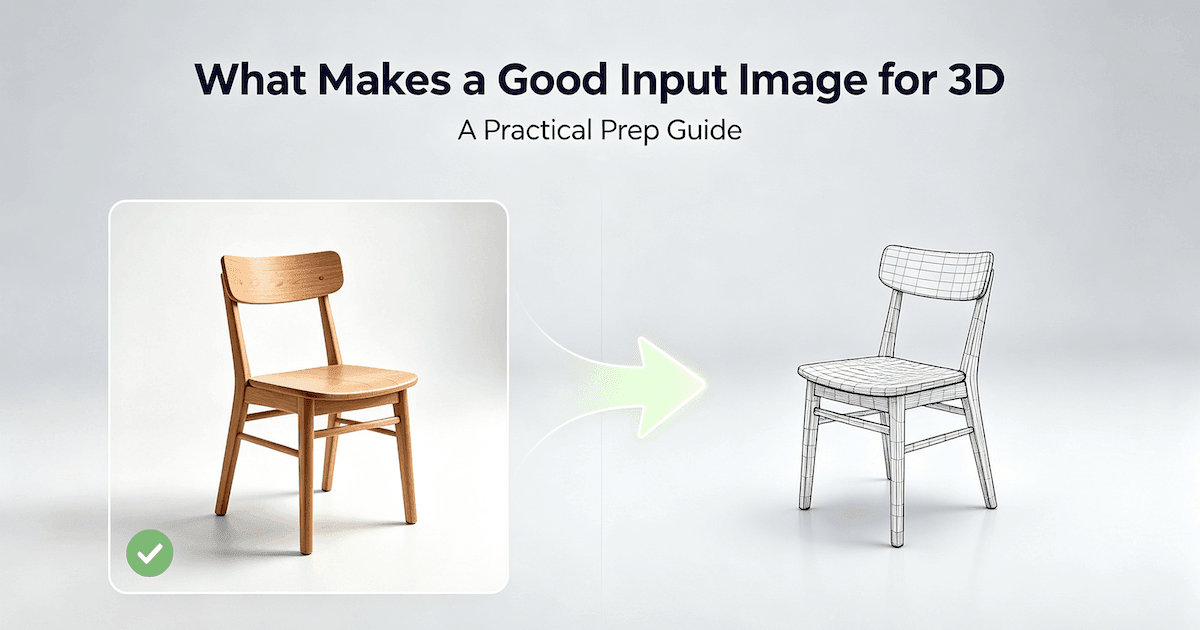
The quality of your 3D output depends heavily on the quality of your input. A clean 2D logo produces a clean 3D model. A messy, low-resolution logo produces a messy 3D model.
The best input formats, in order of preference:
- PNG with transparent background. The best option for AI conversion. A transparent background lets the AI isolate the logo shape cleanly without confusing background pixels for part of the design. Aim for at least 1024 by 1024 pixels.
- WebP. Supported by Triverse and works the same way as PNG. Use this if your logo is already in WebP format.
- JPG or JPEG. Workable, but you'll need to remove the background first. Canva, Figma, and Photoshop all have background removal tools. If the background is a solid color, you can also use free tools like Remove.bg.
- SVG (for pre-processing only). SVGs are vector-based and have clean edges at any resolution, but Triverse does not accept SVG uploads directly. If your logo is an SVG, export it as a high-resolution PNG first, then upload the PNG.
Tips for better results:
- Simplify complex logos before uploading. If your logo has ultra-thin decorative lines, consider removing them or making them slightly thicker. Thin elements sometimes collapse during AI generation because the depth map can't resolve them clearly.
- High contrast between the logo and the background produces cleaner results. A black logo on a white background is easier for the AI to interpret than a white logo on a busy photograph.
- If your logo is text-based, make sure the font is legible at the resolution you're uploading. Serifs and thin strokes can disappear if the source image is too small.
Step 2: Upload to Triverse and Generate
Open Triverse in your browser and navigate to the image-to-3D converter. Drag and drop your prepared logo file into the upload area. The interface accepts PNG, JPG, JPEG, and WebP files.
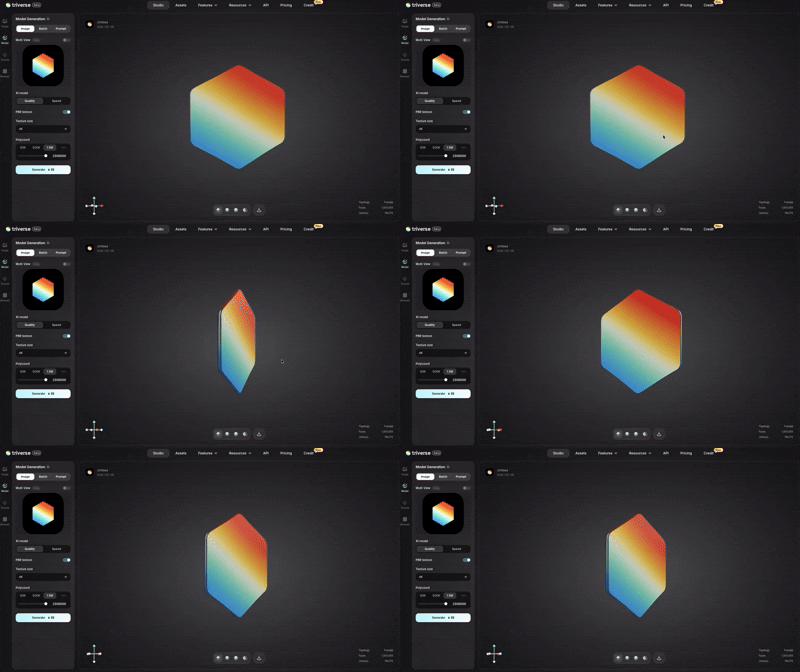
Once the file is uploaded, you will see the generation settings on the left panel. Here is what each setting does and how to set it for logos:
AI model mode. Pick Quality or Speed. Quality takes longer but produces more accurate geometry, which matters if your logo has fine details or thin strokes. Speed is faster and usually good enough for simple, bold logos.
PBR texture. Toggle this on when your logo has colors you want to keep on the 3D surface. Triverse generates physically based rendering textures that capture the original colors. If your logo is monochrome or you plan to re-texture it in a game engine later, turn this off for a cleaner base mesh.
Texture size. Defaults to 4K, which works for most cases. Only lower this if file size is a concern, like when embedding the model in a web page.
Polycount. This controls polygon density. The presets are 50K (lightweight, good for game UI), 500K (balanced), and 1M (great detail). Drag the slider anywhere up to 1.5M. For most logos, 500K is the right balance between smooth curves and manageable file size.
Click Generate. Triverse processes the image and produces a 3D model. The preview shows a real-time render with default PBR materials.
Step 3: Inspect and Iterate
After the generation completes, look at the result carefully before exporting.
Rotate and check it from all angles. Use the controls below the preview window to spin the model around. Watch for collapsed thin sections, gaps in the mesh, or places where the AI misread part of your logo. The panel on the right shows face count and vertex count, which tells you whether the mesh density fits what you need.
Regenerate with different settings if something looks off. AI tools do not give you manual sliders for every parameter. Instead, you iterate: change one setting, generate again, and compare. Try these adjustments:
- Logo looks blocky or low-detail? Raise the polycount or switch to Quality mode.
- Colors came out wrong? Make sure PBR texture is turned on.
- Thin parts of your logo disappeared? Go back to your source file, thicken those lines in Illustrator or Figma, then upload again. A practical rule: the thinnest stroke in your logo should be at least 2 or 3 pixels wide in a 1024px image.
- Weird bumps or extra geometry? Flip between Quality and Speed mode. The two modes handle edge cases differently, so one might work better than the other.
Step 4: Export for Your Target Platform
The final step is choosing the right export format. This is where most "3D logo makers" fail: they give you a PNG render and call it done. Triverse gives you actual 3D files you can use in real workflows.
Pick the right format for where the logo is going:
Use Case | Export Format | Why This Format |
Unity, Unreal Engine, WebGL | GLB | GLB is a self-contained file format that embeds geometry, materials, and textures in a single file. Unity and Unreal both have native GLB importers. It's the most convenient format for real-time engines. |
Blender, Cinema 4D, Maya | OBJ | OBJ is the universal 3D interchange format. Every 3D software package can import it. It doesn't preserve materials as well as GLB, but it's the safest choice if you plan to edit the model further in another program. |
3D printing (FDM, SLA) | STL | STL is the standard format for 3D printing. It describes the surface geometry as a mesh of triangles. Nearly all slicer software (Cura, PrusaSlicer, Bambu Studio) accepts STL files. |
3D printing (full-color resin) | 3MF | 3MF is a newer format that preserves color data and material assignments. If you're printing a multi-color logo on a resin printer that supports it, 3MF is the right choice. |
Once you select a format, click export. Triverse generates the file and downloads it to your device. The file is now ready to import into your target platform.
Comparing AI 3D Logo Tools
Several tools claim to generate 3D logos with AI. They differ significantly in what they actually produce. The comparison below is based on testing each tool with the same source logo and evaluating the outputs.
Triverse AI
What it does: Converts 2D logo images (PNG, JPG, WebP) into real 3D mesh files with configurable polycount, PBR texture generation, and multi-format export (GLB, OBJ, STL, 3MF).
Strengths: Exports actual 3D files, not just renders. Free tier does not watermark exports. Output has a clean topology that works in game engines. PBR texture option keeps your logo colors intact without manual shader setup. Polycount control lets you optimize for the target use case. GLB for engines, STL for printing, and more formats are all there.
Limitations: Output quality depends heavily on input quality. Logos with very fine details may still need some cleanup in Blender after export. There is no depth slider or material picker inside the tool; you control the result through generation settings and iteration.
Best for: Game developers, 3D printing enthusiasts, indie studios, and anyone who needs a real 3D file rather than a static render.
3DLogo.io
What it does: Takes a 2D logo or text prompt and produces a 3D render with rotation. Exports video (MP4) or animated GIF.
Strengths: Completely free. No signup required. Fast. Produces decent animated outputs for social media.
Limitations: Does not export real 3D files. You get a video or GIF of a rotating logo, not a mesh you can import into Unity or print on a 3D printer. This limits its usefulness for anything beyond social media content.
Best for: Quick social media animations of your logo. Not suitable if you need a real 3D file.
ImagineArt AI 3D Logo Generator
What it does: Text-to-3D and image-to-3D generation for logos and general 3D assets.
Strengths: AI-powered. Can generate logos from text prompts if you don't have a logo file yet. Interesting artistic outputs.
Limitations: Output quality for specific brand logos is inconsistent. The image-to-3D mode exists but is not specifically optimized for logos. Does not reliably produce game-ready or print-ready files. More of a concept generation tool than a production pipeline tool.
Best for: Brainstorming logo concepts. Not recommended for converting an existing logo into a production-ready 3D file.
Canva 3D Logo Maker
What it does: Adds a 3D visual effect to a 2D logo design using Canva's built-in "3D" style options.
Strengths: Integrated into Canva's design workflow. Easy to use if you already use Canva. Produces good-looking static renders.
Limitations: The "3D" effect is a visual trick. It's a 2D image with perspective and lighting applied. You cannot export a real 3D file. You cannot import the result into a game engine or 3D printer. Requires a Canva subscription for some 3D effects.
Best for: Creating a visual mockup of a 3D logo for a presentation slide. Not suitable for any workflow that requires real 3D geometry.
Blender (Manual, Not AI)
What it does: Full-featured 3D modeling, animation, and rendering software. You manually model the 3D logo.
Strengths: Unlimited creative control. Free. Produces the highest possible quality if you know how to use it. Exports to any format.
Limitations: Extremely steep learning curve. Time-consuming even after you learn it. Overkill for converting a single logo.
Best for: Users who want full control and are willing to invest time in learning 3D modeling. Not a quick solution.
Tool | Input Type | Real 3D File Export? | Free Tier | Best For |
Triverse AI | PNG, JPG, WebP | Yes (GLB, OBJ, STL, 3MF) | Yes (no watermark) | Game devs, 3D printing, production workflows |
3DLogo.io | PNG, text | No (video/GIF only) | Yes (watermarked) | Social media animations |
ImagineArt | Text, image | No (render only) | Limited | Concept brainstorming |
Blender (manual) | Any (manual modeling) | Yes (any format) | Yes (completely free) | Full control, high time investment |
Canva 3D | 2D logo design | No (3D effect, not real file) | No (subscription required) | Visual mockups only |
Pick the tool that matches what you actually need to do. Triverse, if you want a real 3D file without learning Blender. Blender, if you want full control and do not mind the time investment. Canva, if you just need a mockup for a slide deck.
Common 3D Logo Problems and How to Fix Them
Even with AI tools, you'll occasionally run into issues when converting 2D logos to 3D. Here are the most common problems and their solutions.
Problem 1: Thin Text or Lines Collapse During Generation
This happens when your logo has decorative elements thinner than the AI's depth resolution can handle. The generated 3D model shows gaps or completely missing sections where those thin elements should be.
Fix: Go back to your source logo file in Illustrator, Figma, or Photoshop. Thicken the thin elements by increasing the stroke weight or scaling up the text. A good rule of thumb: the thinnest element in your logo should be at least 2 to 3 pixels wide in a 1024-pixel image. Alternatively, simplify the logo by removing the thinnest decorative elements before uploading. Many successful 3D logos are simpler than their 2D counterparts because depth adds visual complexity on its own.
Problem 2: Wrapped Texture Looks Stretched on Curved Areas
If your logo uses a pattern or gradient fill and you try to wrap that texture onto a 3D surface, it can stretch awkwardly around curved areas, especially on beveled edges or rounded letterforms.
Fix: Export the model as OBJ and do a proper UV unwrap in Blender, then reapply the texture there. If you do not need the exact pattern preserved, try regenerating with PBR texture toggled off. That sometimes gives a cleaner base mesh you can re-texture later in your target application.
Problem 3: Non-Manifold Geometry (Mesh Errors)
A non-manifold mesh has errors that make it unprintable or difficult to render in real-time engines. Common errors include internal faces, edges shared by more than two faces, and vertices that don't belong to any face. Most slicers will reject non-manifold STL files.
Fix: Before exporting, use Triverse's clean mesh tool if available. If the problem persists, import the model into Blender and run a mesh check: in Edit Mode, go to Select > Select All by Trait > Non-Manifold. Blender will highlight problem areas. Use the 3D Print Toolbox add-on (free, included in Blender) to automatically repair common issues. For a detailed walkthrough, see our guide on how to fix STL file errors. The Formlabs mesh repair guide is also an excellent external reference.
Problem 4: Logo Looks Flat Despite 3D Extrusion
You generated a 3D model, but when you render it or import it into your game engine, it looks flat and unconvincing. The depth is there, but the visual impact isn't.
Fix: The problem is usually lighting, not geometry. Triverse's preview uses default studio lighting which may not match your target environment. If you're rendering the logo for a video or screenshot, add a three-point lighting setup: a key light (main light from one side), a fill light (softer light from the opposite side), and a rim light (back light to separate the logo from the background). In a game engine, make sure your scene has a Reflection Probe or Skybox so PBR materials have something to reflect. If the model still looks flat after lighting adjustments, try regenerating with a higher polycount; smoother surfaces catch and reflect light more convincingly than low-poly faceted ones.
Problem 5: Scale Is Wrong After Importing to Game Engine
You import your GLB into Unity or Unreal, and the logo is either tiny (the size of a coin) or gigantic (the size of a building).
Fix: This is a units mismatch. Blender and Triverse typically use meters as the base unit. Unity also uses meters. Unreal uses centimeters. When you export from Triverse, note the size in the preview (it shows dimensions in meters). In Unity, select the imported model in the Assets folder and check the Scale Factor in the Import Settings. Set it to 1.0 if the model was exported in meters. In Unreal, open the import dialog and set the import scale to 0.01 if you need to convert meters to centimeters. Alternatively, scale the model after import using the transform tools. It's always better to fix scale at the import stage rather than scaling in the scene, because scaling after import can cause lighting and physics issues.
Frequently Asked Questions about 3D Logo
1. Can I make a 3D logo without knowing 3D modeling?
Yes. Triverse AI converts any 2D logo (PNG, JPG, or WebP) into a real 3D model in minutes. No Blender, no Cinema 4D, no 3D software needed. Upload the image and the AI handles the rest. The free tier exports GLB, OBJ, and STL files without watermarks.
2. What file format should I use for my 3D logo?
It depends on your goal. Use GLB for Unity, Unreal Engine, or web-based 3D (WebGL, Three.js). GLB is a self-contained format that embeds geometry, materials, and textures in a single file, which makes it the most convenient choice for real-time engines. Use OBJ for importing into Blender, Cinema 4D, or Maya if you plan to edit the model further. Use STL for 3D printing because nearly all slicer software accepts STL files. Use 3MF for full-color resin printing because it preserves color data. If you're unsure which format you need, start with GLB because it's the most versatile.
3. Is there a free 3D logo maker without a watermark?
Yes. Triverse AI's free tier generates 3D logos and exports GLB, OBJ, and STL files without watermarks. Most free online tools (like 3DLogo.io) watermark exports unless you pay. Blender is free, too, but the learning curve is steep. For a quick, free, watermark-free option that produces real 3D files, Triverse's free tier is the easiest starting point.
4. How do I import a 3D logo into Unity or Unreal Engine?
Export as GLB or FBX from Triverse. In Unity, drag the file into Assets, and it imports automatically. Then drag from Assets into the Scene hierarchy to place it. In Unreal, go to File > Import into Level and select the file. Check scale after import: Unity uses 1 unit = 1 meter, Unreal uses centimeters. If the logo comes in too small or too big, adjust the import scale.
5. Can I 3D print my logo?
,Yes. Export as STL from Triverse, open it in Cura, PrusaSlicer, or Bambu Studio, set your printer profile, and slice. Before printing, check wall thickness: FDM printers need at least 1.2mm for PLA, resin printers can go thinner (0.8mm or less). Also confirm the mesh is manifold; non-manifold geometry will cause slicer errors or failed prints.
6. Why does my 3D logo look different in my game engine than in the AI tool?
A few things can cause this. Inverted normals make the model look inside-out; flip them in Blender or adjust engine import settings. Non-manifold geometry causes rendering artifacts; run a mesh check before export. Scale mismatch is another common culprit; make sure units are right (meters in Unity, centimeters in Unreal). The AI preview also uses its own lighting and shaders, which do not carry over to engines automatically. You will need to set up materials in your engine's shader system after import.
7. What's the difference between Canva's 3D logo and a real 3D model?
Canva's "3D" effect is a visual trick. It applies perspective, lighting, and shadow to a flat image so it looks three-dimensional on screen. The result is still an image. You cannot export a real 3D file, import it into a game engine, or print it. A real 3D model from Triverse or Blender gives you actual mesh geometry. Rotate it in any direction, light it however you want, animate it, and export it in formats that engines and printers understand.
8. Can AI tools make a 3D logo from a text prompt alone?
Some AI model generation tools like Triverse AI offer text-to-3D, but results for specific brand logos are hit-or-miss. When you generate from text, the AI decides the shape, style, and layout, which probably will not match your brand identity. Uploading your actual logo image gives the AI a precise reference, so the output looks like your brand. Image-to-3D (what Triverse AI does) produces predictable results. Text-to-3D has its place for early concept exploration, but converting an existing logo works far better from an image.
Start Creating Your 3D Logo Today
Converting a 2D logo into a real 3D model used to mean learning Blender, hiring a 3D artist, or paying for expensive software. AI shrinks that whole process down to about ten minutes.
The thing that matters most is picking a tool that exports real 3D files, not static renders. If you need a logo you can drop into Unity, send to a 3D printer, or embed on a website with WebGL, you want a GLB, OBJ, or STL. Tools that only output PNG or MP4 will not get you there. AI changes that. You can now convert any 2D logo into a genuine 3D file, a GLB for Unity, an STL for a 3D printer, a PNG render for your site, in under ten minutes with Triverse AI. Triverse AI's free tier converts any logo image into a game-ready or print-ready 3D model without a credit card. Upload, configure, generate, export.
Start with your simplest logo variant. Try Quality mode, PBR texture on, 500K polycount. Export a GLB and drop it into Unity or a Three.js viewer. Once you see your brand in three dimensions, the flat version feels incomplete by comparison.