How to Create a Product Visualization Animation in Blender
Learn how to create product visualization animations in Blender with 360° rotation effects and realistic fluid simulations. Beginner-friendly steps included.
You have seen the ads. A soda can spins slowly in front of a white backdrop, water droplets scatter across its surface in perfect slow motion, and the whole thing looks like it cost $20,000 to produce. It probably cost zero. That is the thing about product visualization in Blender: the software is free, and the results can look indistinguishable from professional studio work.
This tutorial covers three things that matter most in product animation. Setting up a clean scene with proper lighting and camera. Animating a smooth 360-degree turntable rotation. And running a fluid simulation to splash liquid around your product. The example uses a cola can, but the workflow works for bottles, cosmetics, electronics, anything you want to show off.
Setting Up Your Scene for Rendering
Before you animate anything, you need a scene that looks good. Lighting and camera are what separate a mediocre render from something that looks like it belongs on a billboard. Get these wrong and no amount of post-processing will save you.
Camera Settings and Composition
The camera is your final output. Whatever it sees is what your audience gets, so take a minute to frame the product properly.
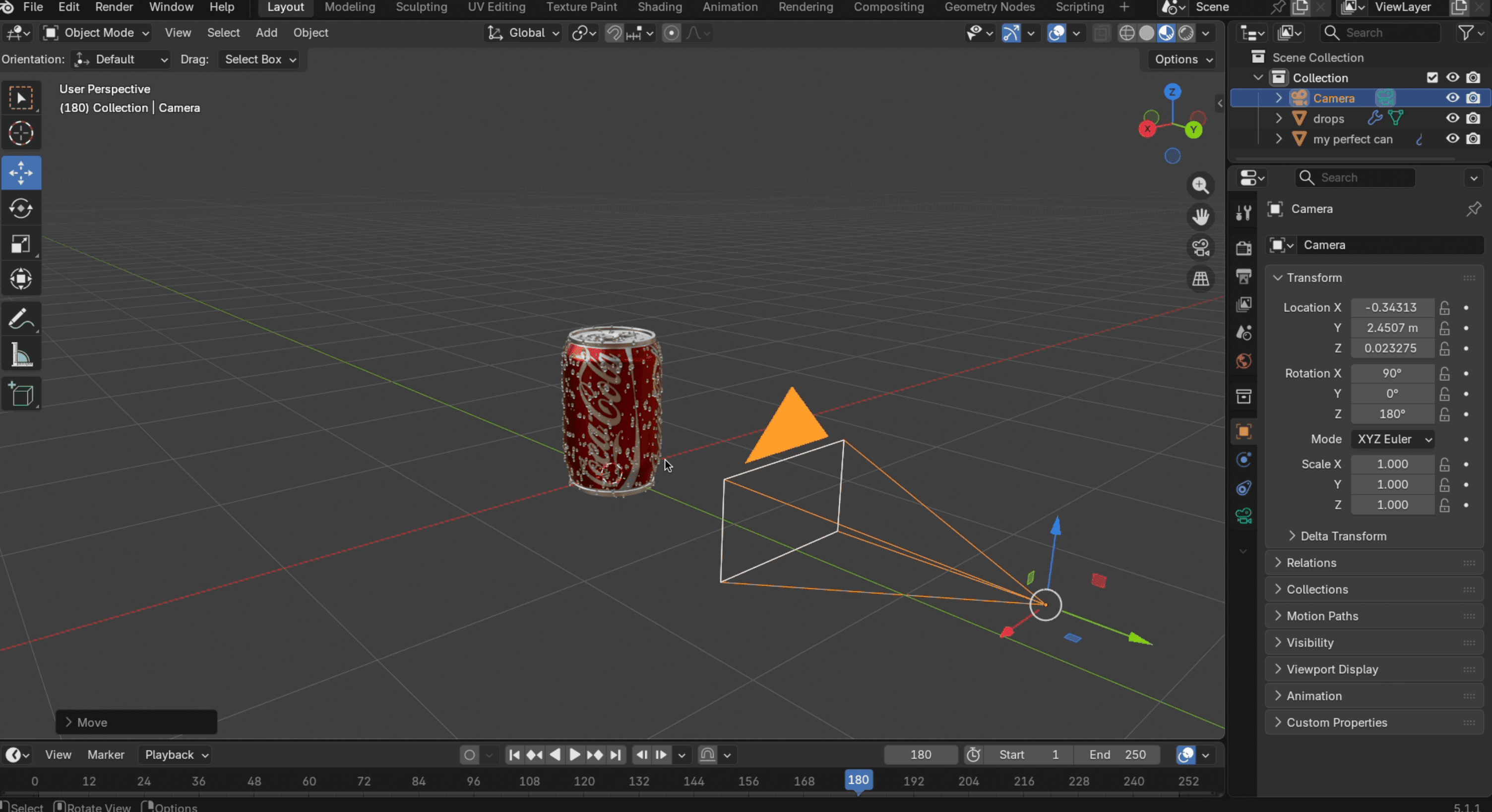
- Switch to the Y view, then
Shift+Ato add a Camera.
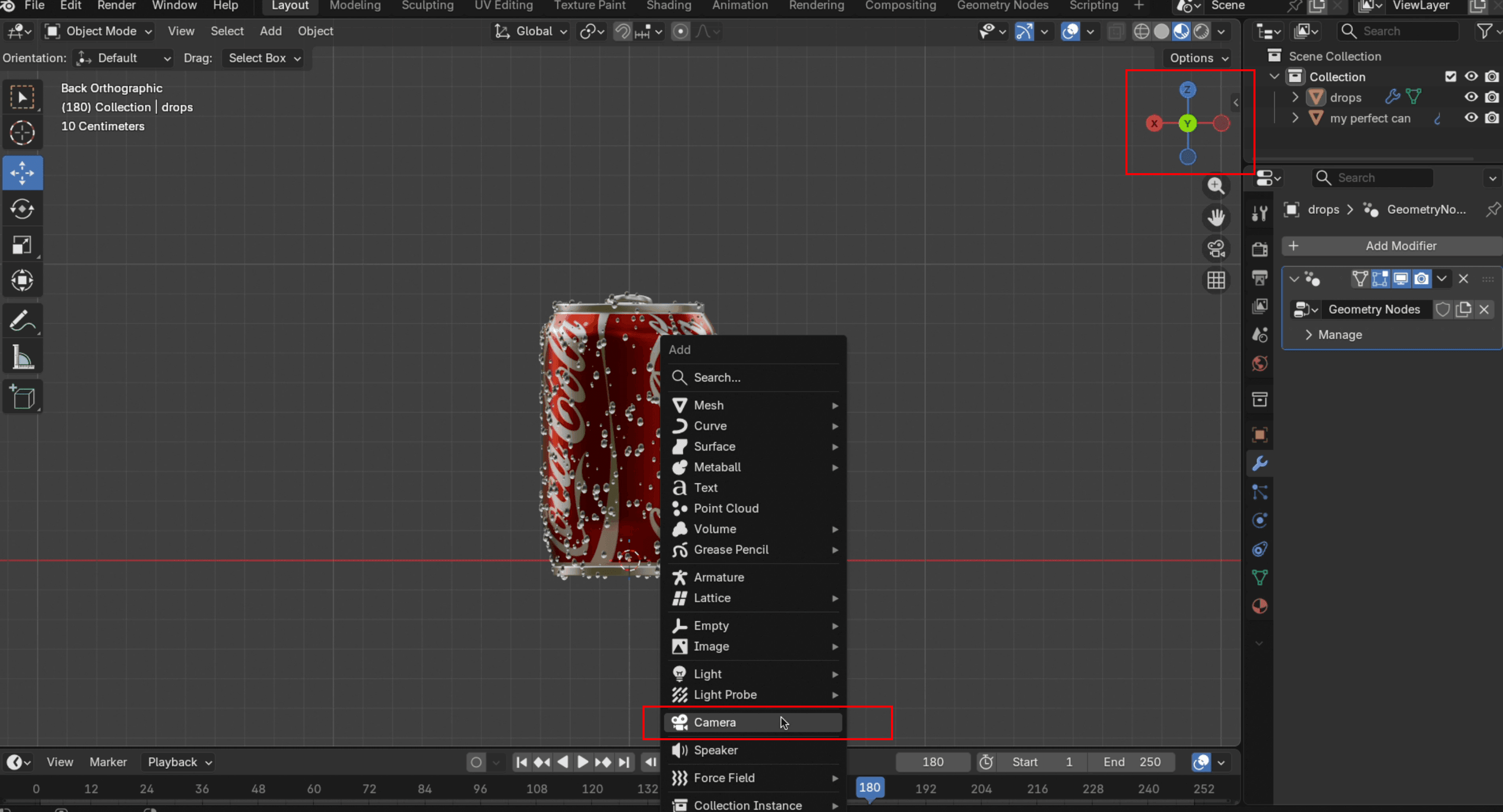
- Press
G+Yto move the camera into the front view of the object.
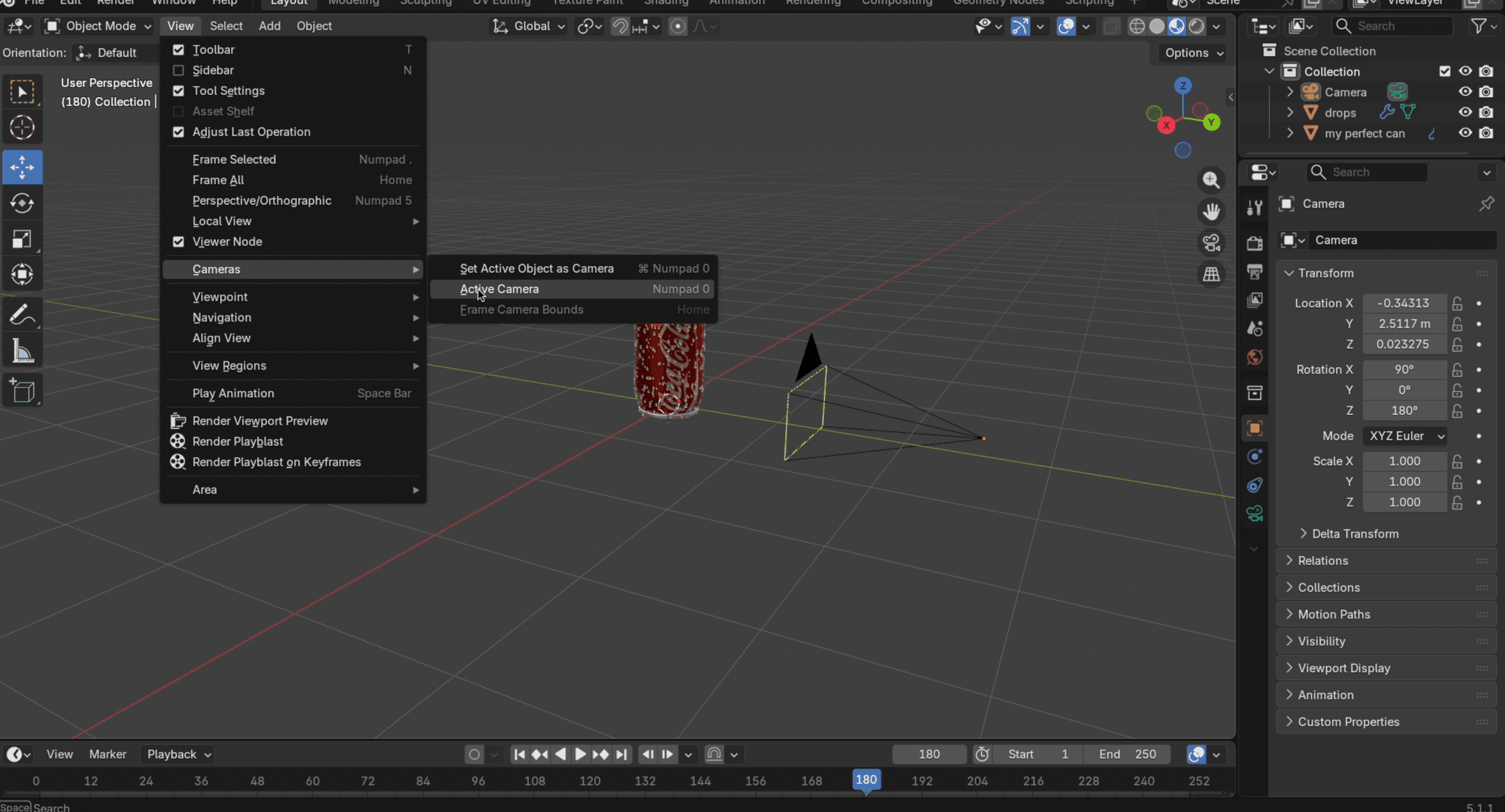
- In the View panel, select Cameras → Set Active Camera to lock your current view as the camera's frame.
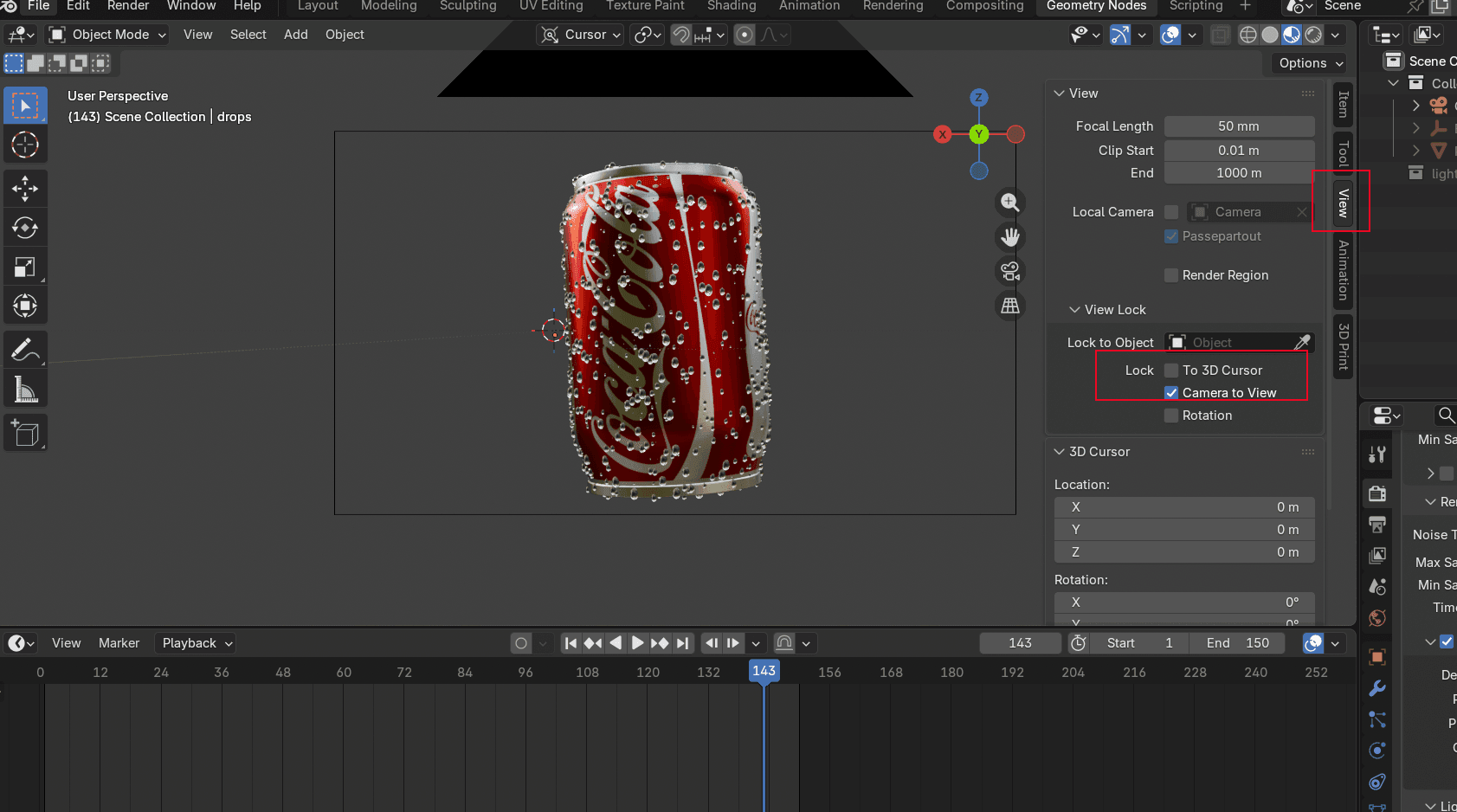
- Open the View Sidebar and enable Lock Camera to View. Scroll up and down with your middle mouse button to adjust the frame size. Make sure all parts of the object are inside the frame. You can also rotate the view to any angle you like.
Lighting Setup for Product Visualization
Good lighting makes products look expensive. Bad lighting makes them look like they were photographed in a garage. Before adding lights, you may also want to add a backdrop to make your model look cleaner. After selecting one, switch to Rendered View. It may take a moment to load the first time.
Now set up the lights. Three-point lighting is the standard for product work, and it goes like this:
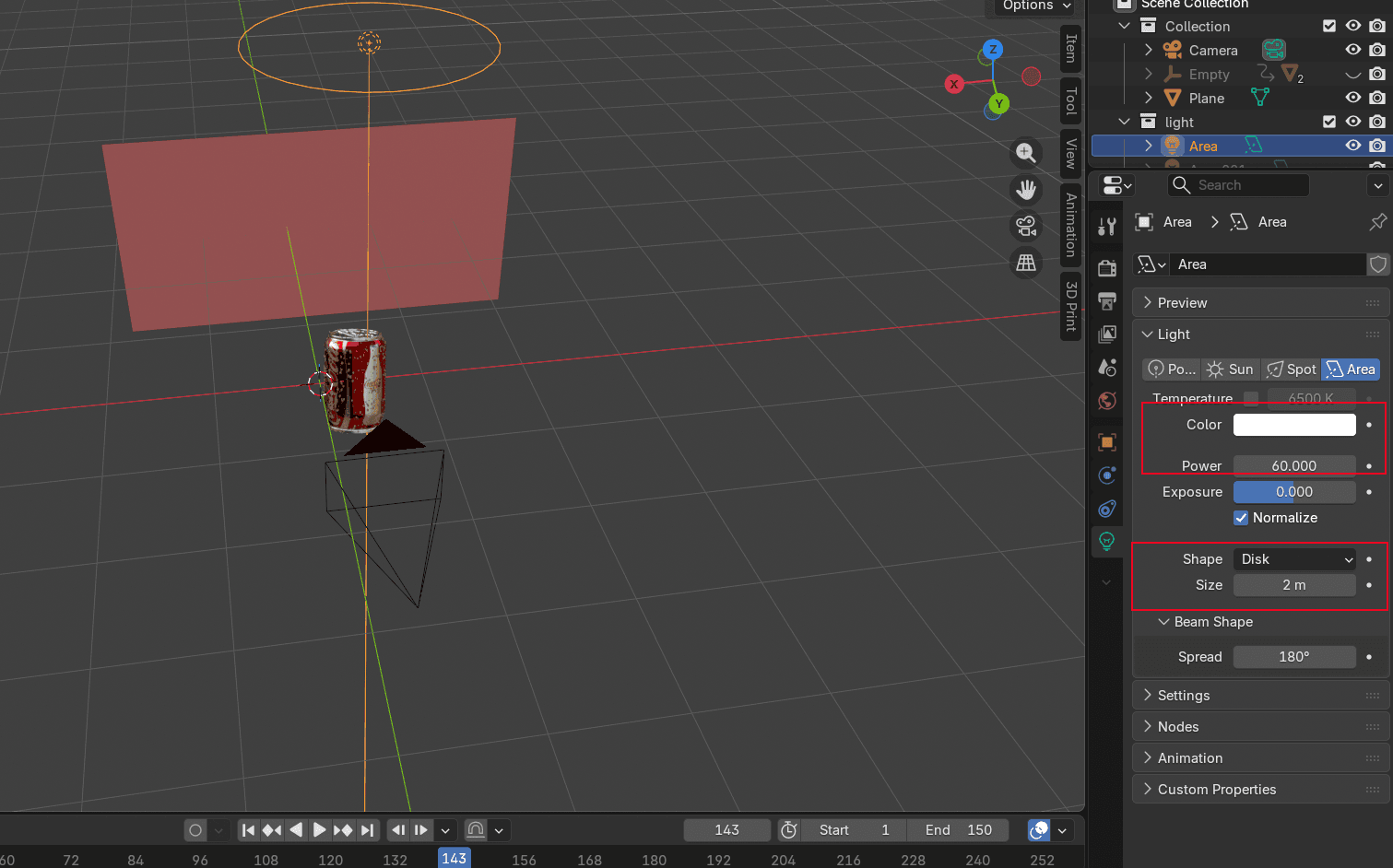
- Add a top light directly above the product. Adjust the area light's power. The higher the value, the brighter the object. Size and distance also affect how soft or harsh the light appears. Tweak all three until the product is lit the way you want.
- Add a pair of symmetric lights on the left and right. This makes metallic surfaces look bright and helps the edges stand out. Check the angle from the Z view to make sure the light passes cleanly across the can.
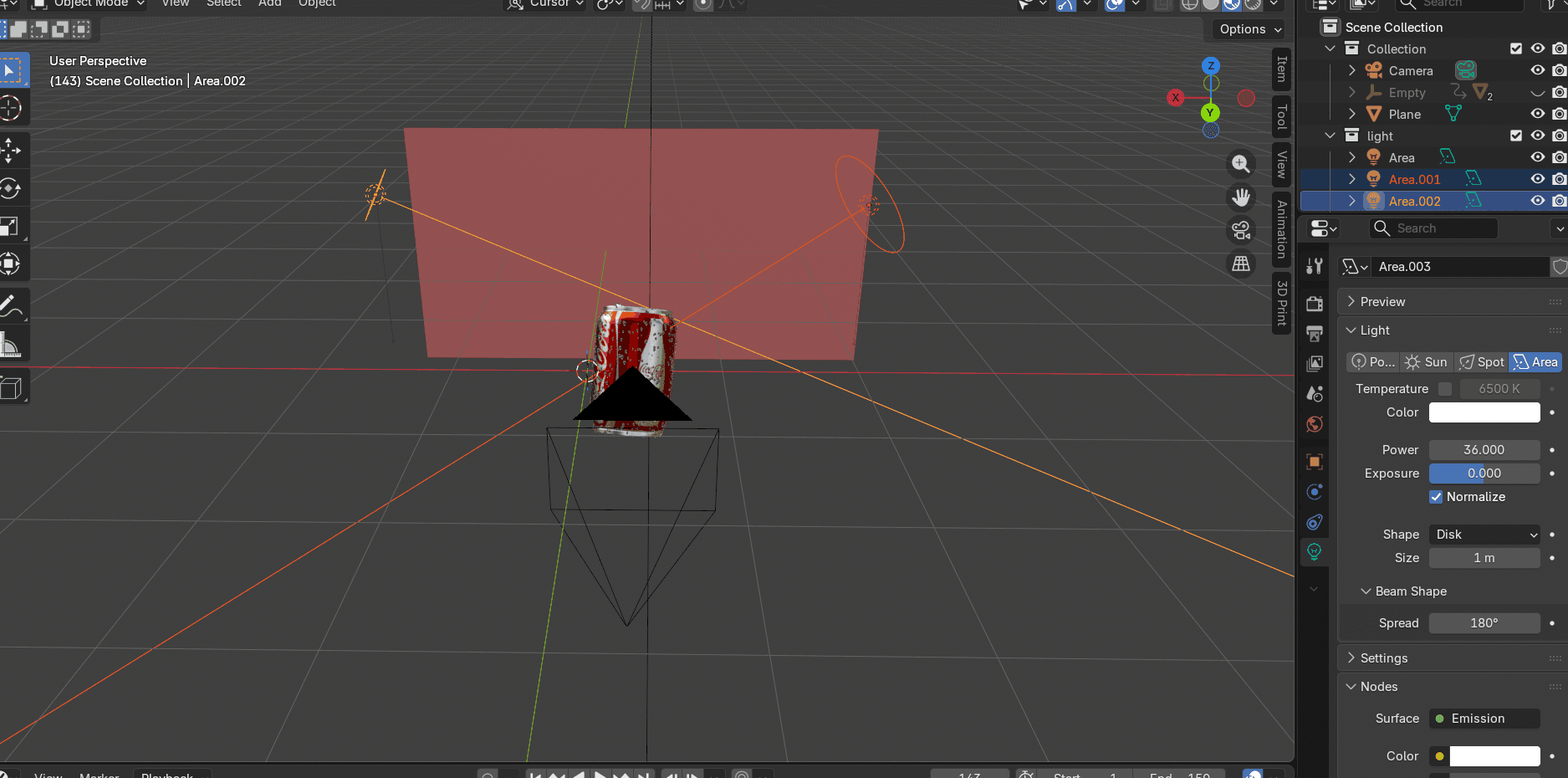
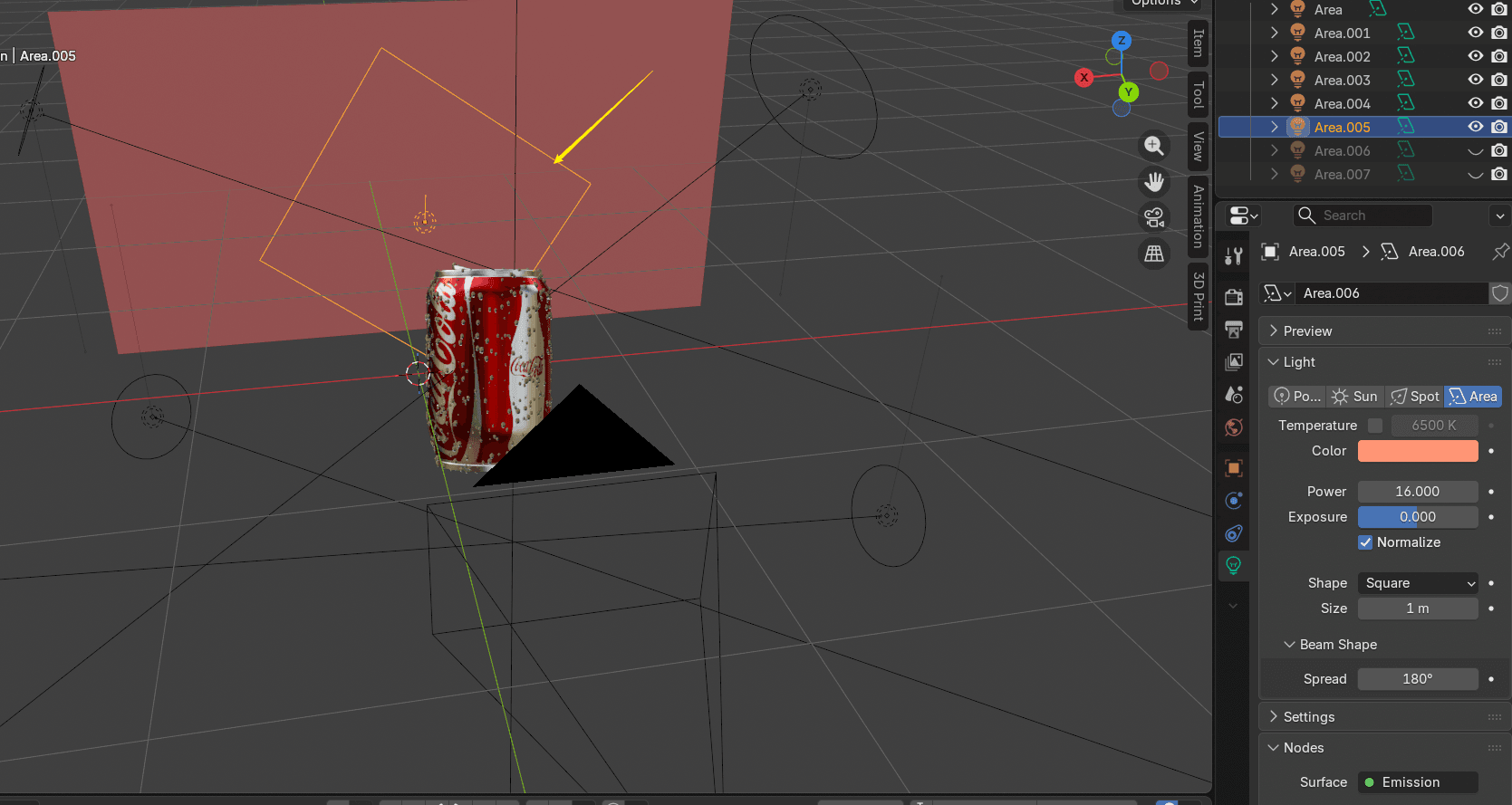
- Add a backlight behind the object to create a glazed highlight in the middle. You can add multiple backlights if needed. A single backlight at low power often works better than two bright ones.
Blender Rotation Animation
A turntable rotation is the bread and butter of product visualization. The product spins, the camera stays still, and the viewer gets a complete look at every angle. It sounds simple, but there are a couple of Blender-specific tricks that make it work properly.
Preparing the Product Model
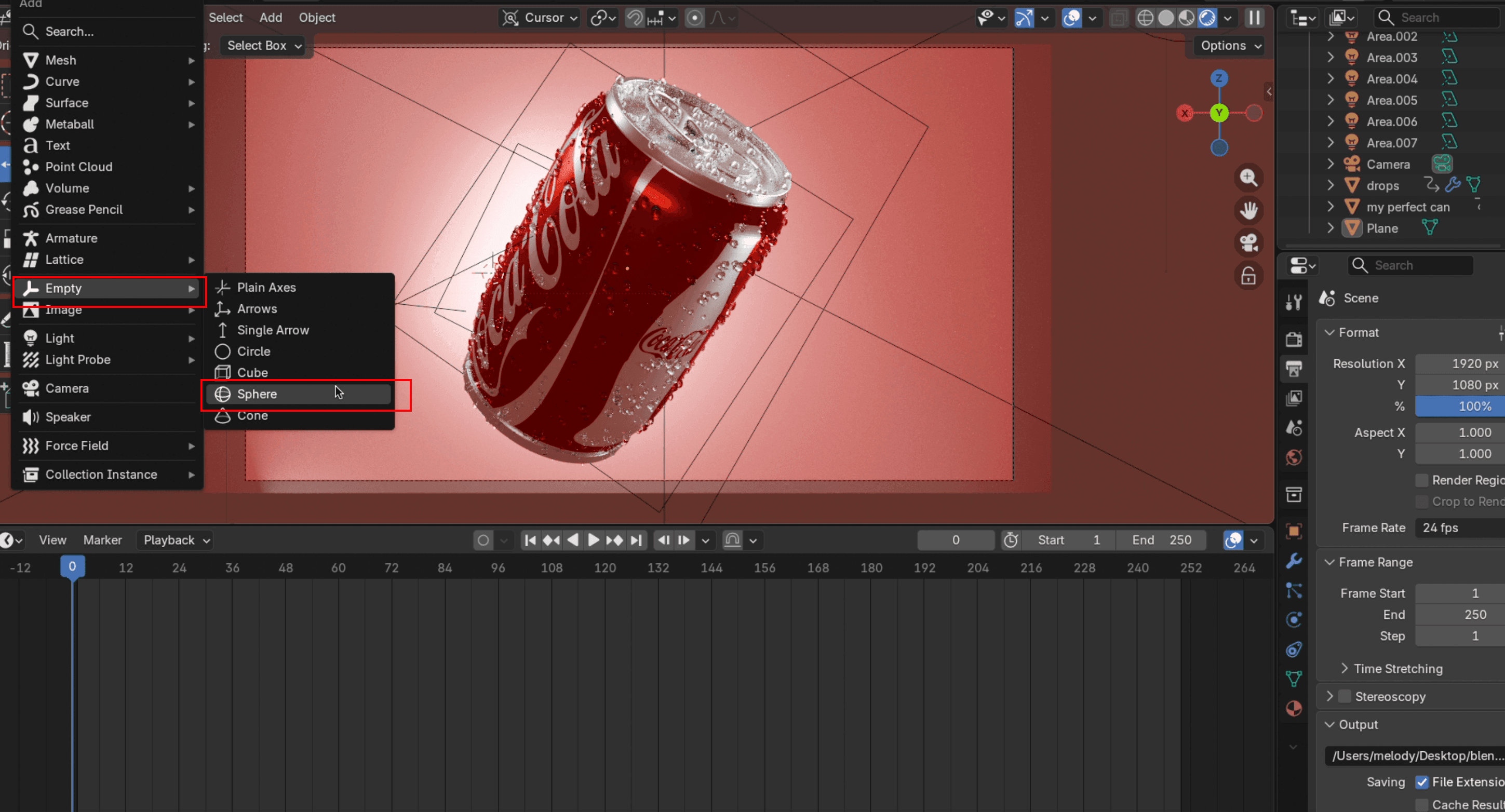
- Press
Shift+Ato add an Empty UV Sphere. Make it slightly bigger than the model. You can pressSto adjust the size andG+X/Y/Zto move it into position.
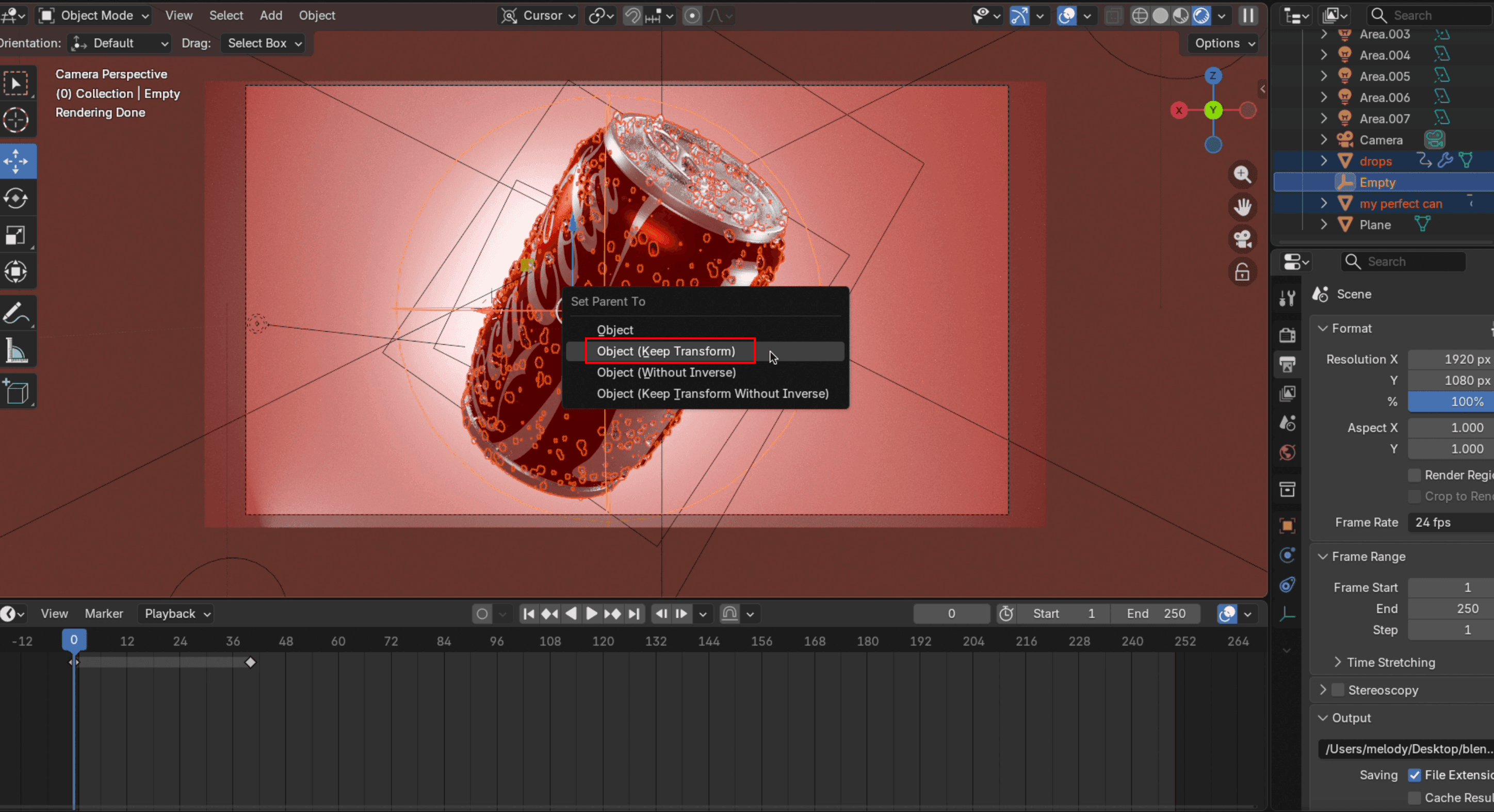
- First select every part of your model, then also select the Empty UV Sphere. Press
Ctrl+Pand choose Keep Transform. Now the Empty UV Sphere controls the model's position. Move the sphere and the model moves with it.
Rendering the Final Turntable Animation
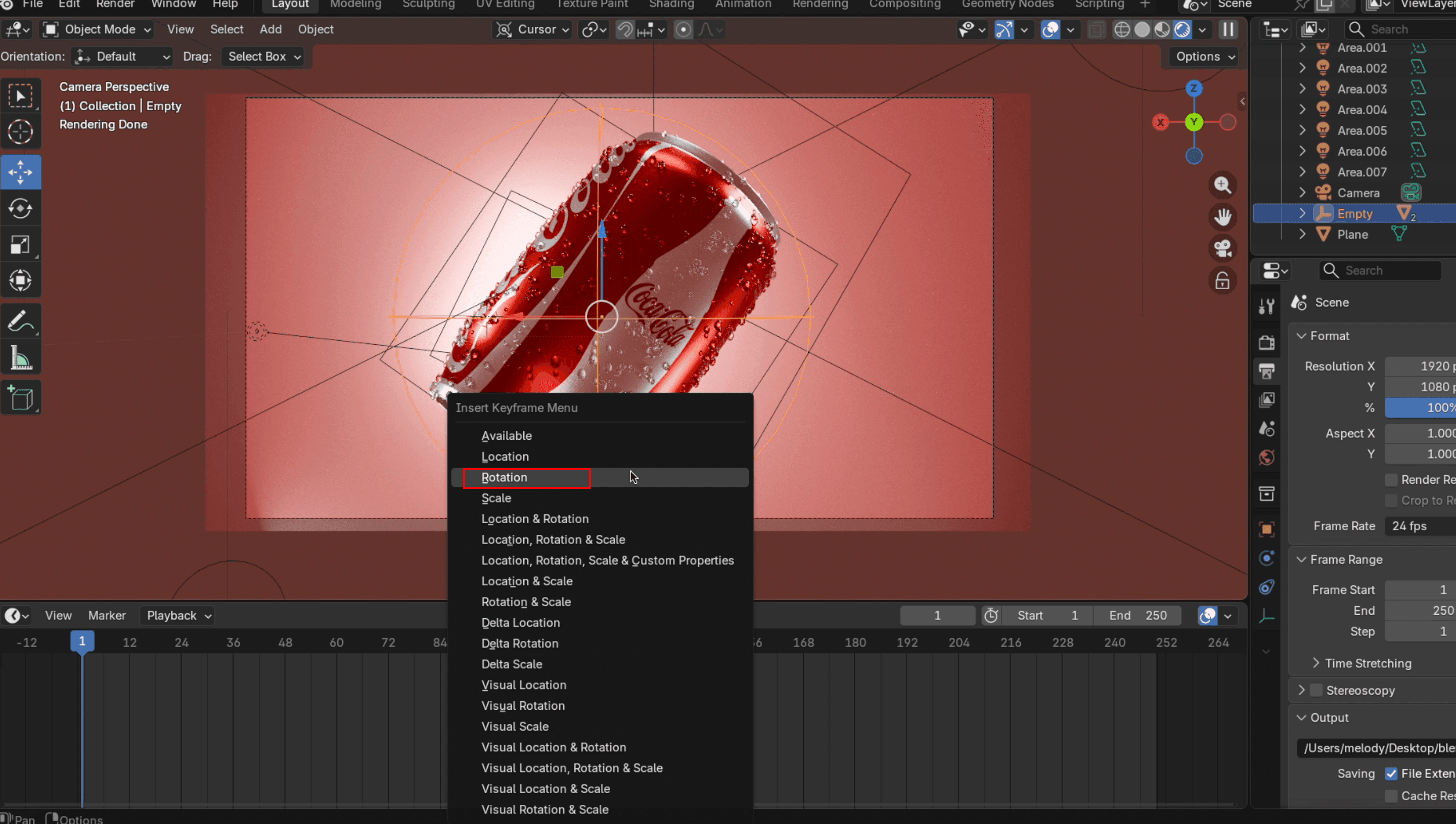
- Set the timeline to Frame 1 and define the starting position. With the object selected, go to Object → Animation → Insert Keyframe and choose Rotation.
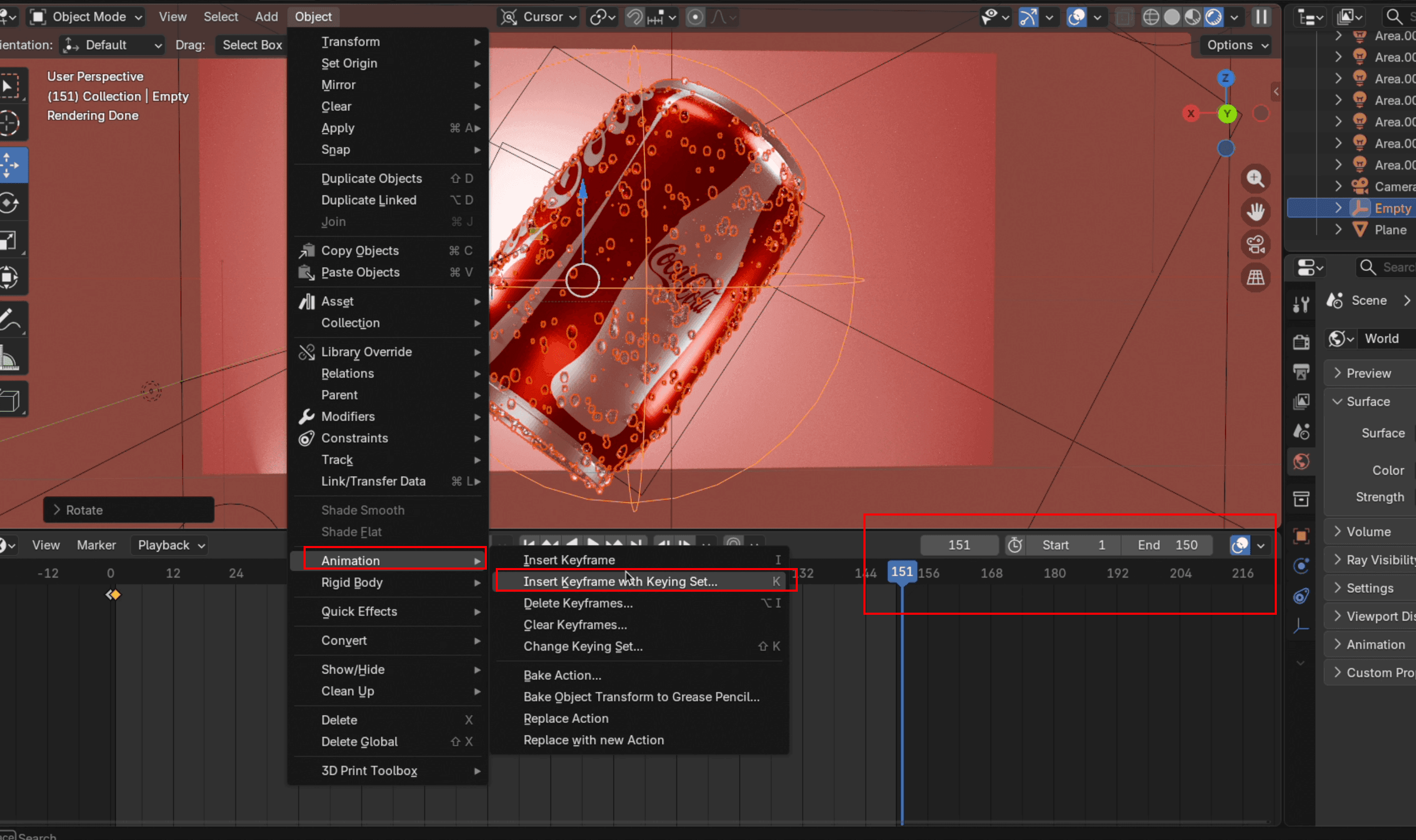
- Set the End Frame to whatever you need. A 7-second animation usually starts at 1 and ends at 150. Then move the timeline cursor to one frame past your end frame (e.g., Frame 151). Rotate the object to its final position. For a 360-degree spin, press
R, thenZ, and type360.
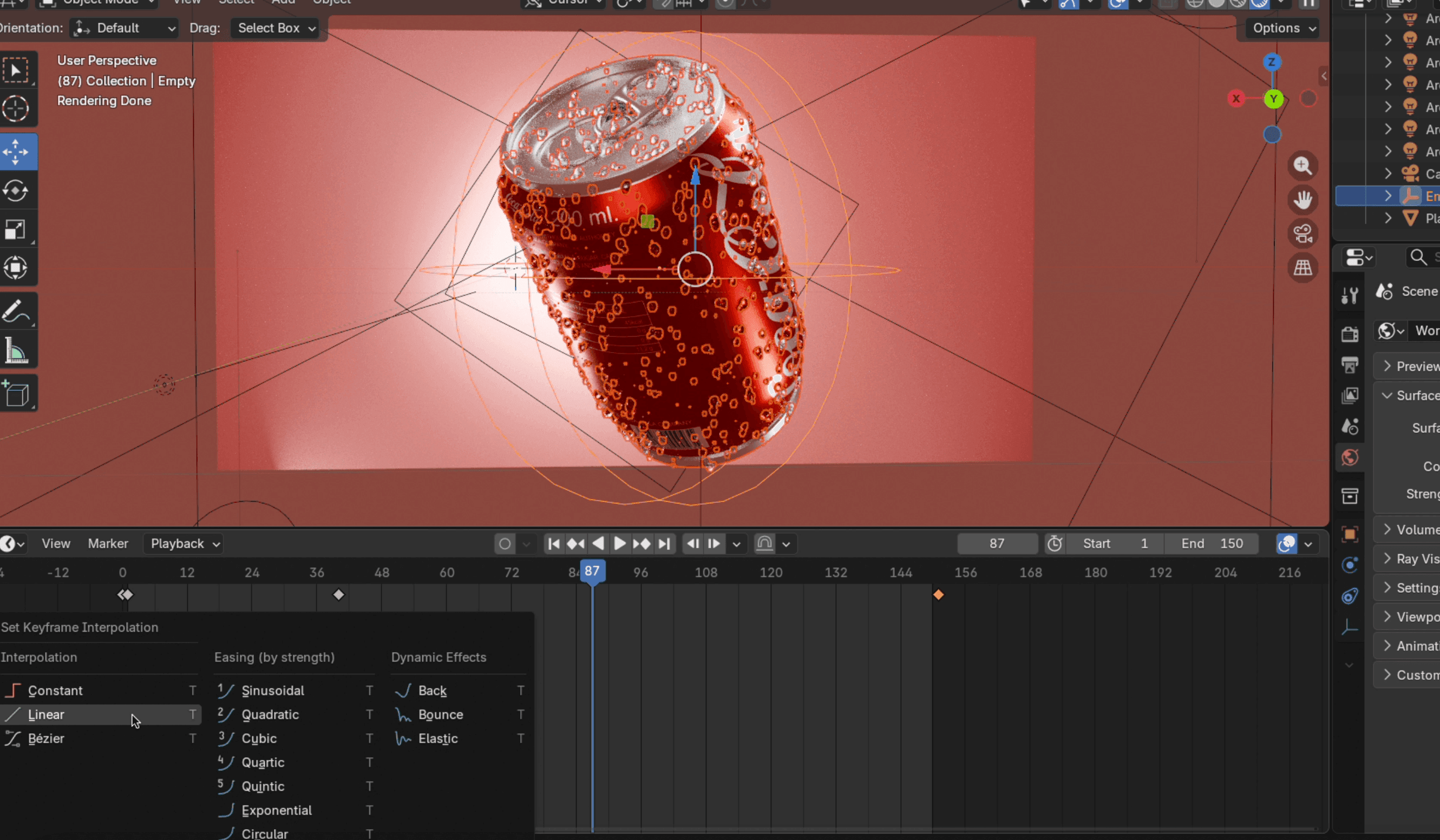
- Hover your mouse over the timeline area and press
Tto open the interpolation panel. Choose the type that fits your needs. Linear gives you a constant speed throughout the rotation, which works well for clean product showcases.
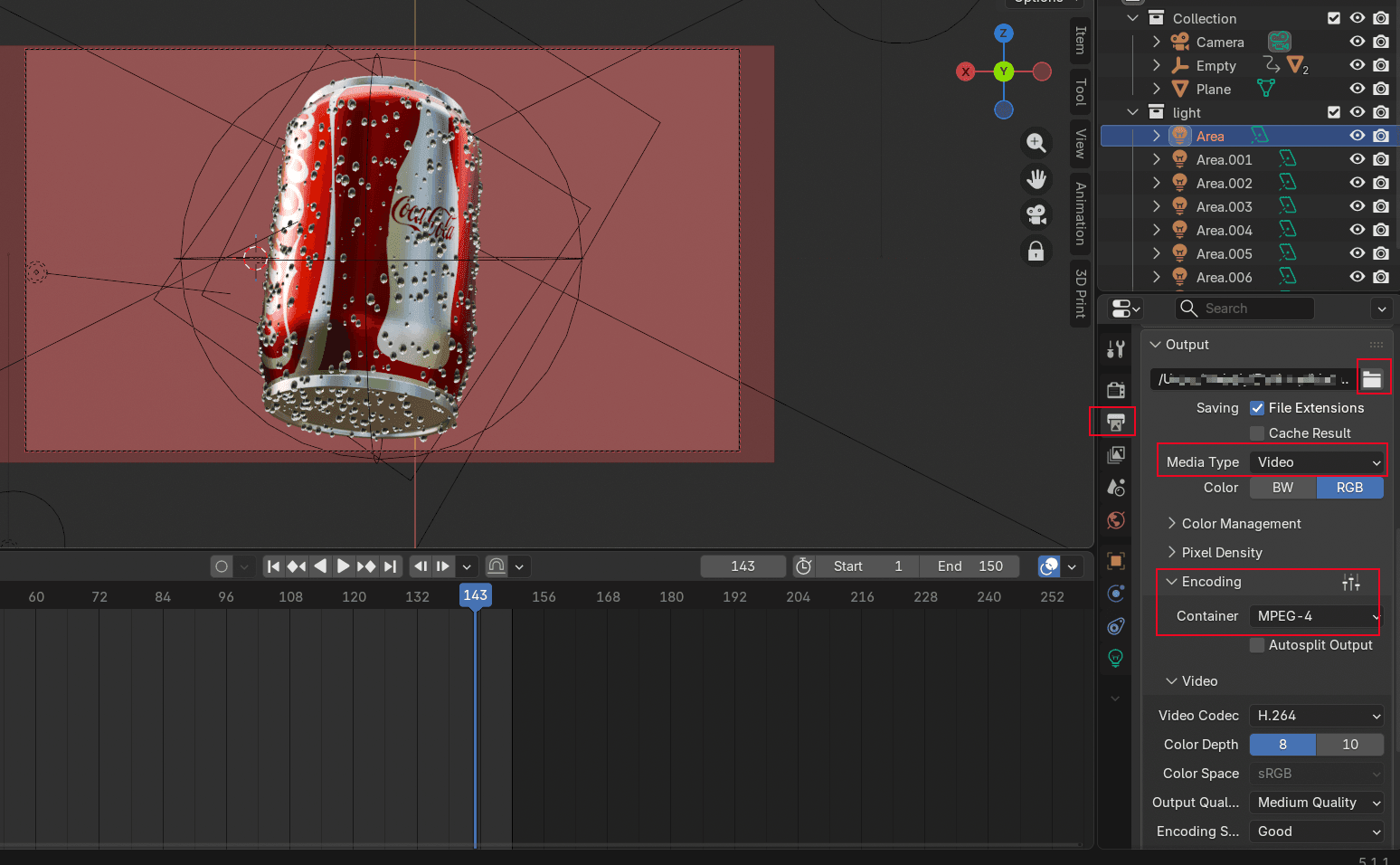
- In the Output section, switch the media type to Video, set your target export file, and under Encoding, set the Container to MP4. If you want a transparent background, go to the Render Properties icon, and under Film, tick the Transparent option.
Blender Fluid Simulation Tutorial
Fluid simulation is where product animation gets fun. Nothing grabs attention like liquid crashing around a product in slow motion. We'll simulate a liquid splashing around a product (water hitting a cola can).
Setting Up the Fluid Domain
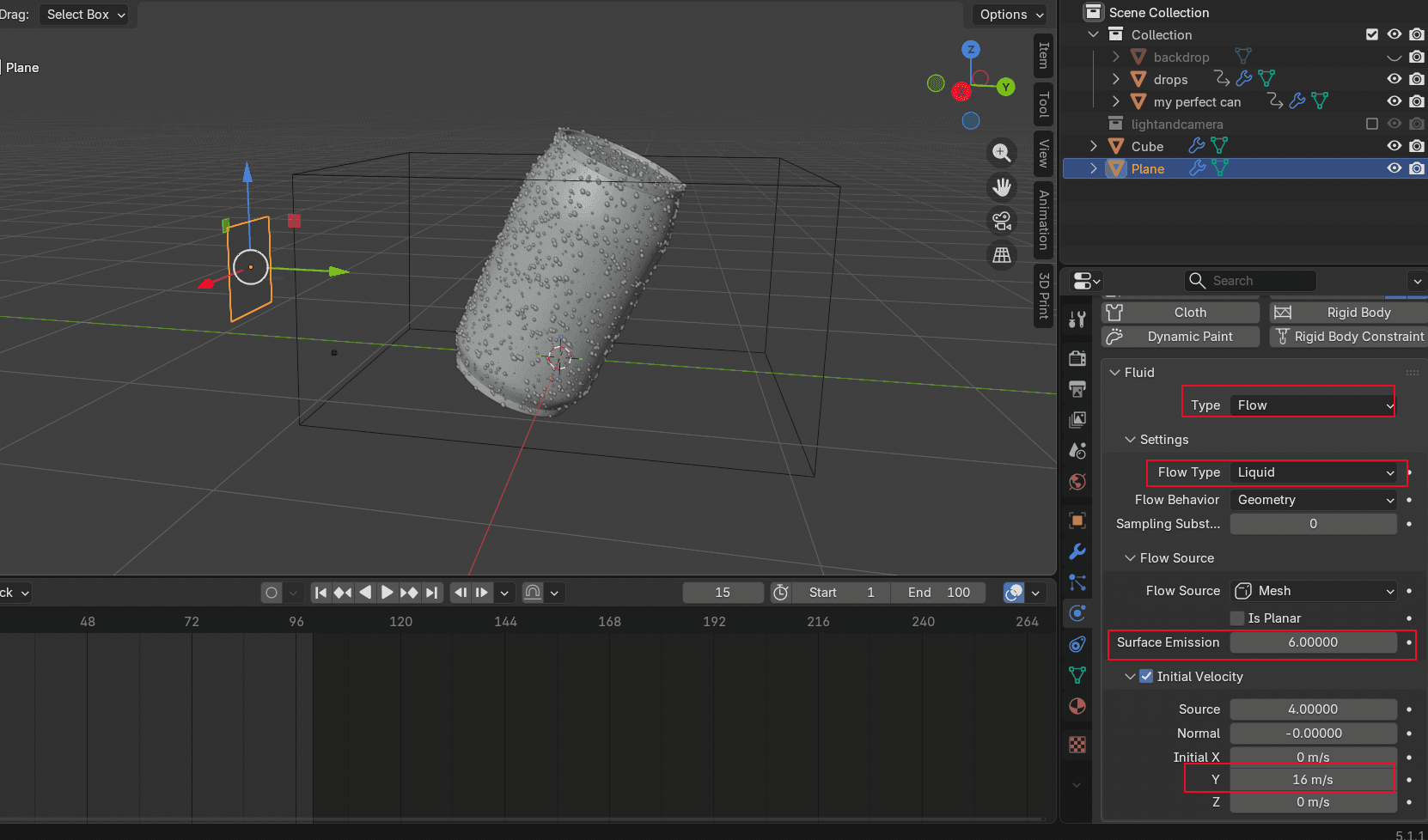
Shift+Ato add a Plane, rotate it 180 degrees, and move it to the back of the object. Make sure the plane is facing the can. Particles spray in the direction the arrow points. Go to Physics Properties, add Fluid, and set the Type to Flow. Set the Flow Type to Liquid. Set Surface Emission to around 6. The higher the number, the larger the injection area. Enable Initial Velocity and adjust Initial X/Y/Z to set the injection direction.
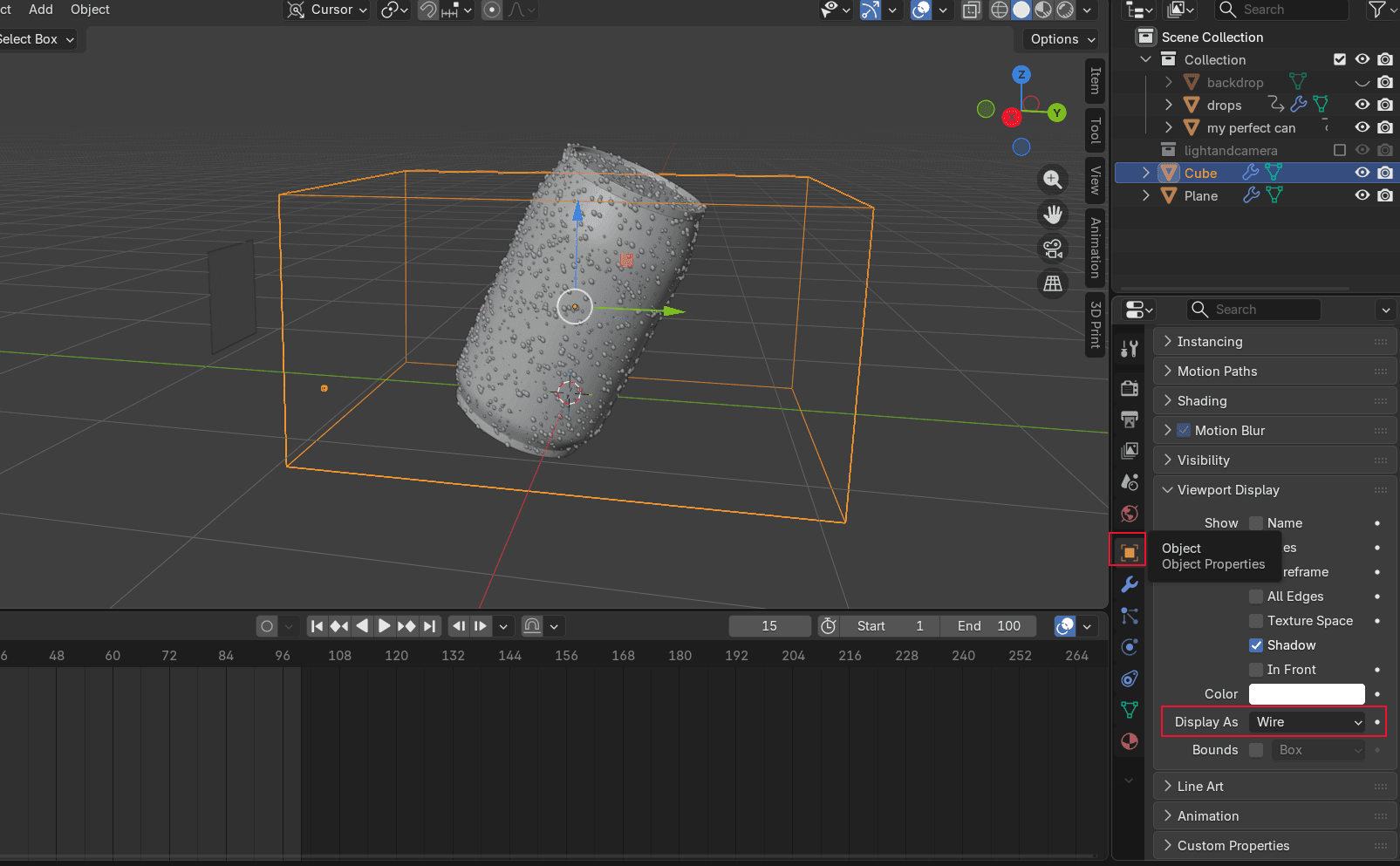
Shift+Ato add a Cube. This cube acts as the fluid domain. It defines how far the water splashes. Keep the height just slightly taller than your object. The X and Y dimensions are up to you (they control how wide the water splashes from behind the object). Under Object Properties → Viewport Display, change the Display Mode to Wire. This prevents the domain cube from blocking your view of the object.
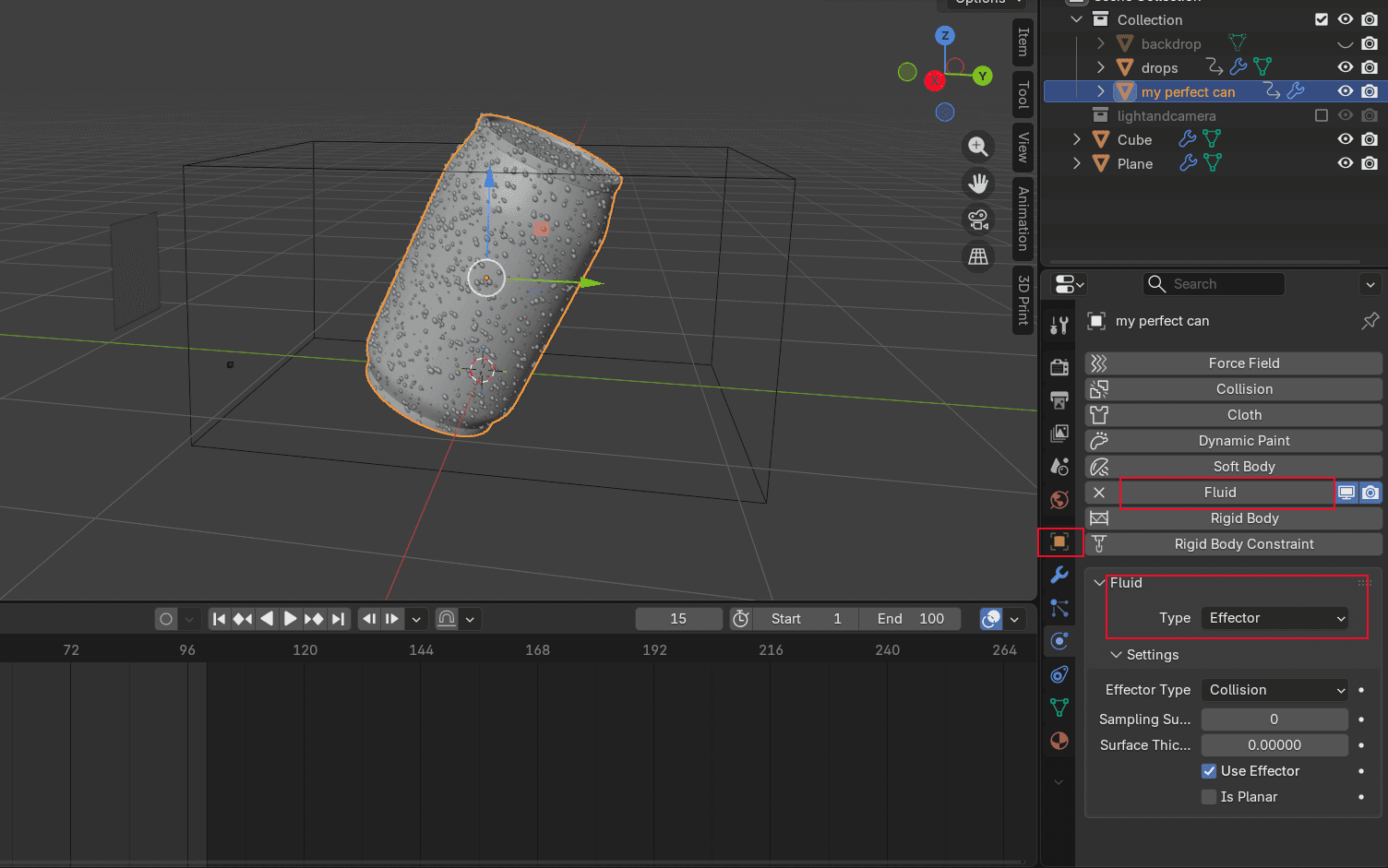
- Select your product model, go to Physics Properties, add Fluid, and set the Type to Effector. This tells the simulation that the can is a solid object the water should splash against.
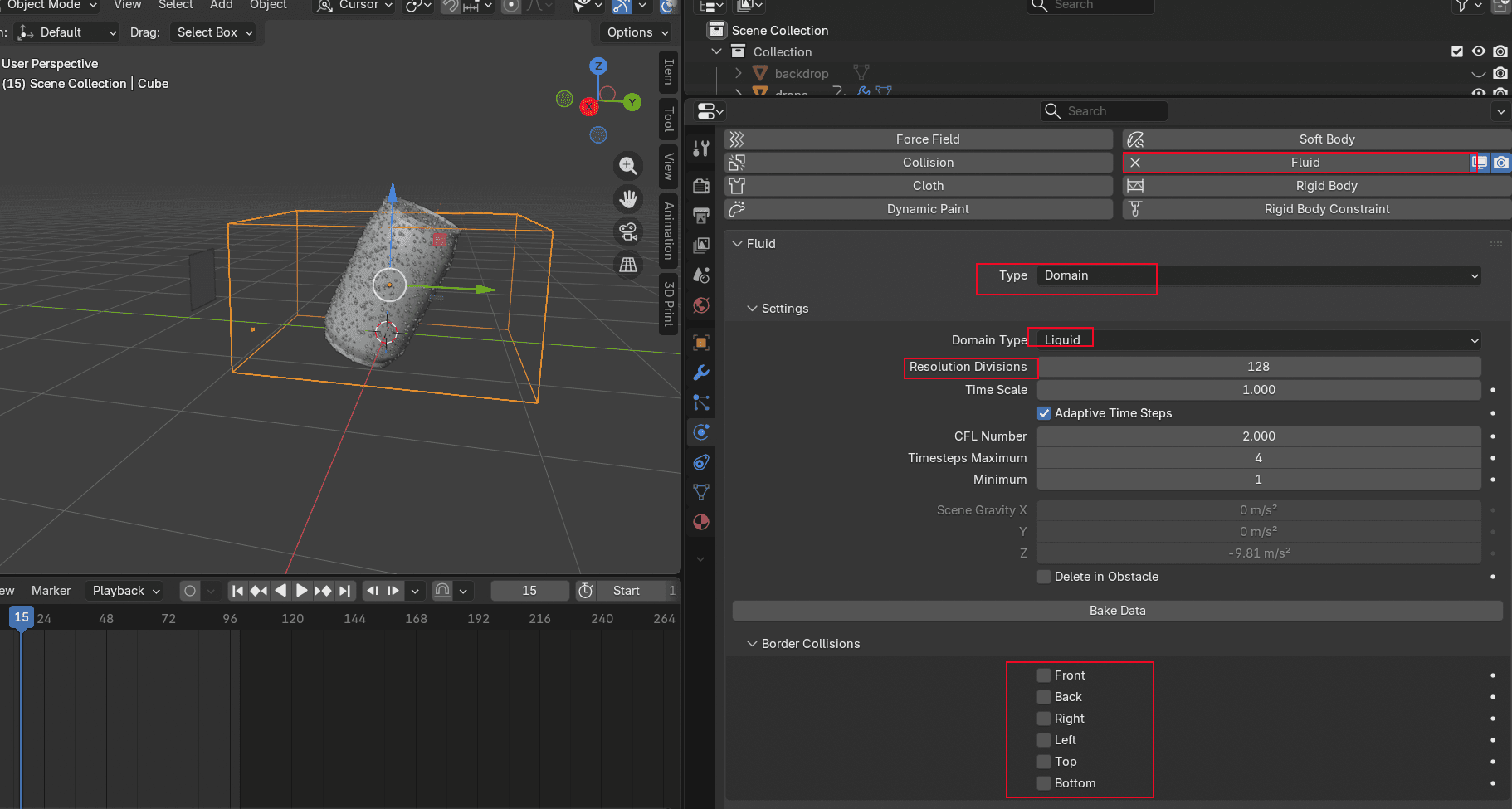
- Select the cube, add Fluid, set the Type to Domain, and choose a Resolution Division. The higher the number, the longer the baking time and the more detailed the mesh. If you don't want the water to bounce off the domain walls, turn off the Border Collisions settings. Enable Mesh, set the Type to Modular, and set the End Frame to match your playback length. Set Gravity to zero (you are simulating a horizontal splash, not a waterfall). Make sure to check the Resumable option. Without it, you cannot rebake if you want to adjust the result later. Then change the Display Mode back from Wire under Viewport Display so the viewport is easier to read.
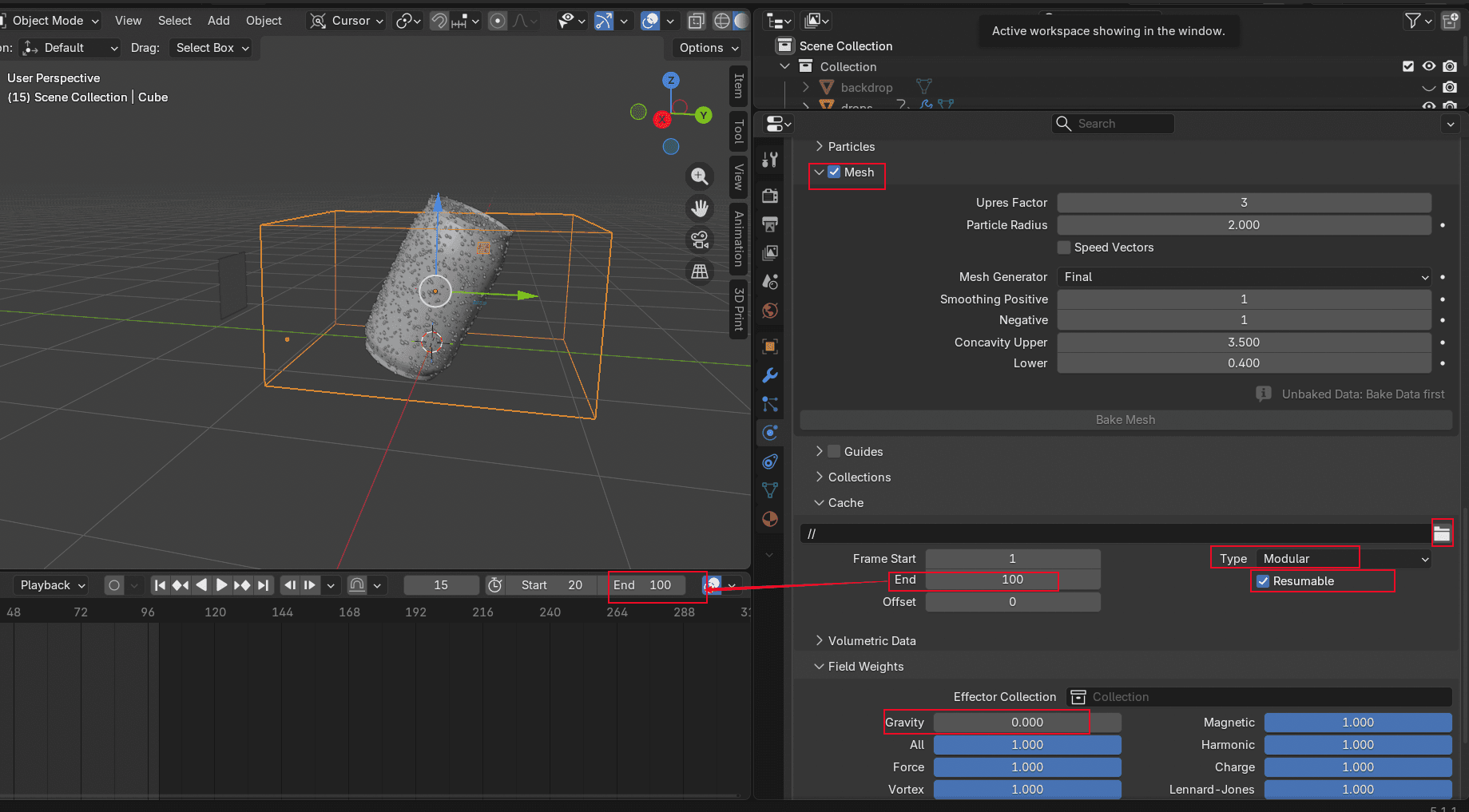
Baking the Liquid Animation
- Select the cube and click Bake Fluid in the Physics Properties tab. This will take a while depending on your resolution setting. After it finishes, hit playback to check the result.
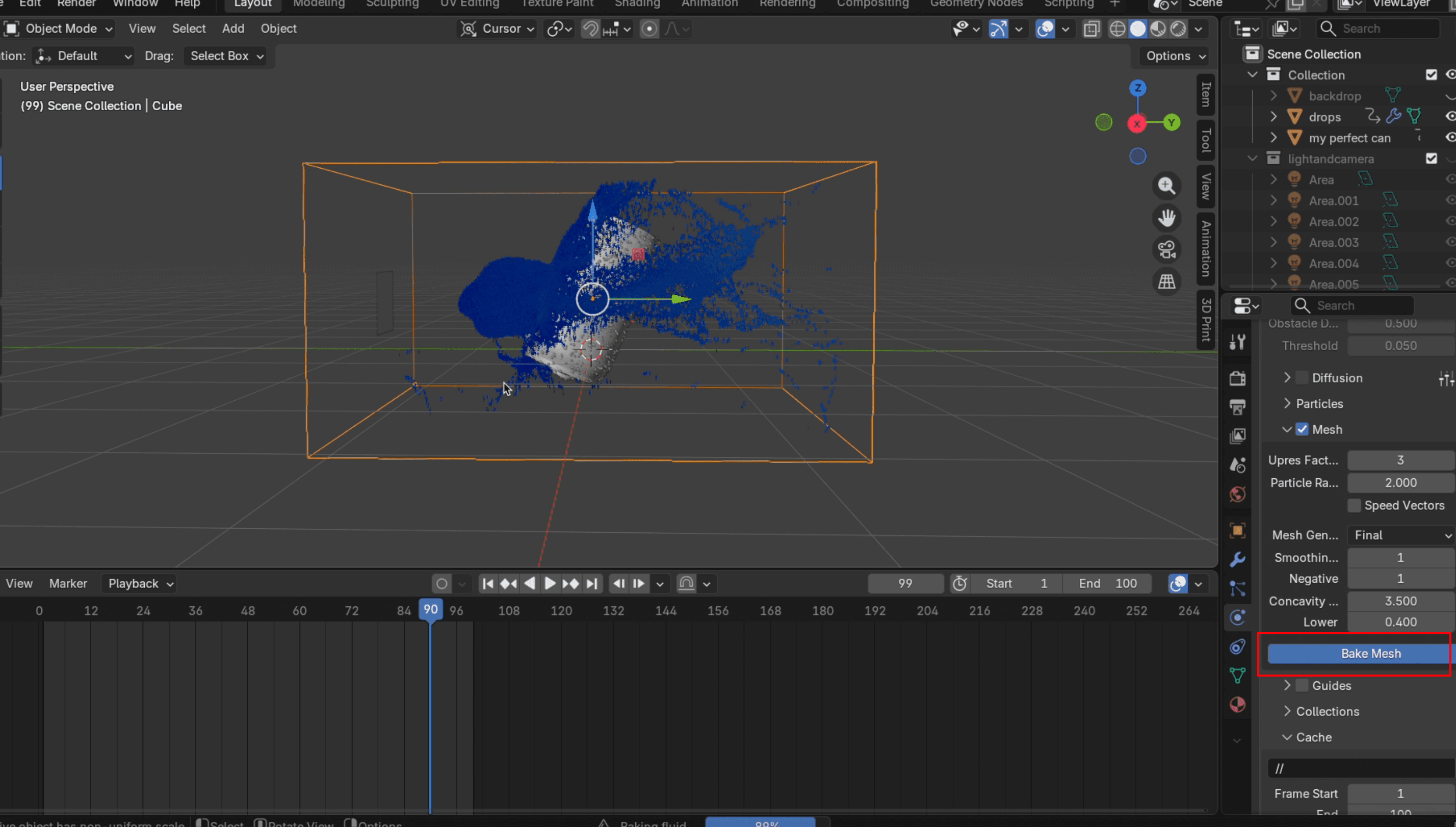
- If you are happy with the simulation, click Bake Mesh. You can set the Upres Factor to around 3 to make the water surface look smoother. If you are not satisfied, click Free Data, adjust settings like the plane's distance or injection speed, and click Bake Data again. This is where the Resumable checkbox saves you. Without it, every adjustment means starting the bake from scratch.
Rendering the Final Splash Effect
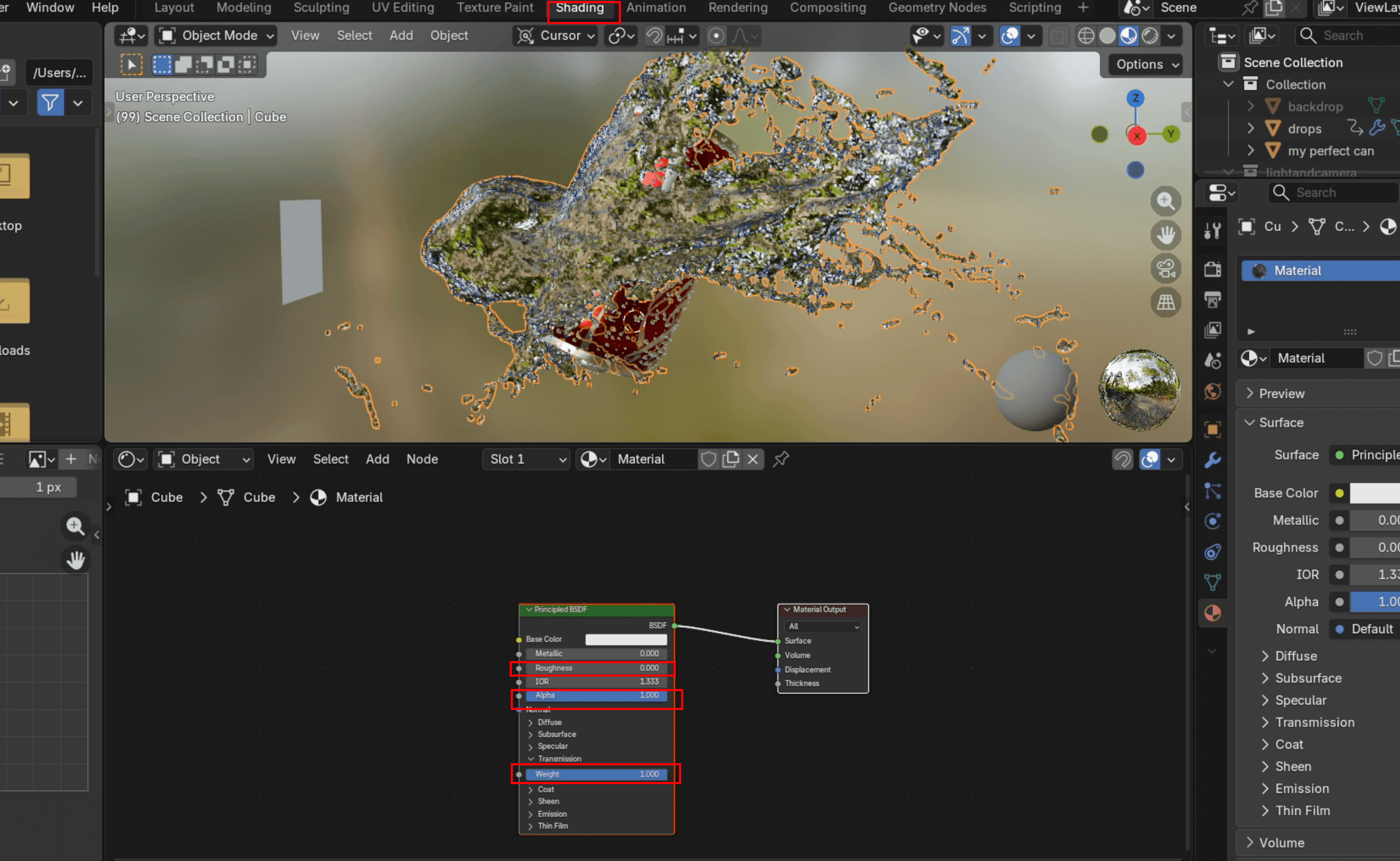
- Go to Shading, add a new Material, set Roughness to 0, Weight to 1, and IOR to around 1.33 (water's real-world index of refraction). Then go back to Layout, select the cube, and add a Smooth Modifier (under Deform). Right-click the object and choose Shade Smooth.
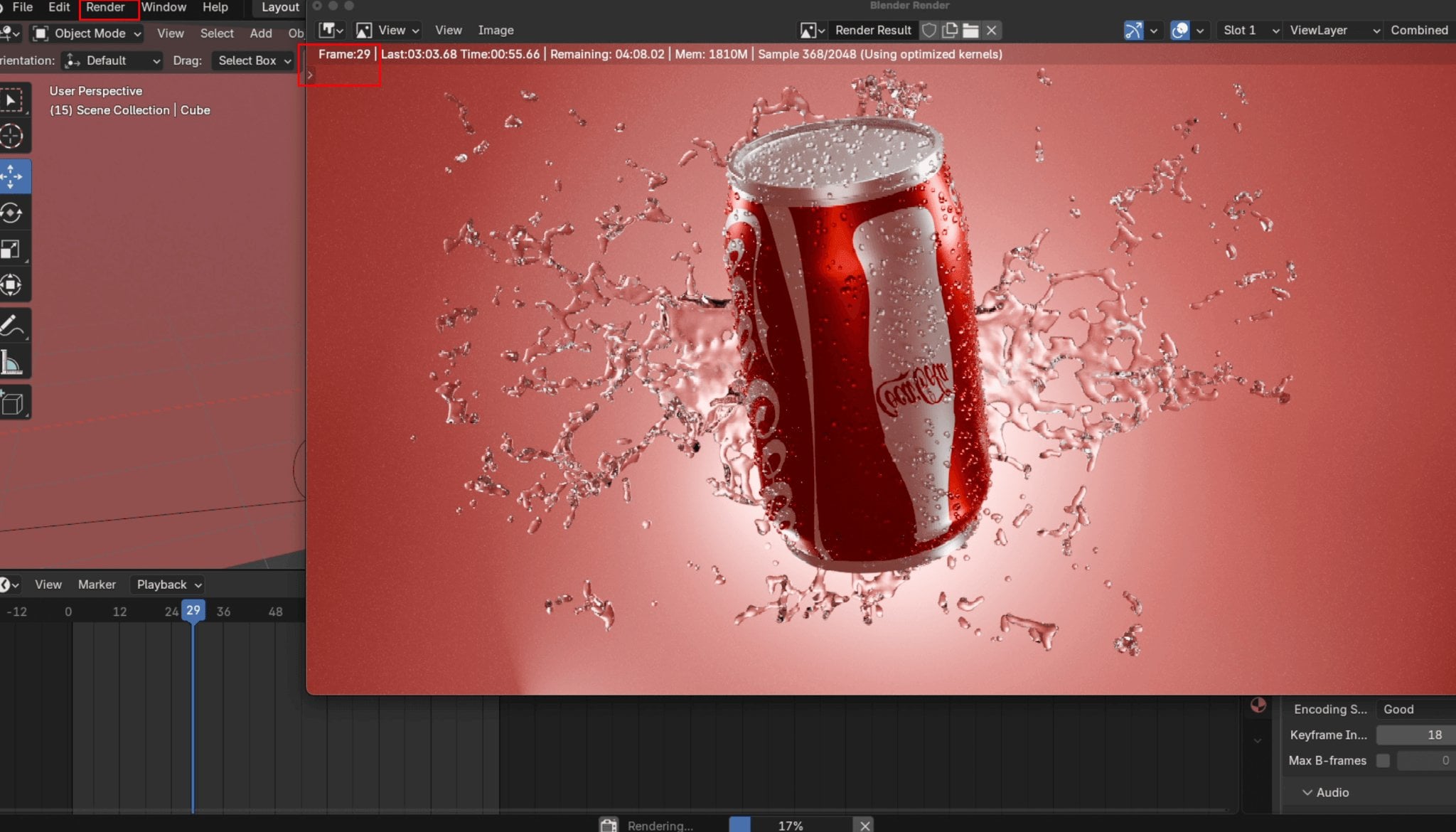
- In Output, switch the media type to Video, set your target export file, and under Encoding set the Container to MP4. Click Render → Render Animation to start the final render. Do not close Blender during rendering, or the process will pause. When the frame counter reaches the final frame number you set, the process is complete. Blender will automatically save the file to the directory you selected.
Getting a Product Model Without Modeling
Modeling a product from scratch in Blender takes time, even for experienced artists. If you need a model for your product visualization animation and don't have one on hand, Triverse AI gives you a faster path: generate a print-ready 3D model directly from an image or a text prompt, then import it into Blender.
Generate 3D Model from an Image
Let's say you want a dwarf miner with abs for your animation. Instead of building it in Blender, you can generate it from a reference photo.
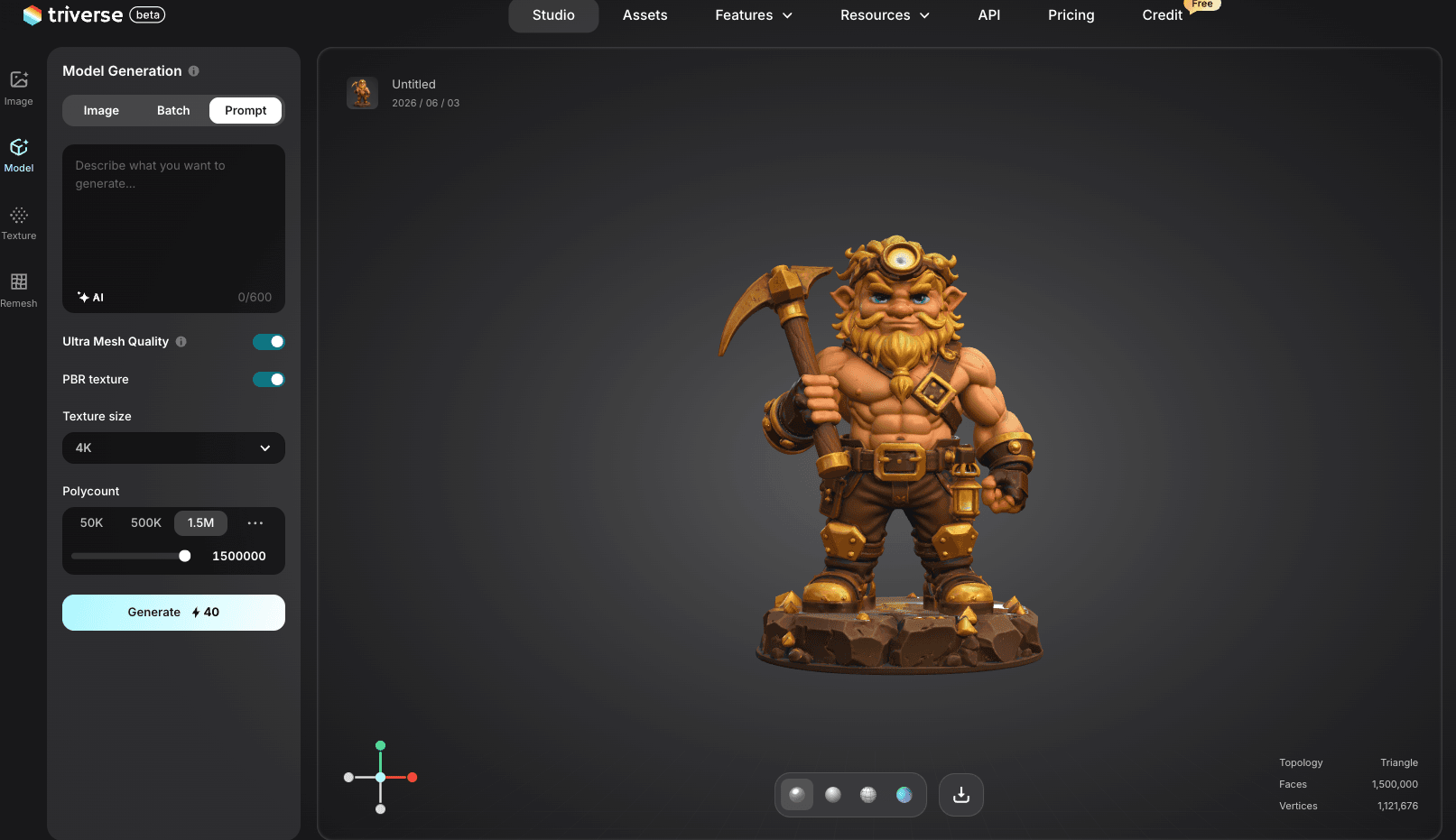
- Go to Triverse AI Studio and upload a reference image of a stocky dwarf miner. A front-facing shot with a clean, white background works best.
- Keep all the default settings, click Generate, and download the model.
Generate 3D Model from a Prompt
No reference image? No problem. Triverse AI also lets you generate a 3D model from a text prompt alone.
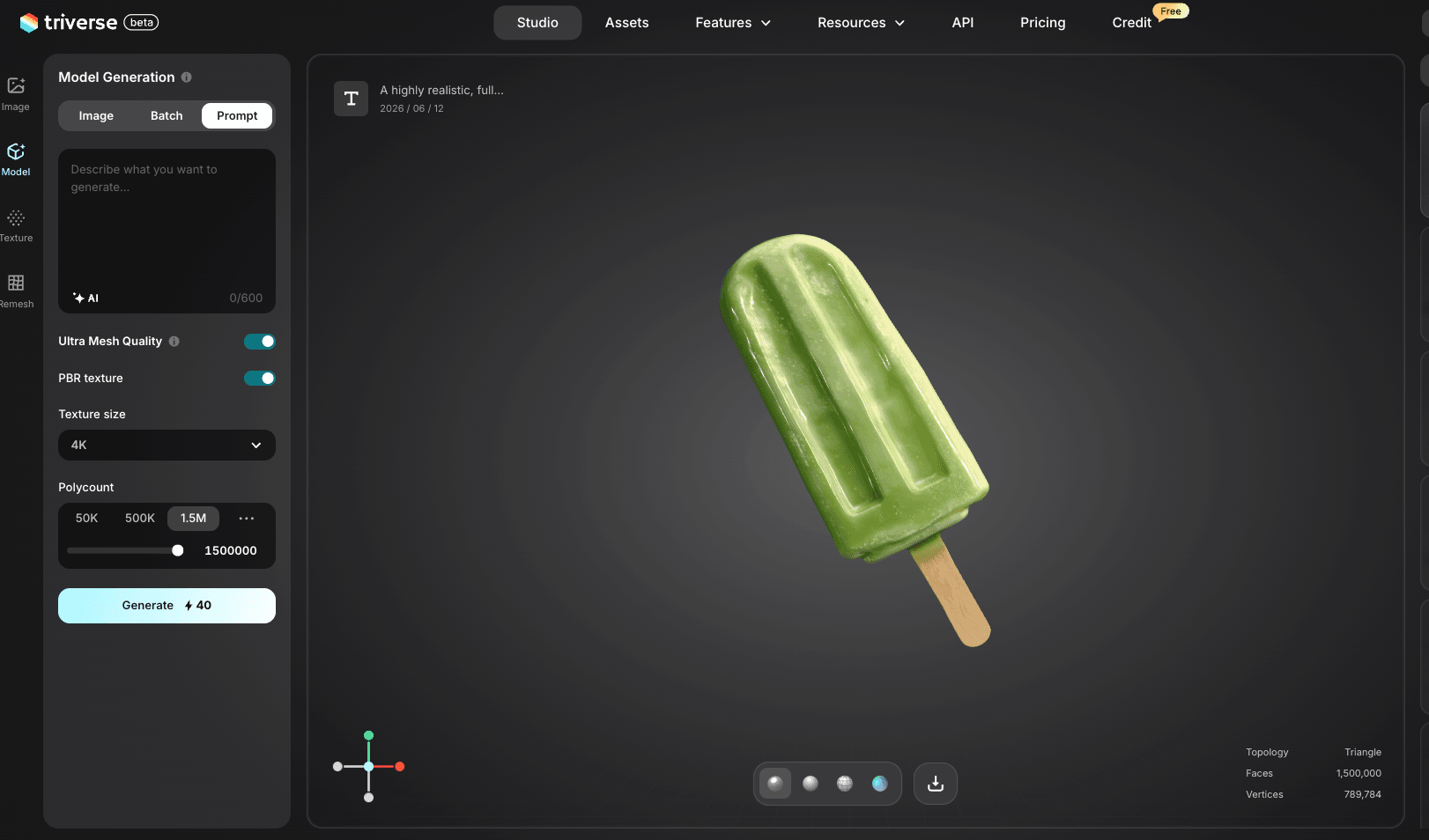
- Go to Triverse AI Studio and enter a descriptive prompt in the text field. The more specific, the better:
"A highly realistic, full-body green 3D model of a single popsicle, centered and fully visible with no cropping."
- Keep all the default settings, click Generate, and download the model.
Tips for better prompt results:
- Include material descriptors ("aluminum", "matte plastic", "glass")
- Specify the scale ("real-world size", "28mm scale miniature")
- Add "watertight mesh" and "print-ready" to encourage cleaner geometry
Export the Model to Blender
Once you have the model, importing it into Blender takes under a minute.
- Open Blender and go to
File → Import → OBJ(or other formats, depending on what you downloaded) - Find the file on your computer and click Import
- The model appears at the center of the scene; refine whatever you want. From there, you can customize it further, such as adding water droplets for cans or creating animations.
Conclusion
Product visualization in Blender comes down to three things: a well-lit scene, smooth animation, and visual drama. The turntable rotation shows the product from every angle. The fluid simulation adds the kind of impact that makes people stop scrolling. Neither technique is difficult to set up, and both scale with the effort you put into them.
Your first few renders will not look like a commercial. That is normal. Product visualization has a steep learning curve at the start, but it flattens fast. Every render teaches you something about lighting, timing, or materials. The tools are free. The only real investment is your time.
Don't forget to try the free AI 3D model generator, Triverse AI; quickly generate your model first before moving on to the next step!
Disclaimer: The Coca-Cola can used in this tutorial is for demonstration purposes only. We are not affiliated with, endorsed by, or sponsored by The Coca-Cola Company.