Generate 3D Props From Image or Text Prompts: A Practical Workflow
How to generate 3D props from images or text prompts: when to use each input, how to write prop prompts, the generation workflow, and getting props game-ready for Unity and Unreal.
You need 40 crates, barrels, and wall lamps in your level by Friday, with no time to model them by hand.
Generate them from image or text prompts with an AI 3D model generator. Get the shapes into the scene early, then finish the mesh and materials around what players will actually see.
The workflow covers defining the prop, generating it, testing it in the level, optimizing it, and completing the engine handoff. We'll use Triverse AI to walk through it.
1. Generate AI 3D Props from Images or Text
Before generating, settle the prop's proportions, major parts, and closest viewing distance in the game. Use those requirements to choose the input and mesh settings.
Open Triverse AI Studio and use Image to 3D for an existing design image or Text to 3D for a written design.
Both inputs stay in the same Studio, so moving from a written idea to an existing image doesn't require another generator.
Choose Between HD Mesh and Artist Mesh
Choose the mode for the shape and detail the prop needs:
HD Mesh | Artist Mesh | |
|---|---|---|
Recommended use | Complex forms, fine geometric detail, and close-view assets. | Simple props with clear shapes and limited fine detail. |
Geometry | A dense, detailed source mesh. | A lightweight, low-poly mesh with structured topology and a controllable vertex target. |
Game preparation | Reduce or retopologize when the runtime budget requires it. | Check the silhouette and actual mesh statistics, then continue with materials and engine setup if the mesh already fits. |
Generate AI 3D Models from Reference Images
Select HD Mesh, choose the image input, and upload your PNG, JPG, JPEG, or WebP reference. Triverse AI's HD Mesh offers 50K, 500K, and 1.5M face targets. Choose 50K for ordinary set dressing; reserve 500K or 1.5M for designs whose complex forms or close-view details need more geometry. Select Ultra Mesh Quality when geometric fidelity is the priority, then generate with the settings chosen for that asset. The detailed source can be reduced or retopologized later to suit the game's runtime budget.
Rotate the generated model and check its proportions, silhouette, and structural completeness against the reference. Once the form matches the design, move that mesh into the scene. Small surface defects can be repaired during mesh preparation; they don't automatically call for another generation.
For a simple prop, you can go straight to Artist Mesh. Upload the image, choose a topology and vertex target, and generate. Set the target to preserve the intended silhouette, then check the actual mesh statistics separately from that setting. A suitable low-poly result can move on to materials and engine setup without the high-to-low mesh preparation described in Section 3.
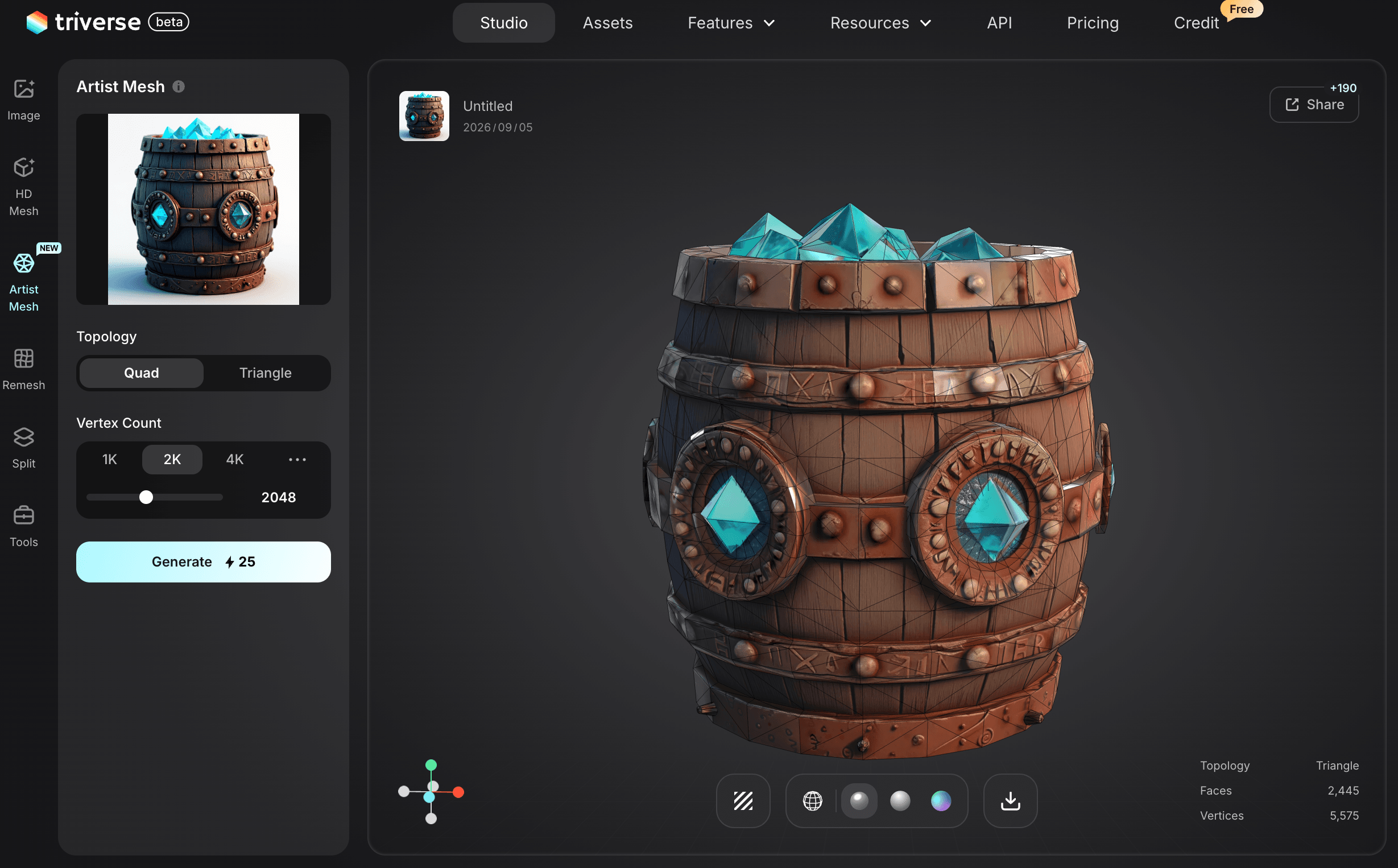
A low-poly barrel asset.
Write Text to 3D Prompts for Game Props
Follow the Text to 3D workflow. Describe one object, its proportions, material, style, and defining features. A starting prompt could read:
One stylized wooden storage crate for a fantasy game, broad rectangular proportions, thick planks, two dark iron bands, reinforced corners, a closed flat lid, warm brown wood, restrained surface wear, low-poly style, isolated on a plain neutral background.
Triverse AI's prompt assistant can expand a short brief. Review its additions before generating, especially anything that changes the structure or adds parts. If the design requirements change later, update the relevant structural instructions and keep the material and style description consistent.
2. Test AI-Generated 3D Props in the Game Level
Export the generated props while the layout is still taking shape. Seeing them together reveals proportion, spacing, and composition issues that isolated previews can hide. Resolve placement and scale in the scene before committing time to final materials.
For Unity or Unreal, start with FBX using the model export guide. Use GLB or OBJ when they're already supported in your pipeline.
Set the imported scale against existing scene objects and review the placement from the gameplay camera. Simple temporary materials are enough for this pass. If a dense HD Mesh output makes the test scene cumbersome, use a temporarily simplified copy for layout and keep the original intact for finishing.
Use this pass to decide what the existing models need: a scale adjustment, a simpler runtime mesh, or a different material treatment. If the level design introduces a new prop type or changes an asset's structure, define that requirement before generating it.
3. Optimize HD Mesh Models for Real-Time Games
Triverse AI's HD Mesh gives you a detailed source to build from. A game mesh needs to spend its geometry where it matters at the intended viewing distance. Dense geometry across a surface can cost more than the scene needs, especially when the prop appears many times. Retopology rebuilds the layout of vertices, edges, and faces so you can control that distribution and make the model easier to edit or deform.
You don't need to rebuild every HD Mesh output. If the mesh fits the scene's budget, shades correctly, and supports its intended use, keep it. For a static prop, reduction may be enough. Consider retopology when reducing the mesh damages important shapes, the layout makes editing difficult, or parts of the mesh need to bend during animation. Rigid moving parts can remain separate meshes; movement alone doesn't require deformation topology.
Set Triangle Budgets for AI 3D Game Props
For small-to-medium static set dressing in a conventional desktop third-person game, a practical first budget is 1,000–5,000 triangles per mesh, starting near 2,000 triangles. Use this as a working budget for an initial optimization pass, not a cap for close-up hero assets or Nanite workflows. It is separate from the generator's source-mesh target.
Decimation reduces geometry by collapsing edges or removing unnecessary detail. It's a useful first try for static props, but it doesn't give you deliberate edge flow. Triverse AI's Remesh workflow rebuilds the mesh structure automatically. Inspect either result before accepting it, particularly around thin sections, openings, and sharp edges. When those areas need more control, manual retopology lets you place the edges yourself.
Create Low-Poly Game Meshes from HD Mesh Models
- Preserve the source. Save the selected HD Mesh output and any textures. Work on a duplicate for reduction, or create a new low-poly mesh over the source for manual retopology. Keep the two versions aligned for later baking.
- Build the lighter mesh around the important shapes. Reduce or remesh, then repair the areas that lose their form. For manual work in Blender, use Poly Build with face snapping to lay new geometry over the source. Give the silhouette, openings, and any bending regions the geometry they need; simplify less visible surfaces more aggressively.
- Prepare the final mesh's UVs. After rebuilding topology, unwrap the new mesh and check for stretching and unwanted overlaps. Leave space between UV islands for texture padding. If you've only reduced the mesh, inspect the existing UVs before deciding whether to replace them.
- Transfer the detail you want to keep. Bake a normal map from the high-detail source to the low-poly mesh. In Blender's Cycles workflow, give the low-poly mesh a UV map and a target image, then use Selected to Active with the low-poly mesh active. Adjust the bake cage or ray distance if details project onto the wrong surfaces. Transfer existing color to the new UVs when needed. Normal maps preserve the lighting response of fine surface detail; the silhouette and openings still need real geometry.
- Check the result in context. Compare the lighter version with the source under the level's lighting and from the gameplay camera. Look for lost shape, shading errors, and visible bake seams before committing to the finished materials.
Use our mesh cleanup guide to repair local defects before baking. Keep working with the existing model when the required changes can be handled in your modeling tool. If revised requirements call for a fundamentally different form, update the reference or prompt before generating the replacement.
Once the runtime mesh is stable, use the AI Texturing workflow if it needs new materials or a different surface treatment. Keep useful transferred textures when they already fit. Finish prominent and close-view assets first; background repeats can share simpler treatments.
For a simple static prop whose shape is already usable, we recommend allowing 15–45 minutes after generation for light cleanup, material checks, and a first finished scene version. Treat this as a planning estimate. Full manual retopology, new UVs and baking, or animation setup need a separate allowance.
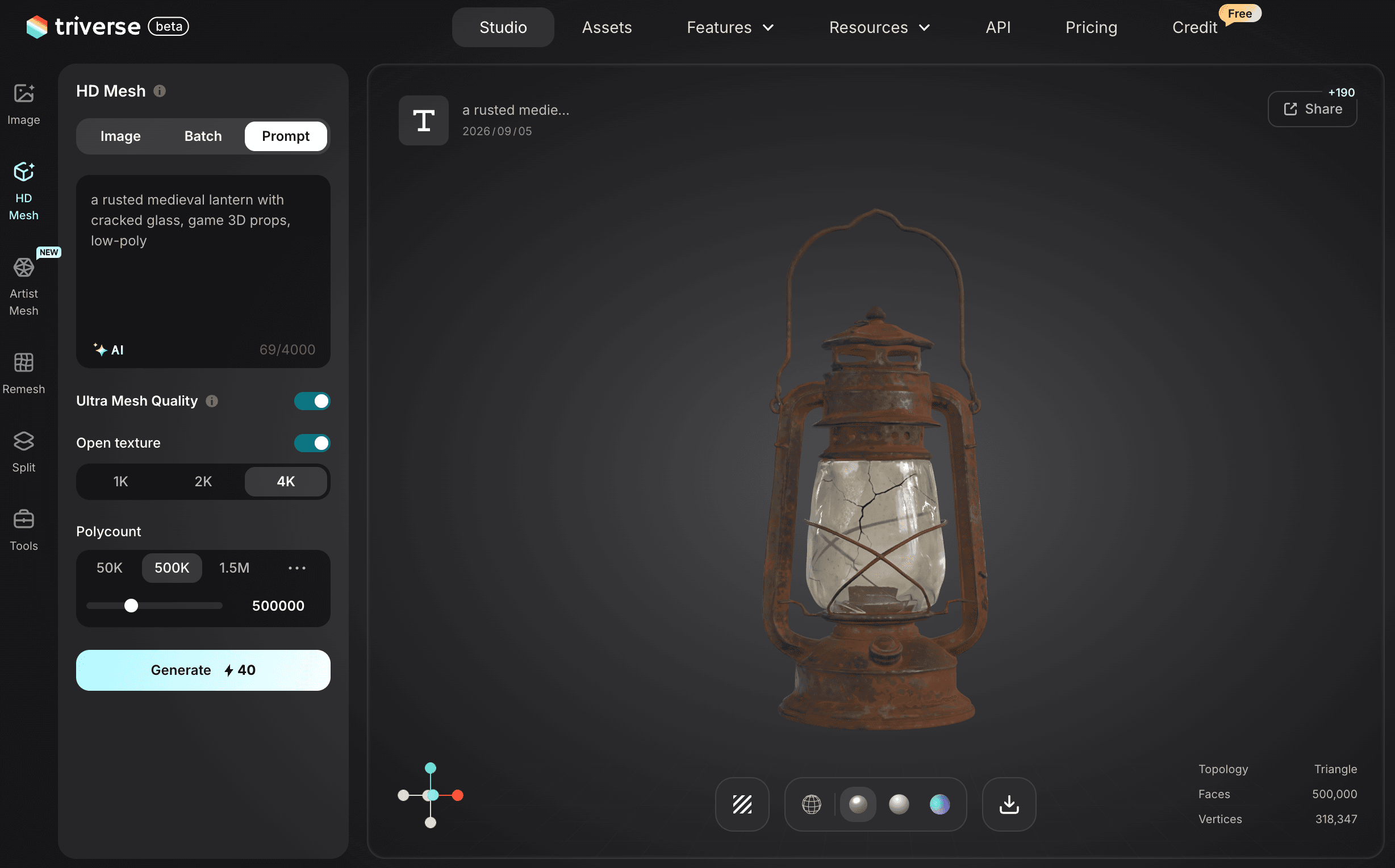
A low-poly lantern asset.
4. Reuse AI-Generated 3D Props Across the Level
Return to the prop list after the scene pass. Repeated placements can use the same model, while surface variants can share its geometry. Generate a new mesh when the level calls for a different silhouette or structure that the existing assets don't cover.
Carry the shared style description into new requests and judge the additions alongside the assets already in the level. Keep detail scale and material treatment coherent across the group. The scene itself now shows where another shape would help and where a material change is enough.
AI Texturing can add surface variations without starting the geometry again. For rule-based placement over a larger area, the resulting library can also feed a procedural asset workflow.
5. Complete Game Engine Setup for AI 3D Models
Bring the finished versions back into the level and complete their gameplay setup:
- Transforms and pivots: Confirm units, orientation, and the pivot or attachment position required for placement and movement.
- Materials: Check imported assignments and the Normal, Metallic, and Roughness maps under the game's lighting.
- Collision: Add collision where gameplay needs it, preserving any openings or accessible spaces in the design.
- Repeated geometry: Where geometry is a bottleneck, try one or two lower-detail versions with automatic LOD generation. A useful initial reduction test is LOD1 at about 50% of LOD0's triangles and LOD2 at about 25%, following the pattern in Epic's UEFN LOD guide. Check the silhouette and transitions from the gameplay camera.
Profile the populated scene's draw calls and material changes as well as its triangle count. Repeated meshes with compatible shared materials can benefit from your engine's draw-call optimization methods. For a 60 FPS target, each frame has about 16.7 milliseconds; use frame time to judge whether the changes help, rather than setting a universal draw-call limit.
Our game-ready model guide covers topology, UVs, and runtime requirements in more depth. Complete this pass so your generated props have the materials, collision, and performance they need in the level.
AI 3D Prop Guides by Asset Type
For a closer look at specific prop types, continue with these guides.
Prop type | What the guide covers |
|---|---|
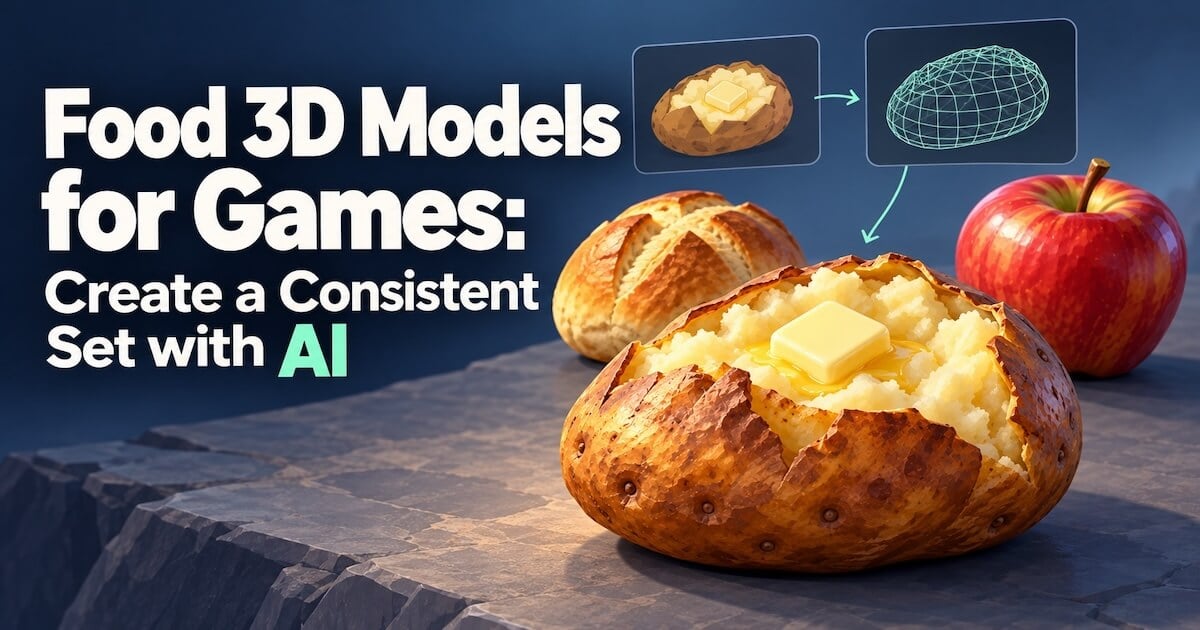
Making game food from images or concepts, with readable layers, suitable surfaces, and a consistent collection. | |
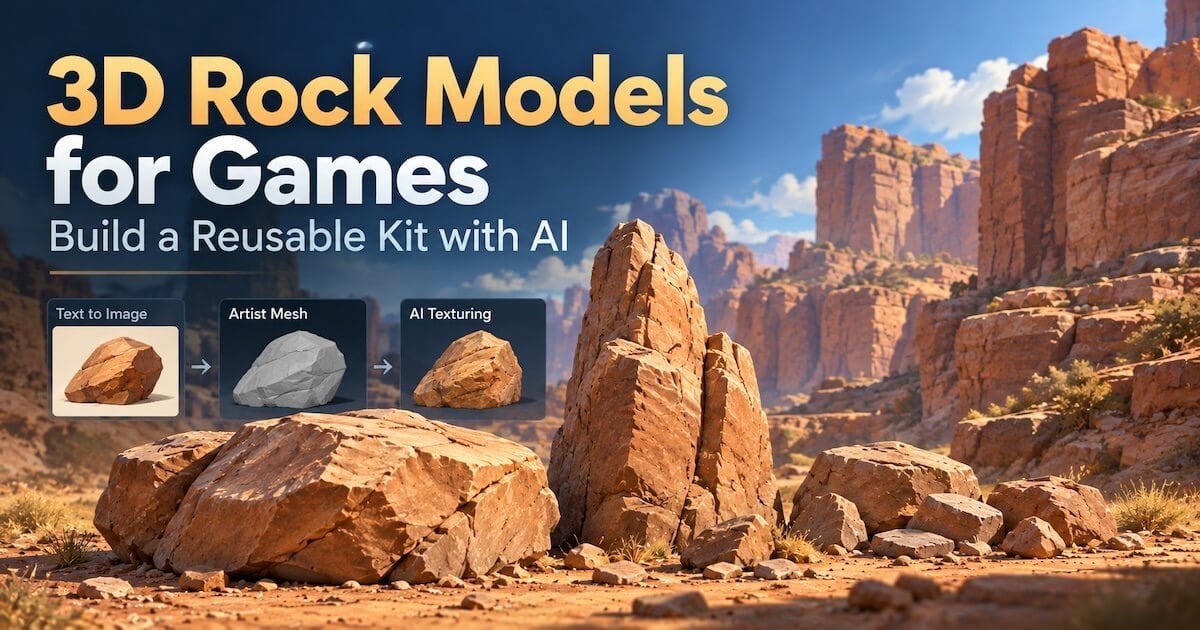
Building a reusable rock kit with varied silhouettes and materials that work together in an environment. | |
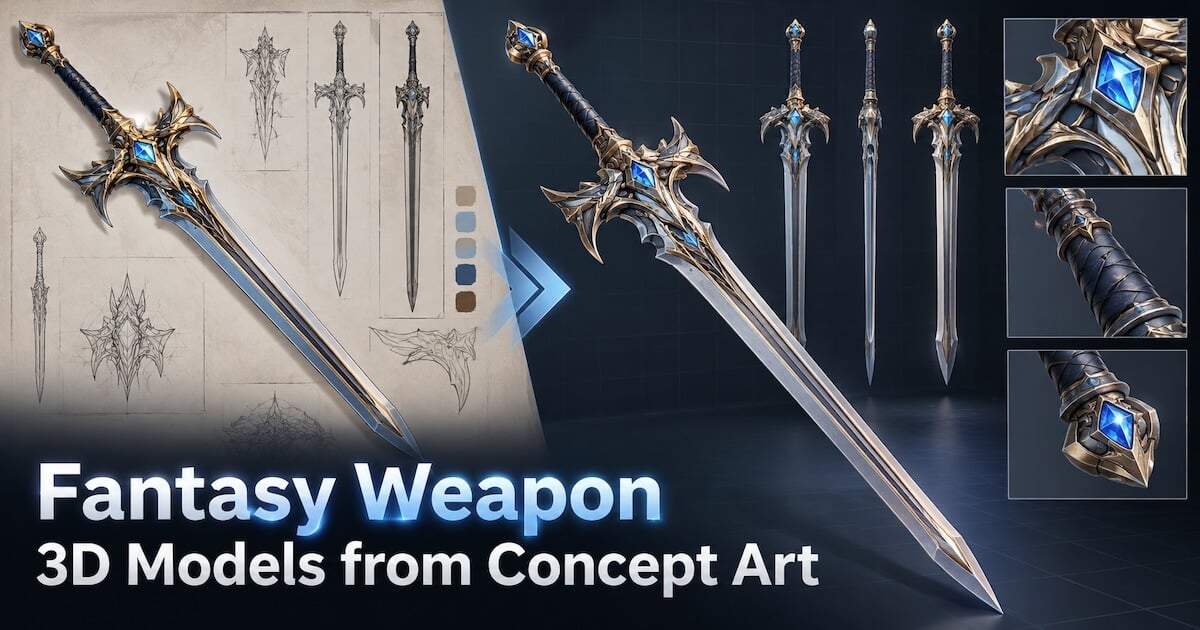
Turning concept art into weapon models and checking their structure, grip, and fit with character animations. |