How to Create a 3D Model from a Line Drawing (5 Methods)
Learn how to create a 3D model from a line drawing using CAD software, Blender, and AI tools. We here compare 5 methods, see real-time benchmarks, and find the fastest workflow for your project.
Published at ·Updated on
You drew something. A clean contour, black on white. It looks good on paper. But you want it in 3D; a model you can spin, print, drop into a game engine, or show a client. The question is where to start.
This article covers at least five ways to convert line drawings to 3D models, from AI tools that need nothing more than a browser to full manual workflows in Blender and Fusion 360. And here is something nobody talks about: line drawings, not loose sketches or photos, are the ideal input for AI 3D tools. That matters more than you would think.
Why Line Drawings Work Better Than Sketches for AI Tools
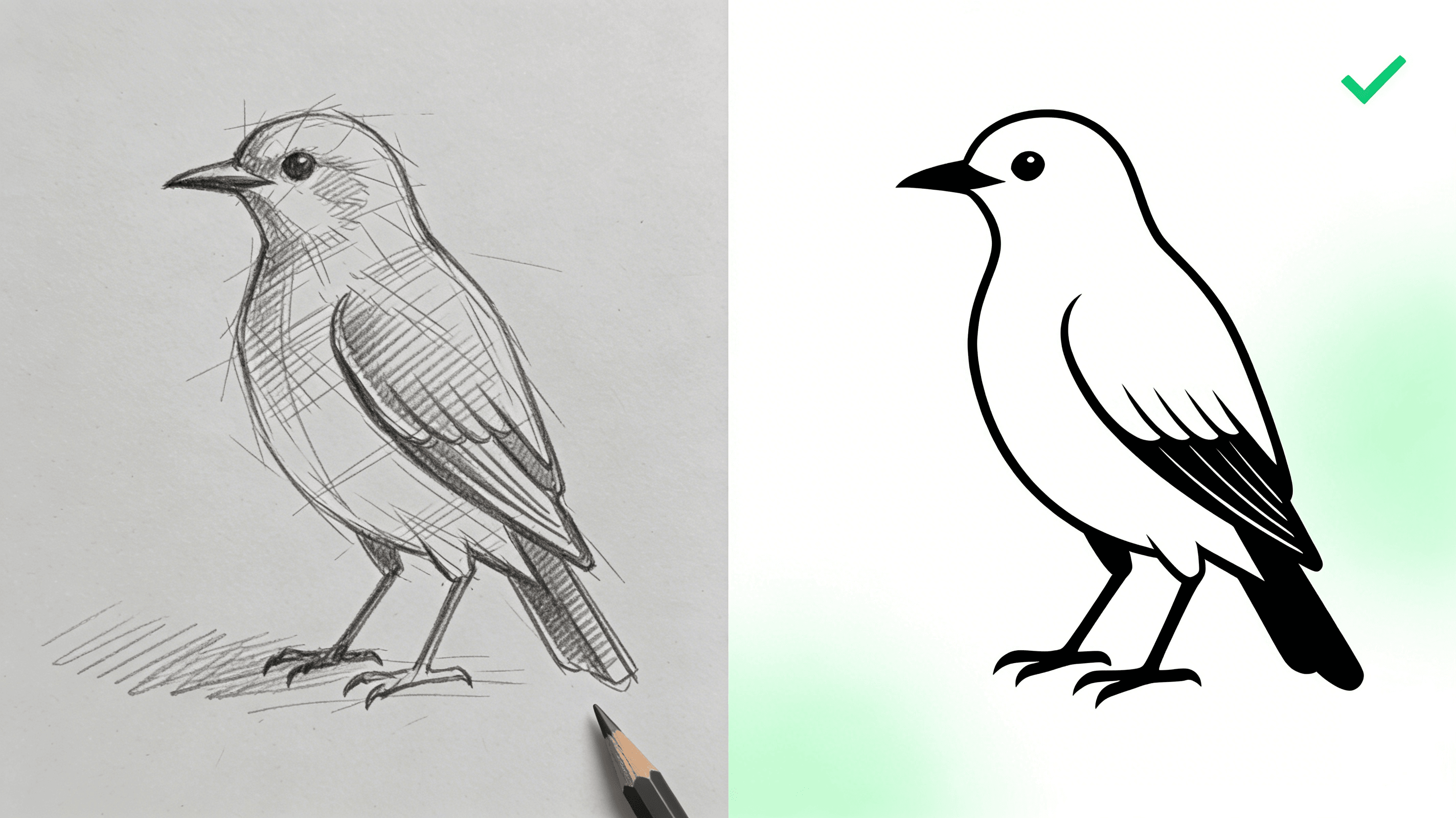
Here is the thing most tutorials skip. When you feed a loose, shaded sketch into an AI 3D tool, the model has to guess. Shadows, hatching, multiple overlapping strokes. All of that is noise to the algorithm. What the model actually wants is a clean contour line, a boundary it can trace and extrude into geometry.
Line drawings remove that ambiguity. A single continuous outline on a white background tells the AI exactly where the object begins and ends. There is no shading to misinterpret as depth, no smudging to confuse the edge detection. The result is consistently cleaner geometry with fewer artifacts.
This is not theoretical. Try it. Take the same object, draw it once with shading and cross-hatching, then draw a clean line art version. Run both through the same AI tool. The line art version will almost always produce better topology and crisper edges. The sketch version might look passable on screen, but zoom in and you will find wobbly surfaces and broken contours. If you are planning to 3D print the result or drop it into a game engine, those imperfections compound fast.
Quick checklist for a good AI-ready line drawing:
Black outlines on a pure white background. No colored paper, no grid lines.
Single-weight strokes. Varying line thickness confuses depth estimation.
No shading, hatching, or cross-hatching. Just the outline.
Front-facing or 3/4 view. Side profiles work too, but pure top-down angles struggle.
Clean joints. Corners should connect cleanly. Gaps tell the AI the shape is open.
Method 1. Line Drawing to 3D with AI Tools (2-5 Minutes)
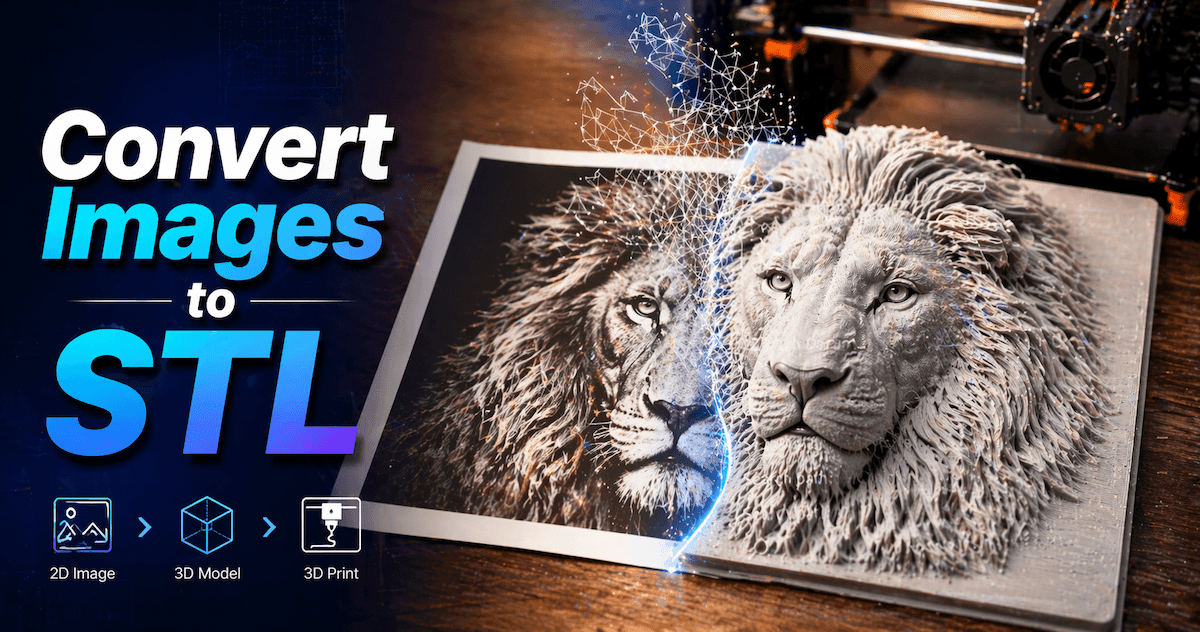
This is the fastest method by a wide margin. You upload a drawing, the AI reconstructs a 3D mesh from it, and you download a usable model. No modeling experience needed. No software to install. For anyone who wants a 3D model from a line drawing without spending hours learning Blender, this is the path.
How AI Converts Line Drawings to 3D Models
Modern AI image-to-3D tools use a technique called multi-view reconstruction. The AI looks at your 2D drawing and estimates what the object would look like from multiple angles. It generates a front view, a back view, side profiles, and a top-down perspective, then stitches those together into a unified 3D mesh.
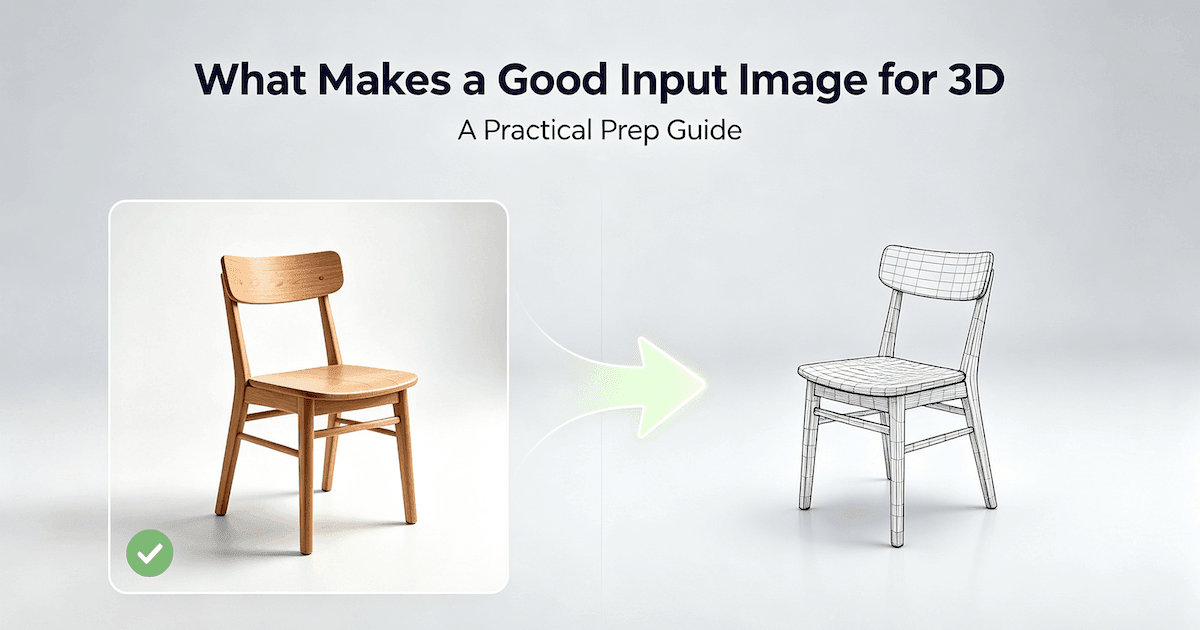
Because line drawings contain explicit contour information, the model has a much easier job than with photos. There is no background clutter, no lighting variation, no texture details to disentangle. The result is a cleaner mesh with less post-processing required.
Not all AI tools are equal. Some are tuned for product shapes, others for characters. Some produce watertight meshes ready for 3D printing, others focus on visual quality for game assets. The tool you pick should match your end goal.
Step-by-Step with Triverse AI
Triverse AI is designed for exactly this use case: taking a flat image and turning it into a 3D model optimized for 3D printing or game asset pipelines. The process is straightforward.
Step 1. Prepare your line drawing. Follow the checklist from the section above. Black outlines, white background, no shading. Scan it if it is on paper. Save it as a PNG or JPG.
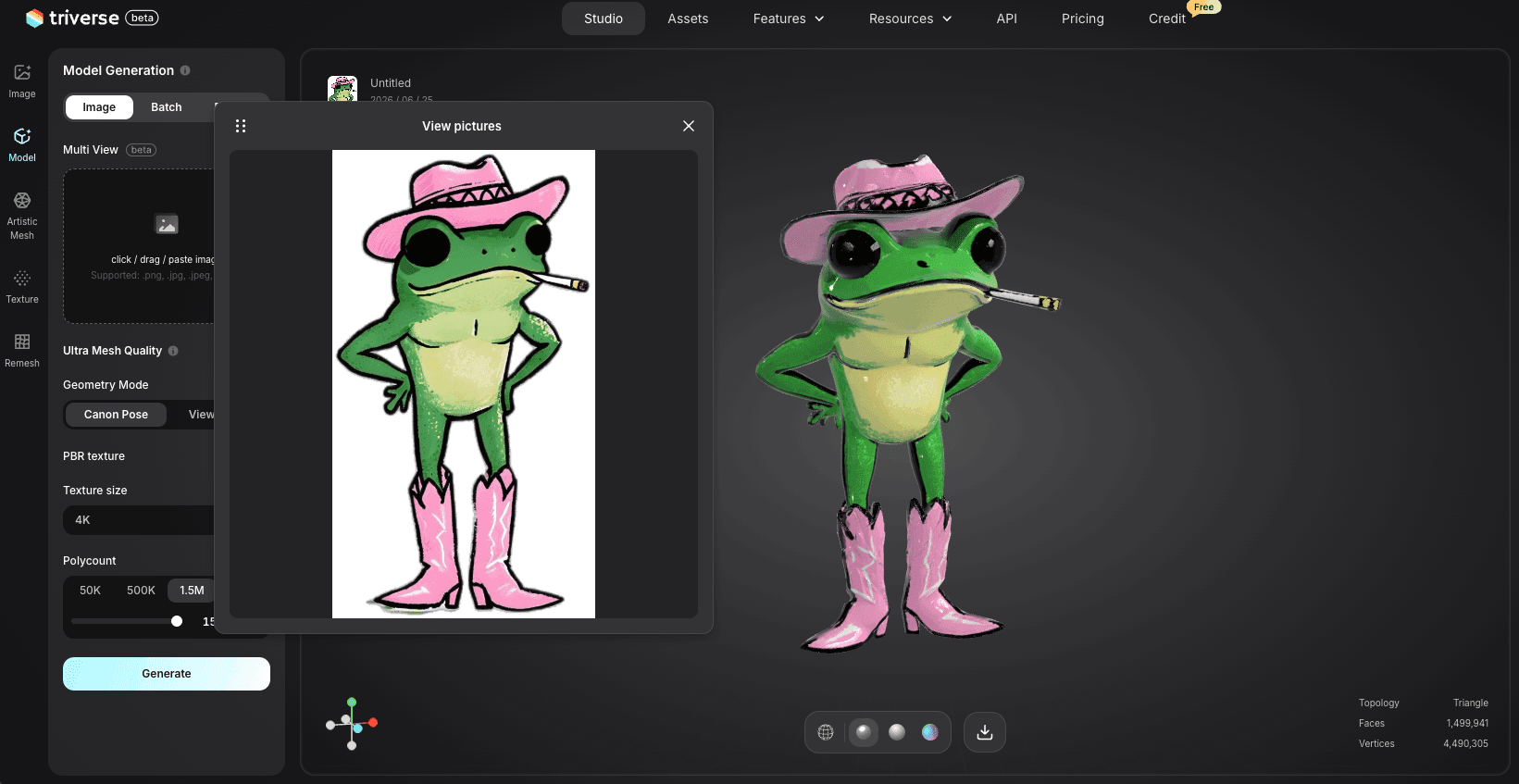
Step 2. Upload to Triverse AI. Go to Triverse AI Studio and use the image-to-3D feature. Drag your file in. You will see a preview confirming the right image is loaded.
Step 3. Adjust the generation settings. Triverse lets you set the target polycount (50K, 500K, or 1M triangles) and texture options. For a simple line drawing of a product or prop, 50K is usually enough. If the object has fine surface detail, bump it to 500K. For 3D printing, you can skip textures entirely (STL is geometry-only). For game engines or rendering, enable PBR texture with 4K resolution.
Step 4. Generate and review. Click generate. The process typically completes in 2-5 minutes. Once done, use the viewer to spin and inspect the model. Check for missing geometry (gaps or holes in the mesh), surface quality (does the surface look clean or bumpy?), and proportions (does the generated shape match your drawing?).
Step 5. Export your model. Triverse supports OBJ, STL, GLB, FBX, 3MF, and USDZ. For 3D printing, download as STL. For game engines, OBJ or FBX works best. If you plan to edit the model further in Blender or CAD, OBJ is the most universal choice.
Method 2. Convert Line Drawings to 3D with CAD Extrusion (1-4 Hours)
AI tools shine for speed, but there are times you need precision. If your line drawing is a technical design with specific measurements, AI cannot give you that. You need a parametric CAD tool that understands dimensions.
Fusion 360 is the standard choice here. It is free for hobbyists and startups making under $1,000 a year. AutoCAD and SolidWorks are alternatives if your workplace already pays for them. The logic is the same across all three: you trace or import the 2D profile, then extrude it into 3D space.
When to Use CAD for Line Drawing to 3D Conversion
Use this method when your drawing is a mechanical part, a product enclosure, an architectural element, or anything with functional geometry. Think brackets, cases, adapters, gears. If the object needs to fit into another object or meet a tolerance spec, CAD is the only path that guarantees accuracy.
The tradeoff is time and skill. Fusion 360 is learnable but not trivial. Expect to spend your first hour on tutorials before touching your actual drawing. And there is a hard constraint: if your drawing is purely visual with no dimensional data, CAD is a bad fit. You will spend more time adding measurements than the model is worth.
Step-by-Step CAD Workflow
Step 1. Import or trace the drawing. Fusion 360 supports DXF and DWG import from AutoCAD. If your drawing is a scanned image or a photo, use the Canvas tool to place it as a reference, then trace over it with sketch tools. Set a known reference dimension first so everything scales correctly.
Step 2. Clean up the geometry. 2D drawings often contain open profiles, overlapping lines, and construction geometry. Use the sketch trim and extend tools to close every profile. A single gap blocks the extrusion.
Step 3. Extrude or revolve. Select the closed profile and use the Extrude tool. Enter the exact depth from your drawing dimensions. For cylindrical parts, use Revolve around a center axis. Do not eyeball this step. The numbers matter.
Step 4. Add mechanical features. Fillets, chamfers, holes, threads. These turn a basic extrusion into a functional part. Apply them after the main geometry is solid. Editing fillets on an incomplete model can break later features.
Step 5. Export. For 3D printing, export as STL. For manufacturing, use STEP or IGES. For game engines, Fusion 360 has a built-in OBJ and FBX exporter under the 3D Print utility menu.
Method 3. Turn Your Line Drawing into a 3D Model in Blender (4-10 Hours)
If your line drawing is a character, a creature, an organic prop, or anything with flowing curves, Blender gives you control that AI tools cannot match. You build the model by hand, referencing your drawing in the viewport, and you decide exactly how every polygon sits.
This is the most time-consuming method. But it is also the one that produces genuinely game-ready geometry with clean topology. AI tools give you a mesh. Blender gives you a mesh you can rig, animate, and optimize for a specific engine budget.
Why Blender Still Matters
Let us be honest about what AI tools cannot do. They struggle with topology. The edge flow is functional but rarely clean. If you try to rig an AI-generated character for animation, the deformations will tear at the joints because the poly loops do not follow the muscle lines. AI tools also produce uniformly dense meshes, which waste triangles on flat surfaces and under-resolve curved areas.
Blender fixes all of this. You control the polycount. You decide where the edge loops go. You optimize for the target platform. For a game character, that difference is the gap between a model that works and a model that just looks okay in a viewer.
Convert Line Drawings to 3D in Blender Step by Step
Step 1. Set up a reference image. Open Blender, press N to open the side panel, go to View, and add your line drawing as a background image. Scale and position it to match your intended real-world size. If your drawing is 20 cm tall, set the reference image to match. This keeps the export scale consistent with other tools.
Step 2. Block out the basic form. Start with primitive shapes. Boxes for the main body. Cylinders for limbs or cylindrical parts. Match the silhouette to your reference, but do not add detail yet. This is the blocking phase. Speed matters more than accuracy.
Step 3. Refine with extrusion and edge loops. Add subdivision surfaces if needed, but do not rely on them for detail. Use loop cuts (Ctrl+R) to add edge loops, extrude faces to build volume, and adjust vertices to match the contour of your drawing. Work from large forms to small details.
Step 4. Check your topology. Switch to wireframe view. Look for poles (vertices with more than 5 edges), stretched faces, and uneven poly distribution. For game engines, aim for mostly quads with strategic triangles where needed. The Blender manual has detailed guidance on setting up background images and viewport setup.
Step 5. UV unwrap and texture. Mark seams along natural edges. Unwrap with Smart UV Project for quick results or manual seams for precision. Apply a basic material using Principled BSDF. If you want PBR textures, add roughness, metallic, and normal maps.
Step 6. Export. OBJ is the most portable format. For Unreal Engine, export as FBX with materials embedded. For Unity, OBJ or FBX both work. Check the scale on import. Blender has no fixed unit system — it uses "blender units" that you map to real-world measurements. Unity uses meters by convention. When exporting from Blender to Unity, a 1-unit cube in Blender becomes 1 meter in Unity. If your model imports at the wrong scale, adjust the export settings or use Ctrl+A > Scale in Blender before exporting.
Pro Tip. Keep your polycount in check. Modern mobile devices (Snapdragon 8 Gen 3 and newer) can handle 50K-100K triangles easily, but target 10K-30K for older mobile hardware. Desktop props typically stay under 50K-100K. Characters for desktop games range from 100K-500K depending on the level of detail. Use Blender's Decimate modifier with Planar mode to reduce polygons on flat surfaces without losing detail on curves, or the Un-Subdivide modifier for quick LOD reduction.
Method 4. Hybrid Workflow to Generate 3D Models from 2D Line Drawing (30-60 Minutes)
Sometimes the smartest move is combining the two. Generate a rough model with AI, then refine it in CAD or Blender for the details you care about. This is the approach I would take for most real-world projects.
When the Hybrid Approach Wins
The AI step gives you speed: a 3D model in minutes with usable proportions and surface detail. The CAD or Blender step gives you precision: fix a critical dimension, add a mounting hole, clean up the topology around a specific joint.
This works especially well for product designers who have a concept sketch and need a quick visualization model, plus the option to tighten mechanical details later. Generate the overall shape with AI, import it into Fusion 360, then extrude and cut the features that need to be exact. For more on preparing your model for a 3D printer after this step, check out our guide on creating 3D models for 3D printing.
Using a 3D Printing Service
If your goal is a physical prototype and you do not own a 3D printer, services like Shapeways, i.materialise, and JLCPCB 3D printing will take your STL file and ship a printed part. Upload the model, choose a material (resin for detail, nylon for durability, metal for functional parts), and wait for delivery.
The hybrid approach is ideal here because the service needs a watertight, correctly scaled STL. AI generates a watertight mesh quickly. You check the scale and wall thickness in Fusion 360 or Blender before uploading. Ten minutes of cleanup vs. hours of modeling from scratch.
How to Evaluate and Fix AI-Generated 3D Models
Getting a model is step one. Knowing whether it is actually usable is step two. This is where most tutorials stop. They show you the shiny generated output and assume everything worked. It often does not, at least not on the first try.
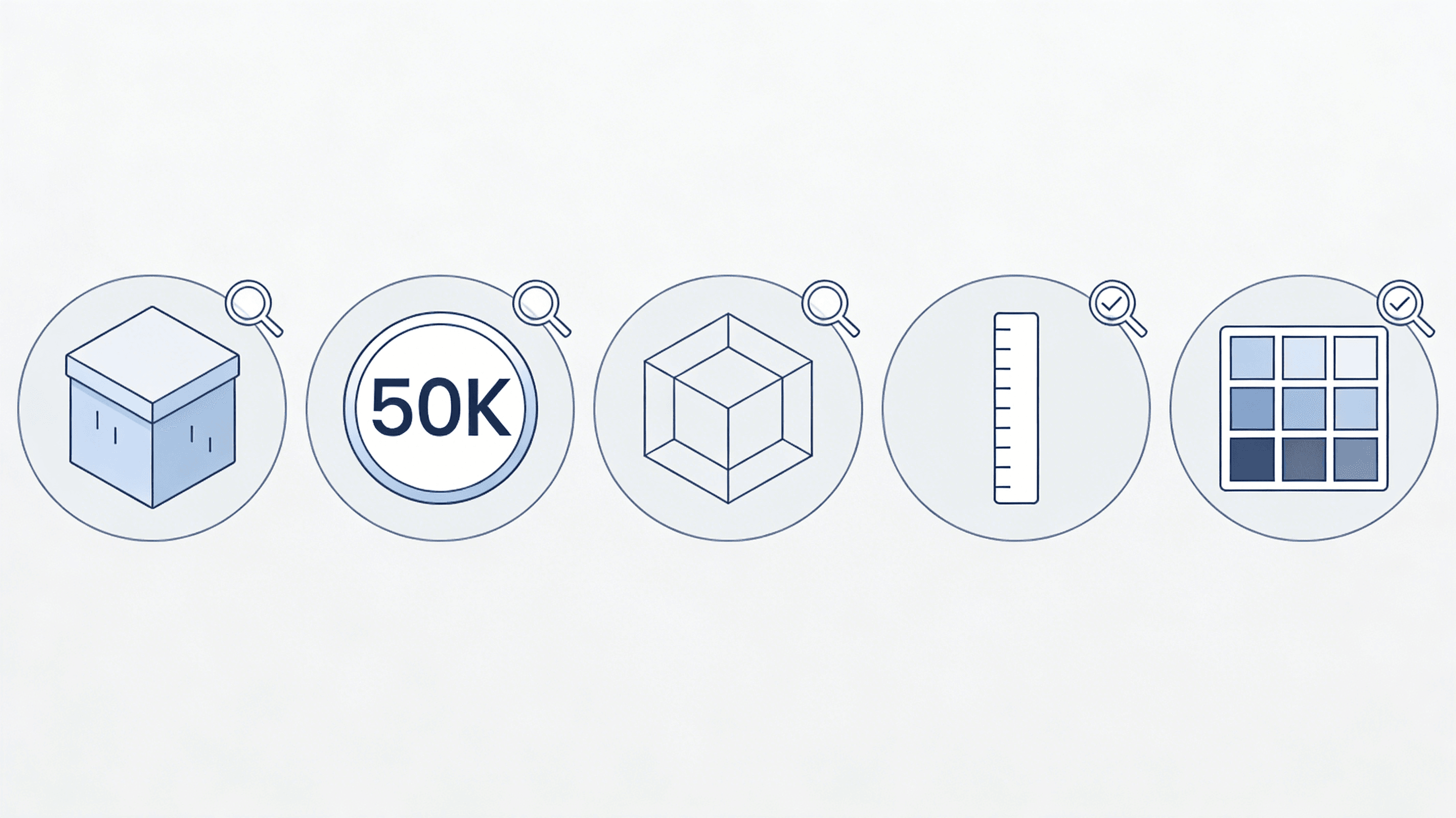
The Five-Point Quality Check
Before you send a generated model to a slicer, a game engine, or a client, run through this checklist.
Watertightness. The mesh must be fully closed. No holes, no open edges, no non-manifold geometry. Modern slicers like Bambu Studio and Orca Slicer will auto-detect non-watertight meshes and offer to fix them. If the slicer cannot repair the issue, open the model in Blender, enable the 3D Print Toolbox add-on (Edit > Preferences > Add-ons > search "3D Print"), and hit "Check All" to identify problem spots.
Polycount. Check the triangle count in Blender's overlay menu. For mobile games: under 50K for props, under 100K for characters. For desktop games: under 500K total. For 3D printing: polycount matters less than watertightness, but massive files (over 2 million triangles) will make your slicer slow and your software crash.
Topology. Wireframe view in Blender. Look for even edge distribution. Wobbly, overlapping, or twisted edge loops are a sign that the AI struggled with that region. These areas will deform badly if animated and may cause rendering artifacts.
Scale. Measure the model against a known reference in Blender. A chair should not be 50 meters tall. If the scale is wrong, apply the scale transformation (Ctrl+A > Scale) in Object Mode so the export matches what you see on screen.
Texture alignment. Rotate the model under different lighting. Do the textures stretch or slide? If yes, the UV map is misaligned. Regenerate with Triverse AI or use Blender's UV Editor to adjust.
Common Fixes
Non-watertight mesh: Select all faces in Edit Mode, press F to fill holes. For complex gaps, use the Voxel Remesh modifier in Blender. It rebuilds the mesh as a solid, watertight volume. You lose some surface detail but gain a guaranteed print-ready model.
Too many polygons: Add a Decimate modifier in Blender. Set the ratio to 0.5 for a 50% reduction, then adjust visually. Use Un-Subdivide mode if the mesh has subdivision levels, or Planar mode to reduce polygons on flat faces.
Texture issues: If the AI texture is slightly off, Triverse AI lets you regenerate. Or use Blender's Shader Editor to adjust roughness values manually. For full retexturing, Substance Painter or AI texture generation tools can apply a new PBR material.
Importing Your Model into Unity and Unreal Engine
Setting Up in Unity
Drag your OBJ or FBX file into the Assets folder. The import preview will show the model with default materials. Go to the Import Settings tab and configure these:
Set Scale Factor to 1 if your model was exported at real size. Unity defaults to 1 unit = 1 meter. If your model is imported at the wrong size, adjust this here rather than scaling in the scene.
Enable Generate Colliders for props the player interacts with. For static decoration, uncheck it to save performance.
Under Materials, set Material Creation Mode to "Standard (Legacy)" for quick setup or leave it at "None" if you are assigning custom PBR materials in the scene.
Create a new material (Project panel > Create > Material), assign an Albedo map and Normal map if you have them, and drag it onto the model. Unity's model import guide covers the full import pipeline.
Setting Up in Unreal Engine
Import as FBX. Unreal's FBX importer handles materials, skeletons, and collision data better than OBJ. In the Content Browser, click Import, select your FBX, and choose "Static Mesh" unless the model is rigged.
In the Static Mesh Editor, check the collision settings. Unreal auto-generates simple collision hulls, but for complex shapes, you might want to create a custom collision mesh. Right-click the mesh, select Convex Collision, and set the hull count to something reasonable (4-6 for most props).
For materials, Unreal Engine imports basic material slots from the FBX. You will need to create Material Instances in the editor and connect the texture maps manually. PBR textures from Triverse AI (base color, roughness, metallic) map directly to Unreal's material system.
LODs: For desktop games, create at least 2 LODs (Level of Detail). LOD 0 is the full-resolution model, LOD 1 reduces to 50% tri count, and LOD 2 to 25%. Unreal auto-generates these from the Static Mesh Editor under the LODs panel. This keeps your draw calls low when the model is far from the camera.
Comparison Table: Which Methods Should You Choose to Turn Drawing into 3D
Method
Time
Best For
Skill Level
Tools Needed
AI tools (Triverse AI)
2-5 min
Prototypes, simple props, 3D printing
Beginner
Browser only
CAD (Fusion 360)
1-4 hours
Mechanical parts, precise fits
Intermediate
Fusion 360 (free tier)
Blender manual
4-10 hours
Characters, organic shapes, game assets
Intermediate
Blender (free)
Hybrid (AI + CAD)
30-60 min
Product design, physical prototypes
Beginner+
Browser + basic CAD
If you need a model today, start with Triverse AI. If you need exact tolerances, start with CAD. If you need a riggable character with clean topology, start with Blender. And if you want the best of speed and precision, use the hybrid approach. Generate first, refine second.
Frequently Asked Questions about Creating 3D Model from Line Drawing
Start with Your Line Drawing
There are many ways to bring your line drawing idea to life. None of them is wrong. Pick the one that fits your time budget and your end goal!
If you have a line drawing ready to go, Triverse AI is the fastest way from paper to a 3D model. Upload your drawing, generate in minutes, and export in whatever format your project needs. No modeling experience required!
Dennis Kirk is an AI 3D specialist and game developer with more than 5 years of industry experience, mastering production workflows across Unity, Unreal Engine, and Godot. He focuses on demystifying next-generation 3D workflows for creators of all skill levels. His writing spans hands-on technical walkthroughs, asset optimization strategies, and in-depth software reviews, helping developers build faster and smarter.