Food Models for 3D Printing: Create Miniature and Life-Size Replicas with AI
Create food models for 3D printing with AI, from miniature props to life-size displays. Learn how to generate, prepare, and finish replicas.
Food models for 3D printing can furnish a dollhouse, fill a display counter, or help plan a plated presentation. Miniature pieces need to remain recognizable at a small scale, while life-size replicas need the proportions and appearance of an actual serving.
AI 3D modeling tools can turn a food photo or written description into a starting model. To prepare an input that suits the finished piece, first decide how you’ll use it and how large you’ll print it. Those decisions help you specify which details to simplify and which ingredient edges or connections need more support. The examples below use a miniature burger and life-size nigiri sushi to show how these requirements carry through generation and print preparation.
Create Miniature Food Models with AI for 3D Printing
A detailed full-size food model won’t necessarily work when reduced to a miniature. Scaling it down also reduces the size and thickness of its smallest features, which can become difficult to print or too fragile to handle. Plan the final size before preparing the input so you can simplify or strengthen those features in advance.
💡 Design for Your Final Scale
Preserve the silhouette and the features that identify the food, then simplify details that would become isolated specks or unsupported edges. Small decorations can become relief attached to the main body. Keep a discreet contact area underneath if the finished piece needs to sit on a tiny plate or tabletop.
Plan the Scale and Simplify Fragile Details
For example, a 120 mm-wide burger becomes just 10 mm wide at 1:12 scale. At that size, the rounded bun and a few clear filling layers do most of the work of making it recognizable.
Thin lettuce and dangling cheese corners become fragile when scaled down, so thicken them and support them against the body while omitting individual sesame seeds. Bring the ingredients together into one compact form to support those edges, then use shallow grooves to keep the layer boundaries visible.
Write a Prompt or Prepare a Reference Image
Build those structural choices into the input. For this burger, use the following description with Text to 3D in Triverse AI:
One miniature cheeseburger sculpture: golden-brown buns, a thick rounded brown patty, a thick yellow cheese corner resting against the patty, and lettuce simplified into a thick green scalloped band. All ingredients form one compact connected object, with shallow grooves between the layers. Smooth domed top bun, broad bottom bun with a flat underside, height about two-thirds of width. No individual sesame seeds, loose crumbs, thin hanging edges, plate, text, or props.
The colors describe the ingredients and can also guide a colored preview. For a design preview before 3D generation, use the same description with Text to Image and add:
Three-quarter view showing the top and fillings, full object visible, plain white background, soft even lighting.
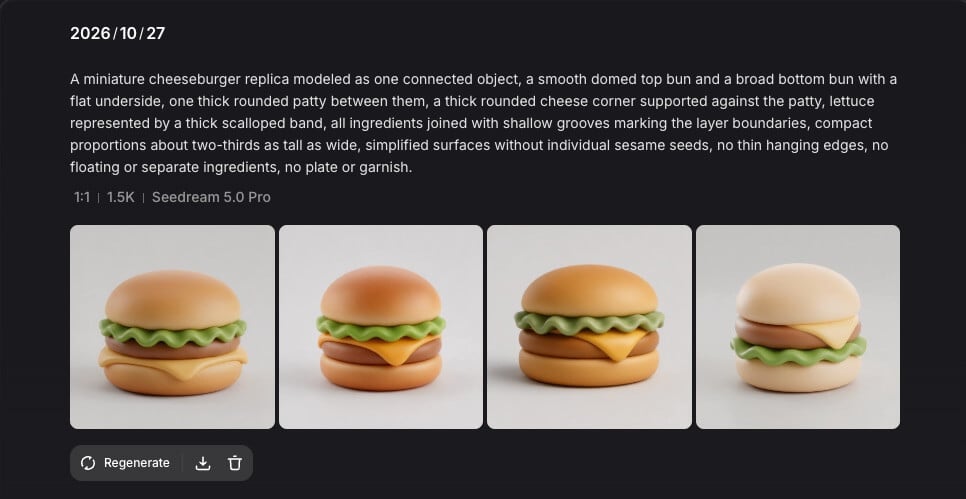
An existing image that already shows the simplified construction can go directly into image-based generation. Whichever route you choose, the input should communicate the thicker, supported ingredients; adding “miniature” to a realistic food image doesn’t specify those changes.
Generate the Model and Examine Its Layers
- Add your input. Open Studio and select HD Mesh. Enter the burger description for text-based generation, or upload the prepared reference image for the image route.
- Choose whether to generate textures. HD Mesh generates an untextured model by default. For a single-color print you’ll paint by hand, that’s enough; enable texture generation if you also want a colored digital preview. A colored reference image remains useful with either setting.
- Generate and rotate the model. Select Generate, then rotate the burger to examine the fillings and underside.
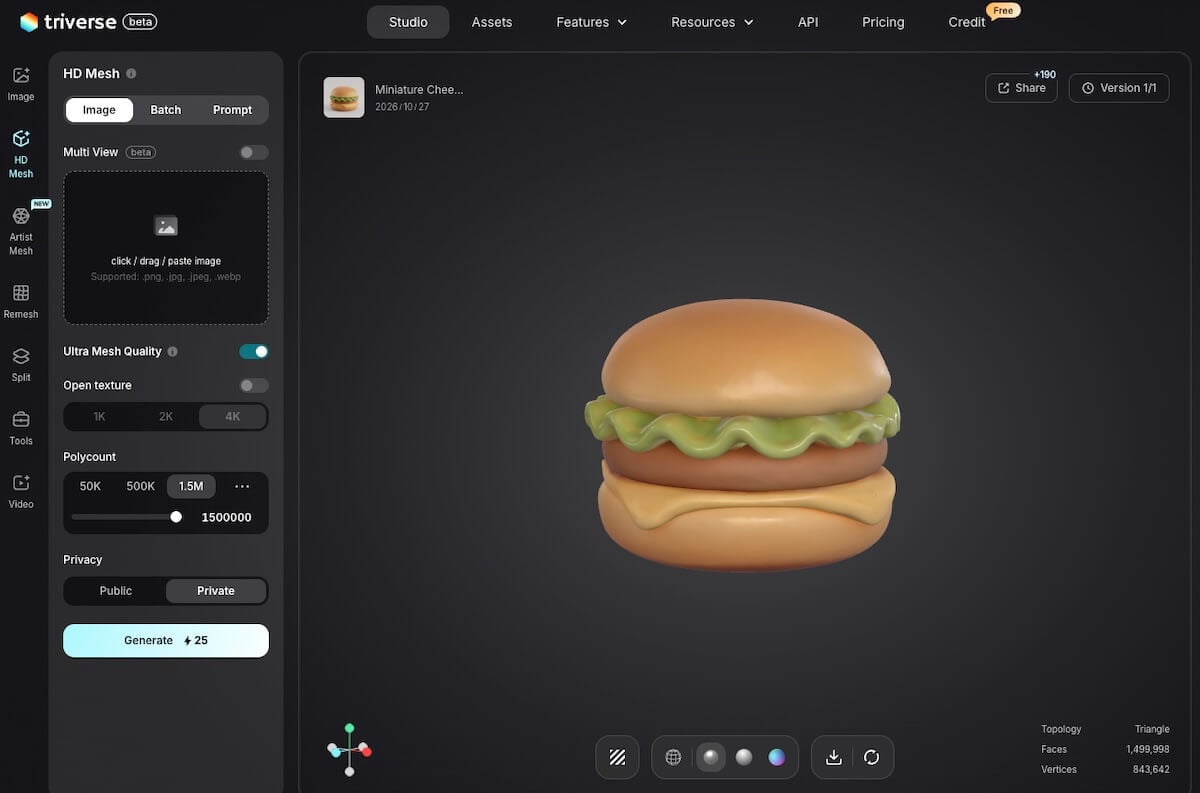
The important result is a compact shape with distinct layers: the cheese corner should meet the patty, and the lettuce should read as a supported band. Deep gaps between ingredients can undermine that construction even when the front view looks convincing.
A local problem, such as one projecting lettuce edge, can be adjusted in a mesh editor before printing. If the whole burger has separated into loose ingredients, revise the input to make the assembled structure clearer before another generation.
Turn Food Images into Life-Size 3D Models
Life-size food replicas can become a physical menu for a restaurant counter or entrance display. Placed beside dish names and prices, they give customers a view of the serving size, ingredient arrangement, and finished presentation before ordering.
Separate food pieces are also useful for planning a plated presentation. Once sized to match actual servings, they can be moved between real plates, rearranged into different combinations, and reused when updating a display. You can compare spacing, quantities, and the overall composition without preparing fresh food for every arrangement.
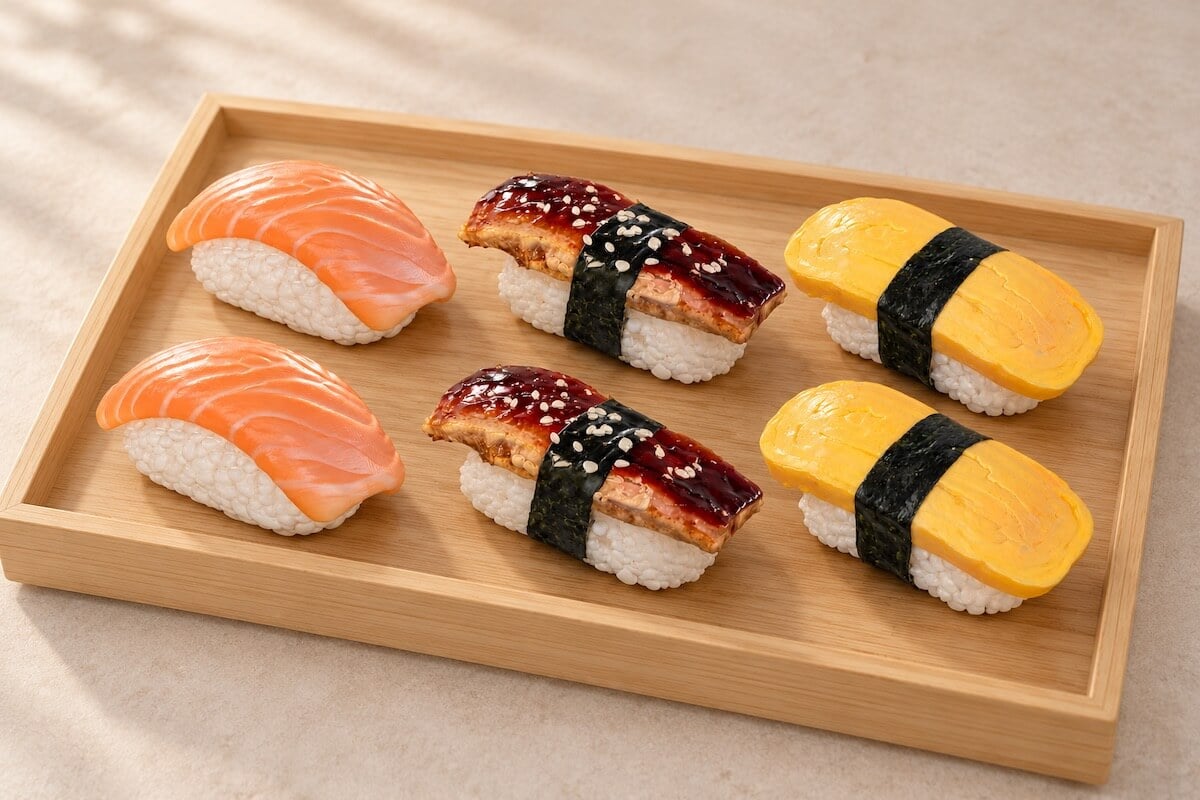
Take nigiri sushi as an example. The rice mound needs enough volume beneath a topping with visible thickness. Keep their proportions close to the actual serving, and record the food’s length, width, and height for sizing later.
Choose Food Images That Show Shape and Thickness
Start with one complete piece of sushi per reference image. AI uses the reference to infer the overall shape and how the ingredients meet. A three-quarter view can show both the topping and the rice beneath it; an overhead photograph may hide the height even when the colors are clear. Leave plates and neighboring food out so the intended model is one assembled item.
For salmon nigiri, choose an image showing how the fish curves over the rice and how far its ends extend. Eel and egg nigiri need the topping’s side edge and seaweed band visible. These details tell the model more about the food’s shape than a close crop of its top surface.
Once the reference shows the complete sushi and its ingredient proportions, use Image to 3D to generate the model. In HD Mesh, switch to the image input, upload the prepared sushi reference, and select Generate. Use a separate reference for each sushi type. The texture choice works as described for the burger.
Review Ingredient Proportions and Surface Detail
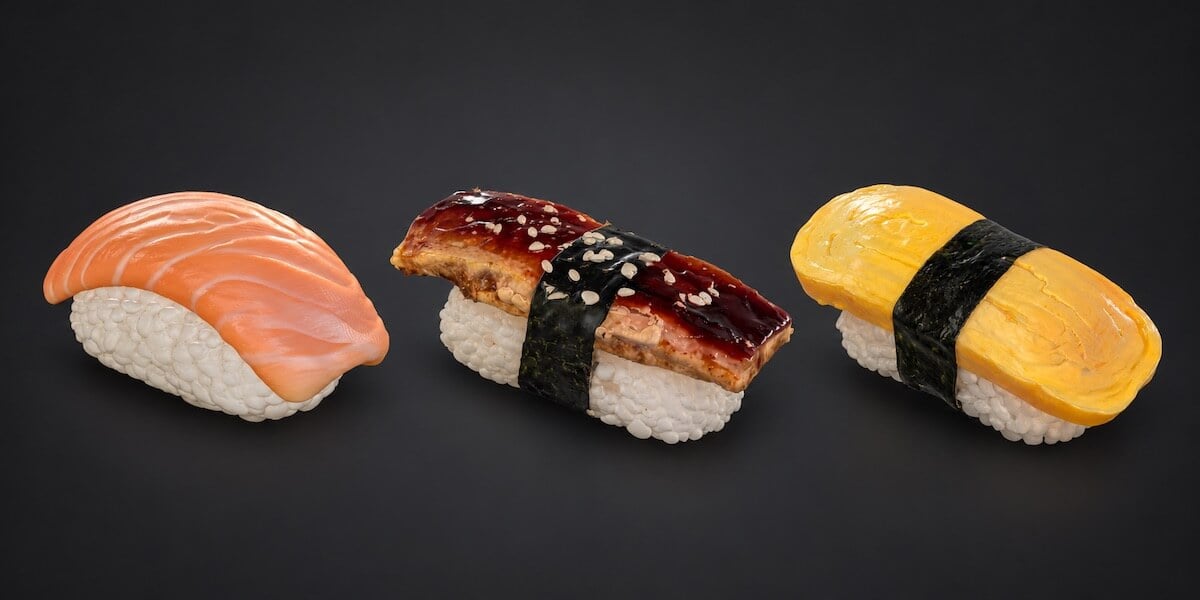
The showcase below brings the three nigiri types together: salmon drapes over the rice, eel forms a longer slab with a central seaweed band, and the egg topping has a thicker, rounded rectangular shape. Compare the original models’ proportions with the food you want to reproduce.
💡 Keep Shape and Color Separate
The colored preview helps you compare the food’s appearance, while the printed surface comes from the mesh itself. Rice grains therefore need physical relief if you want their texture to survive onto the object. The salmon’s pale stripes and the eel’s dark glaze can be painted afterward. Viewing the exported mesh without its texture colors helps reveal whether the rice detail is actually present.
Export AI-Generated Food Models for Printing
Export the Model and Set Its Size
Once the ingredient shapes and connections are satisfactory, export the model for print preparation. For the single-color-and-paint workflow used here, choose Download and STL. STL carries the surface geometry without the digital texture colors. The model export guide shows the format selection.
Import the STL into your mesh editor or slicer to set its physical size. Keep uniform scaling enabled: enter the target width for the miniature burger, or use one of the actual food measurements recorded earlier for the sushi.
Print and Paint One Piece First
Then prepare the mesh, supports, and sliced file for your printer. The complete guide to creating 3D models for printing covers those general steps. On these food models, preserve the shallow burger grooves and rice relief during cleanup, and keep support contacts away from visible ingredient edges where practical.
After printing and the cleanup required by your material, apply primer and paint in thin coats so the small grooves that distinguish ingredients remain visible. Give the burger its bun, patty, cheese, and lettuce colors; use the sushi reference for the topping colors and patterns.
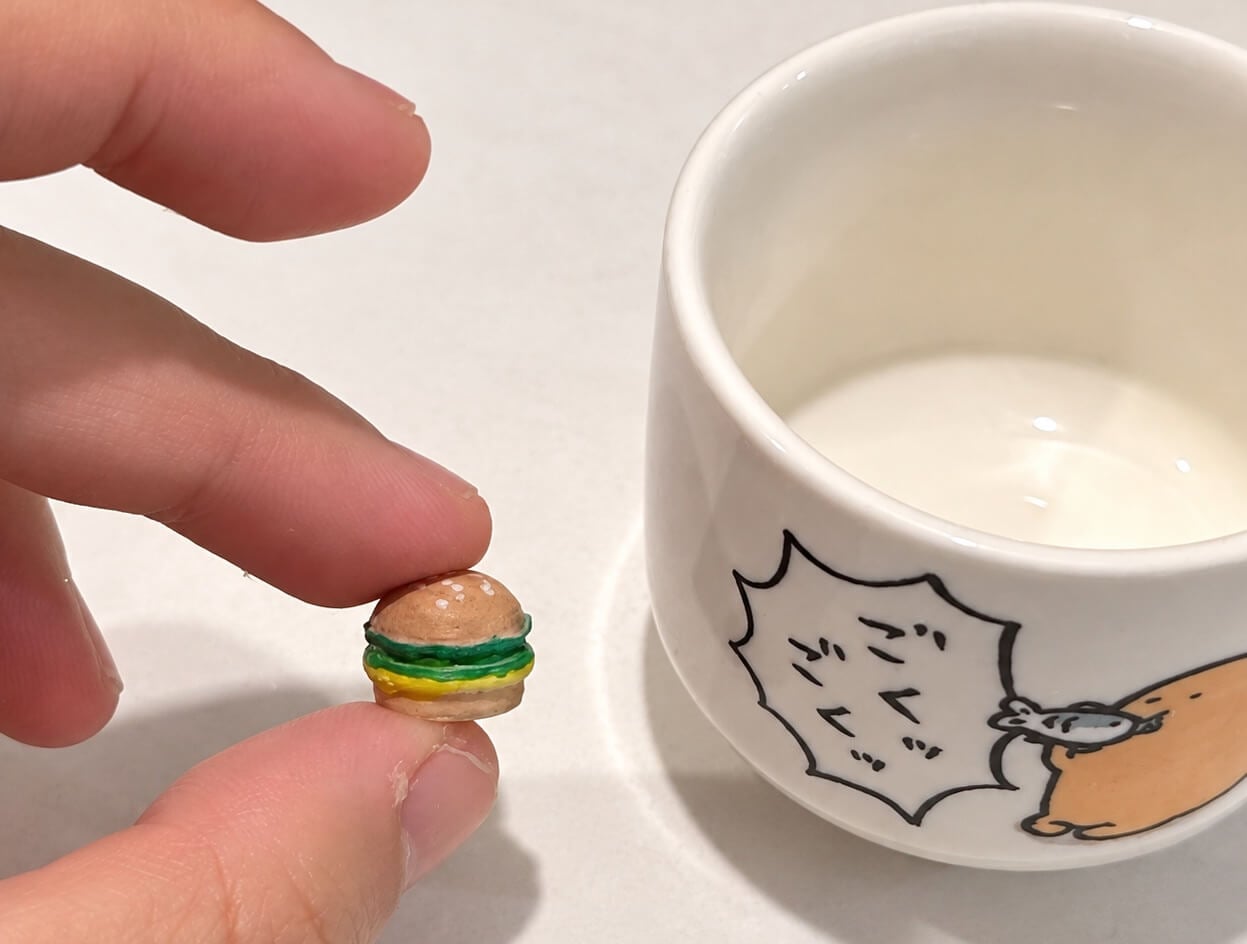
Print and finish one piece first to see whether those details remain readable before making a set. After that first piece works, reuse the prepared model to print matching copies rather than generating each one again.
📚 You Might Also Like
- Food 3D Models for Games: Create a Consistent Set with AI — Explore the style, mesh, and texture choices involved in making food props for a game.