How to Make Fantasy Weapon 3D Models from Concept Art
Create AI 3D weapons from concept art. Prepare clear references, check blades and grips, and test swords, axes, and polearms with your character.
A fantasy sword can look convincing in a painting while leaving its grip width and blade thickness unclear. Those gaps become visible when the model is turned sideways or placed in a character's hand.
Turning concept art into a usable game prop takes more than matching its front silhouette. This guide follows the image-based prop workflow for fantasy swords, axes, and polearms, from preparing the artwork and generating a 3D mesh with Triverse AI to testing the finished weapon in a game character's hand.
Start with a Clear, Unobstructed Weapon Reference
A clean side view is a good starting point for most fantasy weapons. The full design should be visible, from the blade tip or axe head to the end of the handle. For a sword, pay particular attention to the guard and grip, where decorative shapes can make the underlying structure difficult to read. A complete, readable design can go straight to Image to 3D.
An action illustration may look more impressive, but it often hides the parts that matter for modeling. If a character's hand covers the entire grip, for example, there's no reliable way to judge its shape or connection to the guard. Look for an isolated weapon design or draw the missing section before generating the mesh.
Image quality matters too. A blurry reference can hide narrow guard prongs, the connection between a spearhead and its shaft, or other small structural details. When the original is too unclear to work from, a cleaner drawing is usually more useful than repeatedly generating models from the same image. You can also use Triverse AI's Text to Image to explore a new weapon design with a clear side view and simple background.
Flat illustrations aren't necessarily a problem. If the outline is clear but the weapon's volume is difficult to judge, 3D Enhance can give the 2D artwork more dimensional lighting and material definition. Compare the result with the original, especially around the guard, blade edges, and decorative elements. The tool regenerates the image, so some details may change.
Even a good side view won't tell you everything about thickness. A broad fantasy blade might have a thin cutting edge but a much heavier central ridge, while an ornate spearhead may need a different cross-section from what its outline suggests. Keep those design decisions in mind when inspecting the generated model.
Separate Multiple Weapons from a Concept Sheet
Weapon concept sheets are useful when you're building a matching set of swords, axes, or spears. The challenge is keeping each design separate during generation.
Triverse AI's Split workflow can help with this. Upload the concept sheet, run Auto Split, and review the individual nodes before generating any 3D models. Custom Split lets you adjust a selection if the automatic result includes part of a neighboring weapon or misses an important section.
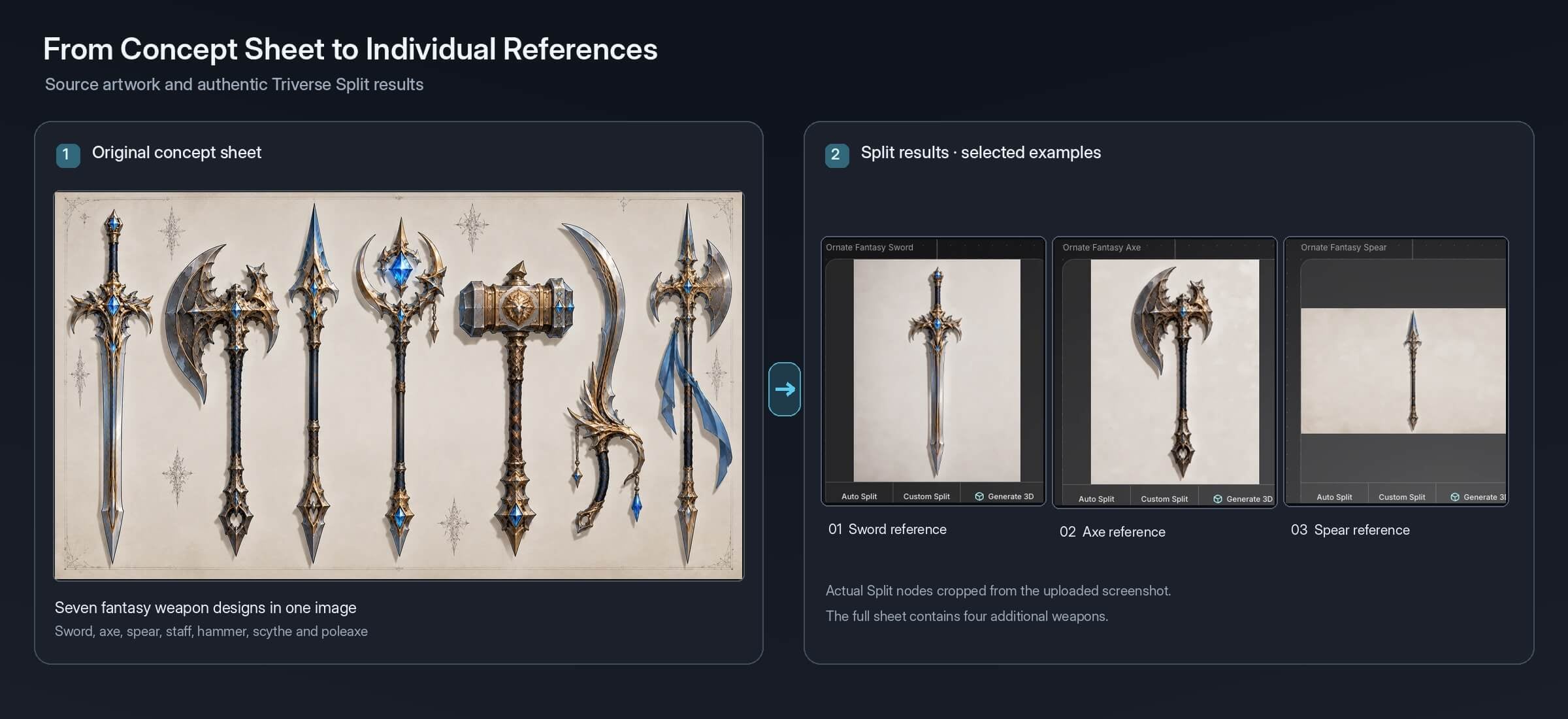
Thin and overlapping details deserve extra attention. A sword's narrow tip might disappear from the selection, while a spear positioned too close to another weapon could be included by mistake. If the designs overlap heavily, separating them manually in the original artwork may give you a cleaner starting point.
Once a weapon is isolated, you can generate its 3D model independently. This also makes it easier to revise one design without processing the entire sheet again.
Choose the Mesh Detail for How the Weapon Will Appear In-Game
A sword carried by a distant NPC doesn't need the same level of detail as one displayed in a first-person inspection screen. At a distance, the overall silhouette and major color regions do most of the work. Up close, players can see the underside of the guard, the grip's shape, and small surface details.
For lightweight game props, Artist Mesh is a useful starting point. Open Triverse AI Studio, select Artist Mesh, and upload your approved weapon reference. Choose a vertex target based on how much geometric detail the asset needs, then generate the mesh and inspect its shape before moving on to textures.
The goal is to preserve the weapon's recognizable features without spending geometry on details that won't be visible in gameplay. A curved sword or an axe with an elaborate outline may need more vertices to maintain its silhouette, while a relatively straight spear shaft can often remain simple.
Remember that the vertex setting isn't the same as the final triangle count. Check the exported mesh in your modeling software or game engine against the project's actual performance budget.
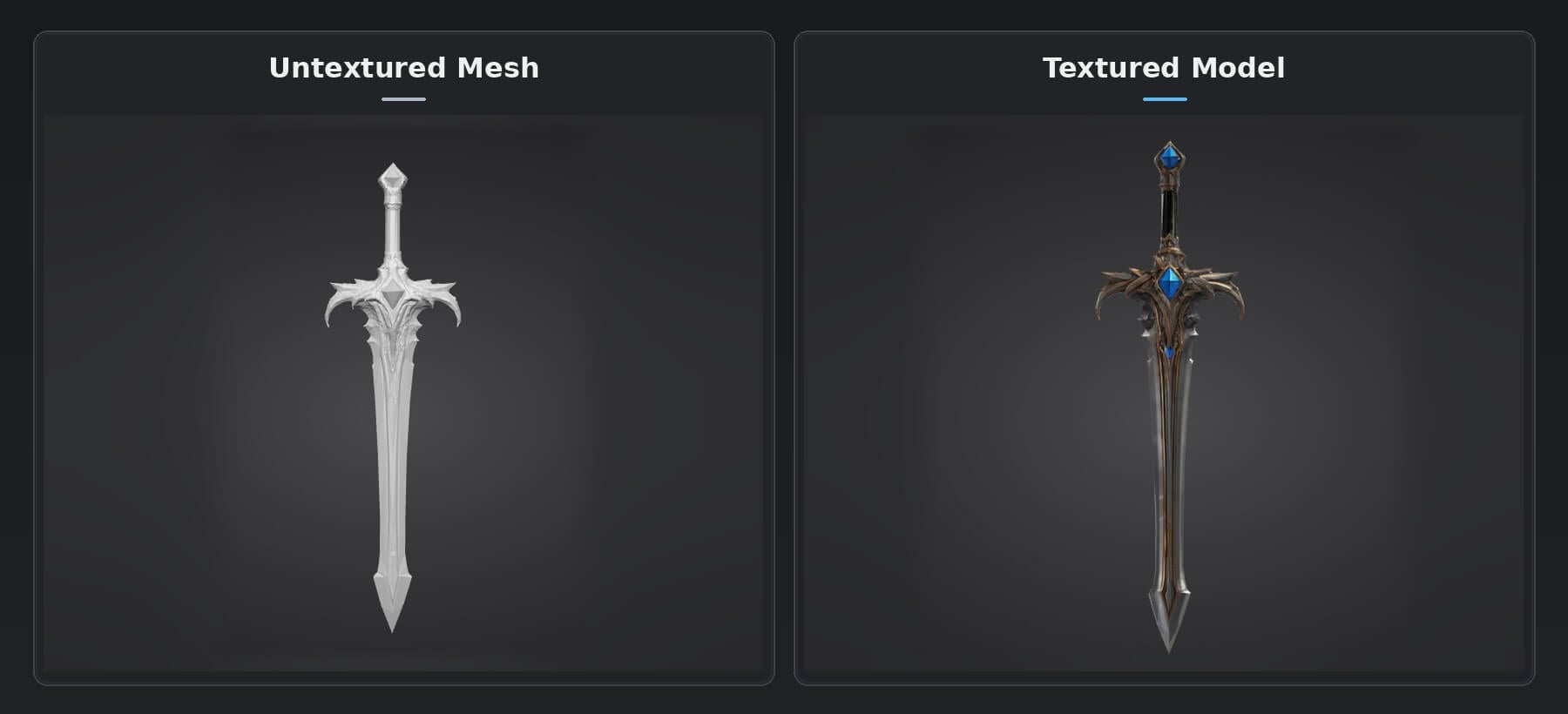
For detailed hero weapons, HD Mesh offers another approach. Its higher-detail geometry can serve as a source for intricate guards, carved ornaments, or other features intended for close-up viewing. If the mesh is too dense for real-time use, you may need to create an optimized version and bake surface details from the high-resolution model.
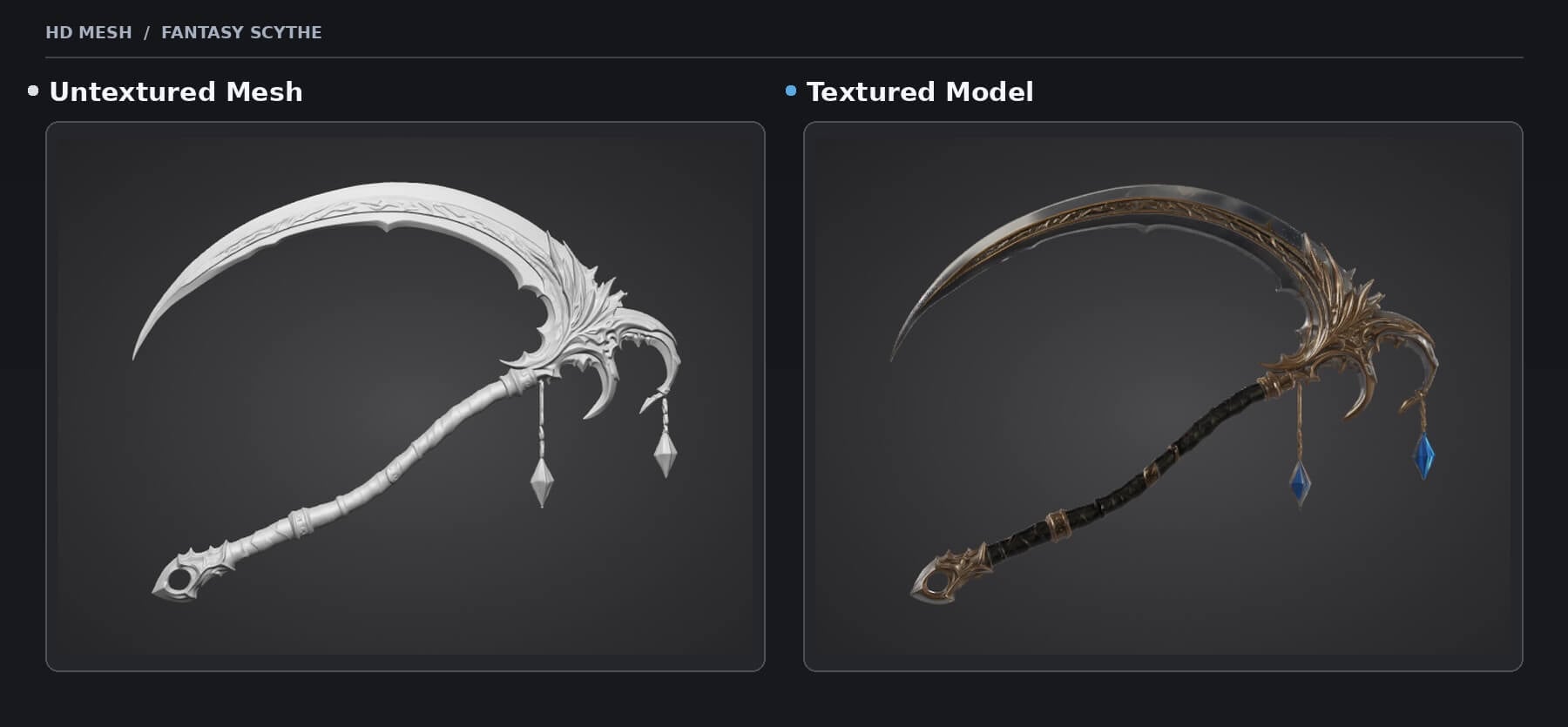
An ornate fantasy scythe is a good example of when HD Mesh can be useful. Its curved blade, layered metalwork, and hanging ornaments contain fine details that benefit from higher-resolution geometry. In Triverse AI Studio, you can adjust the polygon target and enable Ultra Mesh Quality for more detail. The Open texture option lets you choose whether to generate textures with the mesh or leave it untextured for closer geometry inspection and later material work.
Check the Blade, Guard, and Handle in 3D
A generated weapon may look convincing from the same angle as its reference and still have serious problems elsewhere. Rotate the model to see it from the front, side, and along its length. A straight blade in the illustration might curve sideways in 3D, while an elaborate guard could turn into a thick, fused shape.
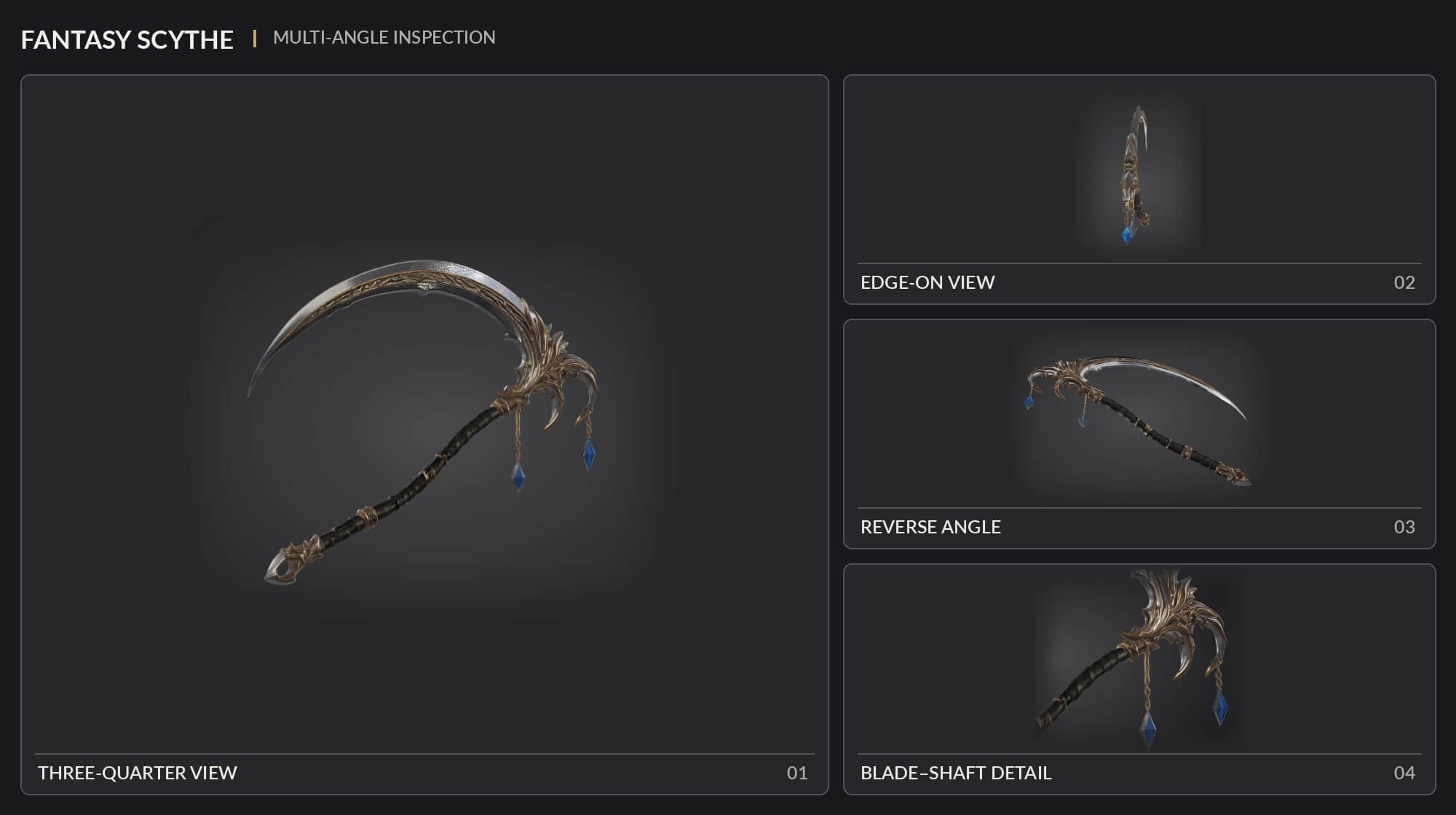
For a curved weapon like the scythe below, different angles reveal the blade's thickness, while a close-up makes it easier to inspect the connection between the blade and shaft.
Focus on the parts that determine whether the weapon will work as a game prop:
- Blade or head: Check the thickness and overall profile. Long, straight edges should remain straight where the design calls for them.
- Guard: Look for fused prongs, closed decorative openings, or pieces that don't connect properly to the blade or handle.
- Grip: Make sure there's enough continuous space for a character's hand. Large ornaments or irregular geometry can interfere with the grip.
- Connections: Examine where the blade, axe head, or spearhead meets the handle. Floating fragments and unexpected gaps usually need correction.
The reference image helps you decide where the problem started. If the original clearly shows a straight handle but the generated version bends, the mesh needs correction. If the handle was hidden in the artwork, it's worth fixing the reference before attempting another generation.
For a static weapon prop, local geometry problems can often be repaired in Blender or another modeling tool. Once the shape is satisfactory, move on to textures and materials. Pay attention to narrow areas around the guard and grip, where stretched textures or misplaced surface details tend to be noticeable.
Test the Weapon with Your Character's Animations
A weapon can look finished in a standalone 3D viewer and still fail once a character picks it up.
Export FBX for a Blender, Unity, or Unreal Engine workflow. Triverse AI's export guide also lists GLB for tools that use glTF. After importing, check the weapon's scale, orientation, pivot, and material setup.
Place the model in the character's hand before spending time on small decorative details. The grip needs to accommodate the fingers, and the guard should have enough clearance from the wrist. An oversized crossguard might look impressive on its own but intersect the character's forearm as soon as the hand rotates.
You'll also need a consistent attachment setup. In Unreal Engine, Skeletal Mesh Sockets let you attach weapons to a character's skeleton and adjust their position relative to a bone. Once the weapon sits correctly in the hand, save those settings so future weapons can reuse the same starting point.
Test more than the idle pose. A wide sword swing may bring the blade through the character's body, while a long spear can create clearance problems during turns or attack animations. If the game includes a stowed weapon position, check that as well.
When these problems appear, correct the model's proportions or attachment setup before polishing the asset further. A beautifully textured sword is still difficult to use if the character can't hold it properly.
Finish One Weapon Before Building the Set
Before generating the rest of a weapon collection, test one finished model in a simple scene with your character, game camera, and lighting. Keep its scale, attachment settings, and materials as a starting point for the next design.
Using the same setup can save time, but different weapon proportions still need attention. A longer handle may change how a spear sits against the character, while a wider axe head could interfere with an existing animation.
If the first weapon has problems, identify whether they come from the reference image, generated geometry, materials, or character attachment. Fixing the underlying issue before processing the rest of the sheet can prevent the same cleanup work from appearing across multiple models.
For a broader look at polygon budgets, topology, UVs, and engine requirements, see our guide to what makes a 3D model game-ready.
Frequently Asked Questions About AI 3D Weapon Models

Ring is a 3D artist & creator at Triverse AI. She specializes in building immersive 3D scenes and designing expressive, anime-inspired 3D avatars. When she is not craftting digital worlds, you can find she experimenting with 3D printing to bring her virtual creations into the physical world. Passionate about AI-driven workflows and interactive media, she is always exploring new ways to push the boundaries of 3D creation.