Food 3D Models for Games: Create a Consistent Set with AI
Generate food 3D models for games with AI using photos or text. Follow food prompt examples, choose mesh settings, and create textures for a consistent set.
A burger in an inventory preview has to survive close inspection. On a distant market stall, the overall shape and color are usually enough to identify a loaf. Those two uses call for different decisions before you generate anything.
To create AI 3D food models for games, follow the 3D prop generation workflow: start with the food's role, check whether the reference explains its structure, and generate a base mesh you can evaluate in the intended scene. Triverse AI provides image and text routes; the useful route depends on the material you already have.
Decide what the food needs to do in the game
Choose one representative item before building a menu of assets. A bread roll is useful for checking the overall style. With a layered sandwich, you'll also need to see the filling clearly between the two pieces of bread.
For a static shelf prop, connected layers may be acceptable if the silhouette reads correctly. A cooking game that lets players remove the cheese needs separate ingredients with usable surfaces where they meet. Plan those ingredients as individual assets from the beginning. A photograph of an assembled sandwich doesn't reveal every hidden contact surface.
Decide whether the plate belongs to the asset, too. Keeping a dish and its food together may suit fixed set dressing; separate objects are easier to reuse when the player can pick up the food. Write that choice into the reference brief so the generator isn't asked to infer a different object grouping later.
Use the closest gameplay camera to judge which details deserve geometry. A curved crust can change the outline. Use the texture for tiny seasoning marks that don't change the outline.
Check whether the reference shows the food's structure
Look for a complete outline and a view that explains the item's height. A top-down pancake photo may show its decoration well while providing little evidence of thickness. For a sandwich, check that the filling has visible boundaries rather than disappearing into a dark band.
Use Image to 3D directly with a clear, isolated reference when it already answers those questions. Triverse AI's image-to-3D guidance favors readable silhouettes, complete subjects, and even lighting. Glossy sauce and transparent containers can make the visible surface harder to interpret; a simpler reference or separately modeled container may be a better starting point.
If an illustration has a complete design but weak volume cues, 3D Enhance can create a revised 2D reference. Compare the outline, ingredient count, colors, and layer spacing before proceeding. Reject a result that adds garnish or changes the proportions. Severe blur, missing food, or heavy occlusion is a reason to replace the source.
For a sheet of separate food items, Split is an optional preparation route. Inspect each isolated item again before generating a model. An already suitable single-item image needs neither step.
Build a usable reference when you have no image
Use Text to Image when the appearance needs to be decided before the mesh. Triverse AI's Text to Image tutorial describes creating 2D concepts for a later image-to-3D step. Keep the first prompt focused on one object and the visual information needed to build it.
For example, you could try this reference brief:
One stylized baked potato game prop, broad rounded form, a clear opening with a small butter topping, warm brown skin, simple chunky details, three-quarter view, full object visible, plain neutral background, soft even lighting, no plate or text.
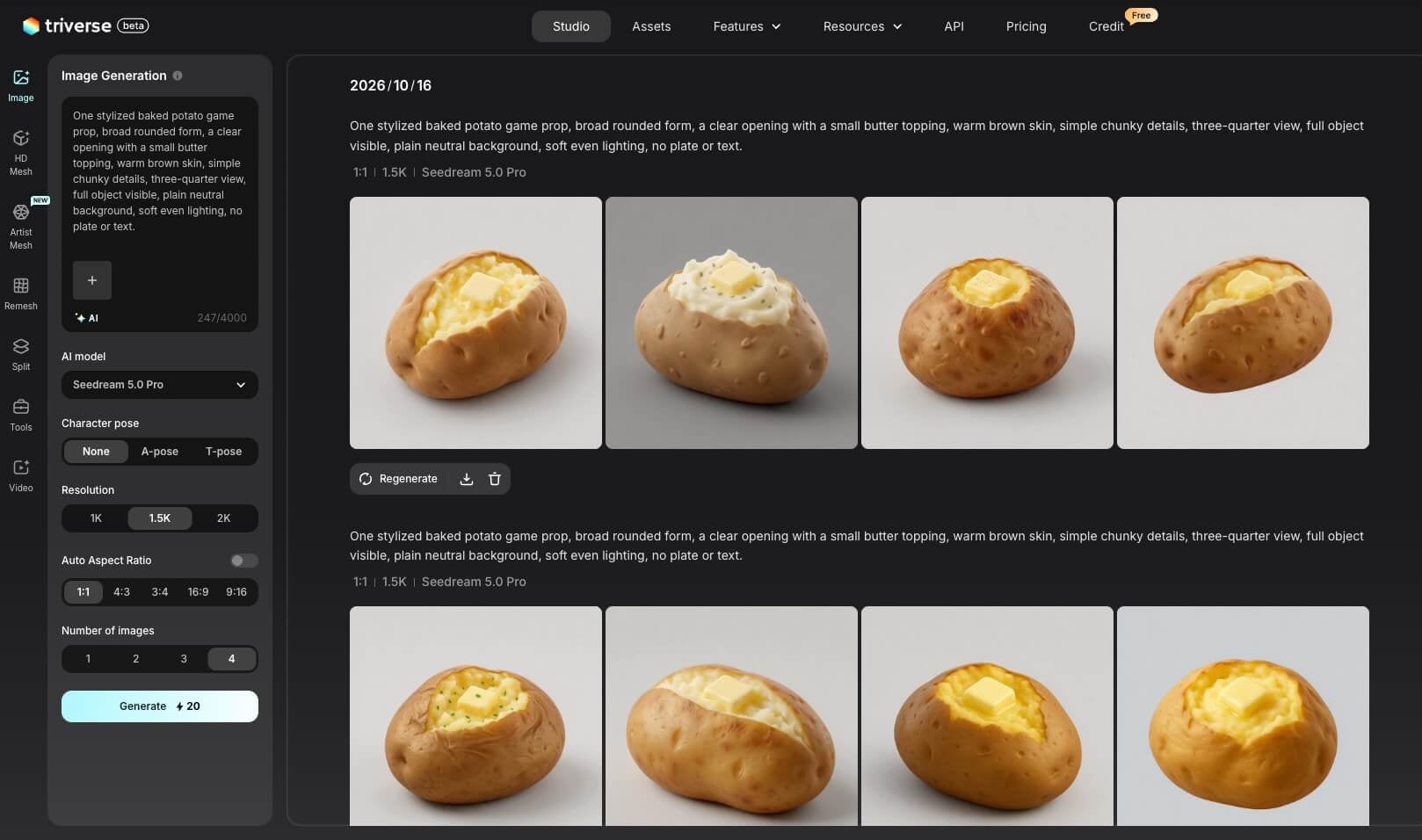
Review the generated image for extra toppings, a cropped underside, or a background that has become part of the food. Fix those issues before sending the image onward.
For a collection, keep the same viewpoint, lighting description, and degree of stylization while changing the food itself. That gives you a consistent reference brief to compare against; it doesn't guarantee that every generated image will match. If you only need a rough volume to explore, start with Text to 3D.
Generate the shape, then judge the surface
Use Artist Mesh to turn the approved image into a lightweight base mesh for your food prop. Upload that image to the Artist Mesh input in Studio.
For the baked potato above, the mesh needs to preserve the opening and butter topping as well as the overall silhouette. Start with the 2K vertex target, generate an initial mesh, and inspect those details at the closest gameplay view. If the overall proportions are right but the opening or butter topping isn't clearly defined, generate a 4K version for comparison. These settings count vertices; check the exported triangle count separately against your project's budget.
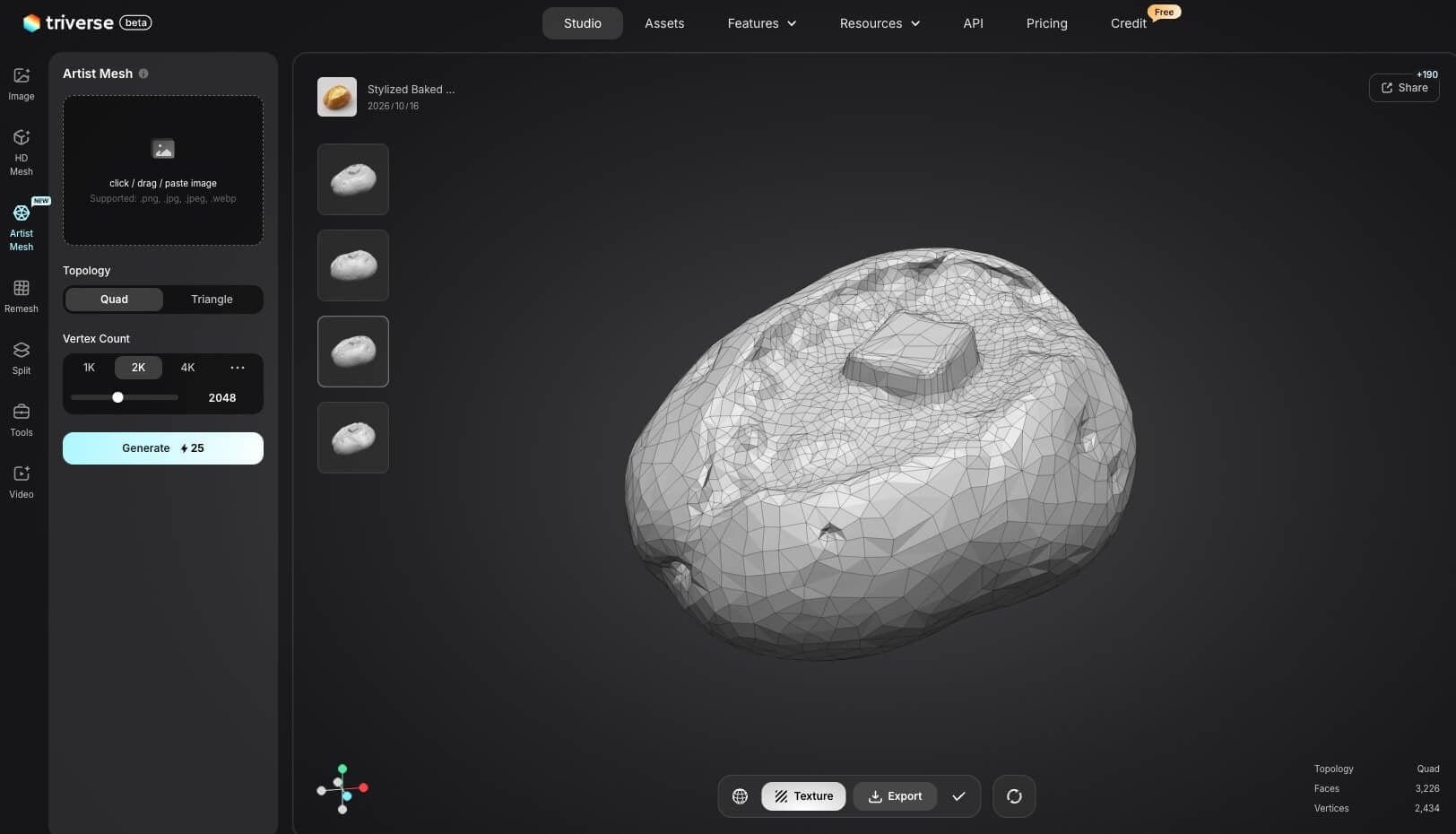
Rotate a layered food model to check the back and underside. Look for fillings that have merged into the bun, a plate fused to the base, or a missing section concealed by the original camera angle. If the reference itself leaves those areas unclear, improve the reference or edit the geometry directly.
If the shape is usable and still needs materials, continue to the texture stage. Use the AI Texturing workflow to apply materials from an image or a text prompt to the existing model. Keep material requests specific: a dry crust, a softer cut face, or a small glossy area gives you something concrete to evaluate.
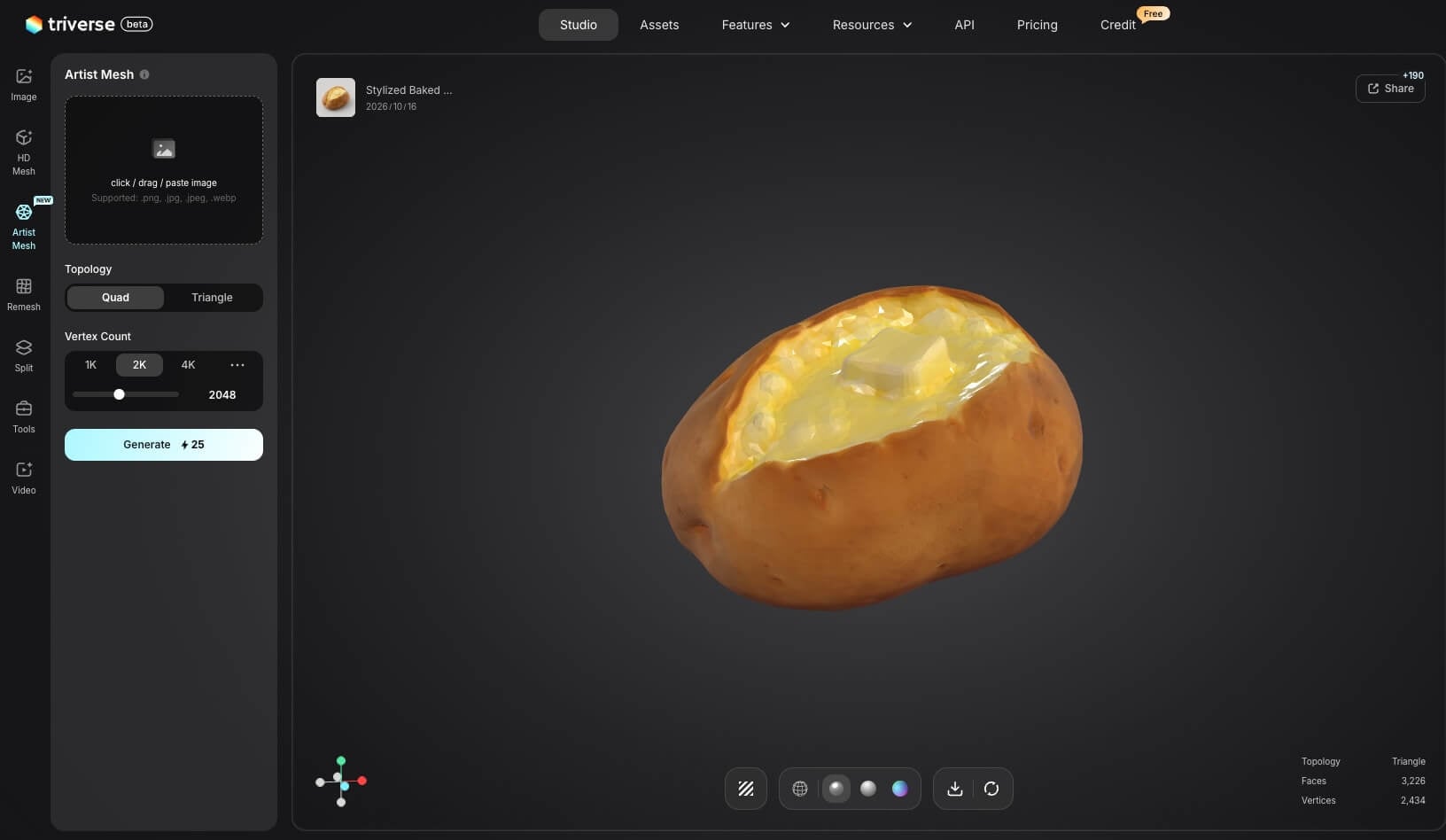
Check the result under your game's lighting. Bread that looks uniformly glossy may read as plastic; a dark stripe painted between layers may look like a gap until the object rotates. Adjust surface properties where the geometry is already correct, and return to the mesh where it isn't.
Make a small food set read as one collection
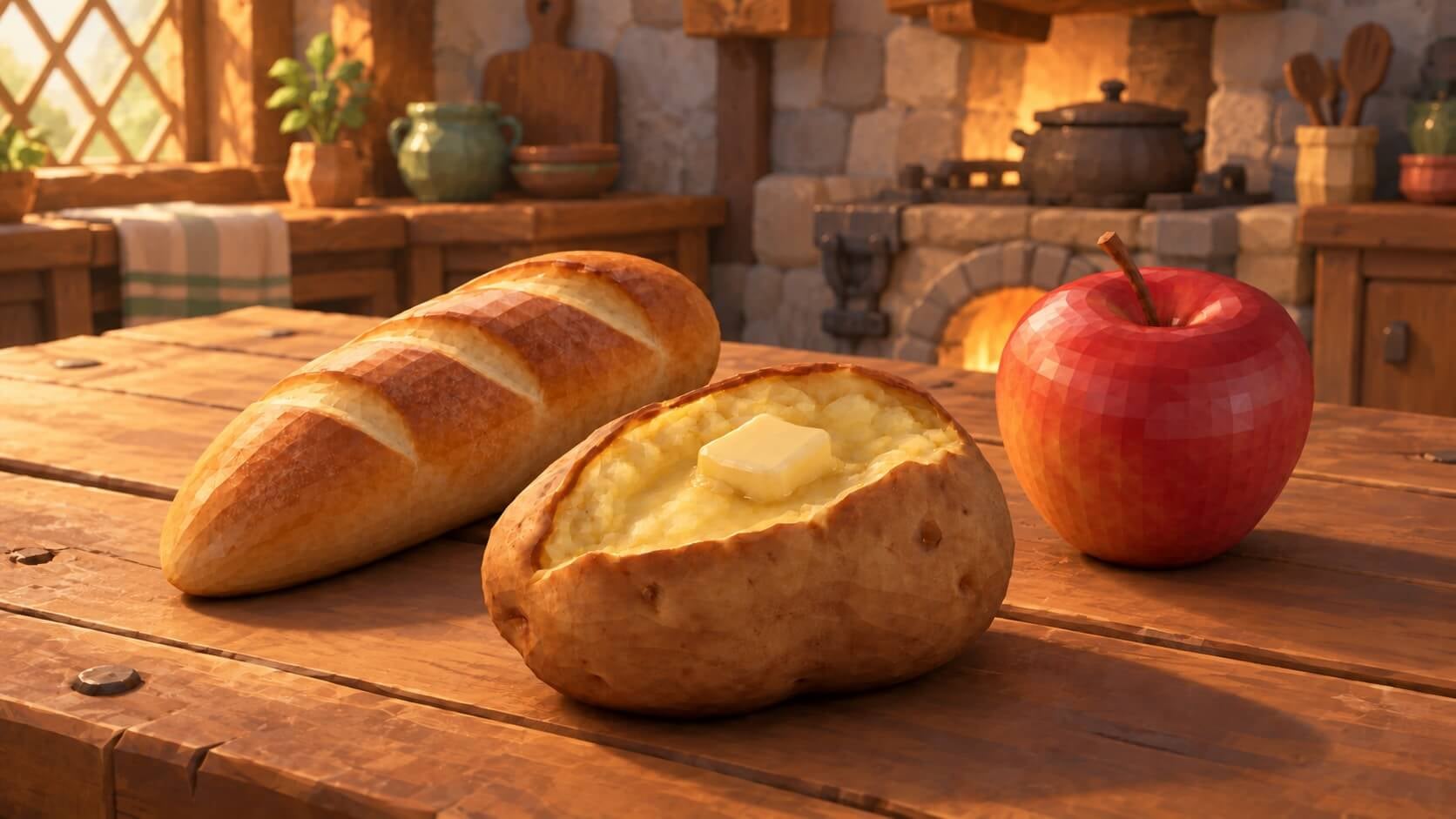
Place the first few food props together before making more. Compare the size of small details, the strength of highlights, and the balance between smooth surfaces and visible facets. For a softly stylized food set, round off a faceted loaf to match a smooth apple.
Keep a scale reference in the scene. A strawberry, a bread roll, and a dinner plate should have intentional relationships, especially when the same character can pick them up. Resizing each asset independently to fill its preview frame hides those relationships.
Use one lighting setup for this review. If the reference images contain strong highlights from different directions, inspect whether those highlights have become fixed color marks on the textures. Rotating the assets under common scene lighting makes that inconsistency easier to notice.
Choose one representative material treatment to carry through the set, then make exceptions where the food needs them. A dry loaf and a glazed pastry should still differ. Matching a collection means keeping the same visual language while preserving those differences.
Test the food where players will see it
Export one representative asset before completing the set. For a Unity or Unreal workflow, start with FBX and check the imported materials. Triverse AI's model export also provides GLB and OBJ; use them when they fit your target importer. Recheck orientation and scale against the rest of the scene.
Put the food in its actual use case. For an inventory preview, rotate it through the range the player can inspect. For a market stall, judge it from the gameplay camera with nearby props present. If it can be picked up, check the contact with the character's hand. If it moves through physics, add and test an appropriate collider in the engine.
Inspect the weakest feature first: the sandwich's filling, the bread's underside, or the pastry's silhouette. Fixing that one issue may help more than increasing texture resolution across the entire model. Review mesh and texture costs in the scene where multiple food props appear together.
A dependable reference brief and one accepted in-engine example give the rest of the collection a concrete standard.