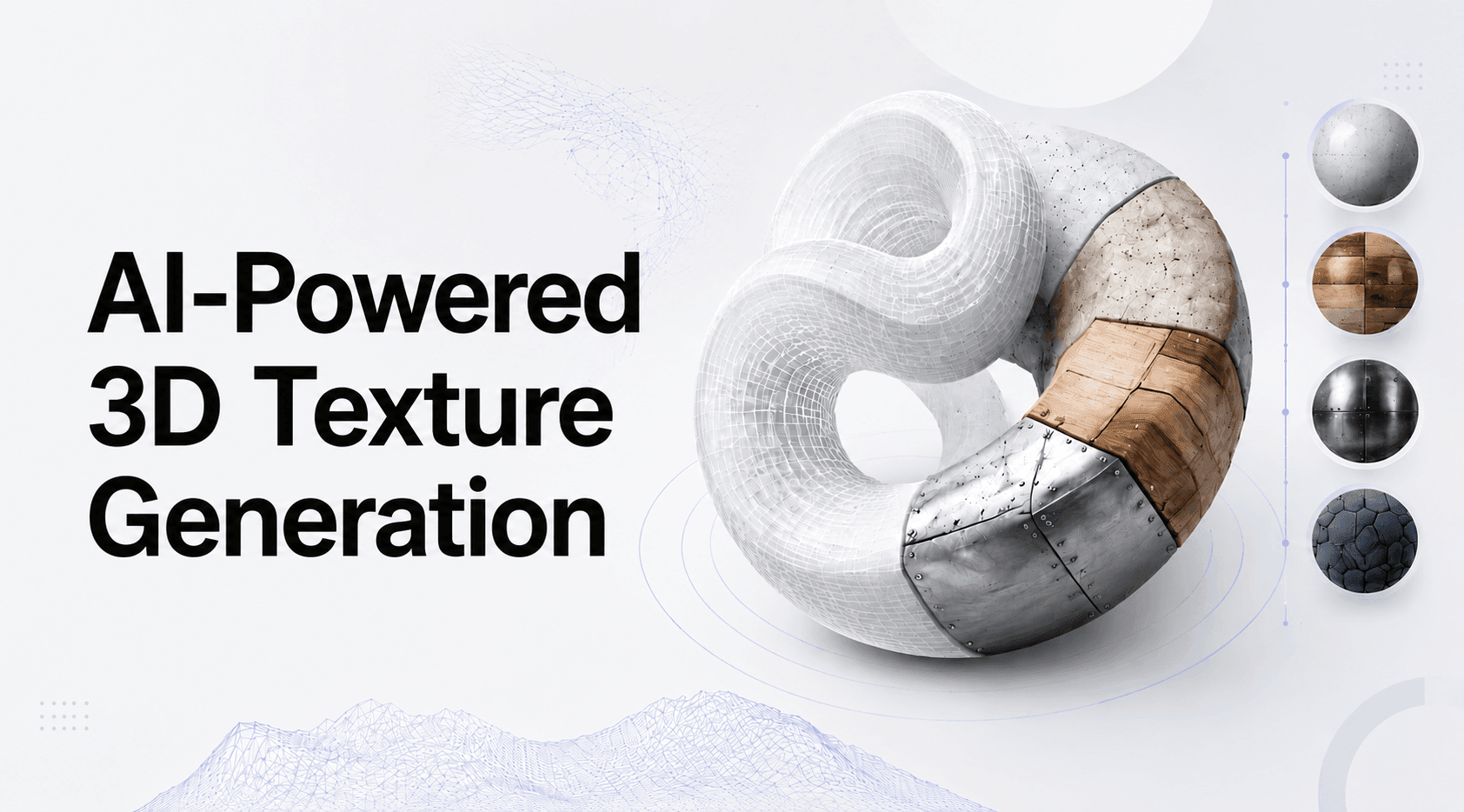
What Is UV Unwrapping? A Plain-English Guide for 3D Artists
UV unwrapping flattens a 3D model into a 2D texture layout. Learn what UV unwrapping is, why it causes stretched textures, and how to do it right for game assets.
Most broken textures are not texture problems. They are UV problems wearing a texture costume. A model looks fine in the viewport, you drop on a material, and suddenly the wood grain runs sideways or the logo stretches across the character's face. The culprit is almost always the UV layout, not the image.
UV unwrapping is the process of cutting a 3D model's surface and flattening it so a 2D texture can wrap onto it without distortion. Every game asset, product render, and printable model goes through it, whether you do it by hand or let software handle it. This guide explains what UV unwrapping does, why bad UVs produce stretched and broken textures, and what you actually need to get right before you ever open a texture editor.
What Does UV Unwrapping Actually Do?
The Analogy That Makes It Click
Think of a 3D model as an orange. The surface is curved and closed. If you want to paint a pattern on that surface and have it read correctly, you cannot just stick a flat sticker on a sphere. You peel the orange, cut the peel in a few places, and lay it flat on a table. Now you have a 2D shape you can paint, and when you wrap it back around the orange, the painting lines up.
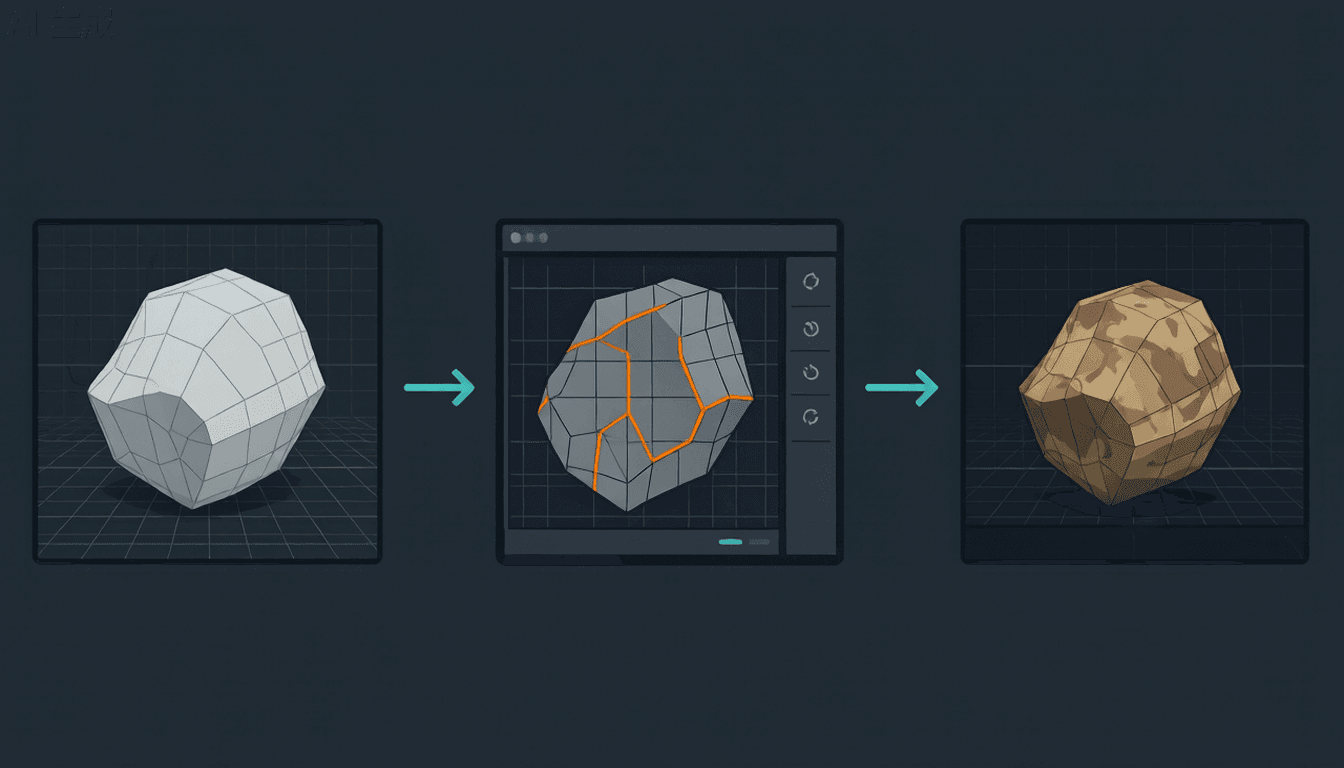
UV unwrapping does the same thing to a 3D mesh. It takes the curved surface, cuts it along chosen edges, and flattens it into a 2D layout. That flat layout is the UV map. The texture you paint or generate gets applied to the 2D layout, and the software wraps it back onto the 3D form using the UV coordinates as a guide.
Why the Letters U and V (Not X and Y)
3D space already uses X, Y, and Z for position. The texture needs its own 2D coordinate system, so the convention borrows the next two letters in the alphabet: U for the horizontal axis of the texture and V for the vertical axis. A vertex on the model gets assigned a U value and a V value, each a number, that points to a specific spot on the 2D texture.
This is why you never see X mapping or Y mapping in 3D tools. U and V are reserved for texture space so they never collide with the model's own X, Y, Z position data. For the formal definition and history of the term, the UV mapping entry on Wikipedia is a solid reference.
The 0 to 1 UV Space
The UV map lives in a square called the 0 to 1 space. The bottom left corner is (0,0) and the top right is (1,1). For most real-time game engines, every standard texture map (diffuse, normal, roughness, metallic) expects its UV coordinates to land inside that square. The glTF 2.0 specification from Khronos sets the coordinate conventions that engines rely on. Push past 1.0 and the texture starts tiling, repeating the image across the surface. That is sometimes intentional for tileable materials like brick or grass, but for unique character or prop textures it almost always means a mistake.
UV Islands, Seams, and Packing: The Three Mechanics
What Are UV Seams?
A seam is an edge where the mesh is cut so it can flatten. Back to the orange: the cuts you make in the peel are seams. On a 3D model, you mark seams along edges that will be hidden or that follow natural breaks in the shape. Every seam creates a boundary in the UV layout, and if the texture on either side of that boundary does not match, you get a visible line on the final model.
Good seam placement puts cuts on hard edges and out of sight. A seam along the inside of a character's leg is invisible. A seam straight down the middle of the forehead is not.
What Are UV Islands?
After you cut along the seams and flatten the surface, each flat piece is a UV island. A cube unwrapped with one seam per edge produces six islands, one per face. A character might produce dozens. Islands must not overlap inside the 0 to 1 space. If two islands sit on top of each other, two different parts of the model share the same texture coordinates, and the texture from one bleeds onto the other.
UV Packing: Getting the Most From Your Texture Space
Packing is the act of arranging all the islands inside the 0 to 1 square as tightly as practical. Loose, scattered islands waste texture resolution. Tight packing means more pixels per unit of surface, which means sharper detail. NVIDIA's SimReady UV best practices recommend keeping islands straight and aligned to axes so bakes stay clean, and aiming for high UV utilization on hero assets. A packed layout that uses 85 percent or more of the available UV space is a reasonable target for hero assets, with slightly lower expectations for small environment props.
Why UV Unwrapping Goes Wrong: Failure Modes
This is the part most beginner guides skip. Knowing what a UV map is does not help you when your texture looks wrong. Knowing why it looks wrong does.
Texture Stretching and Compression
When a UV island is distorted during flattening, the texture stretches or compresses to fit. A face that should show a clean logo instead shows a smeared streak. The geometry and the UV coordinates are out of sync. Fixes include adding more seams to relieve tension, switching to a conformal unwrap method that preserves angles, or pinning specific vertices in the UV editor and relaxing the rest.
UV Seam Visibility in the Final Render
Seams that land on visible surfaces show up as hard lines, especially under directional lighting or when the texture changes abruptly across the cut. The fix is upstream: move the seam to a hard edge or a low visibility area before you unwrap, not after you notice it in the render.
Overlapping UV Islands
Overlapping islands cause color bleed, ghosting, and broken normal map bakes. If two islands occupy the same coordinates, the baker cannot tell which surface a pixel belongs to. The only fix is to separate the islands and repack, then re-bake if you are transferring detail from a high poly model through the normal map baking process.
Texture Tiling Artifacts Outside 0 to 1 Space
UV coordinates that run past 1.0 make the texture repeat. For a tileable floor that is the goal. For a unique prop it means the brick pattern suddenly doubles up or the skin texture wraps around twice. Check whether the repeat is intentional before you start cutting seams.
Manual vs. Automatic UV Unwrapping: When to Use Each
Automatic UV Unwrapping: Fast, Good Enough for Props
Every major 3D tool ships an automatic unwrap. Blender's Smart UV Project, Maya's automatic mapping, and dedicated tools like RizomUV can produce a workable layout in seconds. For simple props, environment pieces, and low poly game assets, automatic unwrapping is usually enough. The seams land wherever the algorithm decides, but on a crate or a barrel nobody is looking that closely.
Manual UV Unwrapping: Required for Characters and Hero Assets
Characters, vehicles, and hero props need manual seam placement. Auto unwrap puts cuts wherever the math lands, which is rarely where you want them on a face, a forearm, or a car door. Manual unwrapping gives you control over where seams fall, how big each island is, and how consistent the texel density stays across the surface. This is the work that separates a student grade asset from a shipped one. If you are picking up 3D modeling software for beginners, learn manual seam placement early because it is the skill that ages best.
Hybrid Workflow: Auto Unwrap, Then Fine-Tune
The most common production approach is not one or the other. Auto unwrap first to get a starting layout, then open the UV editor and adjust seam placement, relax distortion, and repack islands by hand. You get most of the speed and none of the surprises.
UV Unwrapping for Game Assets: What Actually Matters
Game assets live under stricter rules than a one off render. Three things decide whether your UVs hold up in engine.
Texel Density: The Rule That Governs Everything Else
Texel density is the ratio of texture pixels to world units. If one asset gets 512 pixels per meter and a neighboring asset gets 256, they look different at the same camera distance even with identical textures. Consistent texel density across a scene is what makes textures feel unified instead of patchy. Pick a target (for example 512 pixels per meter for environment props, higher for heroes) and hold every asset to it. The PBR and UV foundations from Adobe Substance 3D explain why consistent texture space matters for believable surfaces.
Understanding what makes a 3D model game ready starts with this number, because texel density is one of the first things a technical artist checks.
Lightmap UVs: A Separate Channel, Separate Rules
Engines that use baked lighting need a second UV channel just for lightmaps. Lightmap UVs must not overlap and must have padding between islands so light does not bleed from one surface to another. This channel is independent of the primary UV channel your color and normal maps use, and getting it wrong produces splotchy lighting that no texture fix can solve.
UDIM: When One Texture Tile Is Not Enough
UDIM lets a single asset span multiple texture tiles. If one 4K map cannot hold the detail a large hero asset needs, UDIM tiles spread the texture across several files, each its own square of UV space. It is a cinematic and hero asset technique more than a mobile game technique, but it is the answer when a single tile caps out.
How to Fix a Bad UV Layout Without Starting Over
Diagnose Before You Redo
Before you delete the UV map and start fresh, identify which of the four failure modes from the section above applies. A stretched island and an overlapping island need completely different fixes, and one of them might be a five minute adjustment.
Quick Fixes in the UV Editor
Pinning islands, relaxing distortion, and adding edge splits for hard surfaces fix most problems without a full re-wrap. The UV editor in tools like Blender shows stretching as a color overlay so you can see problem areas directly instead of guessing from the render.
When Re-Unwrapping Is the Only Option
If the seam strategy is fundamentally wrong, say seams down the center of every visible face, patching bad islands costs more time than starting over. Re-mark the seams correctly and unwrap once. It is faster than fighting a broken layout for an hour.
How AI-Generated 3D Models Handle UV Unwrapping
AI image to 3D generators have changed how fast teams get a starting mesh, but they have not removed the need to understand UVs. Here is what those generators actually output and where the manual work still pays off.
What AI Generators Produce: And What They Skip
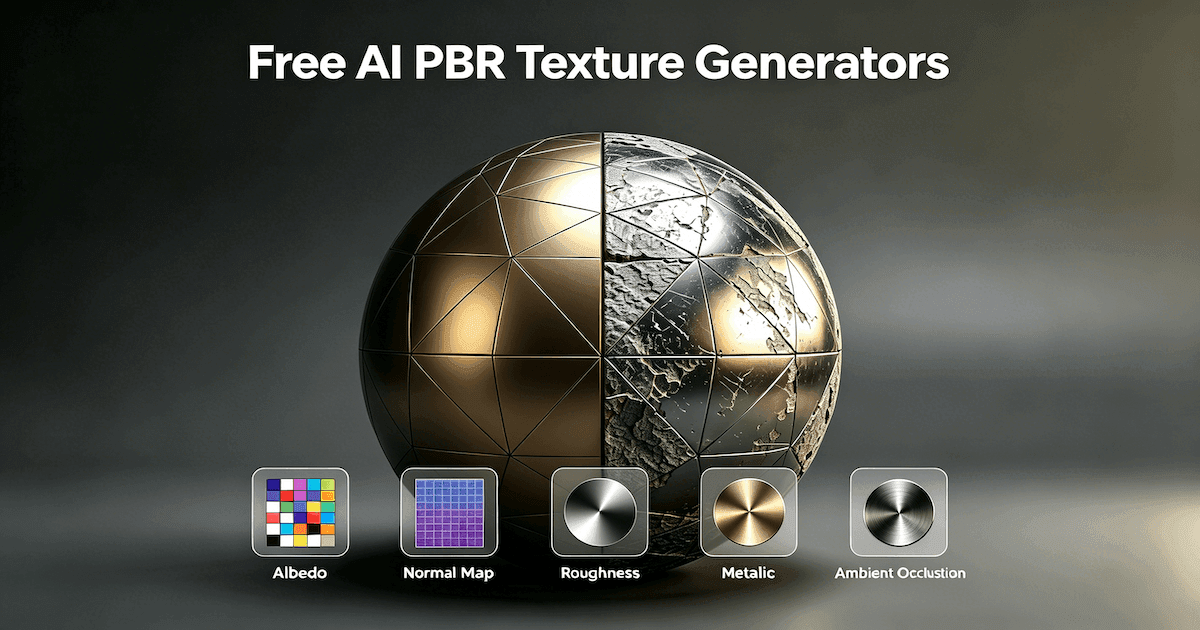
Image to 3D generators output a mesh with an auto-generated UV layout. The UV coordinates are functional, meaning textures map onto the surface without falling apart, but they are not hand optimized. For many use cases that is fine. An AI texture generation pipeline paired with an auto UV layout produces presentable results on static props within minutes, and platforms like Triverse AI ship PBR textures alongside the mesh so the texturing step is mostly done.
When AI UV Layouts Need a Manual Pass
The honest line: auto UV layouts from AI tools are good enough for environment pieces, props, and quick prototypes, but characters, vehicles, and anything that needs pixel precise seam placement benefit from a manual pass. The default auto layout tends to scatter seams in ways that show under close lighting. A short manual unwrap in Blender fixes it.
The Cleanup Workflow: AI Mesh to Game-Ready Asset
For assets that need manual UV work, the path is straightforward. Generate the mesh, open it in Blender, run a quick manifold check, mark seams where they belong, unwrap, verify island packing and texel density, then export. The guide on how to clean up the UV layout in Blender covers the step-by-step. Tools like Triverse AI generate export ready meshes with PBR textures, so the manual UV pass is the bridge between generation speed and production quality, not a rebuild from zero.
UV Unwrapping vs. UV Mapping vs. Texture Baking: Sorting the Terminology
These three terms get used interchangeably and they should not be. For the formal distinction, the UV mapping entry on Wikipedia breaks down each stage.
UV unwrapping is the flattening step. It cuts and lays out the surface.
UV mapping is the broader process that includes unwrapping, projecting, and laying out the 2D coordinates on the model. Unwrapping is one part of mapping.
Texture baking takes data from a high poly model, like normals or ambient occlusion, and transfers it onto a low poly model using the UV layout as a guide. No UVs means nothing to bake onto. The normal map baking process depends entirely on a clean UV layout being in place first.
Common UV Unwrapping Mistakes (And How to Avoid Them)
- No seams marked before unwrapping. The tool picks cuts for you, usually badly. Mark seams first.
- Seams on the face of a character. Move them to the hairline, ears, or back of the head.
- Overlapping islands. Check the UV layout before you bake. Overlap breaks normal maps.
- Inconsistent texel density across scene assets. Set a target and measure it.
- Forgetting the lightmap UV channel for baked lighting. Unique textures and lightmaps need separate channels.
- Auto unwrap on complex organic models without a manual pass. Characters need hands-on seam work.
Bottom Line
UV unwrapping is flattening a 3D surface into a 2D texture layout. The mechanics are seams, islands, and packing. The consequences of getting it wrong are stretched textures, visible seams, and broken bakes, not just an ugly preview. The decision is simple: a simple prop gets auto unwrap, a character or hero gets manual seam placement, a large asset that outgrows one tile gets UDIM. AI 3D model generators like Triverse AI skip the initial UV work but still need a manual pass for anything that ships in a hero role. Learn to read a UV layout and you stop guessing why your textures look wrong.