How to Turn Your OC into Anime Figures for 3D Printing with AI
Turn OC artwork into anime figures with AI. Explore chibi, full-body, and bust options, prepare references, and export models for 3D printing.
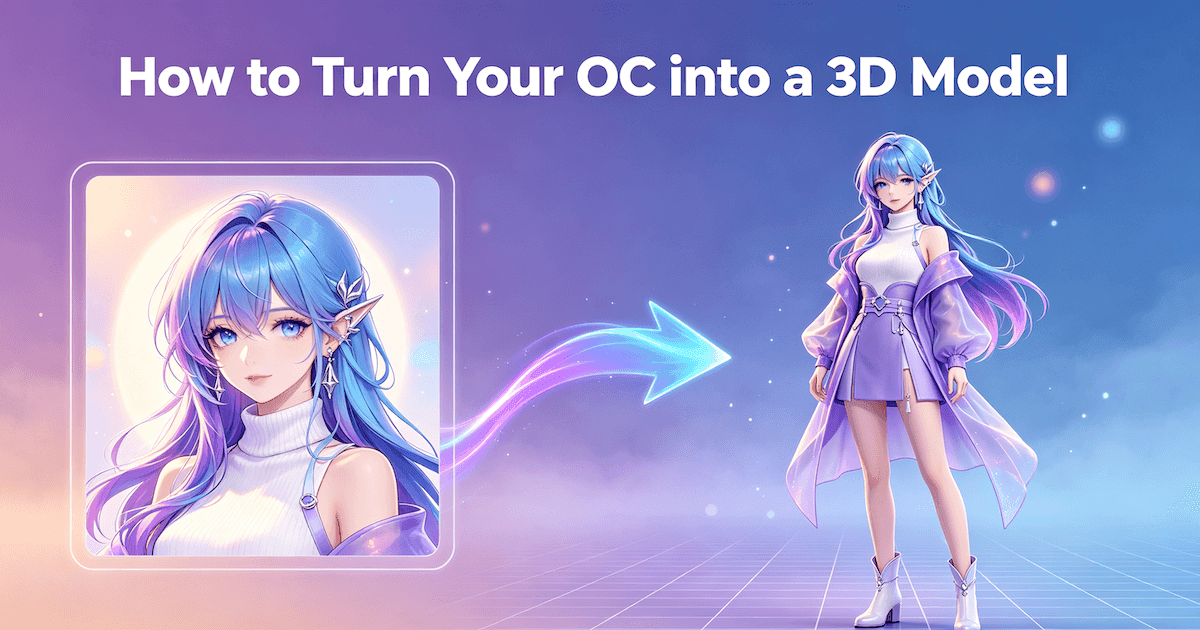
Your OC already has the hairstyle, outfit, and expression you want. Now you want a figure of that character on your desk. AI 3D model generation gives you a way to start with your existing artwork, without sculpting the character from scratch. The most useful starting choices are the type of figure you want and how much of the design needs to become a physical shape.
Choose a Figure Type That Suits Your OC
A compact chibi figure, a full-body anime figure, and a bust put the emphasis on different parts of the same character. Choose the format that shows what you like most about your OC. A bust can use either chibi or standard anime proportions.
Chibi Figures Work Best with Bold, Recognizable Shapes
A compact chibi design is a practical first project when the character is recognizable from a few strong shapes. The oversized head puts the expression and hairstyle at the center, while the smaller body lets the outfit read through its main forms.
Keep the features that carry the character's identity, such as a distinctive fringe, a large hair bow, or a recognizable collar. There's no need to give every decorative detail equal weight. Tiny chains and overlapping charms can be simplified during AI generation, even when the main character is easy to recognize.
For your first version, choose a reference with a simple pose and a readable outline. A waving hand or a small change in stance can give the figure personality without making an elaborate action scene the starting point. If you want a base, include that display choice when preparing the figure-style reference.
Keep Full-Body Anime Figures Simple at First
A figure with standard anime proportions shows more of the character's complete costume and pose. It also asks single-image AI generation to interpret limb lengths, joints, clothing, and the relationships between them. A drawing can suggest these through outlines, while a 3D model needs surfaces with depth.
Start with a relaxed standing pose and a clear outfit silhouette. A simple jacket and skirt, dress, or fitted uniform gives you a more manageable starting design than several layers of armor, a flowing cape, and a weapon crossing the body. Keep the original proportions in the reference; choosing standard anime proportions doesn't mean making the character photorealistic.
💡 Already Have High-Quality Views from Other Angles?
Include them when generating the model. Clear, consistent views provide more information about the character's proportions, clothing, and overall shape, reducing how much the AI needs to infer from one image.
Without additional views, you can still start with one prepared image. Favor a straightforward design, and consider making a large bag or handheld prop separately rather than including every object in the first character model.
Anime Busts Put the Face and Hairstyle First
A bust is useful when the expression, hairstyle, or upper-body costume is the main reason you want a figure. It removes the need to build the entire lower body into the design, but the closer focus makes the character's facial impression especially important. A bust isn't automatically an easier portrait project just because it contains less of the body.
Choose artwork that clearly shows the expression you want to keep. A head-and-shoulders composition emphasizes the face and hair; a chest-up bust also gives space to a sailor collar, necktie, brooch, or other signature clothing feature.
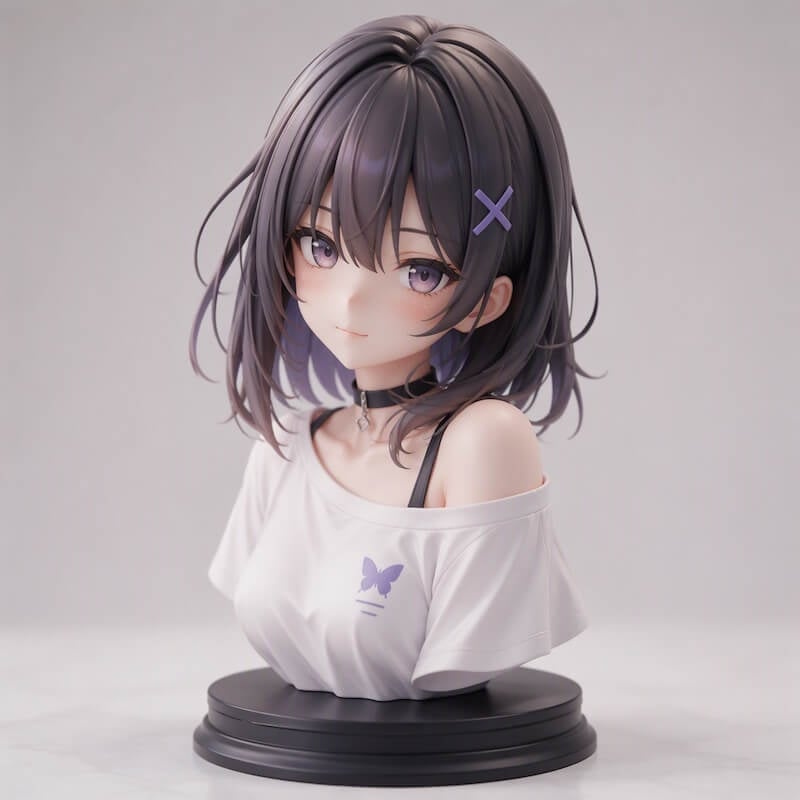
If your existing artwork is full-body, start with a clear crop of the upper body, keeping the hairstyle and shoulders visible. If you already have a suitable half-body illustration, use that as your starting reference. You don't need to invent a complete outfit or lower-body pose for a figure that will only show the upper body.
Prepare a Clear Reference and Plan Separate Accessories
Use the highest-quality original artwork you have. Facial features, hair shapes, and clothing edges should remain clear when you zoom in. A larger file doesn't help much if the character itself is still blurred or visibly compressed.
Before processing the image, decide which accessories you want to make separately. Remove those items from the character reference and save a clear standalone image for each. Keep identity-defining features on the character rather than treating every decoration as something to remove.
Printing a backpack, bag, or handheld prop separately gives each piece its own print orientation and makes it easier to paint the accessory and the clothing behind it. It also lets you adjust or reprint one piece before assembly without printing the whole figure again.
This is particularly useful when the accessory is a substantial object in its own right. A large shoulder bag can have its own reference and model file, while a collar or broad bow can remain part of the character design.
Give Your Anime Reference More Depth
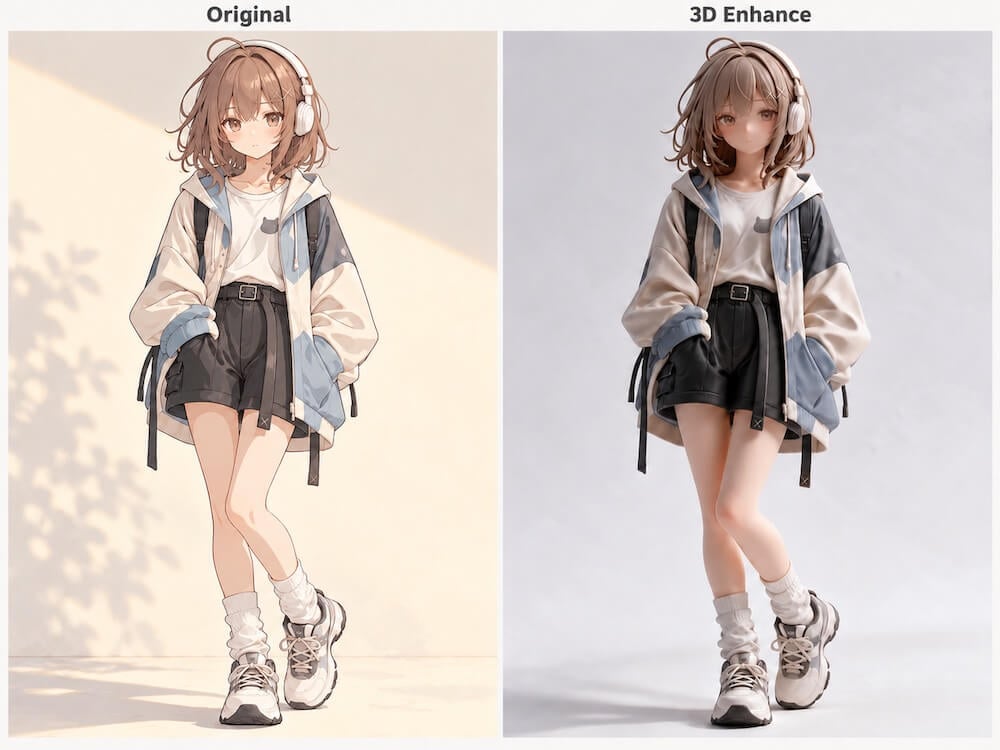
Flat anime artwork often relies on linework and color blocks to describe form. Before generating a mesh, you can use image preparation to give the character clearer volume and lighting. Using Triverse AI as an example, two Image Tools can help with this step.
Use 3D Enhance for a More Dimensional Reference
Open 3D Enhance and upload the prepared artwork. It adds volume and lighting cues to the face, hair, and clothing, making the image look closer to a 3D render.
This is useful for flat-color anime illustrations where the design is already clear. The tool handles the dimensional treatment; you don't need to paint the shading or build a 3D reference yourself.
Use Photo to Figure When You Want a Base
Photo to Figure also gives the character a more dimensional, figure-like appearance, with the addition of a display base. Use it when a figure standing on a base is the presentation you want to carry into model generation.
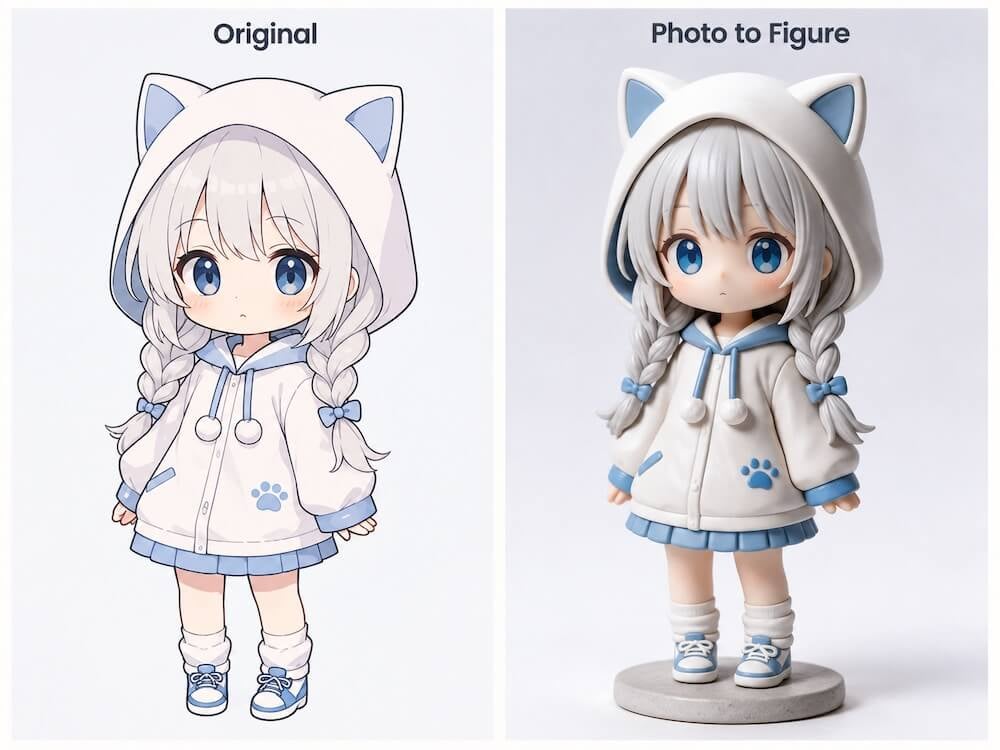
Choose the tool that fits your intended result, then download the prepared reference. You don't need to run both tools as a standard sequence. Their output is the image you'll use for the next step.
📚 Further Reading on Reference Preparation
- What makes a good input image for 3D — Explore resolution, lighting, and compression in more detail.
- How to use Triverse AI Image Tools — Find the controls for preparing your reference.
Generate Your Figure from the Prepared Image
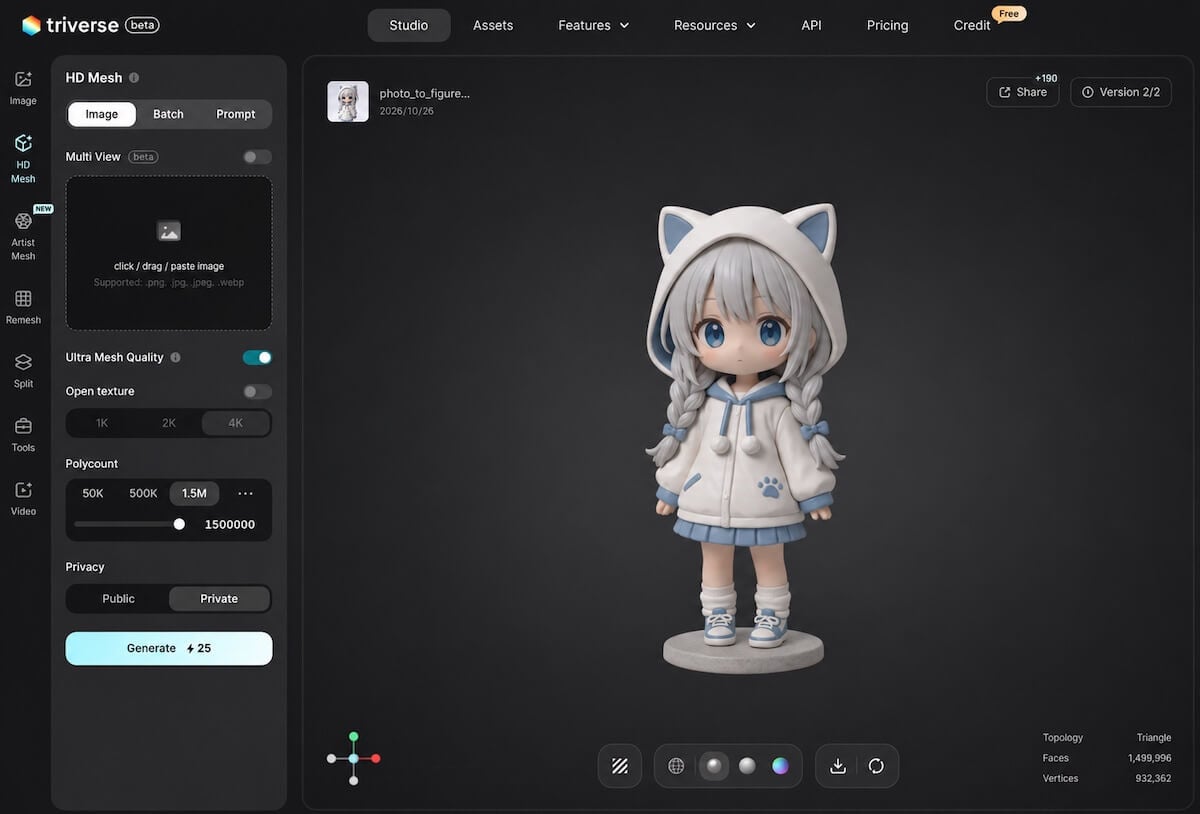
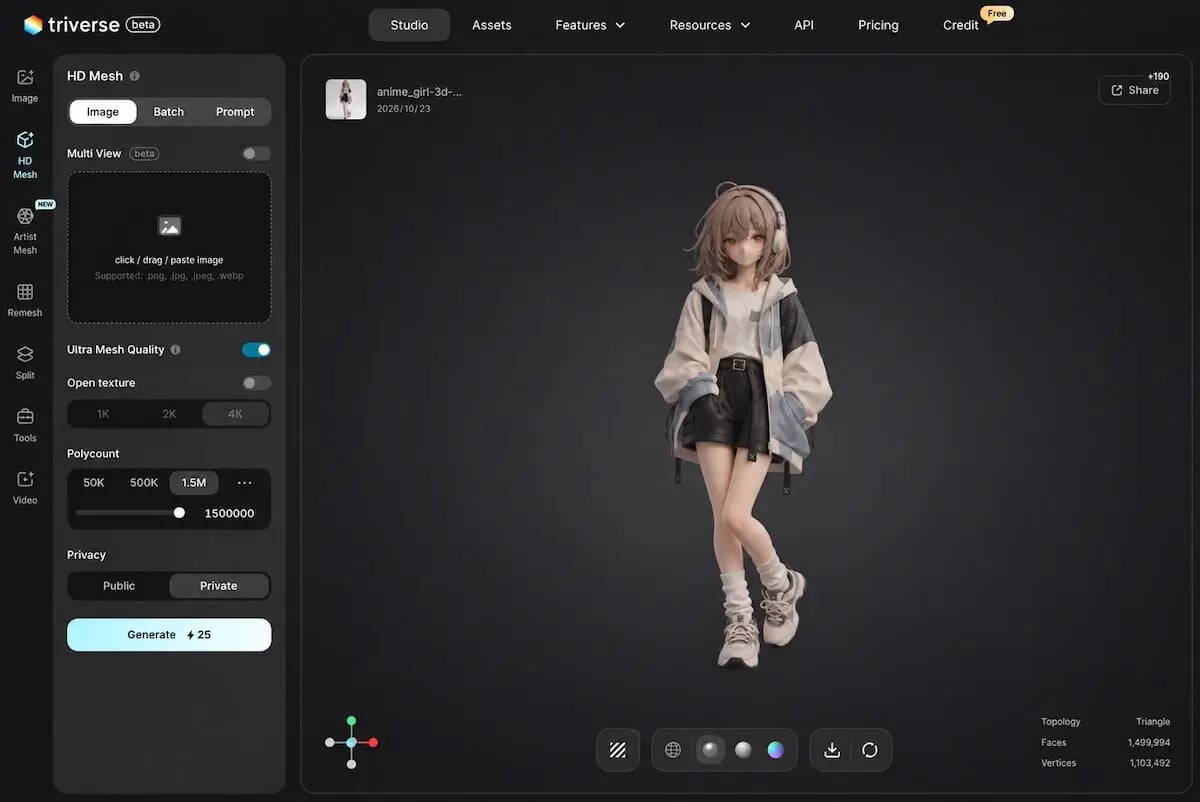
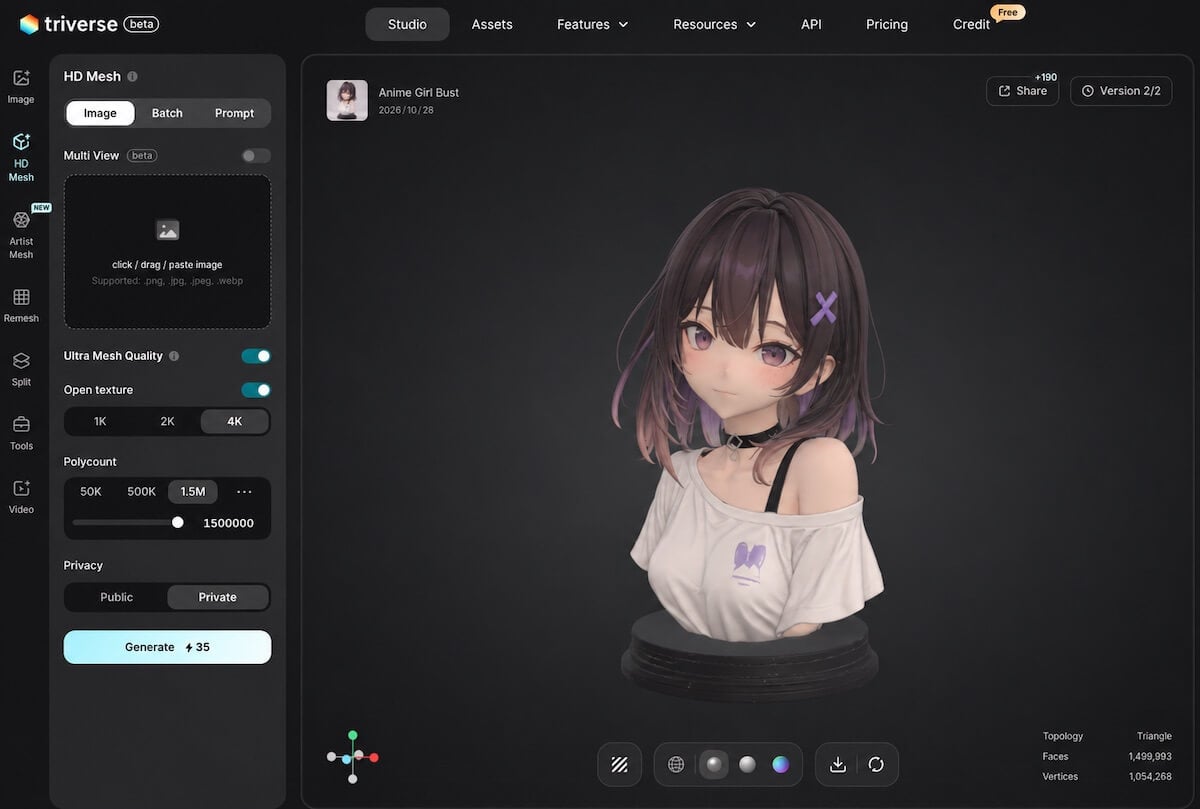
Use Image to 3D to turn the reference into a mesh. For a display figure, HD Mesh is a suitable starting point because it focuses on detailed geometry.
For a first pass, you can keep the current defaults. Polycount controls geometric detail, while texture settings affect the model's on-screen appearance. The volume of a hair bow and the layers of a skirt belong to the model's shape; eye color and a printed fabric pattern describe its appearance. A sharper texture doesn't replace the geometry needed to give a feature thickness.
Open model generation in Triverse AI and follow the Image to 3D workflow:
- Select the image input workflow.
- Upload your prepared reference. If you're using several matching views, enable Multi View Upload and add them.
- Review the settings, then click Generate.
Once the model is ready, rotate it in the viewer. For a chibi figure or bust, look at the facial impression and hairstyle from several angles. For a full-body figure, also look at the overall proportions and stance. If the reference includes a base, view the figure and base together.
Generate independent accessories from their standalone references, keeping each model file separate. This lets you prepare the character and its parts as a coordinated set later.
Export Your Figure for Printing
When you're happy with the model, export an STL file. Have any separate accessories sized to match the body before printing.
For mesh checks, slicing, supports, and other print preparation, follow our guide to creating printable 3D models.