How to Convert Multiple Images to 3D Models: The Complete Workflow
Learn how to convert multiple images to 3D models. Compare multi-view and batch workflows, use the decision matrix, and export clean game-ready assets.
September 16, 2026
The phrase "convert multiple images to 3D models" hides two different jobs. One is multi-view reconstruction: several photos of the same object, one model out. The other is batch: many unrelated images, one model per image. Pick the wrong one and the output looks broken even though the tool did exactly what you asked. This guide shows you how to tell them apart, then walks the batch workflow from photo to exported asset, with a decision matrix and tool comparison so you can queue the right run the first time.
Multi-Image to 3D Is Two Jobs, Not One
The confusion starts with language. Search results blend multi-view reconstruction and batch conversion into one pile, so beginners grab whichever tool ranks first and hope for the best.
Multi-view reconstruction is the older idea. It grew out of photogrammetry, the technique of rebuilding 3D geometry by comparing several photos of the same subject. The AI versions automate the hardest part, which used to be feature matching. You can read the broader history on Wikipedia's photogrammetry overview if you want the background, but the practical version is simple: more angles, better geometry.
Batch conversion is newer and closer to a factory line. Each image is independent. Nothing gets stitched, nothing gets compared. The model for image one has no idea image two exists.
If you are still deciding whether to start from an image or a text prompt at all, our breakdown of how image-to-3D and text-to-3D differ covers that fork in the road first.
Multi-View vs Single Image: When One Photo Is Enough
If you only have one usable shot of the object, multi-view is off the table, and you are into single-image territory. That works well for roughly symmetric, front-facing subjects and poorly for anything whose back you cannot see. Treat single-image generation as a fast first pass, not a substitute for a proper multi-view set when accuracy matters.
Multi-view: same object, several angles, one model
Use this when you need one faithful model of one specific thing. A tabletop mini, a sneaker, a chair, a prop you can physically walk around and photograph. You feed the tool two to eight photos of that single subject, and it infers depth from the parallax between them. The output is one mesh with one texture set. Geometry gets sharper as you add useful angles, up to a point.
Batch: many images, many separate models
Use this when you need volume. Twenty props for a game level, fifty product SKUs for a store, a stack of concept sketches you want blocked out fast. Every image stands alone and produces its own file. The bottleneck is not the algorithm; it is your ability to name, sort, and QA the pile of results afterward.
The 30-second self-test
Open the folder you plan to feed the tool. If every image shows the same object from a different side, you want multi-view. If each image shows a different object, you want batch. If it is a mix, split the folder into two runs before you start. Do not let a tool guess, because the result of a mixed batch is always worse than two clean runs.
How to Batch Convert Multiple Images to 3D Models
Batch conversion handles one scenario: you have a folder of unrelated images, and you want one clean model per image, without running each one separately. That is a throughput problem, not a reconstruction problem. The tools differ on how many images they accept in one run and what quality you can expect.
Triverse AI runs this as a separate mode called Batch. Open Triverse Studio, go to HD Mesh, and choose Batch. Drop in up to 6 images at once, pick your texture resolution and vertex preset, and click Generate. Each image produces its own independent model, and you can download them one at a time from Assets. The Batch Generate panel shows the credit cost before you commit, so a large run does not surprise you at checkout.
One thing to know about concurrency: the Pro plan handles 3 images at the same time. If your batch has more than 3 objects, Triverse AI queues the extras and works through them automatically. You do not have to run the job twice manually, but for large runs it is worth breaking the workload into multiple sessions so nothing times out. If you have more than 3 objects to generate, split them across multiple batch runs.
Once your images are queued in Batch Mode, the Batch Generate panel is where you set the rules for the whole run. You choose the mesh mode (HD Mesh for dense detail or Artistic Mesh for clean game-ready topology), the texture resolution (1K, 2K, or 4K), and a target model face count. The panel shows the credit cost for the batch before you commit, which is useful when you are generating dozens of cards at once. Export everything, then reassemble the pieces into a scene in Blender if you need the full composition back.
Triverse Split: one image, many objects
A batch upload is the wrong move when your source is a single image that already contains several objects. Triverse Split handles that case: it detects the individual objects in one frame, turns each one into its own card, and generates them one at a time. The Triverse Split guide walks through the interface. The practical rule is simple: many images of different objects go to Batch Mode, one image of many objects goes to Split.
For the prop side of this workflow, our guide on how to generate 3D props from image or text prompts goes deeper.
Batch quality versus single-generation quality
Do not expect a batch to match the fidelity of a carefully staged multi-view shot. Batch trades peak fidelity for throughput. For background props, modular kit pieces, and blockouts, that trade is excellent. For a hero character the camera lingers on, shoot it properly with multi-view, or generate it alone and clean it by hand.
Which Method Do You Actually Need? A Decision Matrix
Most people can pick their method in a few seconds by matching their input and goal against the table below.
Your input | Your goal | Best method | Typical tool |
|---|---|---|---|
2 to 4 photos of one object | One detailed model | Multi-view | Triverse Artist Mesh, Meshy |
1 clean front-facing photo | One quick model | Single-image | Artist Mesh, 3D AI Studio |
6 unrelated photos at once | 6 separate assets fast | Batch (direct upload) | Triverse Batch Mode |
1 photo of a full room | Many separate props | Split then batch | Triverse Split + Batch |
50+ product photos | Bulk SKU library | Batch pipeline / API | Local TRELLIS 2, Studio API |
1 photo, glossy or clear object | Faithful scan | Neither, hard case | Manual cleanup required |
The last row is the honest one. Transparent, mirrored, or highly reflective objects are still a weak spot for every image-to-3D method on this list. No prompt or angle count fixes a missing surface, so set expectations before you promise a client a scan of a glass bottle.
Tools Compared: What Each One Handles
Here is how the main options differ on the two axes that matter most: multi-view input and batch output.
Tool | Multi-view | Batch (many images) | Split (one image, many objects) | Notes |
|---|---|---|---|---|
Triverse | Coming soon | Up to 6 images per run, 3 concurrent on Pro plan | Auto or Custom per-object cards | Batch + Split are separate workflows |
Meshy | Up to 4 images | Up to 10 per run | No | Broad feature set, heavily documented |
Tripo | Supported | Limited | No | Fast, strong for iteration |
TRELLIS 2 | Up to 4 (ComfyUI) | Manual pipeline | No | Free, needs a capable GPU |
3D AI Studio | Aggregates models | Varies | No | Bundles several engines in one UI |
Neural4D | Multi-view mode | Up to 10 per run | No | Direct3D-S2 architecture, 90s base generation |
Where Triverse wins in practice is on topology quality for game-ready props and on the Split workflow for single-image multi-object situations that neither Meshy nor Neural4D handle at all.
glTF sits underneath most of these as the interchange format, and the Khronos glTF overview is the canonical description of it. If you want a wider field of generators than this short list, our roundup of the best AI 3D model generators for game dev puts them side by side.
Common Problems and How to Fix Them
Nearly every frustrating result traces back to one of five causes. Here is how to spot and fix each one.
Thin parts vanish. Straps, antennae, and wire frames often disappear because they occupy fewer pixels than the model can resolve. Thicken them before generation, or generate at a higher density and scale the geometry up.
Textures swim or misalign. This usually means the UV layout does not match the geometry, often after you applied transforms in Blender. Reset scale, then re-run the export with correct UVs rather than re-generating the model.
Geometry is non-manifold or full of holes. This breaks slicing and confuses engines. Repair it before anything else, because retopology and texturing on broken geometry just produce broken results.
The whole thing looks melted. Almost always failed view alignment in a multi-view run. The photos were too similar, too few, or lit inconsistently. Reshoot with more separation and even light.
Filenames are chaos after a batch. Hundreds of model_final_v3.glb files are unusable in a project. Decide your naming scheme before you export, not after.
For a fuller symptom-by-symptom breakdown, keep our AI 3D generation troubleshooting guide bookmarked.
After Generation: Clean Up, Export, and Ship
Generation is the halfway point. What you do next decides whether the assets are actually usable.
Work the cleanup in order: check for non-manifold geometry first, reduce the poly count second, fix UVs third, then apply textures, and export last. Doing it out of order causes the same fix to break twice. Export an intermediate GLB after each stage so you can roll back one step instead of starting over.
Format choice depends on the destination. GLB and glTF go into engines and the web with materials intact, which is why the official glTF 2.0 specification from Khronos is worth understanding even at a high level. OBJ is the safe, universally importable fallback. FBX is what you reach for when the asset carries a rig or animation. Our full 3D file format comparison for game assets maps each format to its use case.
For the import side of the pipeline, the engine docs are the ground truth: Unity's guide to importing model files, Unreal's FBX import guide, and Sketchfab's list of supported 3D file formats when you need a quick sanity check on what a platform accepts.
A Pre-Flight Checklist Before Engine Import
Before anything enters the project, run a short pass: confirm the mesh is watertight, confirm the poly count fits your target platform, confirm the texture resolution is not wildly higher than it needs to be, and confirm the assets are named and sorted.
Generate Your Own with Triverse AI
Triverse covers both halves of this article directly.
For multi-view and single-image work, Artist Mesh takes a PNG or JPG, runs at 1K, 2K, or 4K vertex presets, and outputs clean triangle topology for a flat 25 credits. The clean output means most game props skip retopology entirely. The Artist Mesh clean topology workflow walks through the settings.
For batch work, Triverse's Split feature handles the split-then-generate loop described earlier, and the Batch Generate panel lets you apply a single texture resolution and face-count target across many cards at once.
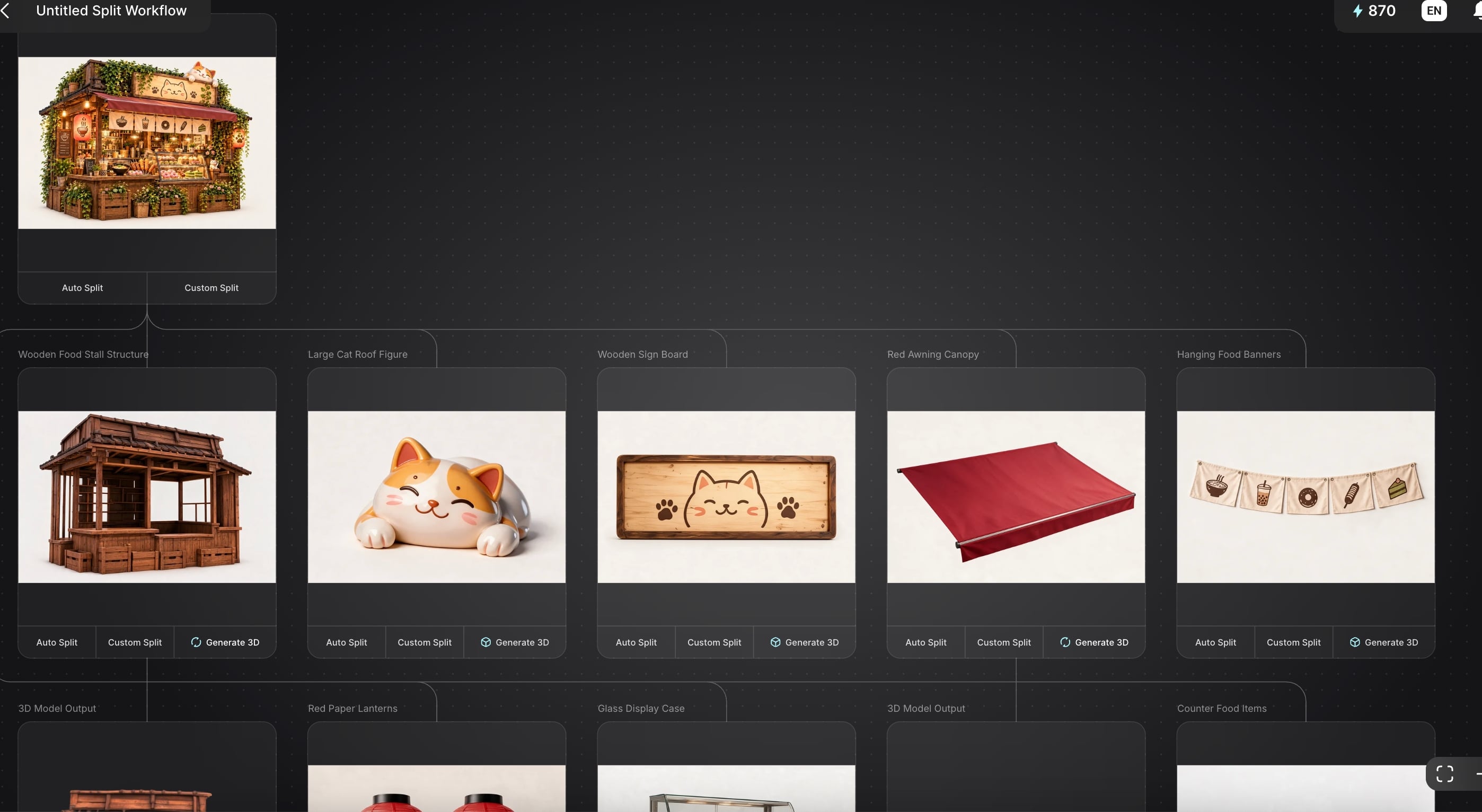
If you need dense geometry for normal-map baking or a high-poly source, HD Mesh is the mode for that, since it is built for detail rather than low-poly output. You can learn the detailed user guide for Split here: https://triverse.ai/tutorials/decomposed-into-parts-triverse-split-guide
The honest boundary: complex rigged characters still need a careful manual retopology pass, and Split works best on clearly separable objects rather than overlapping, tangled ones. For props, kit pieces, and product assets, it removes most of the busywork.
Bottom Line
Multi-view and batch are not competitors; they are answers to different questions. If you need one faithful model of one object, shoot it from several angles and use multi-view. If you need a pile of assets fast, split each image into separate objects and batch them. Most wasted hours come from picking the wrong one.
The practical sequence for a mixed project: shoot heroes properly for multi-view, split busy scene photos into per-object cards, generate everything, clean in strict order, then export to GLB for engines and FBX when a rig is involved. Triverse handles the middle of that pipeline, from single image through split-and-batch, so the manual cleanup stays confined to the few assets that genuinely need it.
Frequently Asked Questions about Converting Multiple Images to 3D Models
Can I turn multiple photos into one 3D model instead of separate ones?
Yes, that is exactly what multi-view reconstruction does. Feed the tool two to eight photos of the same object from different angles, and it returns a single model. The keys are overlapping angles, consistent lighting, and a plain background. If your photos show different objects, you are doing batch conversion instead, and you will get one model per image.
How many images do I need for multi-view 3D reconstruction?
Two is the practical minimum, and it only works if the views overlap well. Four views (front, back, left, right) is the sweet spot for most objects. Beyond eight images, you usually add processing time and noise rather than detail. Quality of angles matters far more than raw count.
What is the difference between batch processing and multi-view image-to-3D?
Multi-view combines several photos of one object into a single model by comparing them. Batch treats each image as independent and produces one model per image, with no stitching between them. Multi-view optimizes fidelity for one subject. Batch optimizes throughput across many subjects.
Does batch generating multiple 3D models at once hurt quality?
It trades peak fidelity for speed. Each object still gets generated on its own, so quality does not collapse, but it will not match a carefully staged multi-view shot of the same object. For background props and modular kit pieces, the trade is a clear win. For a hero asset, generate it separately and clean it by hand.
Can I use phone photos to generate 3D models?
Absolutely, and most people do. Modern phone cameras have more than enough resolution. What matters is lighting and overlap, not the camera. Shoot in even, diffuse light, keep the background plain, and move around the object rather than zooming, since zoom changes the perspective in ways that hurt alignment.
What file formats should I export AI-generated 3D models in?
Use GLB or glTF for engines and the web, since they keep materials and textures intact in one file. Use OBJ as a universally safe fallback that every tool imports. Use FBX when the asset needs a rig or animation. Pick based on destination, then confirm the target platform accepts the format before you build a whole pipeline around it.
How do I fix a model that came out with missing or broken geometry?
Fix geometry before anything else. Thin parts that vanished need to be thickened, and holes or non-manifold edges need repairing before retopology, because every later step assumes clean geometry. If the whole model looks melted, the cause is usually failed multi-view alignment, so reshoot with more separation and even light rather than trying to repair the output.