AI Texturing (Based on Image/Text)

2026年3月23日

Triverse AI's Texturing feature lets you apply new materials and styles to existing 3D models.

Already have a great model? Transform it into "Winter," "Desert," "Cyberpunk," or any other variant without re-modeling.


Texturing Tips

A good texture reference or prompt gets you better results. Here's how to approach it.

Do's (Best Practices)

Don'ts (Things to Avoid)

✅ Use clear reference images: high-contrast, well-lit texture photos work best

❌ Avoid blurry or low-contrast references

✅ Be specific with prompts (e.g., covered in green moss and mud is better than mossy)

❌ Avoid overly complex textures

✅ Match the scale: if texturing a small object, use close-up texture references

❌ Avoid too many details at once  ( e.g., usty, wet, covered in moss, with gold accents is too complex)

✅ Test variations: generate multiple textures to find the best look

✅ Consider context: think about where the model will be used (game, render, print)


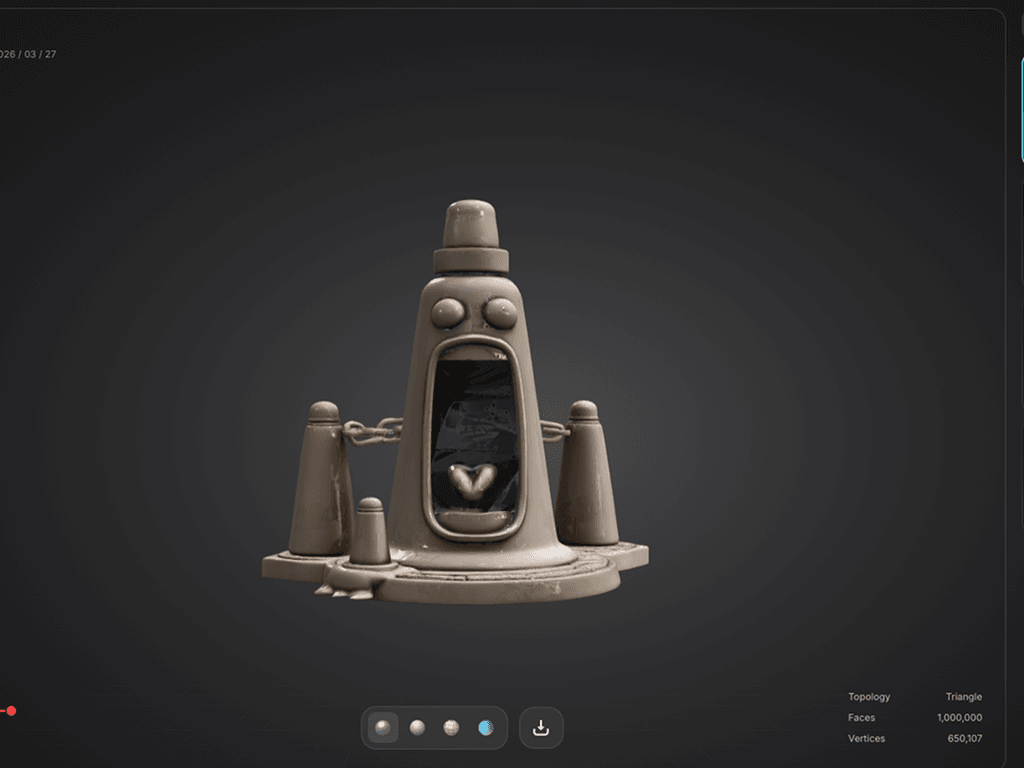
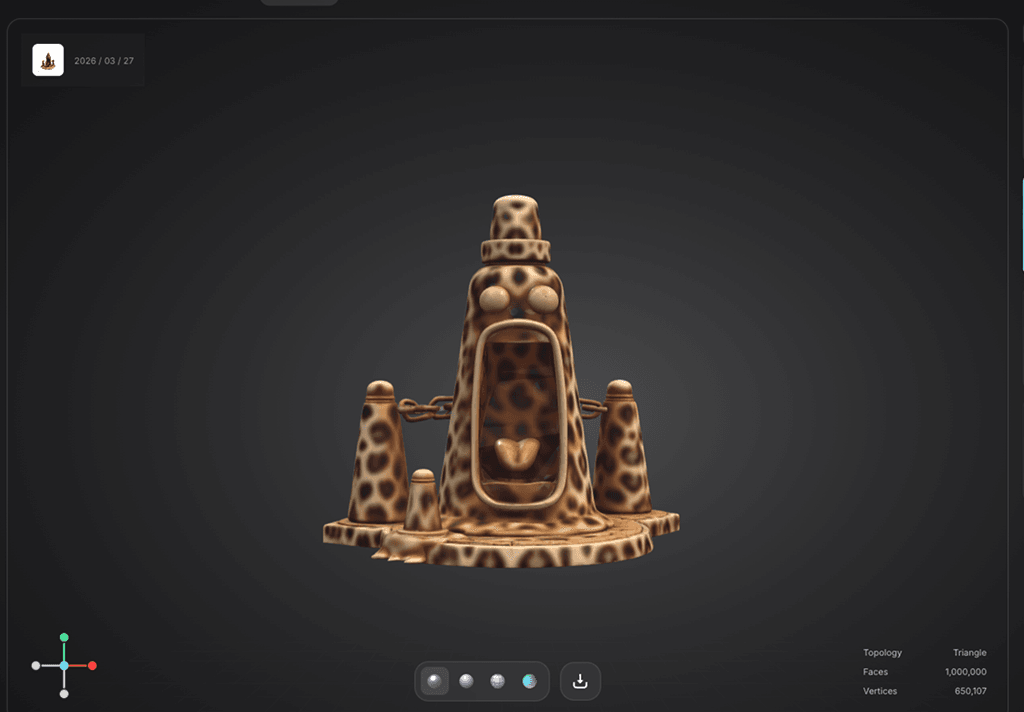
Example: Creating Texture Variants of a Traffic Cone

Let's walk through a real example: taking a basic traffic cone model and creating multiple texture variants (rainbow, marble, leopard print) using different reference images.

Step 1: Load Your Model

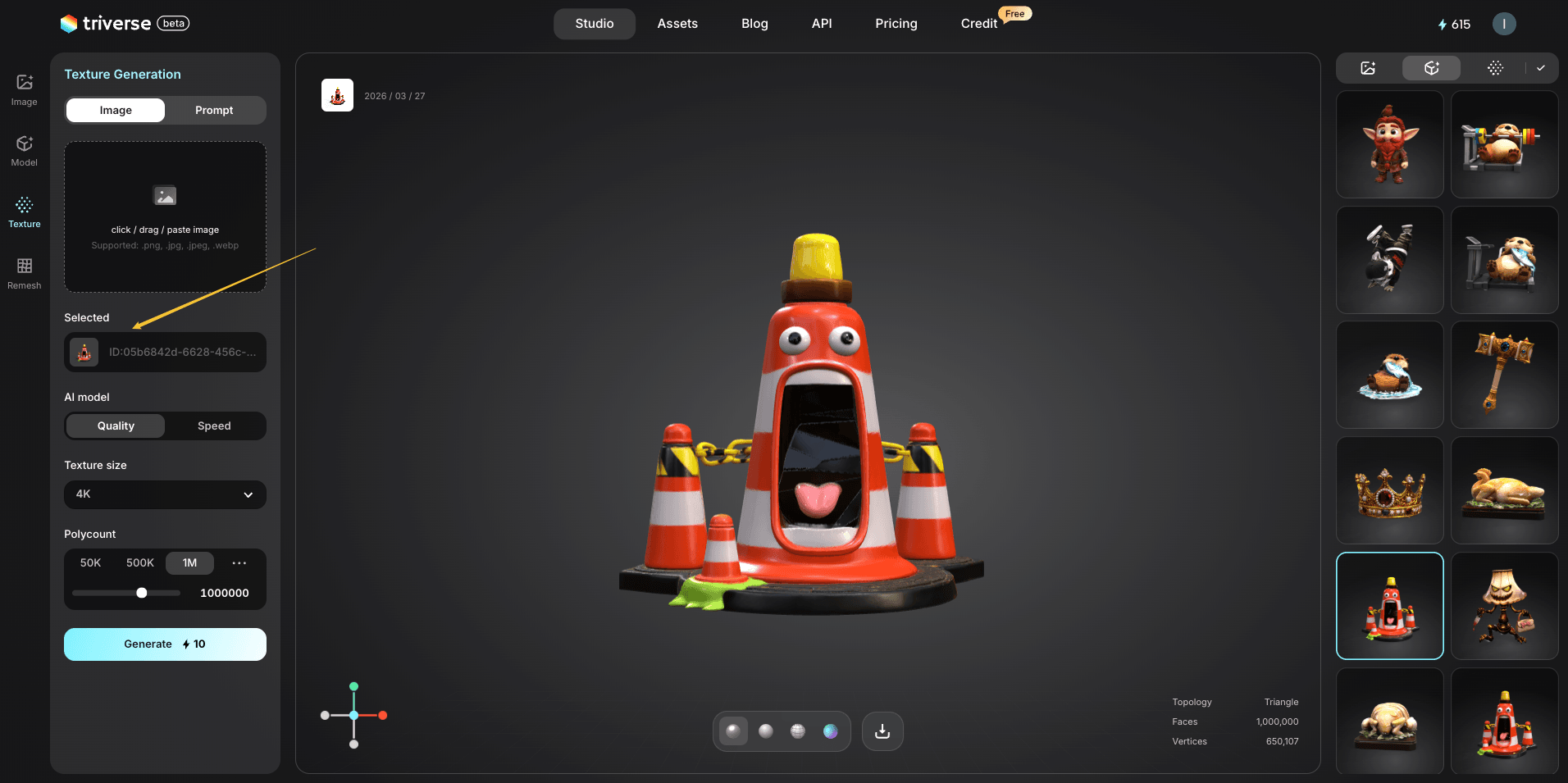
Go to Triverse Studio. Then click the Texture icon on the left panel.

Choose your traffic cone model from your asset library and load it into the viewport.

triverse texturing choose model

Step 2: Choose Your Input Method

You have two options:

  • Option A: Text Prompt 

Describe the texture you want: "rainbow gradient stripes", "marble stone texture", "leopard print spots".

  • Option B: Reference Image 

Upload a photo of the texture you want to apply: a marble tile, leopard fur, rust, fabric, etc.

For this example, we'll use reference images.

Step 3: Upload Texture Reference & Generate

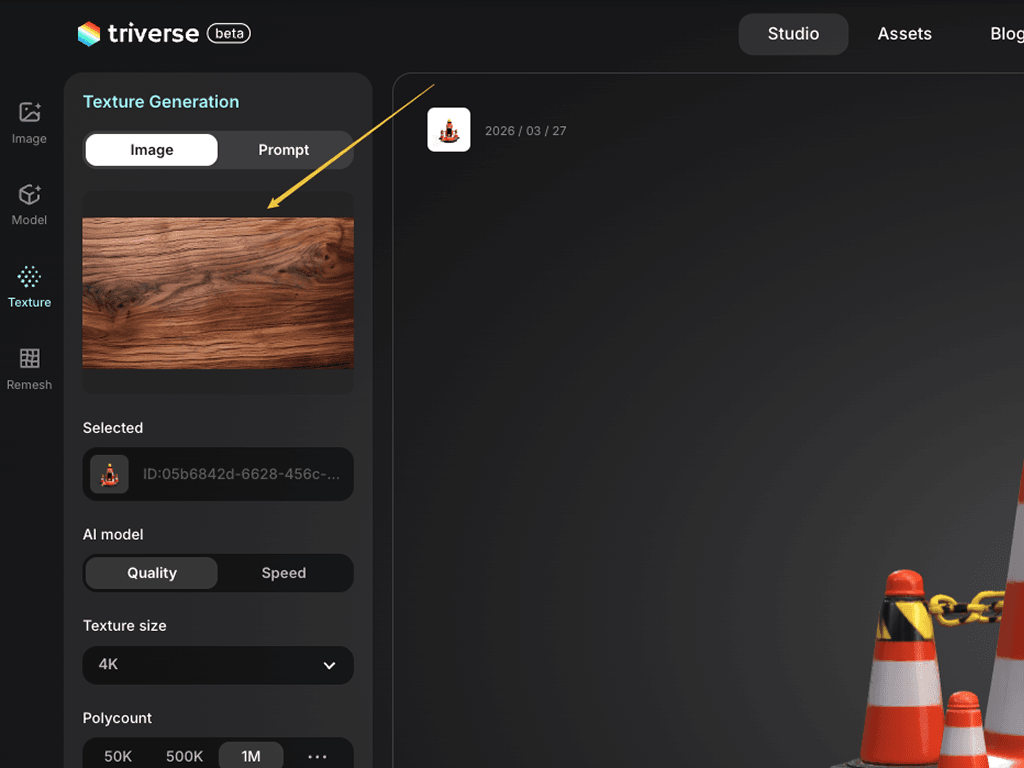
Upload your first reference image (e.g., a marble tile photo).

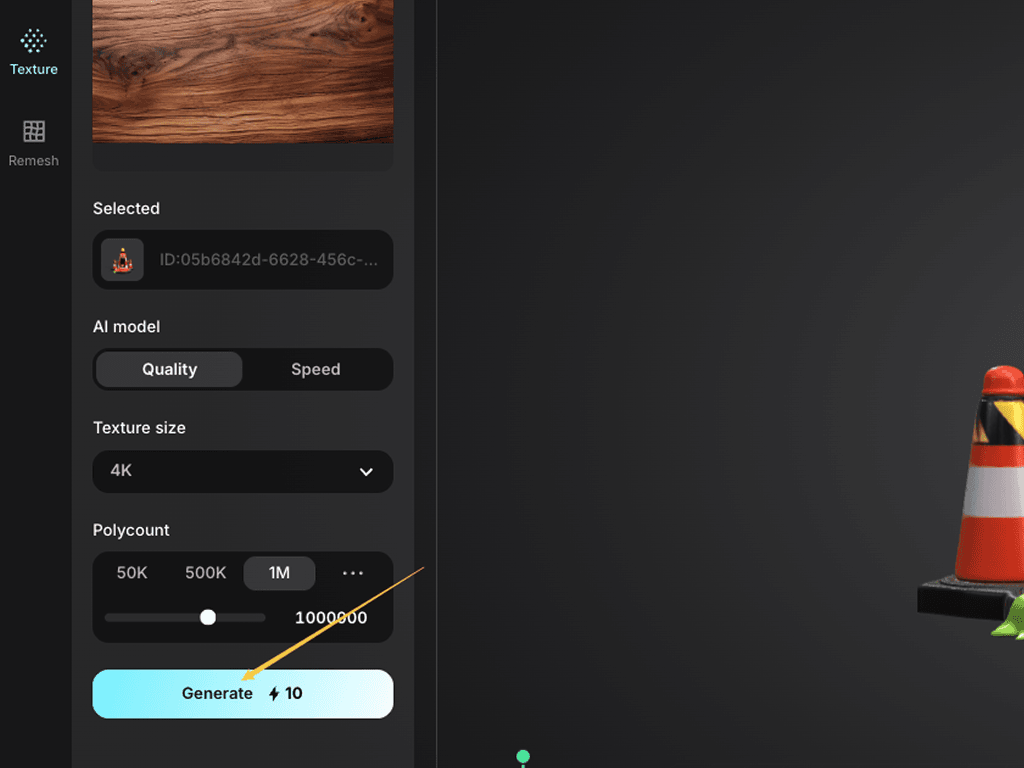
Select texture resolution (up to 4K), then click Generate.

Triverse applies the marble texture to the traffic cone. The model geometry stays the same, only the surface appearance changes.

triverse texturing upload
triverse texturing generate

Step 4: Try Different Looks

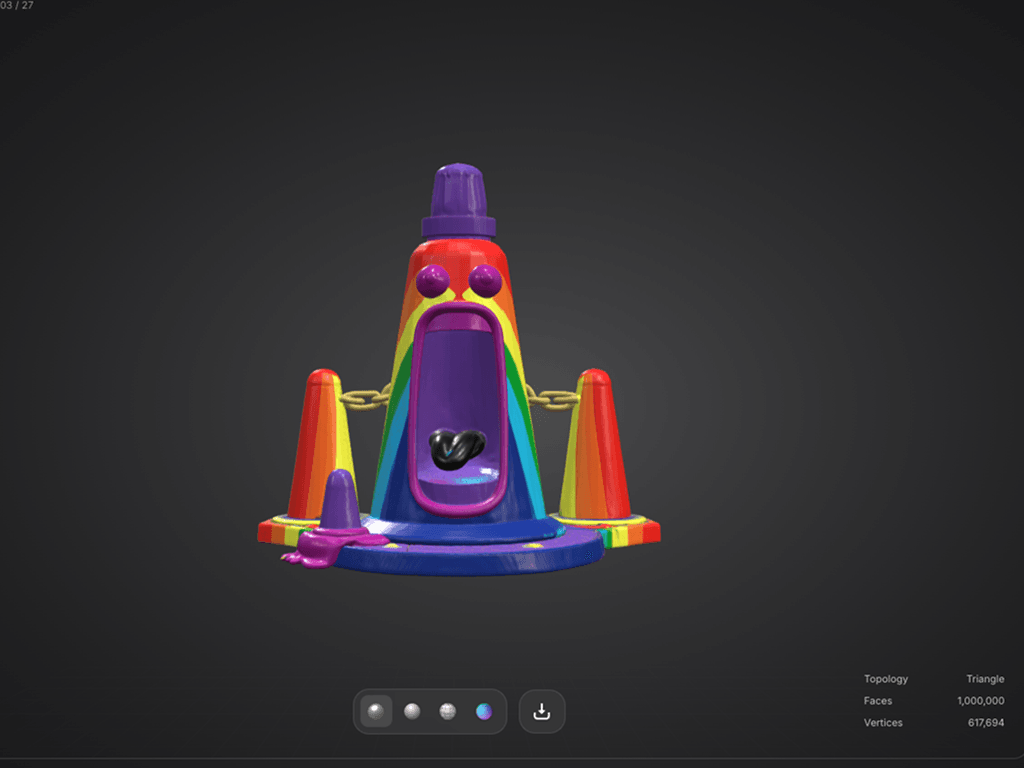
Repeat the process with different reference images:

triverse texturing rainbow
triverse texturing marble
triverse texturing leopard


Generation Settings

Now that you've seen the full workflow, here's what each setting actually does, and when to change it.

AI Model: Quality vs. Speed

Quality

Spped

Generation time

~90s

~60s

Mesh accuracy

High

Medium

Best for

Hero assets, characters

Prototyping, background props


Texture Size: 1K / 2K / 4K

Texture size controls how sharp the surface detail looks up close

1K (1024×1024)

2K (2048×2048)

4K (4096×4096)

File size

Small

Medium

Large

Detail

Low

Medium

High

Best for

Mobile, background props

General use

Hero assets, close-up renders


Polycount: 50K – 1.5M

Polycount controls how much geometric detail the mesh has. More polygons = more accurate shape, but heavier on performance.

50K

500K

1M

Performance

Very light

Balanced

Heavy

Shape accuracy

Low

Good

High

Best for

Mobile, background

General use

Hero assets, rendering


Workflow: Model → Texture Variants → Export

The real power of AI Texturing is creating multiple asset variants from a single model.

Step 1: Generate or import your base 3D model
Step 2: Apply Texture Variant A (e.g., marble)
Step 3: Export as texture_marble.fbx/.glb
Step 4: Apply Texture Variant B (e.g., rust)
Step 5: Export as texture_rust.fbx/.glb
Step 6: Repeat for as many variants as you need

This saves massive amounts of modeling time — you only model once, then texture multiple ways.


Best Use Cases

  • 🎨 Style variations: Create ice, fire, toxic, or seasonal skins for a single asset.
  • 🔄 Asset modernization: Upgrade and re-texture low-resolution models from your legacy library.
  • ⚡️ Rapid iteration: Test multiple looks without re-modeling.


Try It Now

Head to Triverse Studio and generate your 3D models for free now!