Text to 3D

2026年3月23日

Triverse AI's Text to 3D feature lets you convert a text prompt into a fully textured 3D model. It’s ideal when you only have a vague concept but no reference image.


Prompting Tips (Do's & Don'ts)

A good prompt makes all the difference. Here's how to write one that gets you the result you want:

Do's (Best Practices)

Don'ts (Things to Avoid)

✅ Focus on a single subject per prompt

❌ Avoid complex scenes or overly abstract ideas in one prompt

✅ Include style descriptors (e.g., low poly, stylized, realistic)

❌ Avoid combining too many elements in a single prompt

✅ Use descriptive adjectives (e.g., bulky, glowing, spiky, ancient)

❌ Avoid conflicting descriptions (e.g., metal and transparent at the same time)

✅ Specify materials (e.g., wood, metal, stone)

✅ Add usage context (e.g., for 3D printing, for mobile games)


Example: Creating a 3D Dwarf Character

Let's walk through a real example: creating a dwarf character from just a text prompt. Follow along step by step.

Step 1: Write your prompt

We enter a basic prompt in Triverse Studio → Model Generation → Text to 3D.

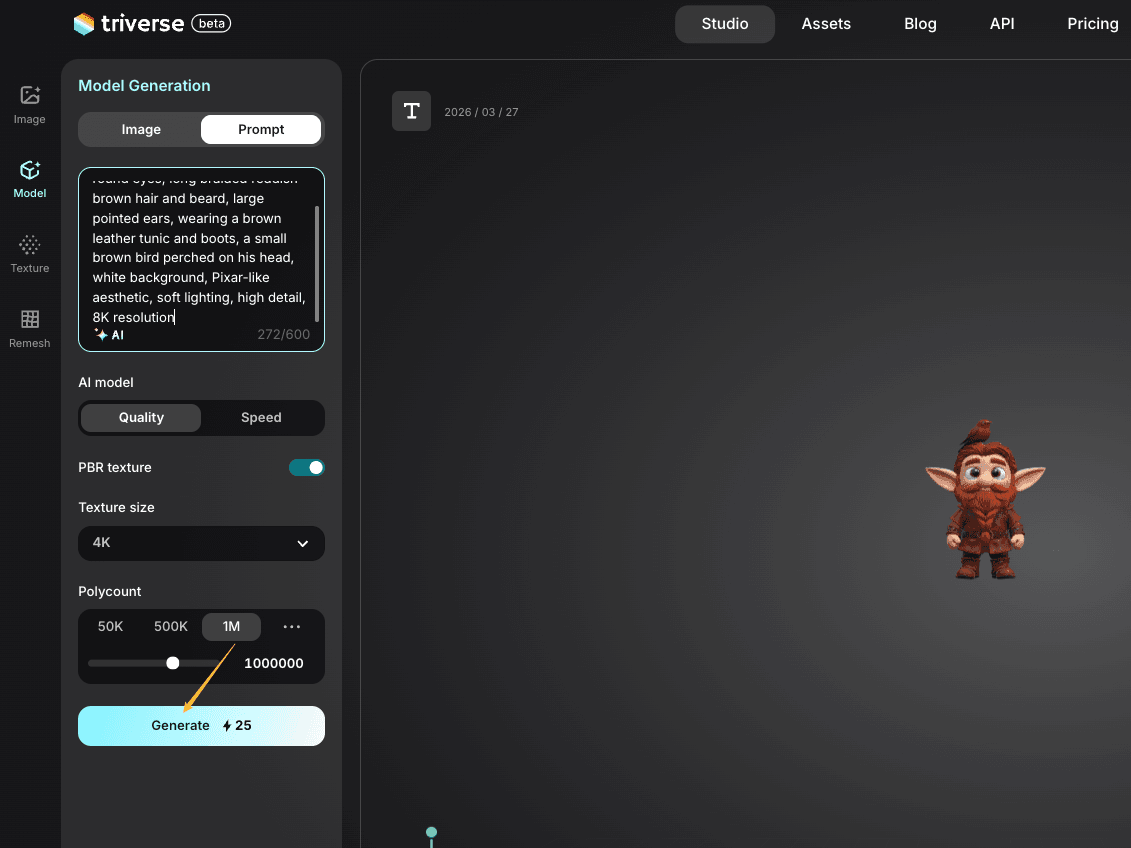
3D cartoon dwarf, chibi style, big round eyes, long braided reddish-brown hair and beard, large pointed ears, wearing a brown leather tunic and boots, a small brown bird perched on his head, white background, Pixar-like aesthetic, soft lighting, high detail, 8K resolution
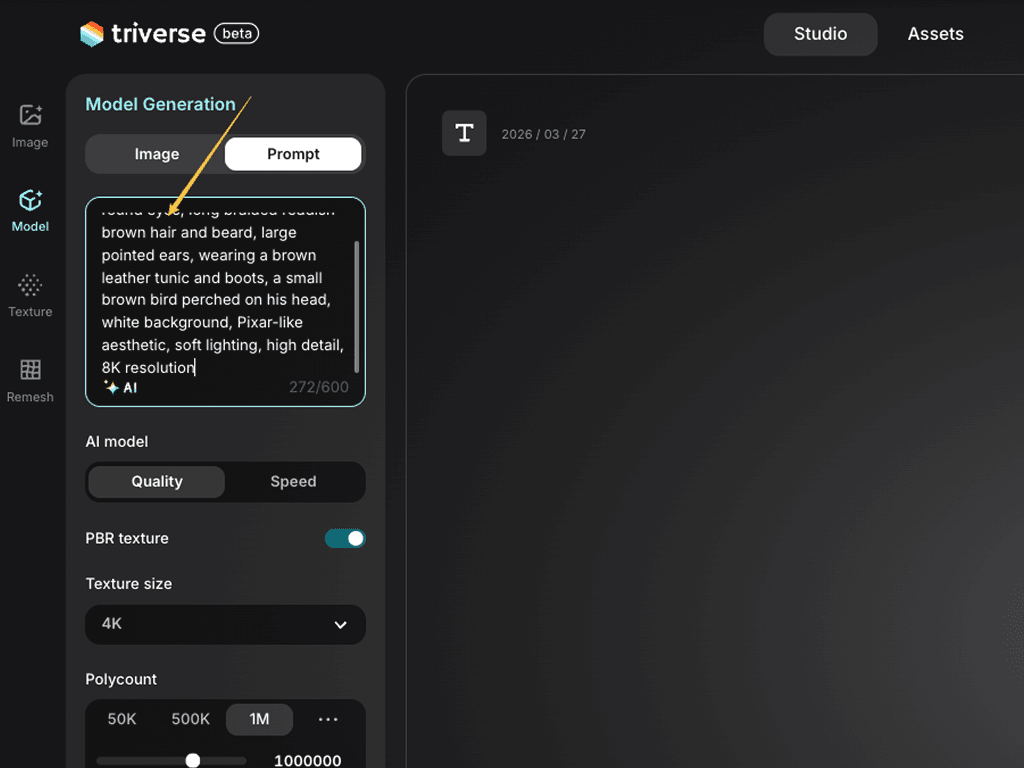
Triverse text to 3D prompt enter

💡 Bonus: Only have a rough idea?

You don't need a complete prompt. You can just enter a few keywords:

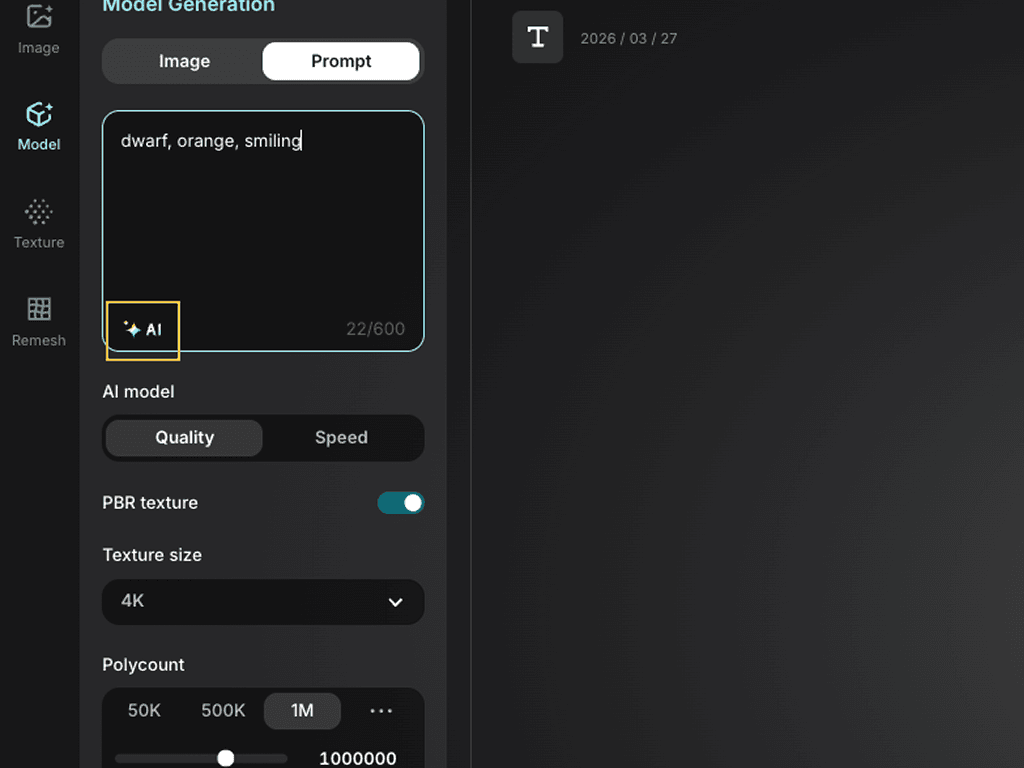
dwarf, orange, smiling

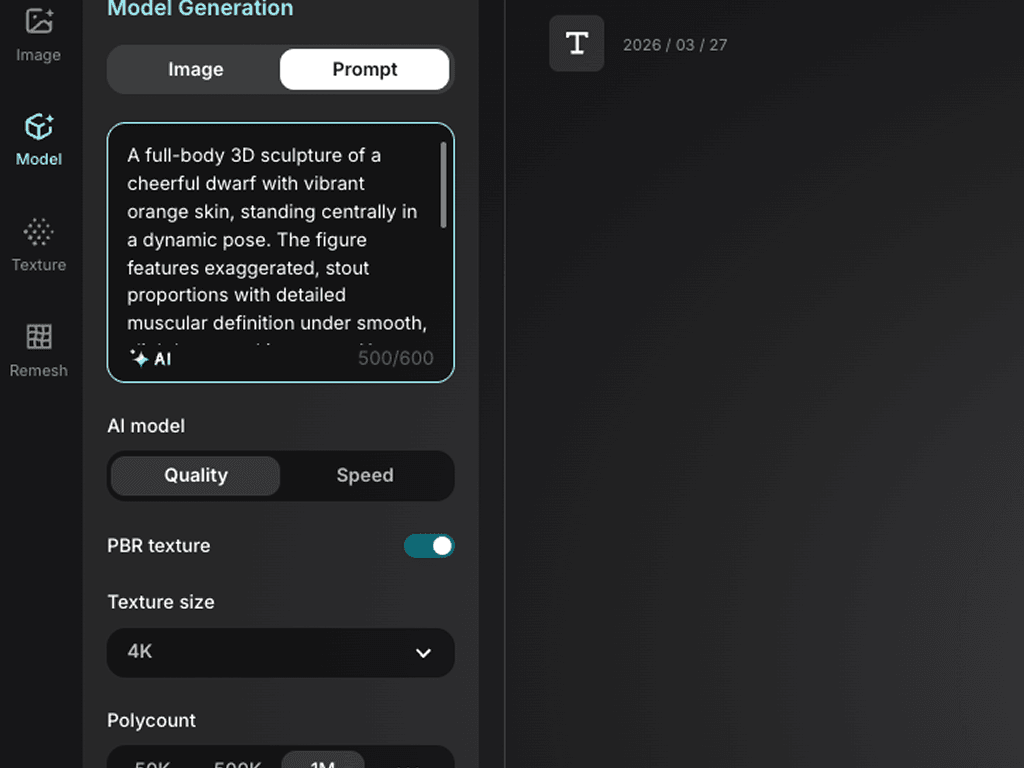
Then click the AI icon next to the input box. Triverse's built-in prompt assistant will expand your keywords into a full, detailed prompt automatically.

Triverse text to 3D prompt
Triverse text to 3D AI prompt polish

Step 2: Adjust settings (or Keep the Defaults)

By default, Triverse uses: Quality model · PBR textures on · 4K texture · 1M polycount.

For a hero character, we keep the defaults. Click Generate.

Triverse text to 3D generate

Step 3: Review and Export

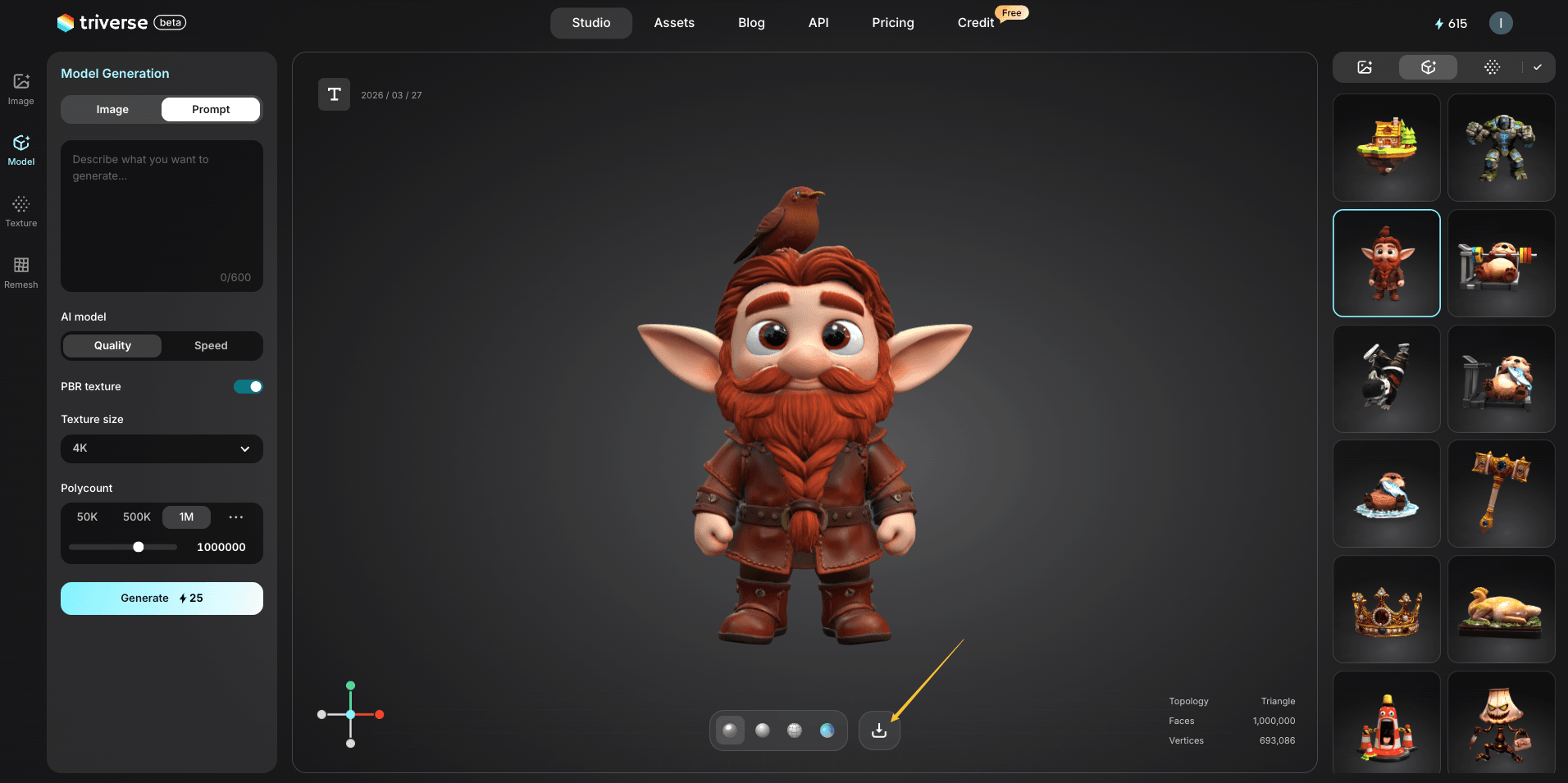
In about 90 seconds (Quality mode), Triverse produces a fully textured dwarf model.

We review it:

✅ The beard looks right — orange and full

✅ The helmet reads clearly — metal with leather straps

Click Export. Choose .glb or .fbx format for further use.

Triverse text to 3D download


Generation Settings

Now that you’ve seen the workflow, here are some quick suggestions for choosing the right settings. For a more detailed explanation, please refer to the Image to 3D.

  • AI model:
    • Quality: better edge loops, more accurate proportions.
    • Speed: great for fast iteration or batch generating props.
  • PBR texture: keep it on for game assets. Turn it off only if you want a clean mesh for manual texturing later.
  • Texture Size: 4K for your main character. 1K–2K for background NPCs and props.
  • Polycount: 1M is great for main characters. 50K–500K for background props.


Best Use Cases

  • Game Asset Production

Generate characters, weapons, props, and environment pieces from text. Perfect for rapid prototyping — describe what you need, generate it, import it into Unity, Unreal, or Godot.

  • Indie Developer Workflow

Solo devs and small teams: move from concept to playable asset in minutes. No dedicated 3D artist needed for early builds or prototypes.

  • Concept Art Iteration

Can't visualize your idea? Generate a 3D model from a text description to see how it looks in space. Use it as a starting point, then refine in Blender or ZBrush.

  • 3D Printing

Describe the object you want to print. Adjust polycount down to 50K for slicing efficiency. Great for tabletop miniatures, custom figurines, and mechanical parts.

  • VR/AR Content Creation

Generate 3D objects for virtual reality experiences or AR applications. Adjust polycount for mobile AR performance. Describe the object, generate it, and drop it into your engine.

  • Tabletop & Board Game Design

Create unique game pieces, terrain tiles, custom miniatures, and decorative elements. Describe the style ("stylized low-poly dwarf," "medieval wooden chest"), and Triverse generates it.

  • Marketing & Advertising

Turn product descriptions into 3D visuals for commercials, social media, or website interactive elements. Describe the product, generate a 3D version, and use it in your campaign.

  • Architectural Visualization

Quickly generate furniture, fixtures, and decorative objects from text descriptions. Useful for exploring design options before committing to full 3D modeling.

  • Educational & Historical Reconstruction

Reconstruct objects from historical descriptions or scientific concepts. "Roman gladius sword," "Victorian-era lantern," "Jurassic fern fossil" — describe it, generate it, use it in educational content.

  • Rapid Design Exploration

Explore multiple design variations quickly. Generate "steampunk airship" vs. "modern cargo plane" vs. "fantasy dragon" at the same time. Compare options before deciding on a direction.


Try it now

Head to Triverse Studio and generate your 3D models for free now!