Text to Image
March 23, 2026Triverse AI's Text to Image feature helps you generate high-quality 2D concept images. It produces up to four variations at a time– perfect for creating reference images to feed into Image to 3D.
Tips for Best Results
A good prompt gets you better images. Here's how to write one that works.
Do's (Best Practices) | Don'ts (Things to Avoid) |
|---|---|
✅ Add “solid white background” to prevent unwanted background geometry in 3D. | ❌ Avoid vague descriptions (e.g. beautiful, cool). |
✅ Include viewpoint (e.g., front view, side profile) | ❌ Avoid complex scenes or environments |
✅ Describe materials (e.g., jade texture, wooden surface, metallic finish) | ❌ Avoid Multiple subjects. |
✅ Keep it single-subject (one object or character per prompt) | |
✅ Specify style (e.g., stylized low-poly, realistic, concept art style) |
Example: Generating a Jade Cabbage Image
Let's walk through a real example: creating a concept image of a jade cabbage that we can later convert to 3D.
Step 1: Enter your Prompt
Go to Triverse Studio → Model Generation → Text to Image.
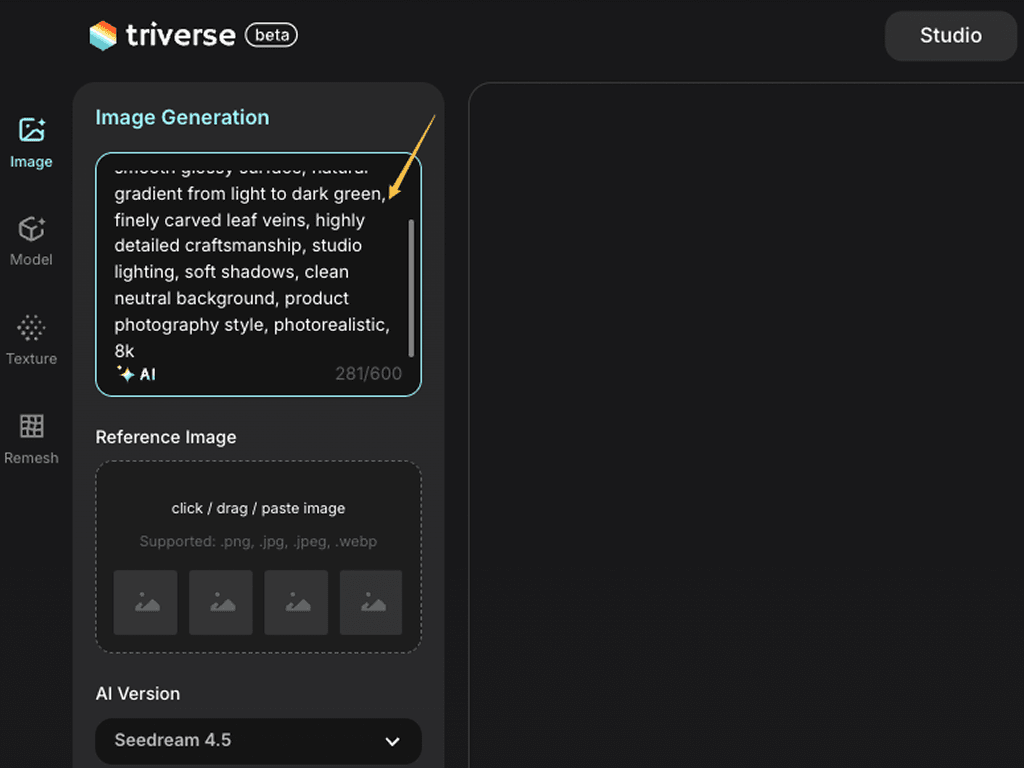
a jade cabbage sculpture, translucent green jade stone, smooth glossy surface, natural gradient from light to dark green, finely carved leaf veins, highly detailed craftsmanship, studio lighting, soft shadows, clean neutral background, product photography style, photorealistic, 8k💡 Bonus: Not sure how to describe it?
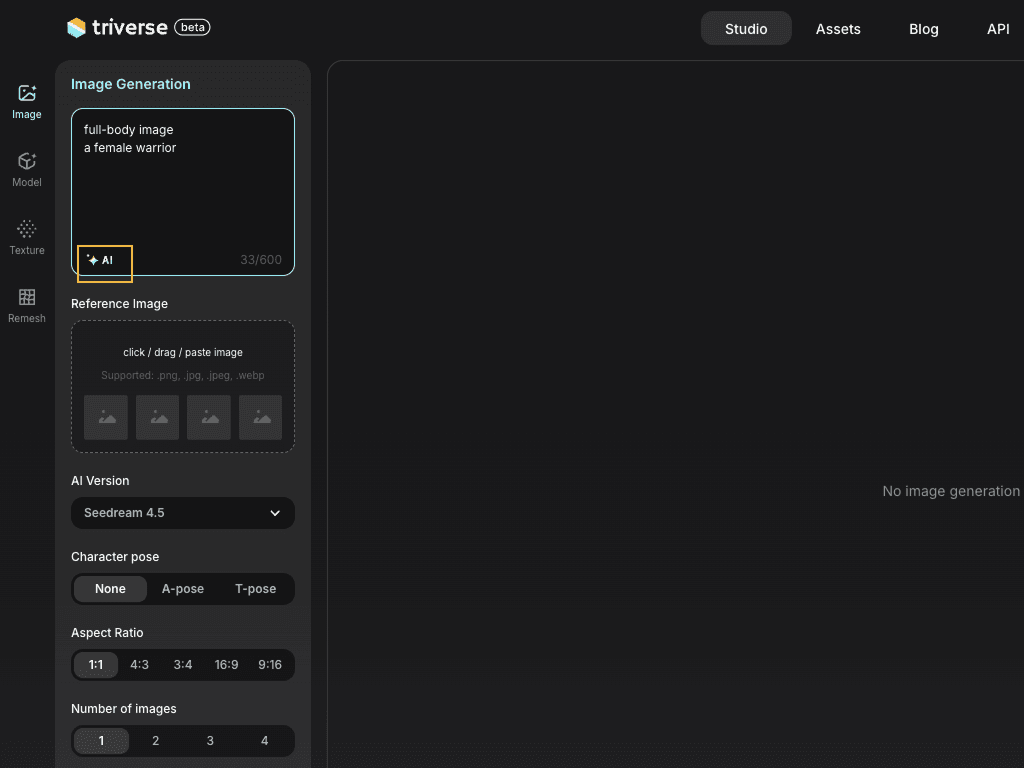
Let Triverse built-in AI help refine your prompt.
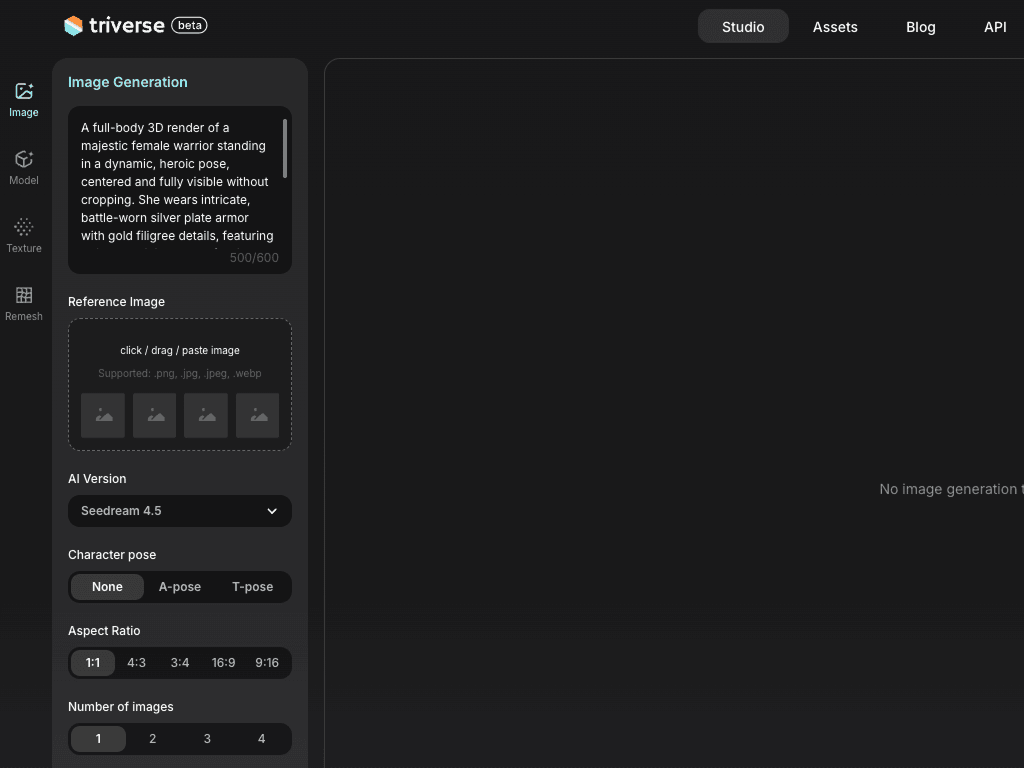
Just enter a few keywords like "full-body image, a female warrior" and click the AI icon. Triverse will expand your keywords into a full prompt automatically.
Step 2: Adjust Settings (or Keep Defaults)
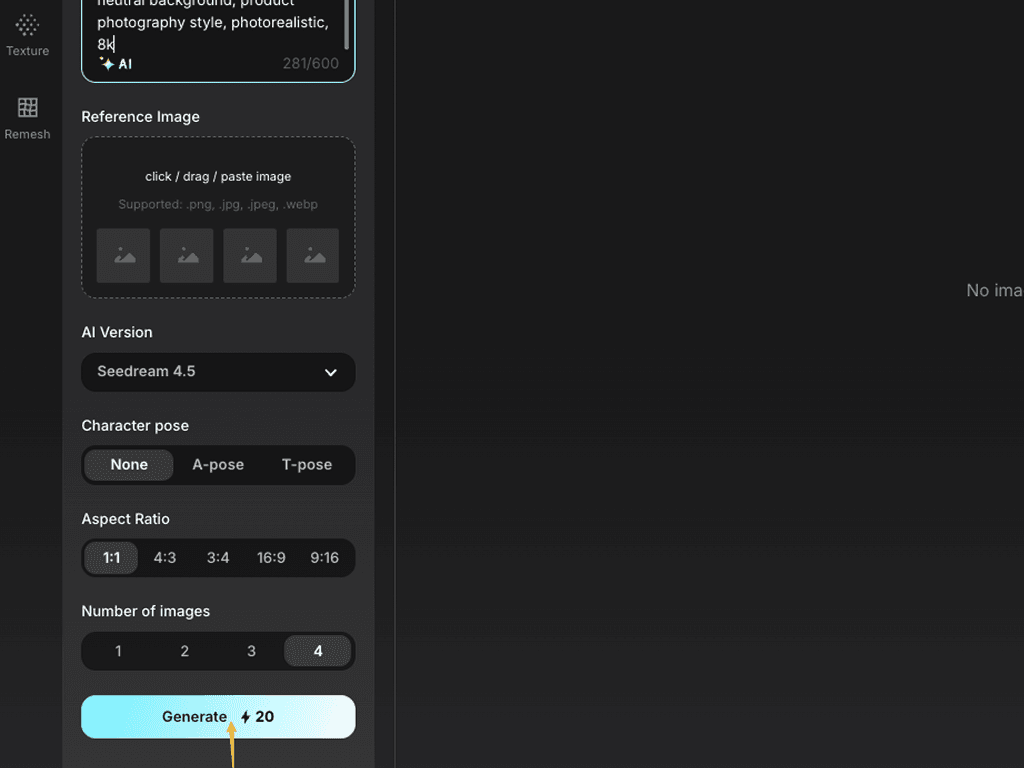
By default, Triverse uses: Seedream 4.5 · No pose preference · 1:1 aspect ratio · 4 images
For a standalone object like this, the defaults work well. Click Generate.
Step 3: Review the Results
Once the image is generated, you can review the details, materials, and overall composition.
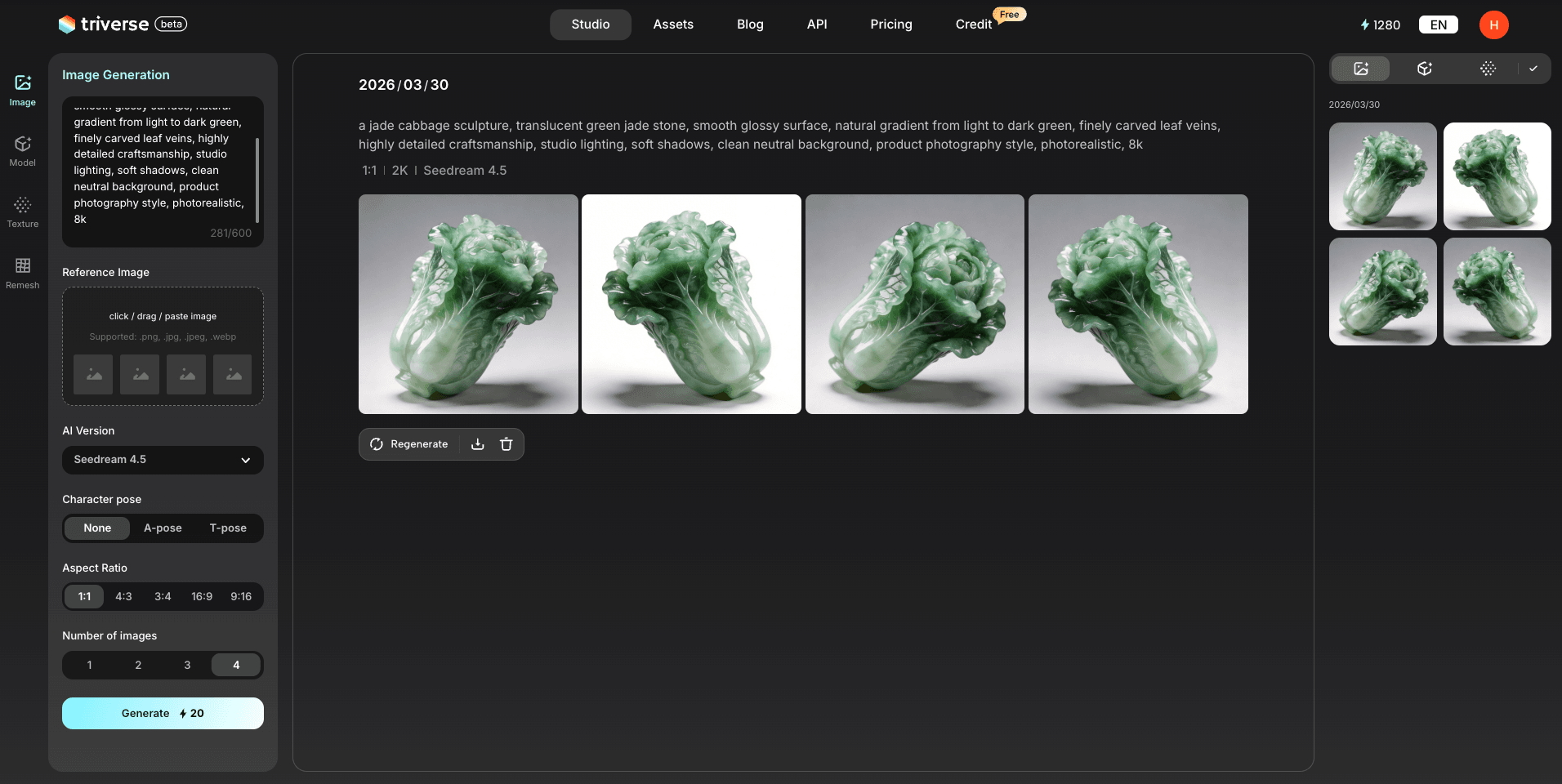
Step 4: Refine (If Needed)
If none of the images are right, click Regenerate to produce a new set. You can also adjust your prompt.
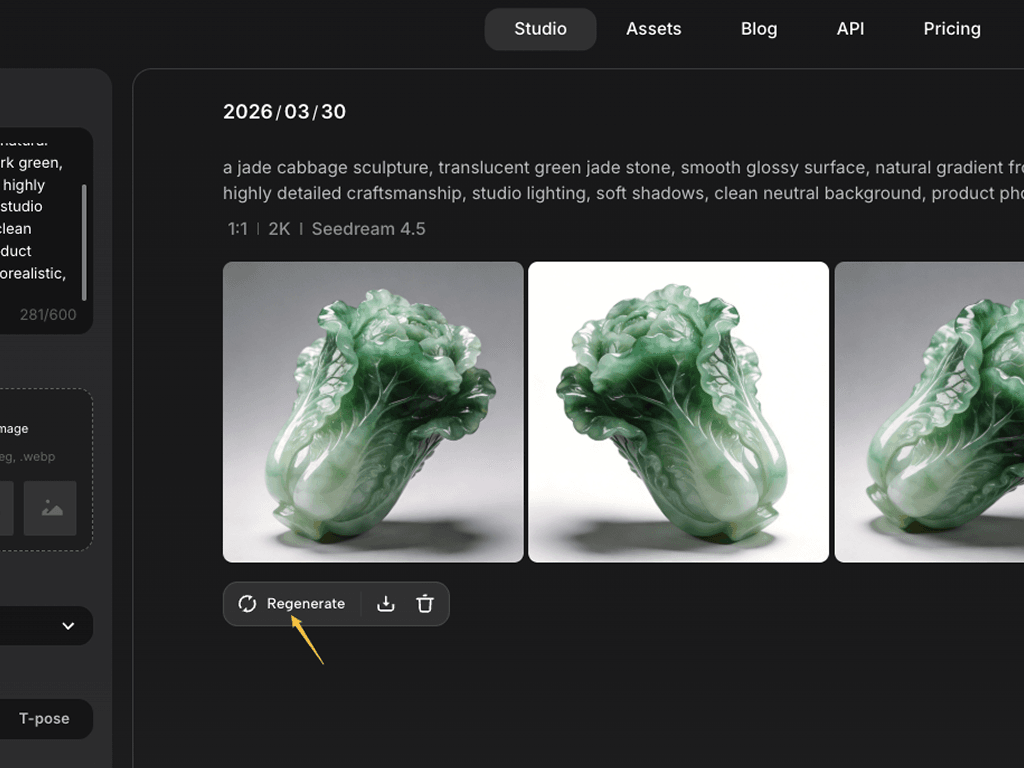
Generation Settings
Now that you've seen the workflow, here's what each setting does.
AI Version: Seedream 4.0 vs. 4.5
Seedream 4.0 | Seedream 4.5 | |
|---|---|---|
Speed | Fast | Slightly slower |
Detail | Good | Better texture, sharper edges |
Best for | Quick concepts | Final reference images |
Character Pose: None / A-pose / T-pose
Pose | Best For |
|---|---|
None | Objects, props, non-human subjects |
A-pose | Characters for game engines (arms slightly raised) |
T-pose | Characters for rigging and animation |
Aspect Ratio: 1:1 / 4:3 / 3:4 / 16:9 / 9:16
Ratio | Best For |
|---|---|
1:1 | Square objects, centered subjects, general use |
4:3 | Horizontal objects, furniture, vehicles |
3:4 | Tall objects, standing characters |
16:9 | Wide objects, landscapes, horizontal compositions |
9:16 | Tall subjects, portraits, vertical characters |
Number of Images: 1-4
Generate up to 4 variations at once. More variations = more options to choose from.
Recommendation: Generate 4 to give yourself choices, then pick the best one for 3D conversion.
Workflow: From Text → Image → 3D
The real power of Text to Image is using it as the first step in a complete workflow.
Step 1: Use Text to Image to generate a concept image
Step 2: Select the best variation
Step 3: Switch to Image to 3D and upload that image
Step 4: Generate your 3D model
This gives you a complete pipeline from idea to 3D asset– no drawing or reference hunting required.
Best Use Cases
- Concept Art Generation
Don't have a reference image? Describe what you need, generate it, then feed it into Image to 3D. Perfect for rapid iteration. - Game Asset Pipeline
Describe the asset you need → generate reference image → convert to 3D. This is the fastest way to go from idea to game-ready model. - 3D Printing Reference
Generate detailed reference images for 3D printing projects. Describe the object with materials and style, then use the image as your 3D conversion input. - Design Exploration
Test multiple design directions quickly. Generate "steampunk robot" vs "modern robot" vs "medieval robot" — see which style works before committing to 3D. - Marketing & Product Visualization
Generate product concept images from descriptions. Useful for early-stage product visualization or marketing mockups. - Character Design Iteration
Generate character concepts in different poses, styles, and angles. Pick the best, then convert to 3D for further refinement. - Environment Prop Generation
Need props for a game environment? Describe them, generate images, and batch convert to 3D. Chairs, crates, barrels, lamps — all from text. - Tabletop & Board Game Assets
Generate concept art for game pieces and miniatures. Describe "fantasy wizard figurine, solid white background, front view," then convert to 3D for printing.
Try It Now
Head to Triverse Studio and generate your 3D models for free now!