Split: Un flujo de trabajo modular de IA 3D
8 de septiembre de 2026En el desarrollo profesional de videojuegos, un personaje nunca es una sola malla. Es un kit. Para riggear, animar y personalizar de manera efectiva, se necesitan partes modulares: cabeza, torso, brazos, armadura y accesorios.
Generar una malla 3D "monolítica" (todo en uno) con IA es una pesadilla para la producción. Triverse Split transforma el panorama al dividir tus diseños 2D en partes lógicas, independientes y listas para el motor de juego.
Por qué optar por un flujo de trabajo modular
- Desglose de escena y personajes: Extraer automáticamente activos independientes de conceptos ambientales complejos o fichas de personaje.
- Consistencia visual sin fisuras: Cada pieza, desde el casco hasta las botas, se genera a partir de la misma imagen base, asegurando una dirección de arte coherente.
- Control de precisión:No descartes un buen personaje solo porque no te gusta el sombrero. Usa Split para regenerar únicamente las partes que no te gustan mientras conservas el resto del modelo.
- Aceleración de Concepto a Recurso: Reduzca drásticamente el plazo de entrega entre un boceto inicial y una biblioteca 3D totalmente modular.
Descomponer en módulos: Guía paso a paso
1. Sube tu idea
Dirígete a Triverse Studio, y haz clic en "Dividir". Sube tu Arte del personaje o una Lámina de activos al área de trabajo Dividir.
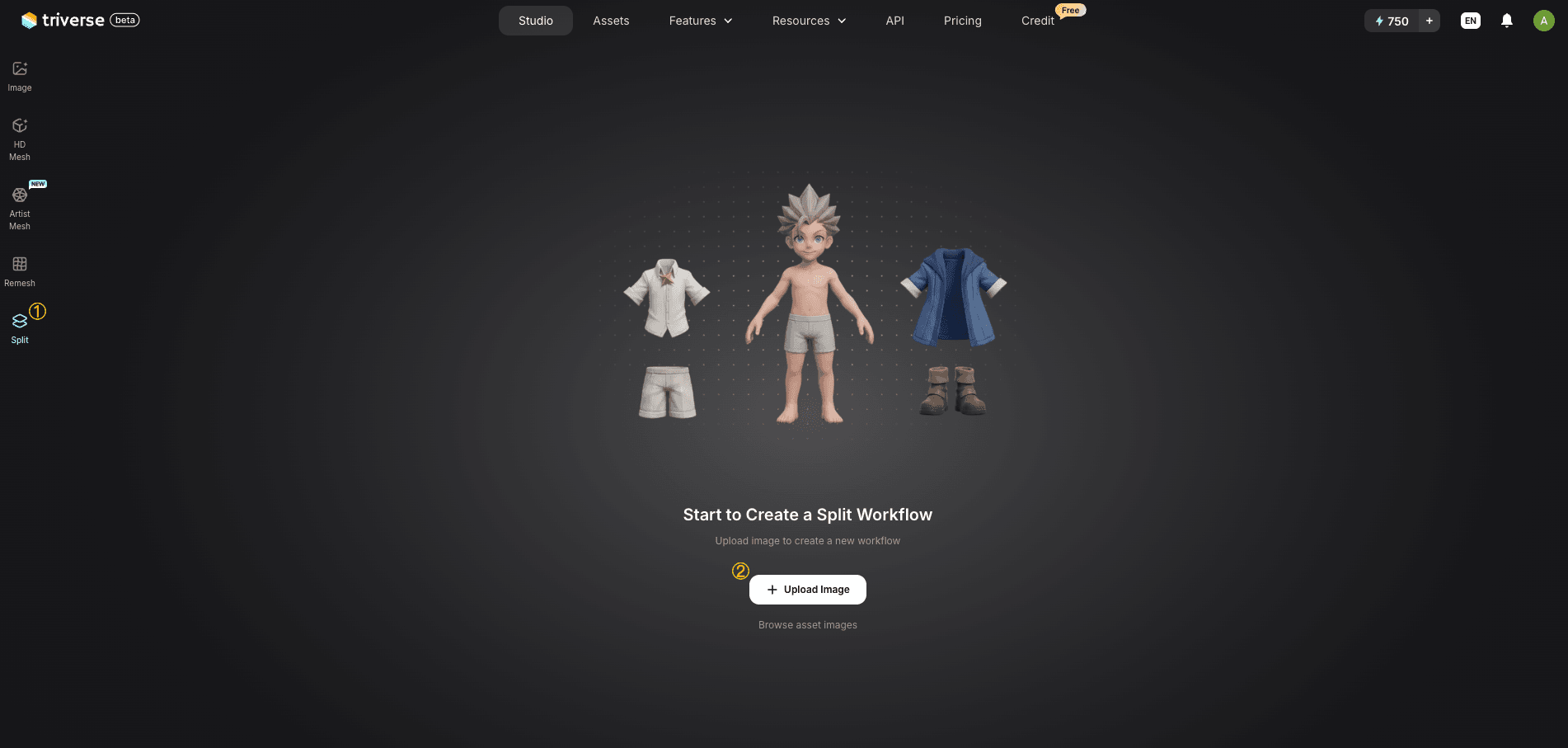
- Pro Tip: Usar una "Hoja de sprites" (una página que contiene múltiples dibujos de armas o accesorios) es la forma más eficiente de crear un inventario completo de una vez.
2. División Automática
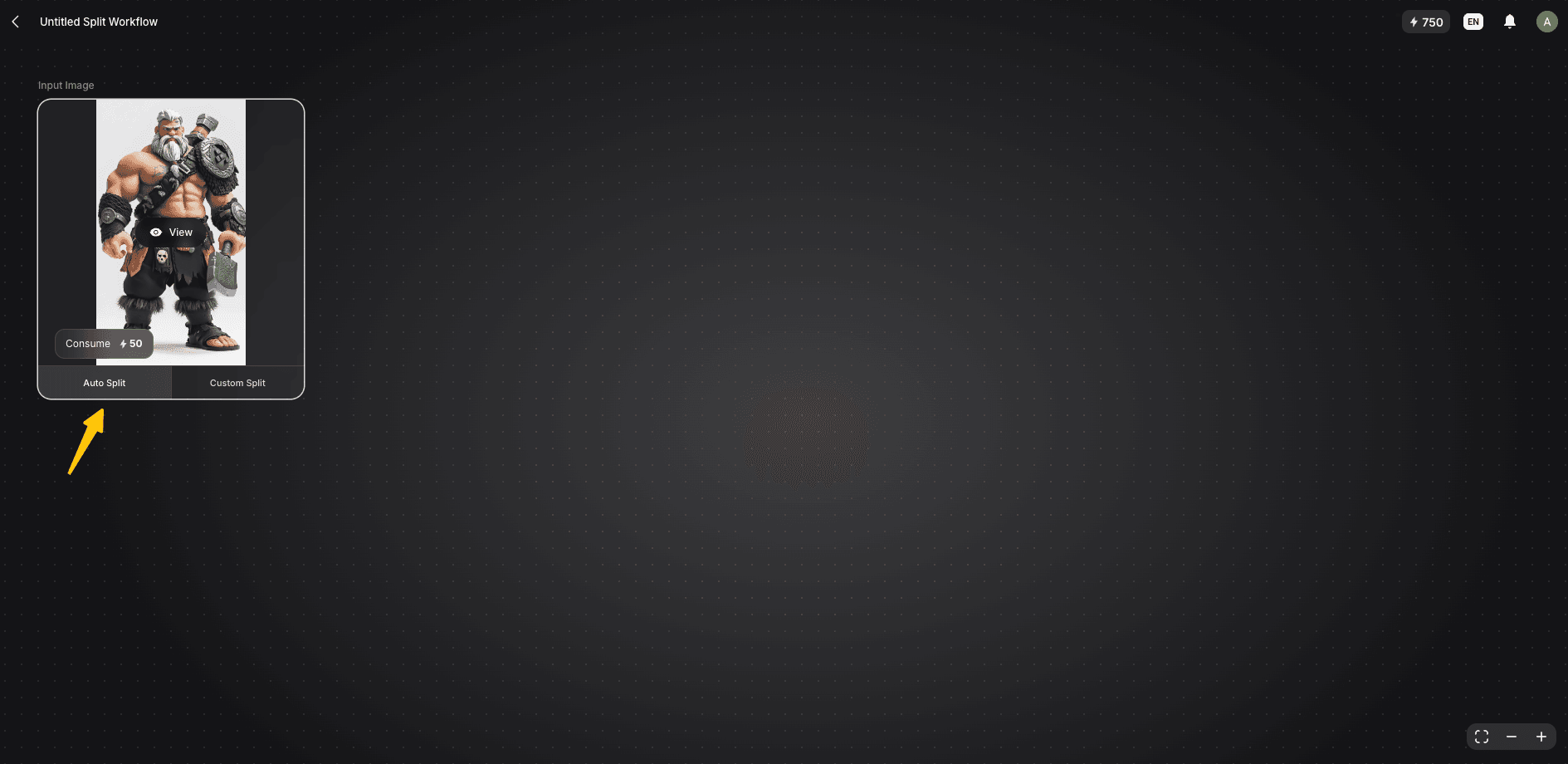
Clic en Segmentación Automática. Triverse AI no solo recorta imágenes; detecta automáticamente la pose y estructura de tu concepto. Reconoce partes del personaje (cabeza, torso, extremidades (brazos y piernas)) o elementos de la escena, y los separa en nodos independientes.
3. Refinar la selección
Revisa las partes separadas. Si la IA combina dos partes que quieres separar, o si un recorte/segmentación necesita un ajuste, usa Personalizar división para redefinir manualmente el área.
Además, Mejora de Imagen te permite usar lenguaje natural para describir tus necesidades si deseas perfeccionarlas. Por ejemplo, modificando el material, el color o el ángulo.
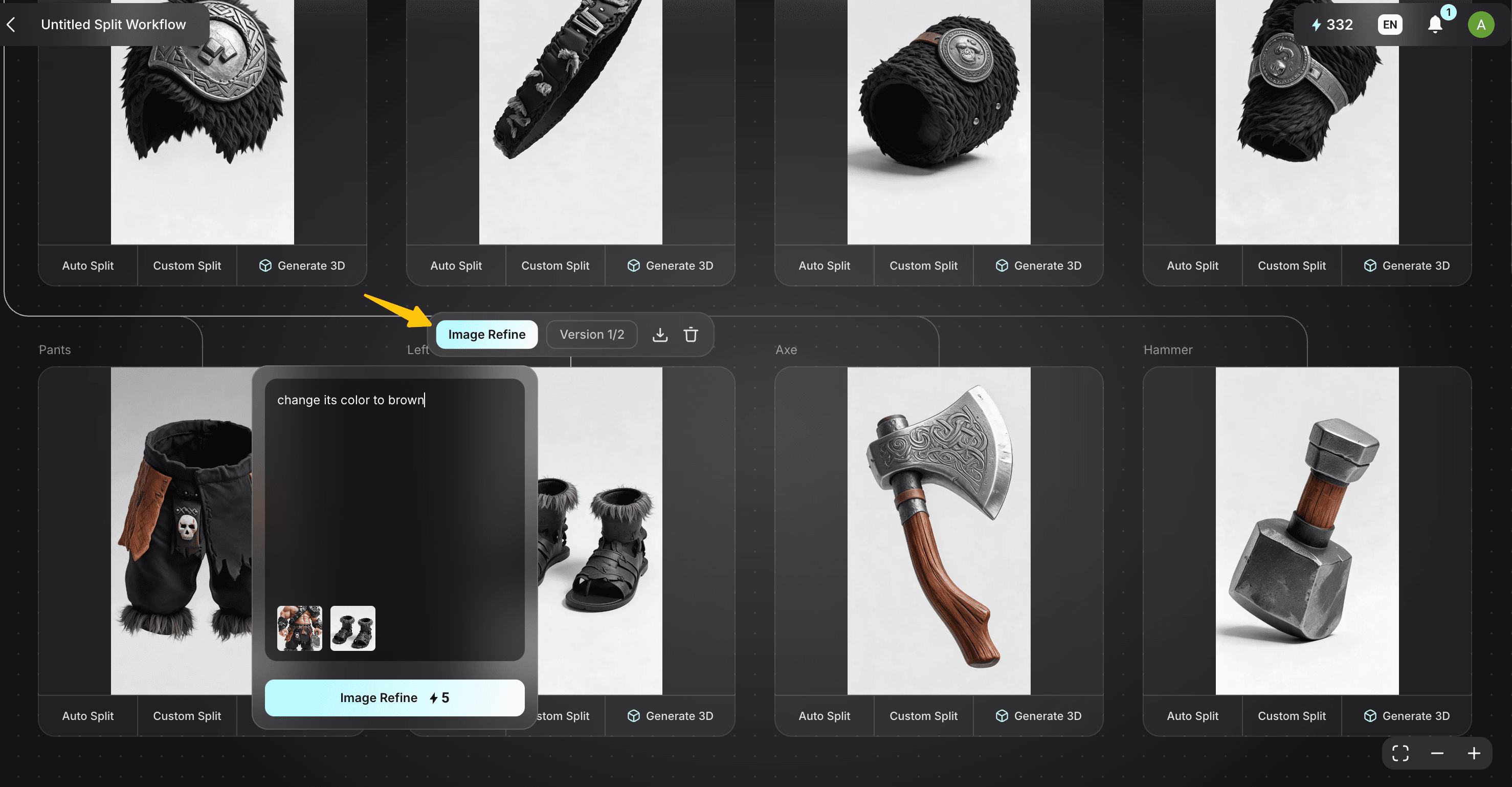
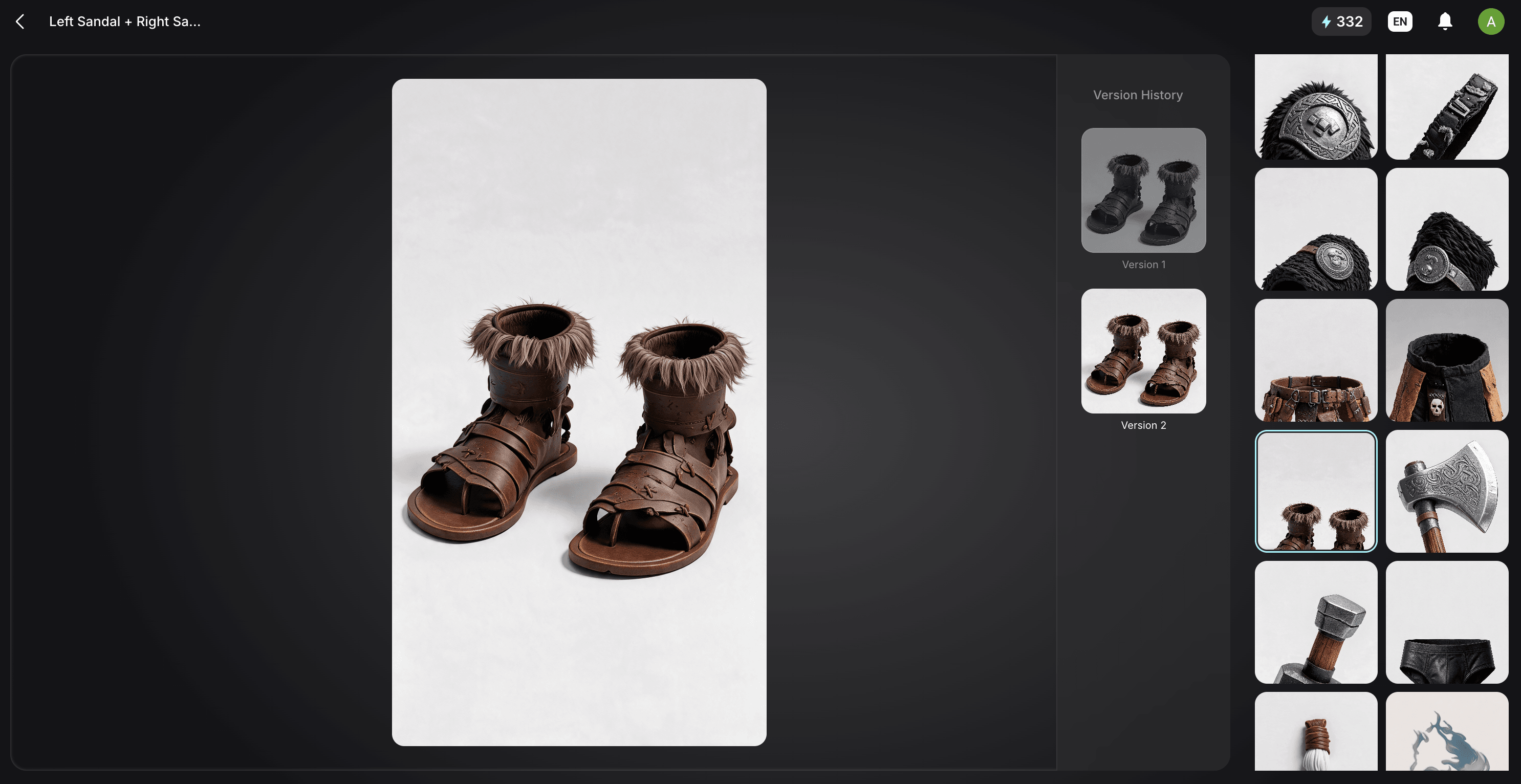
Aunque los nodos utilizan actualmente nombres automáticos, el diseño visual facilita el seguimiento de tus componentes.
4. Generar modelos 3D (Individual o en lote)
Tienes dos formas de pasar de nodos 2D a modelos 3D:
- Generación Individual:Haz clicGenerar modelos 3D en un único nodo para procesar una parte concreta. Esto es excelente cuando solo necesitas actualizar una pieza de equipo.
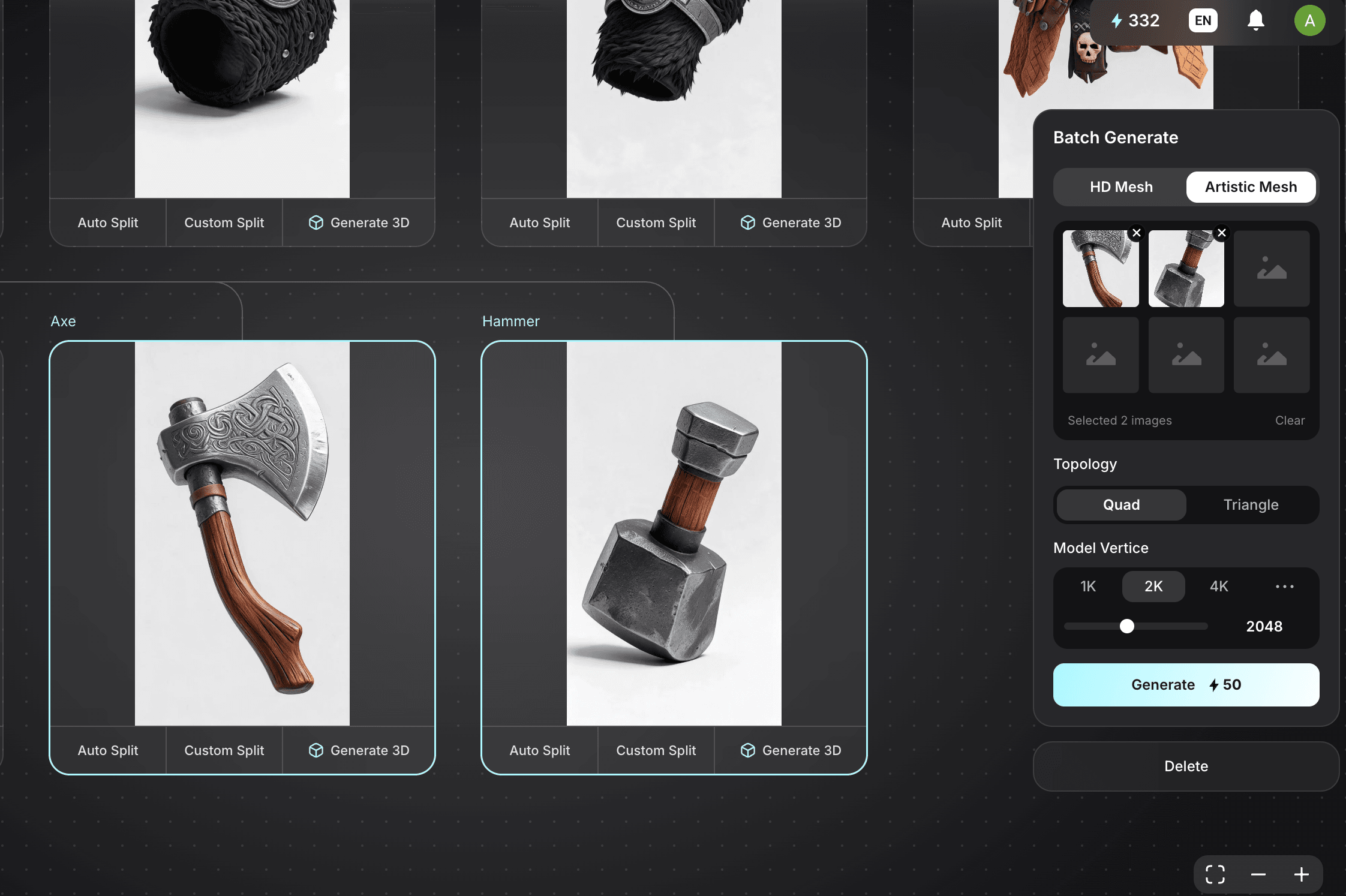
- Generación en lotes (opcional):Para acelerar la producción, mantén presionada la tecla Shift y selecciona varios nodos. Generar por lotes el panel aparecerá a la derecha. Aquí puedes aplicar ajustes—como Malla Artística vs. Malla HD (Malla Artística para topología limpia o Malla HD para detalle), texturas 4K y objetivos de cantidad de polígonos—a todos los elementos seleccionados y procesarlos al mismo tiempo. Luego haz clic en Generar para crear hasta 3 modelos 3D simultáneamente.
5. Exportar y montar
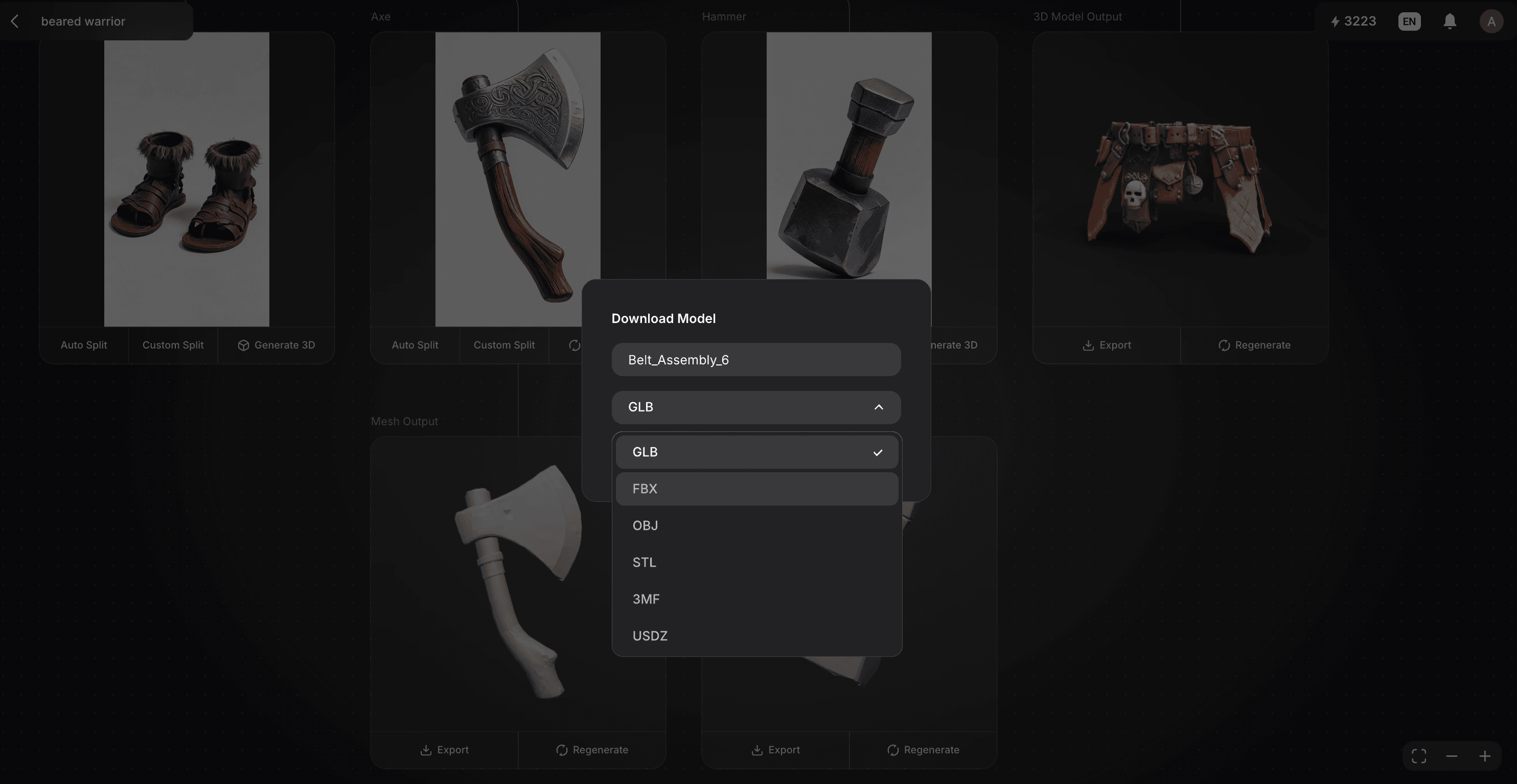
Una vez que la generación esté terminada, vista previa de tus modelos y haz clic en el botón Exportar. Puedes descargar tus piezas en formatos estándar de la industria como GLB, OBJ o FBX. Estos componentes modulares pueden importarse a Blender, Unity o Unreal Engine para ensamblaje final.
Casos de Uso Reales: ¿Por qué Modular?
- Sistemas de Personalización de Caracteres
Generar conjuntos de ropa y armadura independientes. Esto permite crear un sistema de avatar "combinable" donde los jugadores pueden intercambiar piezas dinámicamente en tiempo real. - Ambientación de entornos
Divide un concepto de paisaje en una colección de activos independientes. Una vez que se exportan, puedes duplicar y esparcir estas rocas, árboles y edificios para poblar un entorno 3D masivo. - Flujos de trabajo de detalles híbridos
Gestiona tu presupuesto de rendimiento dividiendo los activos. Genera unMalla HD para objetos de heroe y un modelo optimizado de bajo poligonaje Malla Artísticapara equipamiento secundario.
Comparación entre flujo de trabajo fraccionado y estándar
Función | Generación Estándar 3D | Flujo de trabajo Triverse Split |
Estructura de Malla | Malla individual y resistente | Partes modulares e independientes |
Iteración | Es necesario reiniciar el modelo completo | Iterar únicamente sobre secciones específicas |
Eficiencia | Un activo a la vez | Admite Generación por lotes |
Uso en producción | Concepto / Solo para vista previa | Ensamblaje final / Modificación de kits (Kitbashing) |
¿Listo para construir una canalización 3D más avanzada?
Prueba el Workflow dividido en Triverse Studio hoy gratis.