Create Furniture 3D Models for Games with AI: From Simple Ideas to Custom Textures
Create 3D furniture with AI and customize its look to fit your game world. Cut down on modeling work for your game interiors.
A game interior needs tables for food and quest items, benches along walls, and furniture that makes the space feel occupied. These ordinary pieces can add up to a lot of modeling work, especially when you're also building the rest of the game. Simple furniture is a good place to use AI: the shapes are easy to describe, and each finished asset can appear in several rooms.
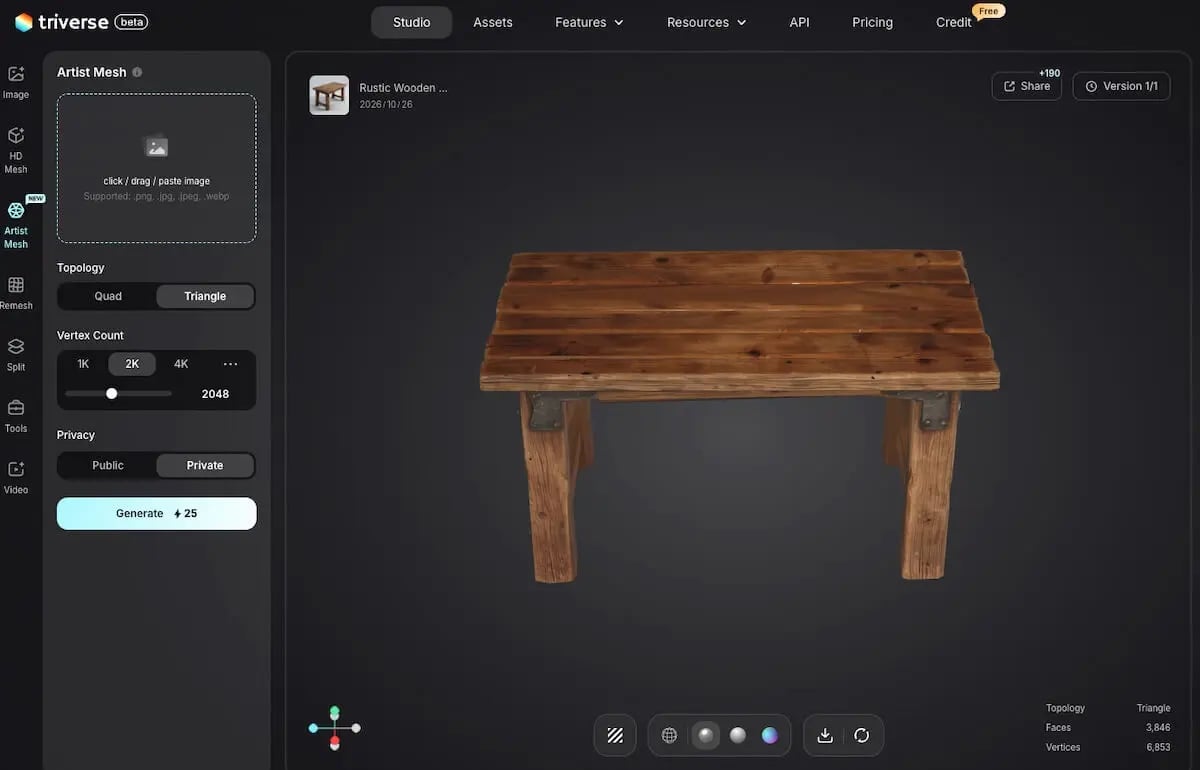
The examples here are a rustic tavern table and a wooden bench. The table shows how a written furniture brief becomes a model with its own visual character. The bench takes the workflow further: its shape stays in place while new textures give it several different looks.
Choose Game Furniture for AI Generation
Choose the setting and interaction needs
A tavern table might have thick planks and worn edges, while a cottage bench could use pale paint and softer surface details. Choose the setting first. It gives the furniture a shared direction and makes the prompts more specific than “wooden table” or “wooden bench.”
Furniture also helps define a room's purpose. A counter suggests a service area; a bench along a wall can establish a waiting space. In game environment modeling, deciding where these pieces belong during the layout pass helps you choose their size and quantity before generating variations.
How players use the furniture matters too. A static bench can remain one complete object. If players can place and rotate it, the back needs a proper finish as well. A bench used by animated characters also needs seat positions and dimensions that work with those characters. Decide on that role before expanding the collection.
Start Furniture Generation with Text to Image or Text to 3D
Expand a short idea into a furniture design
Without a complete reference, I'd start with Text to Image in Triverse AI to settle the furniture's appearance before generating the mesh. If the design is already clear, Text to 3D lets you explore it directly as a model.
Both routes can start with a few words, such as wooden bench. Use the AI icon beside the prompt input to expand the description, then check the proportions, material, and style it suggests. Keep what fits your game and remove unwanted details before generating.
The table example starts from a rectangular tavern-table brief. For a reference image, the prompt can read:
One stylized fantasy tavern table, rectangular top made from four thick oak planks, four straight square legs beneath the corners, warm medium-brown wood, softly beveled edges and restrained surface wear. Three-quarter view showing the tabletop thickness and leg arrangement, entire table visible, plain light-gray background, soft even lighting. Empty tabletop, no chairs, people, text or room scene.
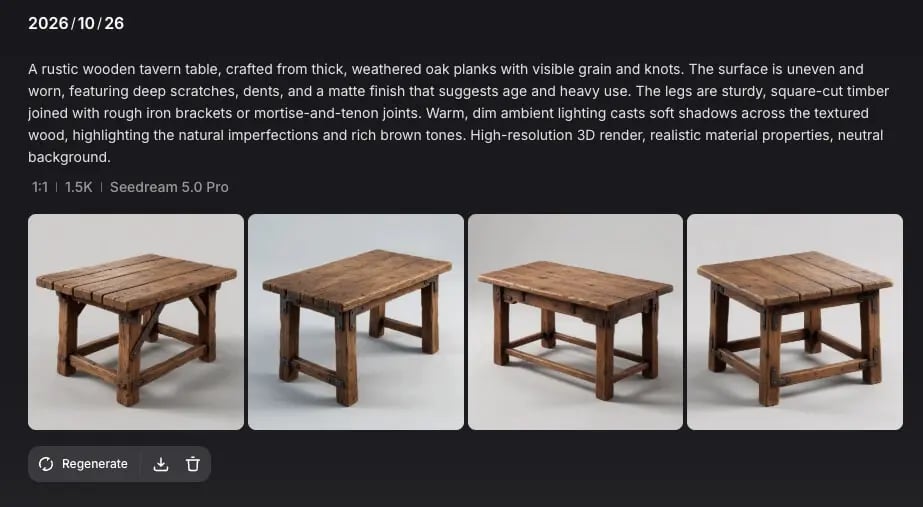
Choose an image that shows the complete table clearly, then use it for image-to-3D generation. The table and bench examples below follow this image-reference route into Artist Mesh.
For direct Text to 3D, select HD Mesh → Prompt in Triverse AI Studio and generate from your reviewed description. Once you've selected your generated model, you can continue to the texturing section.
Generate Furniture Models with Artist Mesh or HD Mesh
Prioritize Artist Mesh for simple low-poly furniture
For simple tables, chairs, and benches that need a low-poly model, start with Artist Mesh. Both the tavern table and the wooden bench in this article were generated with Artist Mesh.
For furniture with complex curves, decorative panels, or fine geometric details, HD Mesh is another useful starting point. Choose according to the shape and detail the furniture needs.
A detailed wood finish can work on a low-poly mesh. When deciding between low-poly and high-poly models, keep the tabletop thickness, leg shape, and open backrest in geometry; use textures for wood grain, paint, and fine scratches.
Compare four untextured model options
Upload the reference in Artist Mesh, then choose the topology and Vertex Count. For a first attempt at straightforward furniture, try 1K, moving to 2K or 4K when the silhouette needs more detail. These settings are vertex targets; inspect the actual mesh statistics after generation.
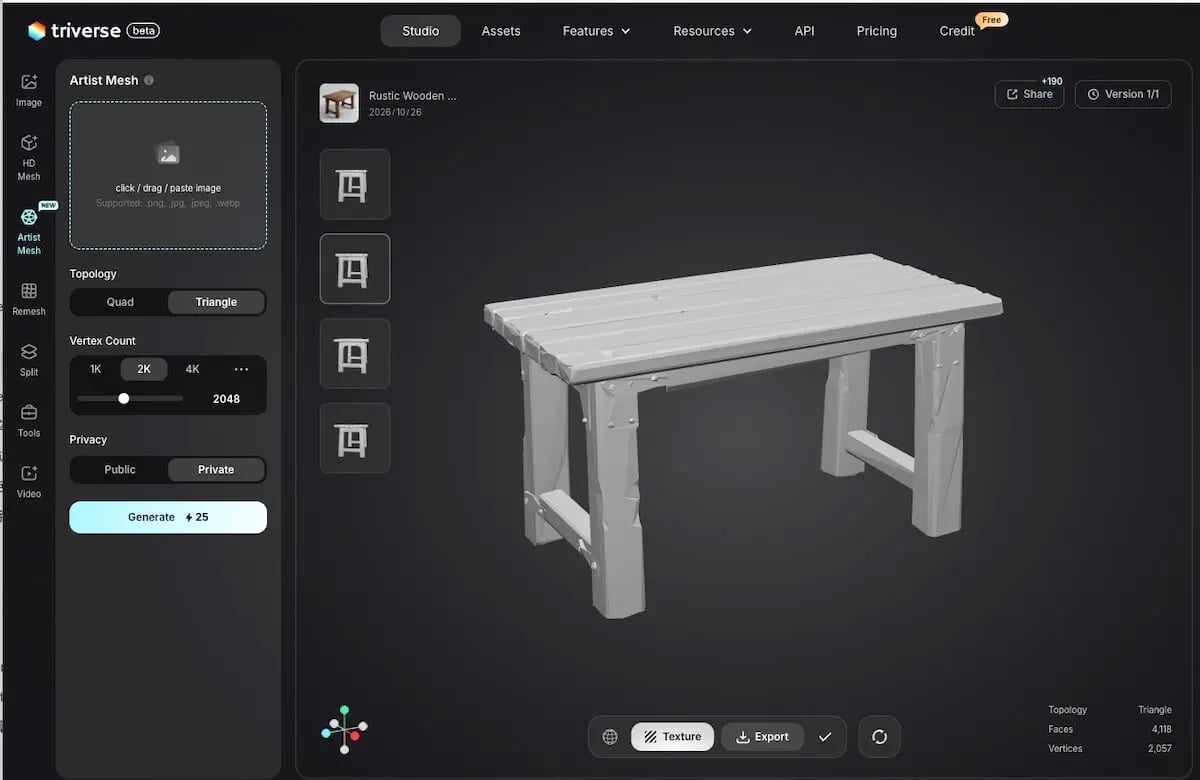
Artist Mesh generates four untextured model options. Compare their proportions with your design, then rotate them to inspect the back and underside. Look for structural problems such as missing legs, merged slats, or blocked openings before choosing which model to texture.
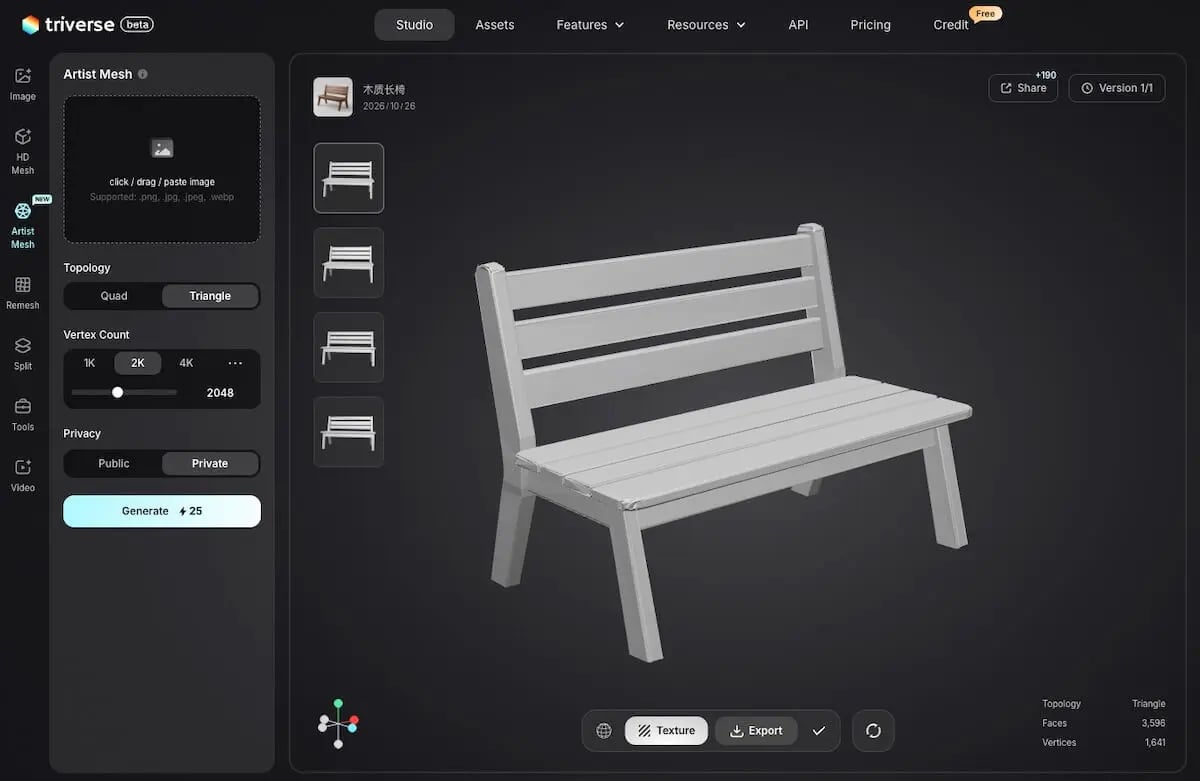
Once you've chosen a suitable mesh, select it in Triverse AI Studio and click Edit Texture to add its surface finish.
The Artist Mesh guide explains the controls in more detail.
💡 Keep tabletop decorations separate
Generate the furniture without tabletop decorations. That leaves you free to reuse the same table for a meal, a shop display, or a quest scene.
Create Furniture Texture Variants with AI Texturing
Change the finish to suit the game setting
Once you're happy with a furniture model's shape, use AI Texturing to explore different wood tones, paint colors, and amounts of wear. A new finish can change the furniture's character while keeping its geometry.
This is useful when building several locations from a small furniture library, or offering color choices in a home-decoration game. Warm wood can make a room feel welcoming; painted furniture can support a brighter style; faded surfaces and accumulated dirt can suggest age or neglect.
Generate a texture from text or a material reference
You can add the first texture to an Artist Mesh model or use the same workflow to change an existing finish.
- Select the model you want to texture in Triverse AI Studio, then click Edit Texture in the bottom toolbar.
- Choose Text input to describe the surface, or Image input to provide a material reference.
- Set the texture size and click Generate Texture.
Start at 2K, or 2048 × 2048 pixels, for ordinary furniture seen at a medium distance. A small background prop may only need 1K. A 4K map has four times as many pixels as a 2K map, so use it where close views benefit from the extra detail.
The AI Texturing guide covers both input methods.
Reuse a bench across different game scenes
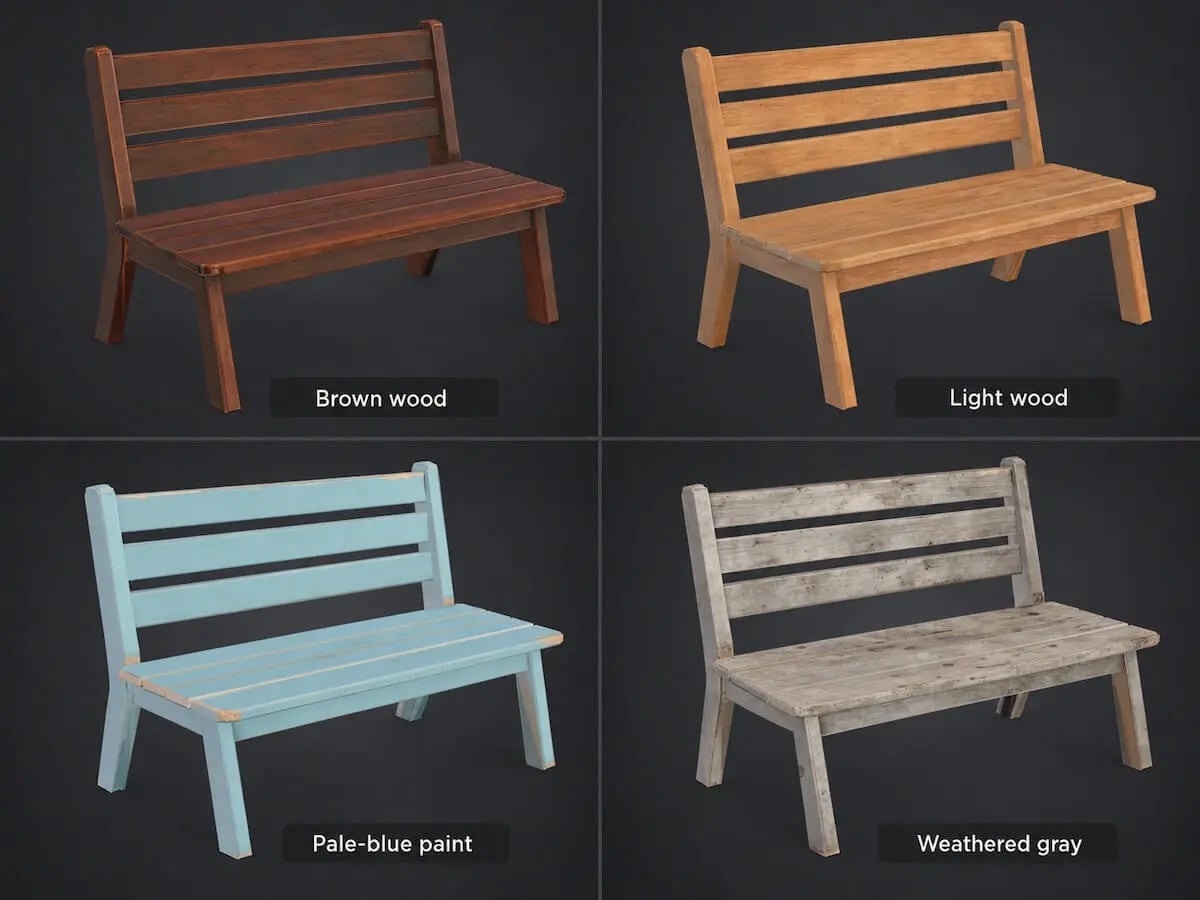
With AI Texturing, the same bench can fit several locations in your game. A painted finish suits a village garden, while weathered wood works outside an abandoned building. You can quickly try different looks on the existing model and keep the versions that suit each scene. Reusing a shape you've already checked reduces repeated mesh generation and geometry checks, leaving more time to build out the environment.
Pale-blue paint
Faded pale-blue paint over wood, matte finish, small worn patches along the edges revealing light timber.
Weathered gray wood
Weathered gray wood, faded grain, uneven discoloration and dark dirt around the plank seams.
Export the Table and Bench for Your Game Scene
Export and size the furniture for your scene
Export a representative piece before expanding the collection. FBX is a practical starting format for Unity or Unreal workflows; GLB works when the project already supports it. The model export guide covers the download step.
For an initial human-scale layout, try a table approximately 125 × 75 cm, with a 75 cm tabletop height, and a bench seat around 45 cm high. That gives a 30 cm difference between the seat and tabletop. Adjust these starting dimensions for the character, and set the bench length for the available space and intended seating.
Set the final sizes in the scene editor or Blender so the separately generated pieces fit together.
Review the furniture from the player's view
The gameplay camera tells you where the detail matters. In a top-down room, the tabletop and bench seat do most of the visual work. First-person views bring the table edges, wood grain, and bench backrest closer. If players can rotate and place the furniture, include the back and underside in that review.
Reuse finished furniture across the level
A row of identical benches can use one finished model placed several times in your scene editor. Keep a small selection of finishes for different rooms, and add new shapes when the layout calls for them. For a larger library, a procedural asset workflow can use placement rules to distribute those assets across the level.
The broader workflow for preparing generated game props covers optimization and engine setup.
📚 You might also like
- Food 3D Models for Games: Create a Consistent Set with AI — Create separate food props to dress the tavern table.
- Bodega Interior 3D Model: How to Source, Build, and Ship One for Games — Explore how furniture and other props fit into a modular shop interior.