3D Rock Models for Games: Build a Reusable Kit with AI
Learn how to generate 3D rock models for games with AI, create varied shapes and textures, and build a reusable asset kit for game environments.
One attractive boulder rarely makes a convincing rock kit. Reuse it across a hillside and the same notch or bright patch can become a landmark in every direction.
A useful collection of 3D rock models needs enough variety to fill a scene without looking repetitive. Triverse AI can help you generate those different forms, especially when you're building a stylized environment or working with limited modeling time. For a rock kit, the 3D prop generation workflow starts with choosing the shapes you need, preparing references that show them clearly, and generating a few pieces that work well together.
Plan a Small Rock Kit Before Generating
Start with the environment you're building. A rocky canyon, for example, might need three basic types of assets: broad boulders to anchor the terrain, tall slabs to break up the skyline, and smaller stones to fill gaps near the ground.
Each type serves a different purpose. A wide boulder can hide an awkward terrain junction, while an upright rock formation can create a recognizable shape along a ridge. The smaller pieces help connect those larger forms without drawing too much attention.
Keep the material direction consistent across the collection. For a stylized desert environment, you might choose warm sandstone, broad angular planes, and relatively simple surface details. The rocks can then vary in height, width, and overall shape while still looking like they belong in the same landscape.
You don't need a large library at the beginning. A handful of clearly different shapes gives you a better starting point than dozens of nearly identical boulders.
Choose or Prepare References for AI 3D Generation
The reference image has a considerable influence on the generated model. Before uploading one, check whether it communicates the rock's overall shape clearly.
A photograph of a single boulder is usually a good starting point when the whole outline and base are visible. Avoid distracting surroundings, deep shadows that hide major planes, and crops that cut off the rock. A clear, isolated rock image can go straight to Image to 3D.
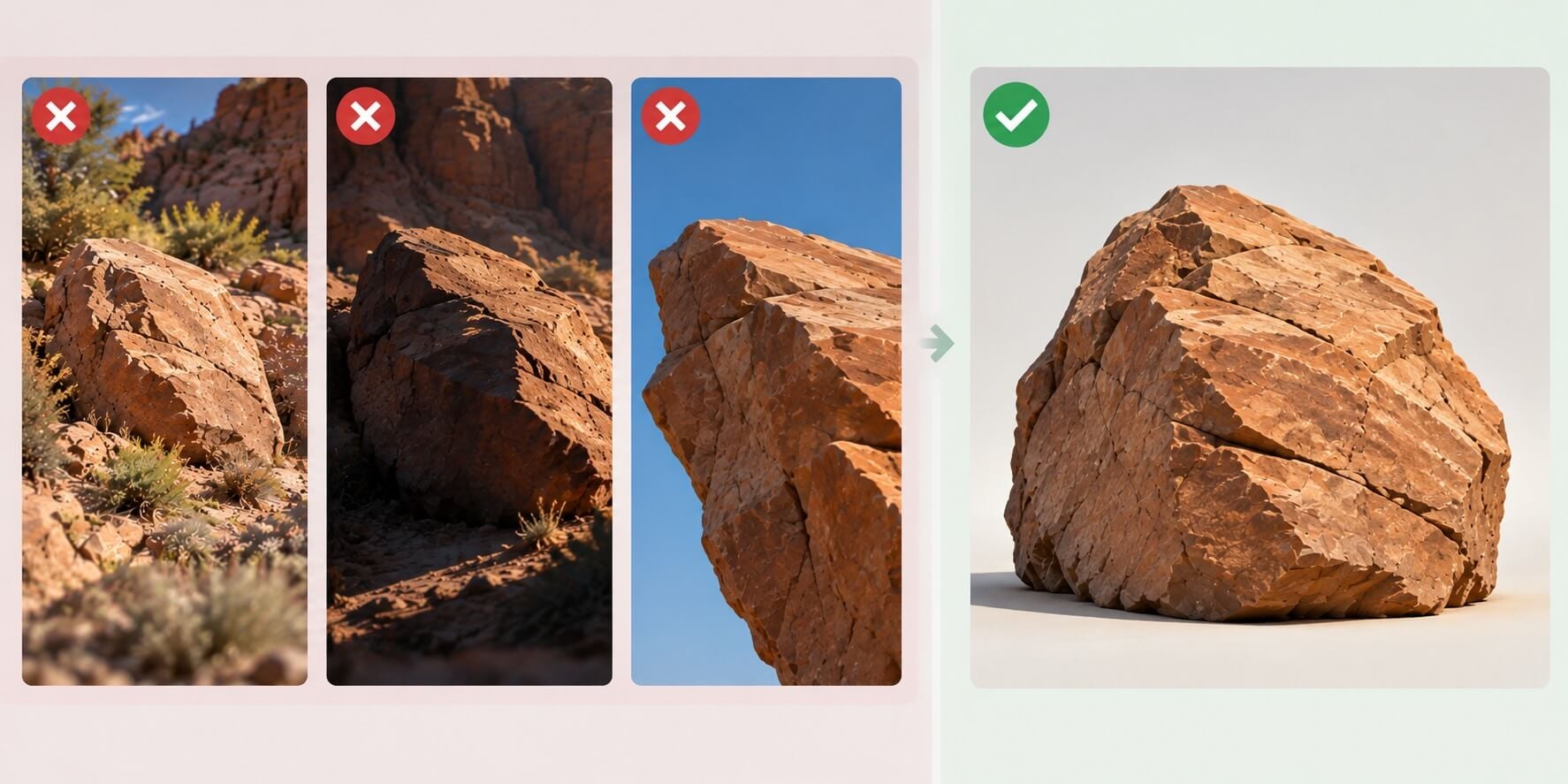
For a stylized rock, a clean concept drawing may work better than a photograph. You can control the proportions, simplify the surface details, and keep the angular shapes consistent with your game's art direction.
The preparation method depends on the image you already have.
When You Have a Flat Illustration
If a flat illustration has a clear silhouette but unclear volume, Triverse AI's 3D Enhance can add dimensional shading to the 2D reference. Compare it with the original and keep the angular planes your design needs; skip this step when the reference already reads clearly.
When Several Rocks Appear in One Image
For a concept sheet with clearly separated rocks, Triverse AI Split can help prepare individual references. Check each extracted rock before generating it. If heavy overlap hides the intended shape, make a new reference instead.
When You Don't Have a Reference
Use Text to Image to explore the design, select one clear reference, and pass it to Artist Mesh. That's the route illustrated below. Text to 3D is an alternative when you'd rather generate directly from a description; its separate Text to 3D workflow isn't the route shown in these screenshots.
Generate Your First 3D Rock Model with AI
Start with one of the larger pieces in your kit. Its proportions and surface treatment will help establish the direction for the smaller rocks.
For this example, we'll create a broad sandstone boulder intended for a stylized canyon environment.
Create the Base Shape
Open Triverse AI Studio and choose Image to use Text to Image. The prompt below is for Text to Image → select a reference → Artist Mesh. It matches the prompt visible in the Text to Image screenshot:
A single stylized sandstone boulder designed as a 3D game environment asset. Broad, low, chunky proportions with an asymmetric silhouette, a wide stable base, two large sloping top planes, and one chipped corner. Warm ochre and sandy brown stone colors, angular rock formations, clearly defined geometric planes, subtle natural cracks, and minimal surface noise. Stylized fantasy game art, clean 3D-rendered appearance, soft studio lighting with gentle shadows to reveal the rock's volume. Three-quarter view showing the front, top, and one side. Entire rock fully visible and centered, isolated on a plain light gray background. No ground, grass, plants, surrounding rocks, or additional objects. No text or labels.
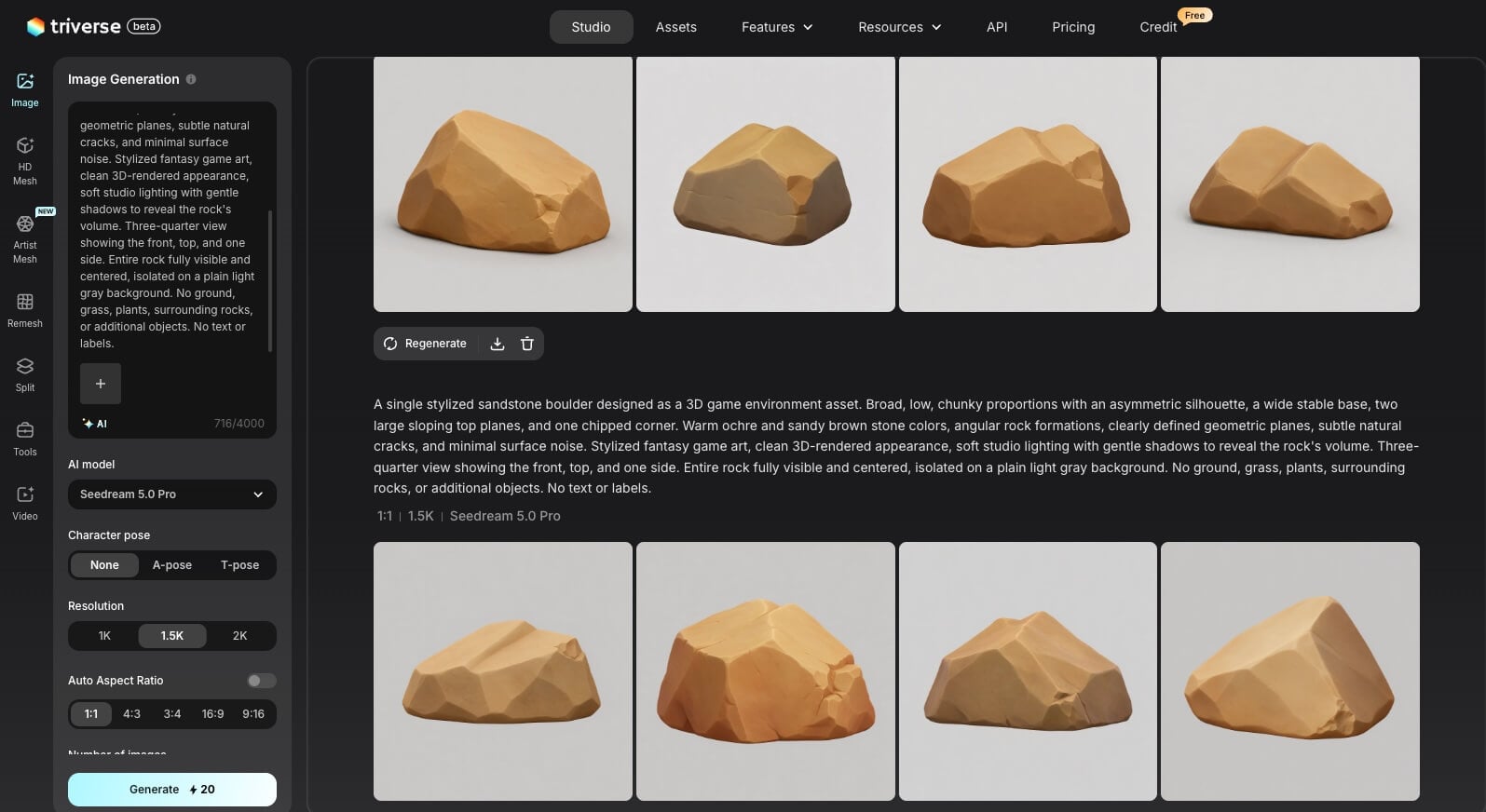
Choose a variation with a clear silhouette, readable top and side planes, and an unobscured base. Save that single image, then select Artist Mesh and upload it as the reference. The image's rendered appearance is still a 2D concept; Artist Mesh is the step that creates the mesh.
Choose the topology and vertex target, generate the mesh, and inspect its silhouette and actual model statistics before texturing. Check the exported triangle count separately against your project's budget.
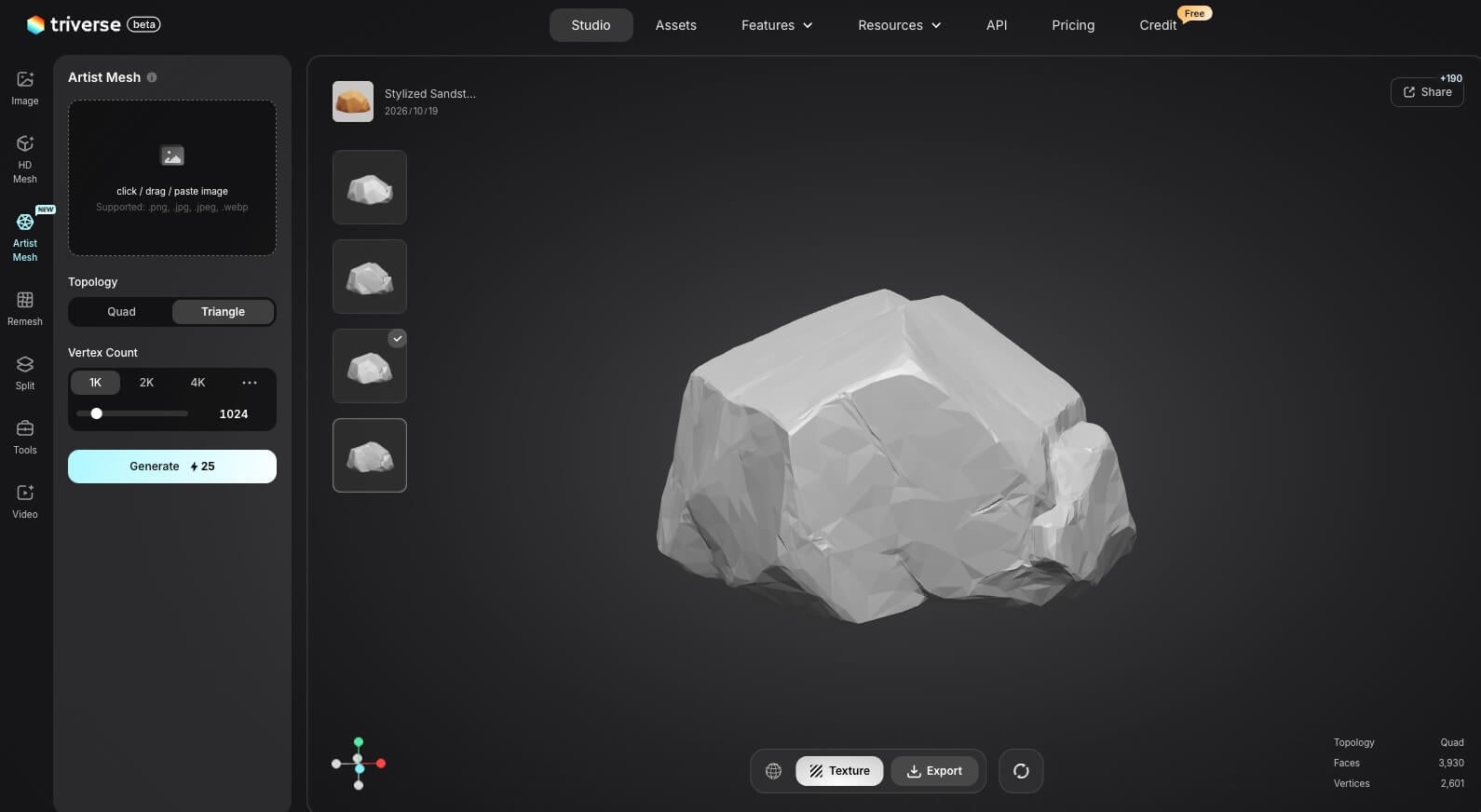
In the Artist Mesh screenshot, the left panel shows Triangle and a 1K target (1,024), while the loaded model reports Quad, 3,930 faces, and 2,601 vertices. These are separate visible UI states; the screenshot doesn't establish which settings generated that preview. The two screenshots illustrate the reference-design and mesh-review stages without identifying a specific concept thumbnail as the exact input for the displayed mesh.
Generate Different Shapes, Not Just Different Surfaces
The three assets shown here cover the planned roles: a broad boulder, a tall rock slab, and a small filler rock. They share warm sandstone colors and angular planes, but their proportions give each one a different use.
For a tall formation, change the reference to an upright slab with a broken top and long fractures. The narrow vertical shape breaks up a skyline more effectively than another broad boulder.
The filler shown here is a low, wedge-shaped rock with a sloping top. Keep it simple enough to sit around the larger pieces without competing with their silhouettes.
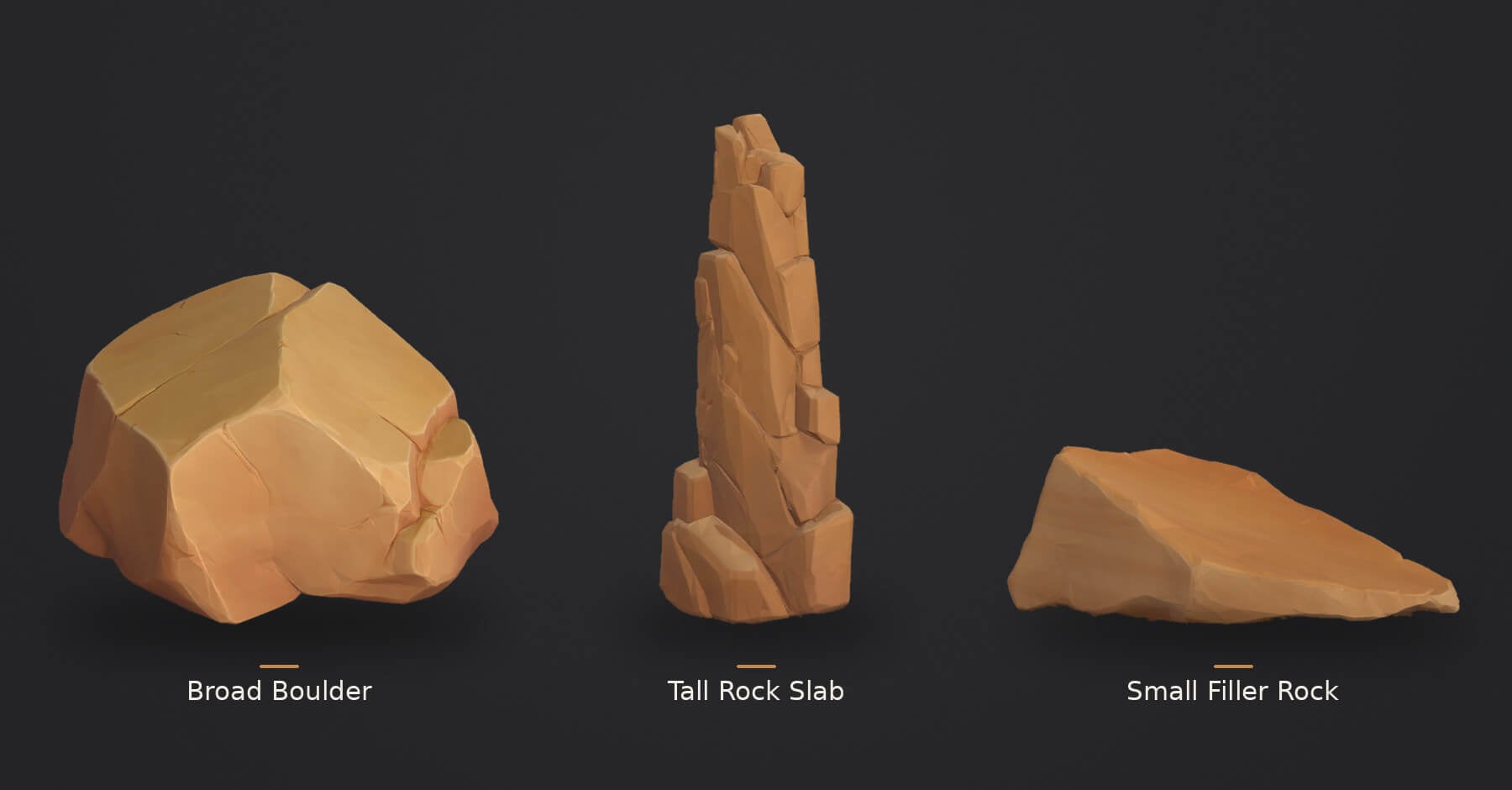
The composite brings together separate asset previews for a shape and style comparison; it doesn't show verified relative scale or a shared game scene. When extending the kit, keep the shared material direction while changing the outline. Two nearly identical silhouettes won't gain much variety from color changes alone.
Review the Generated Shapes
Rotate each model in the preview before adding it to your collection. Pay particular attention to the overall silhouette, the major planes, and any areas that were hidden in the original reference.
A rock may look convincing from the front but have an unnaturally flat back. That might be acceptable for an asset placed against a cliff, but less useful for a freestanding boulder that will be visible from several directions.
You can also compare the generated models at roughly the same scale. This makes it easier to see whether the kit includes genuinely different shapes or simply several variations of the same boulder.
Create Surface Variations with AI Texturing
Once you have a few distinct base meshes, you can add more variety through materials.
Triverse AI Texturing lets you generate new surface treatments for an existing model using a text description or reference image. This allows you to experiment with different appearances without generating another mesh from scratch.
The comparison below shows two material changes: the broad ochre boulder gains a darker, weathered sandstone surface, while the tall sandstone slab takes on a dark stone finish with green moss in its cracks and around parts of the base. The second treatment suits a different environment direction, so keep it as a separate variant if your main kit is a dry canyon.
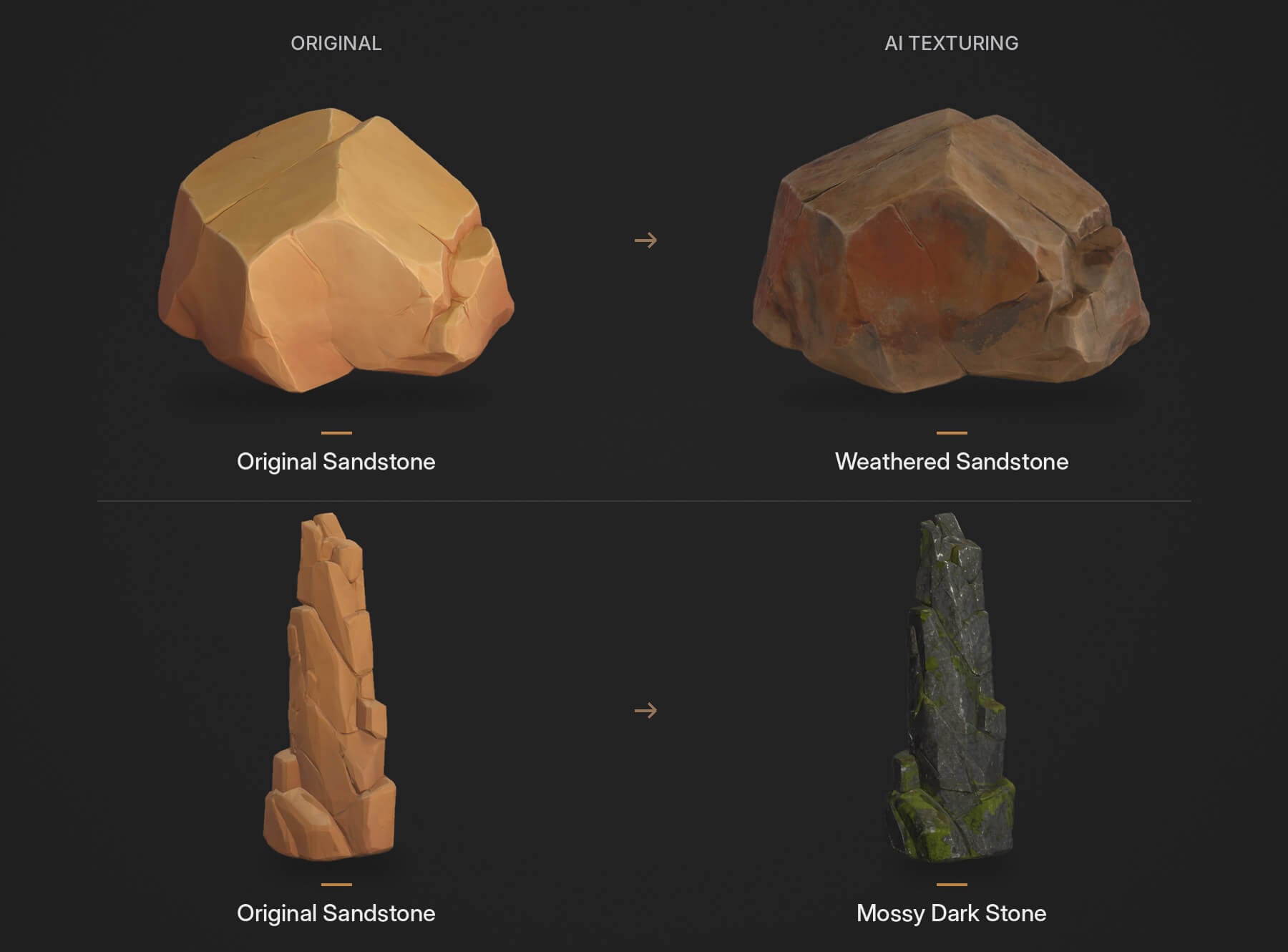
Use the composite to compare material direction. It isn't a controlled test of identical camera and lighting conditions, so don't attribute every shading difference to the texture alone.
Keep an eye on where those details appear. Moss distributed evenly across every face may look strange when the rock is rotated, especially if its intended placement puts the moss on surfaces exposed to direct sunlight.
Texture variation can make repeated assets less noticeable, but it won't change their underlying shapes. Use different base meshes for prominent silhouettes, then rely on materials, rotation, and moderate scale changes for secondary variation.
The result is a more flexible collection without having to generate a completely new 3D model for every placement.
Assemble and Test Your Rock Kit in a Game Scene
Start with FBX when taking the selected models into Blender, Unity, or Unreal Engine. Triverse AI's export guide lists the available formats. Confirm the imported scale and material assignments before arranging the kit.
Try the rocks together in a small section of terrain before expanding the library. Place a few large pieces first, then use the smaller stones to fill transitions around them. If a rock is partly buried, inspect its contact with the ground from the player's view; a visible cut edge or dark texture band may need a placement adjustment or local cleanup.
This quick test can reveal whether your kit needs another shape. If every rock looks too round, for example, adding a tall, angular slab may improve the scene more than generating several new textures.
Look for obvious geometry problems and make sure the assets are suitable for the scene's performance budget. Distant rocks may need lower-detail versions, while accessible ones may require appropriate collision geometry.
Save a small arrangement that works well as a reference for future additions. When the level needs another asset, you can generate a new shape to fill a specific gap instead of building an unnecessarily large collection. For a larger environment, the procedural asset workflow explains how a small mesh library can feed a rule-based placement system.