Video Generation
29. Oktober 2026Bring your concepts to life. Triverse allows you to generate cinematic video clips from scratch using text, or animate your existing images with precise keyframe control. Perfect for game trailers, cutscene mockups, or social media teasers.
Image to Video (Keyframe Control)
Animate your concept art or control the exact flow of the video using start and end frames.
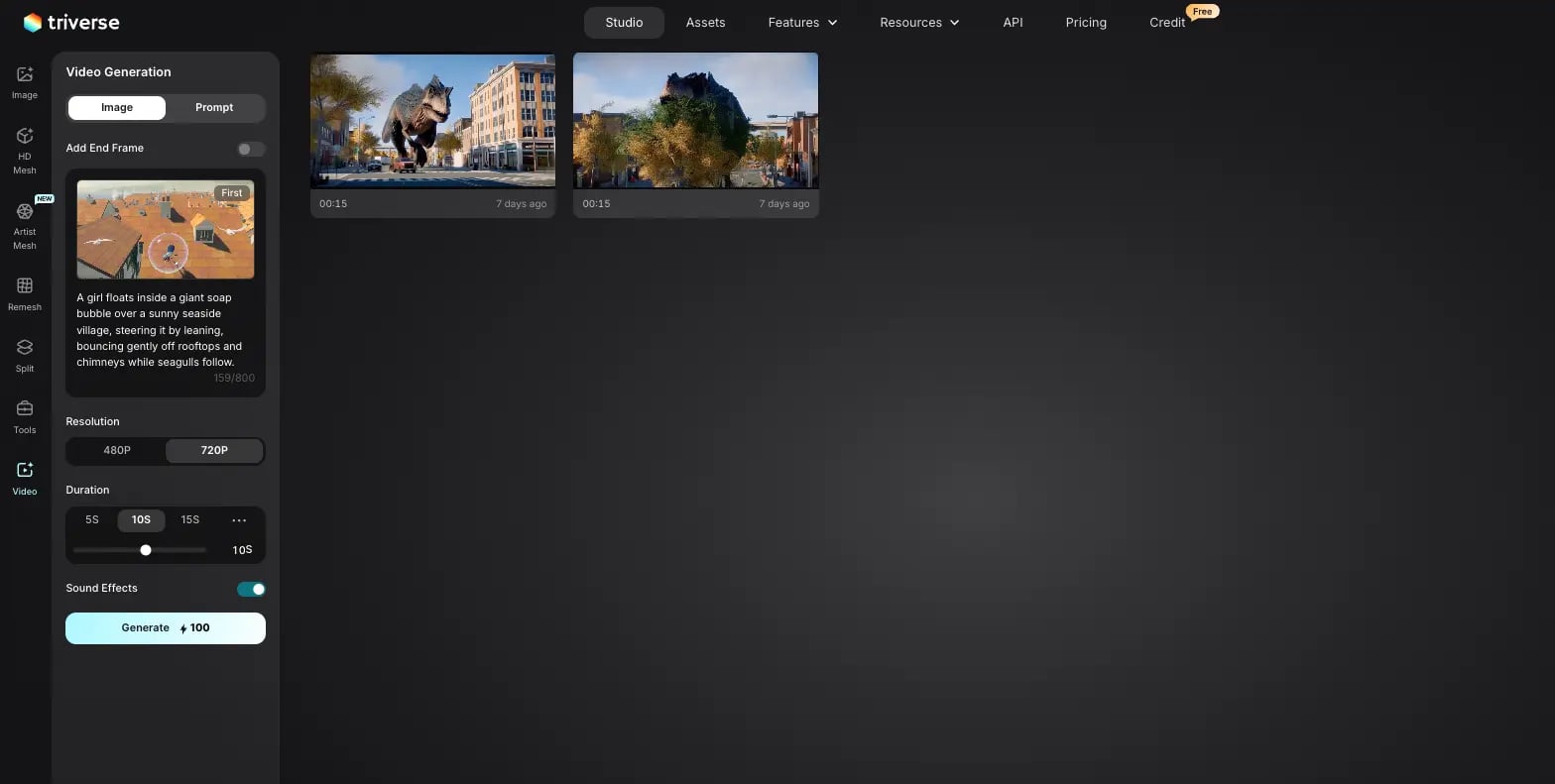
- Go to Triverse Studio, then click the Video icon on the far-left menu, and select the Image tab.
- Upload a Start Frame: Upload the image you want the video to begin with.
- (Optional) Add End Frame: Toggle Add End Frame ON and upload your final image. Triverse will seamlessly animate the transition between your start and end images!
- Add a Prompt: Write a short description to guide the action happening between the frames (e.g., "A Gundam appears and intervenes to stop the T-Rex...").
Text to Video
Don't have an image? Just describe the scene.
- Change to the Prompt tab.
- Type your scene: Be descriptive. Tell the AI what is happening, the camera movement, and the environment (e.g., "A girl floats inside a giant soap bubble over a sunny seaside village, camera panning slowly...").
Configure Your Settings
Fine-tune your video output before generating:
- Resolution: Choose 480P for rapid prototyping, or 720P for high-definition final renders.
- Aspect Ratio: Choose the right format for your platform (e.g., 16:9 for PC/YouTube, 9:16 for TikTok/Shorts).
- Duration: Use the slider or quick buttons to set the video length to 5s, 10s, or 15s.
- Sound Effects: Toggle this ON. Triverse will automatically generate contextual audio (like footsteps, wind, or sci-fi hums) perfectly synced to your video's action!
Generate & Download
Click Generate (The longer the video or the higher its resolution, the more credits are required). Once processing is complete, your video will appear in the gallery. Click the video to preview it, and hit the download button to save the .mp4 file directly to your device.
💡 Tips for Best Cinematic Results
- Use Camera Directives: Add terms like "slow motion," "drone shot," "zoom in," or "cinematic pan" to your text prompts to control the camera movement.
- Keep Frames Consistent: When using the "Add End Frame" feature, ensure both your start and end images share the same aspect ratio for a smooth, glitch-free transition.
🎬 Ready to direct your first AI scene?
Stop imagining and start animating. Jump straight into the Studio and bring your concepts to life in seconds!